
Digital photos are precious. They capture moments that can’t be recreated—birthdays, sunsets, quiet mornings with coffee. But over time, they accumulate: hundreds on your phone, thousands scattered across laptops, tablets, and cloud accounts. Without a system, photo libraries become overwhelming, disorganized, and difficult to enjoy. The result? You stop looking at them altogether.
Decluttering digital photos isn’t just about freeing up storage space. It’s about reclaiming access to your memories. A clean, organized photo library means you can find what you’re looking for in seconds, not hours. More importantly, it ensures your most meaningful images are preserved, backed up, and protected from accidental loss.
The challenge is that photos live in multiple places: your smartphone, tablet, laptop, desktop, and various cloud services like Google Photos, iCloud, or Dropbox. Each device may have different versions of the same image, duplicates, blurry shots, or forgotten screenshots buried among gems. Tackling this ecosystem requires strategy, not just effort.
This guide walks through a proven method to consolidate, clean, and organize your digital photos across all devices—without losing anything important.
Create a Unified Inventory of All Photo Locations
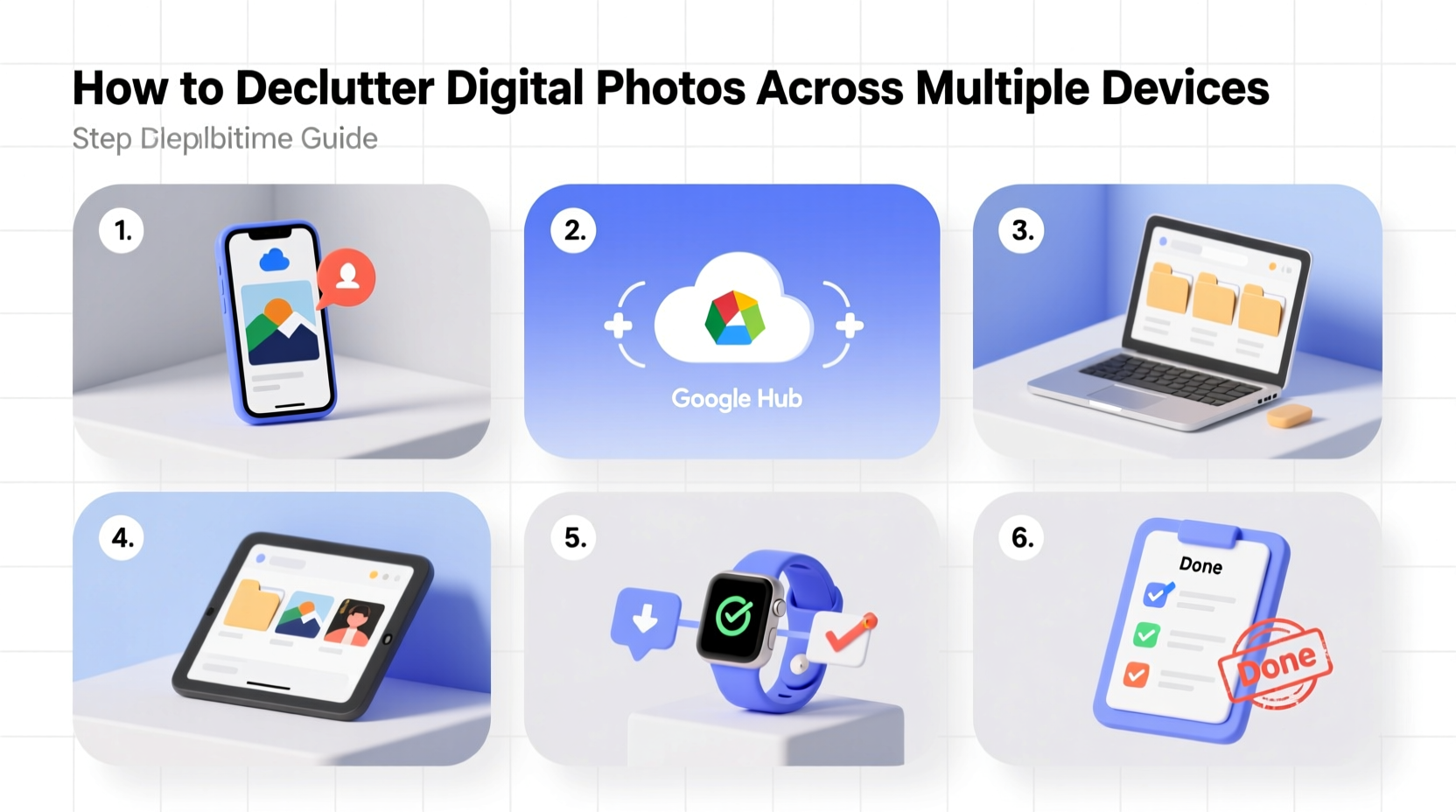
Before deleting or organizing anything, you need visibility. Most people don’t realize how many locations their photos actually occupy. Start by listing every place where photos might be stored:
- Smartphone (iOS or Android)
- Tablet
- Laptop and/or desktop computer(s)
- External hard drives or USB sticks
- Cloud services: iCloud, Google Photos, OneDrive, Dropbox, Amazon Photos
- Email attachments or messaging apps (WhatsApp, iMessage)
Once listed, connect each device and log into each account. Use this time to check sync settings. Are photos automatically uploading? Are some devices out of date? Make note of which services are active and whether backups are current.
Establish a Centralized Backup System
You cannot effectively declutter without a reliable backup. The golden rule: never delete a photo until it exists safely in at least two locations (the “3-2-1” backup rule). That means one primary copy, one backup, and ideally one offsite copy.
Choose a central hub for your master photo library. For most users, this is either a dedicated folder on a computer or a cloud-based service like Google Photos or iCloud. Whichever you choose, ensure it supports full-resolution storage and version history.
“People think cloud storage means safety. But if you only store photos in one place—even the cloud—you're at risk. Hard drives fail. Accounts get hacked. Photos vanish.” — David Lin, Digital Archivist and Founder of PreserveMyPhotos.org
Here’s how to set up a secure foundation:
- Select your primary storage (e.g., Google Photos with “Original Quality” enabled).
- Enable automatic backup on all mobile devices.
- On computers, use built-in tools (iCloud Drive, Google Backup & Sync) to mirror photo folders.
- Designate an external hard drive for local backup and update it monthly.
Wait until all devices show synced status before proceeding. This ensures no photos are left behind during the cleanup phase.
Follow a Step-by-Step Decluttering Process
With everything backed up, begin the actual cleanup. Work systematically—not emotionally. Set aside dedicated time blocks (1–2 hours per session) to avoid burnout.
Step 1: Eliminate Obvious Junk
Start with low-hanging fruit. Delete:
- Screenshots unrelated to memories (error messages, app instructions)
- Multiple near-identical shots (burst mode, failed attempts)
- Blurred, dark, or poorly framed images
- Duplicate files (same image saved in multiple folders)
- Scanned documents or receipts (move these to a separate documents folder)
Step 2: Group Photos by Date and Event
Use your photo app’s timeline view or file explorer to sort by date. Look for clusters that represent specific events: vacations, holidays, family gatherings. Create high-level folders such as:
- 2023 – Family Reunion
- 2022 – Italy Trip
- 2021 – Graduation
Move relevant photos into these folders. Don’t worry about perfection—this is about creating structure.
Step 3: Review and Refine
Open each event folder and review every image. Ask yourself:
- Does this photo spark joy or meaning?
- Is someone important in the frame?
- Would I want to print or share this?
If not, remove it. Be ruthless but thoughtful. This is curation, not destruction.
Step 4: Standardize Naming and Metadata
Once curated, rename key folders consistently. Use the format: YYYY-MM-DD – [Event Name]. For example:
- 2023-07-04 – Independence Day BBQ
- 2023-05-12 – Maya's Birthday Party
If using desktop software like Adobe Bridge or Apple Photos, consider adding metadata tags (people, location, keywords) for advanced searchability.
Step 5: Sync and Verify Across Devices
After cleaning one device, allow time for changes to sync across cloud services. Then repeat the process on the next device, always checking against your master library to avoid reintroducing deleted items.
Do’s and Don’ts of Digital Photo Management
| Do | Don’t |
|---|---|
| Back up photos before deleting anything. | Delete directly from your phone without verifying cloud sync. |
| Use consistent folder naming conventions. | Rename files with vague labels like “New Folder” or “Vacation 1.” |
| Review duplicates with tools like Gemini Photos or Duplicate Cleaner. | Assume all duplicates are safe to delete—check manually. |
| Store original-quality versions long-term. | Rely solely on compressed or “storage saver” modes for archival. |
| Update backups quarterly. | Wait years between checks and assume everything is fine. |
Real Example: How Sarah Reclaimed Her Photo Library
Sarah, a mother of two from Portland, had over 18,000 photos spread across her iPhone, old MacBook, and Google account. She hadn’t looked at most of them in years. After her daughter asked to see baby pictures, she realized she couldn’t find them.
She began by connecting her phone to Wi-Fi and enabling Google Photos backup. It took three days to upload 12,000 images. Once complete, she reviewed her timeline and created folders for each year of her children’s lives. She deleted 6,000 low-value images—screenshots, food pics, blurry action shots.
Next, she exported the remaining 12,000 high-quality photos to an external drive labeled “Family Archive.” She now reviews and backs up every January. Today, she shares curated albums with grandparents and prints annual photo books.
“It felt overwhelming at first,” she said. “But once I started, it became therapeutic. Now I actually enjoy scrolling through our life.”
Essential Tools and Checklist
Use these tools and steps to streamline the process:
Recommended Tools
- Google Photos: Free tier with smart organization; pay for original quality storage via Google One.
- iCloud Photos: Seamless for Apple users; enables syncing across iPhone, iPad, Mac.
- Gemini Photos (iOS): Finds duplicates and similar images.
- Duplicate Cleaner (Windows): Scans for exact and near-duplicate files.
- Adobe Bridge or Lightroom: For advanced users managing large libraries.
Decluttering Checklist
- ✅ List all devices and cloud accounts storing photos
- ✅ Enable automatic backup on all devices
- ✅ Wait for full sync to complete
- ✅ Connect external drive for local backup
- ✅ Delete junk files (screenshots, duplicates, blurs)
- ✅ Organize remaining photos by date/event
- ✅ Rename folders using YYYY-MM-DD format
- ✅ Verify final library exists in two locations
- ✅ Schedule next review (e.g., 6 months)
Frequently Asked Questions
How do I know which photos to keep?
Focus on emotional value and clarity. Keep images that tell a story, feature loved ones, or capture unique moments. If you wouldn’t want to print it or show someone, consider letting it go.
Can I delete photos from my phone after backing them up?
Yes—but only after confirming the backup is complete and accessible. Check your cloud service to verify the photos appear in full resolution. Wait 24–48 hours after deletion to ensure no sync errors occur.
What’s the best way to preserve old photos from past phones?
Transfer them to your current system. Use a USB cable, cloud upload, or SD card reader. Once imported, follow the same decluttering steps. Treat them like any other batch—review, curate, back up, and integrate into your main library.
Make Photo Care a Habit, Not a Chore
Decluttering digital photos isn’t a one-time fix. It’s maintenance. Just as you tidy your home regularly, schedule seasonal reviews—after holidays, birthdays, or trips. Spend 30 minutes monthly uploading and pruning new additions.
A well-curated photo library grows slower but means more. Instead of drowning in clutter, you’ll have a living archive of your life. These aren’t just files—they’re heirlooms in digital form.
Start today. Pick one device. Back it up. Delete ten unnecessary photos. Small actions compound. In a few weeks, you won’t just have less clutter—you’ll have better access to what matters most.




 浙公网安备
33010002000092号
浙公网安备
33010002000092号 浙B2-20120091-4
Comments
No comments yet. Why don't you start the discussion?