
Digital photos are precious—they capture moments, emotions, and milestones. But over time, our iPhone albums and cloud storage accounts become cluttered with duplicates, blurry shots, screenshots, and forgotten folders. What starts as a collection of memories turns into digital chaos. The good news? With the right strategy, you can reclaim control, free up space, and organize your visual history in a way that’s both meaningful and efficient. This guide walks you through a proven method to streamline your photo library across iPhone and Google Drive—without losing what matters.
Why Digital Photo Clutter Matters
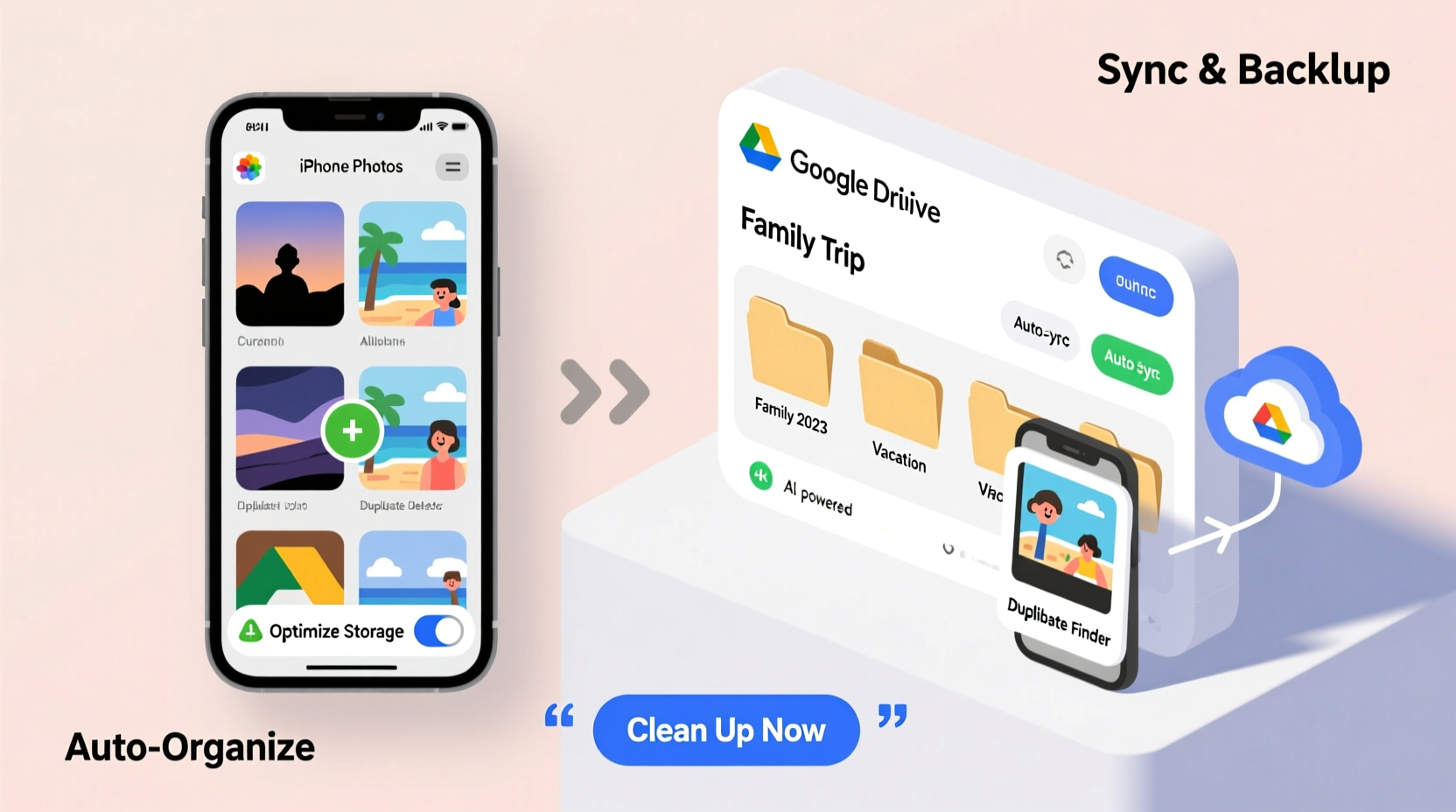
It’s easy to ignore the growing number of photos until your iPhone warns you that storage is full or Google Drive hits its limit. But beyond storage issues, unorganized photos make it harder to find specific memories when you need them. A 2023 study by the International Journal of Human-Computer Interaction found that users who maintain organized digital media report higher levels of digital well-being and reduced stress related to device performance.
Moreover, disorganized libraries increase the risk of accidental deletion or data loss. When everything looks the same—hundreds of nearly identical sunset shots or event photos—it's tempting to delete in bulk, risking the loss of irreplaceable images.
“Digital clutter isn’t just about space—it’s about mental load. An organized photo library reduces decision fatigue and helps preserve emotional value.” — Dr. Lena Torres, Digital Psychology Researcher, University of Michigan
Step-by-Step Guide to Declutter Photos on iPhone
Your iPhone is likely where most of your photos originate. It’s also where clutter begins. Follow this timeline-based process to clean your library without overwhelm.
- Set aside dedicated time (start with 60–90 minutes): Choose a quiet time when you won’t be interrupted. Break larger libraries into weekly sessions.
- Enable iCloud Photos (if not already): Go to Settings > [Your Name] > iCloud > Photos and turn on “Sync This iPhone.” This ensures changes reflect across devices and prepares for Google Drive sync.
- Review Recently Deleted album: Open the Photos app, go to Albums > Recently Deleted. Delete anything older than 30 days permanently to free up immediate space.
- Use built-in tools: Duplicate Detection and Hidden Album: iOS now flags duplicates in some cases. Also, check the “Hidden” album—many users forget photos they’ve hidden during past edits.
- Sort by date and location: In the Photos app, tap “Years,” then drill down to “Months” and “Days.” Focus on one day at a time. Ask: Does this photo add value? Is it a clear, meaningful shot?
- Delete ruthlessly but thoughtfully: Remove blurry images, duplicate angles, receipts, and redundant screenshots. Keep only the best version of similar shots.
- Create curated albums: After deletion, build themed albums like “Family Trips 2023,” “Pet Memories,” or “Home Renovation.” This makes future access easier.
Syncing and Organizing in Google Drive
Google Drive offers robust backup, but it often becomes a dumping ground. If you use Google Photos (which integrates with Drive), ensure your sync settings align with your decluttering goals.
First, confirm that Google Photos is set to back up your iPhone library. Open the Google Photos app, sign in, and enable backup & sync. Your photos will appear in Google Drive under “Google Photos” unless saved manually elsewhere.
For manual organization, create a structured folder system:
- Main Folder: “Personal Photos”
- Subfolders: “By Year” (e.g., 2023, 2024)
- Sub-subfolders: “Events,” “Travel,” “Family,” “Documents”
Move files from the auto-synced Google Photos folder into your custom structure. This gives you granular control and avoids reliance on algorithmic sorting.
Avoid These Common Google Drive Mistakes
| Mistake | Why It’s Problematic | Better Approach |
|---|---|---|
| Storing all photos in root folder | Hard to search, easy to lose files | Use nested folders by year and category |
| Duplicate uploads from multiple devices | Wastes space, creates confusion | Designate one primary upload device |
| Not renaming files | Files like IMG_1234.jpg are unsearchable | Rename key photos descriptively (e.g., “Beach-Wedding-Sarah-Mark.jpg”) |
| Ignoring file formats | HEIC (iPhone) may not open on all devices | Convert HEIC to JPEG before sharing externally |
Smart Strategies for Long-Term Maintenance
Decluttering once isn’t enough. Without habits, clutter returns within months. Build sustainability into your routine with these practices.
Monthly Photo Review Ritual
Set a recurring calendar event: “Photo Cleanup – Last Sunday of the Month.” Spend 20–30 minutes reviewing new additions, deleting low-quality shots, and organizing recent uploads.
Use Smart Filters and Search
Both iPhone and Google Drive support advanced search. On iPhone, type keywords like “dog,” “beach,” or “food” in the Photos search bar. In Google Drive, use operators like:
type:photo after:2023-01-01filename:\"birthday\" folder:\"Personal Photos\"
This helps locate and manage files without scrolling endlessly.
Automate Where Possible
Use Shortcuts on iPhone to automate repetitive tasks. For example, create a shortcut that:
- Finds all screenshots from the last week
- Asks if you want to keep them
- Deletes or moves them to a “Screenshots Archive” folder in Google Drive
In Google Drive, use Google Workspace scripts or third-party tools like Hazel (via webhooks) to auto-sort files based on rules.
Mini Case Study: Recovering 12GB in One Weekend
Sophie, a freelance designer from Portland, noticed her iPhone storage was at 98%. She couldn’t download apps or take new photos. Over a weekend, she followed the steps outlined here.
She started by reviewing her “Recently Deleted” album and cleared 1.2GB of old files. Then, she went through her 2023 travel photos—three trips with over 800 images. By keeping only the best 2–3 shots per location and deleting duplicates, she reduced that set from 2.8GB to 650MB.
Next, she tackled screenshots—over 400 saved over two years. She kept only those with important information (receipts, login details) and moved them to a labeled folder in Google Drive. The rest were deleted.
Finally, she created a “Highlights” album in Google Photos and archived the rest. Total space recovered: 12.4GB. More importantly, she could now find her daughter’s birthday photos in seconds.
Essential Checklist for Efficient Decluttering
Use this checklist to stay on track during your cleanup session:
- ✅ Back up all photos to iCloud and Google Photos before starting
- ✅ Clear the “Recently Deleted” album on iPhone
- ✅ Identify and delete blurry, duplicate, or irrelevant photos
- ✅ Organize remaining photos into thematic albums or folders
- ✅ Rename critical files for easier search (e.g., “Graduation-John-2024.jpg”)
- ✅ Set up monthly review reminder
- ✅ Test access: Can you find a specific photo (e.g., “last Christmas dinner”) in under 30 seconds?
FAQ: Common Questions About Digital Photo Organization
Should I keep original photos in both iPhone and Google Drive?
Yes—but strategically. Keep originals synced via iCloud for Apple ecosystem access and in Google Drive for cross-platform backup. However, avoid storing extra copies manually unless needed for collaboration or legacy reasons.
What’s the best format for long-term photo storage?
For maximum compatibility, convert HEIC (iPhone default) to JPEG for shared or archived files. For highest quality and smaller size, use HEIF/HEIC if you’re staying within Apple devices. Avoid BMP or TIFF for casual storage due to large file sizes.
How do I handle photos with sensitive content?
Use Google Drive’s “Restricted” sharing settings or enable iPhone’s “Hidden” album with Face ID protection. For highly sensitive material, consider encrypted cloud services like Tresorit or locally stored external drives.
Final Thoughts: Turn Chaos into Clarity
Decluttering digital photos isn’t just a technical task—it’s an act of preservation. Every photo you keep should earn its place. By applying consistent filters, using smart tools, and building simple routines, you transform a bloated library into a curated archive of your life’s best moments.
The process doesn’t have to be perfect. Start small: clean one month, one trip, or one category. Progress compounds. Before long, you’ll navigate your memories with ease, your devices will run faster, and you’ll feel more in control of your digital life.




 浙公网安备
33010002000092号
浙公网安备
33010002000092号 浙B2-20120091-4
Comments
No comments yet. Why don't you start the discussion?