
A cluttered digital desktop may seem harmless—after all, it’s just files on a screen. But over time, an overloaded workspace becomes more than an eyesore; it slows down your computer, distracts your focus, and adds to mental fatigue. Unlike physical clutter, digital mess is often invisible until it starts impacting productivity. The good news: with intentional organization, you can transform your desktop into a streamlined command center that supports clarity, speed, and peace of mind.
Digital clutter accumulates quickly. A downloaded PDF here, a project file there, screenshots from meetings—before you know it, icons are overlapping, folders blend together, and finding anything takes longer than doing the task itself. Studies show that visual clutter competes for attention, increasing cognitive load and reducing concentration. Cleaning up your desktop isn’t just about aesthetics—it’s a foundational step toward a more efficient digital life.
The Hidden Cost of a Cluttered Desktop
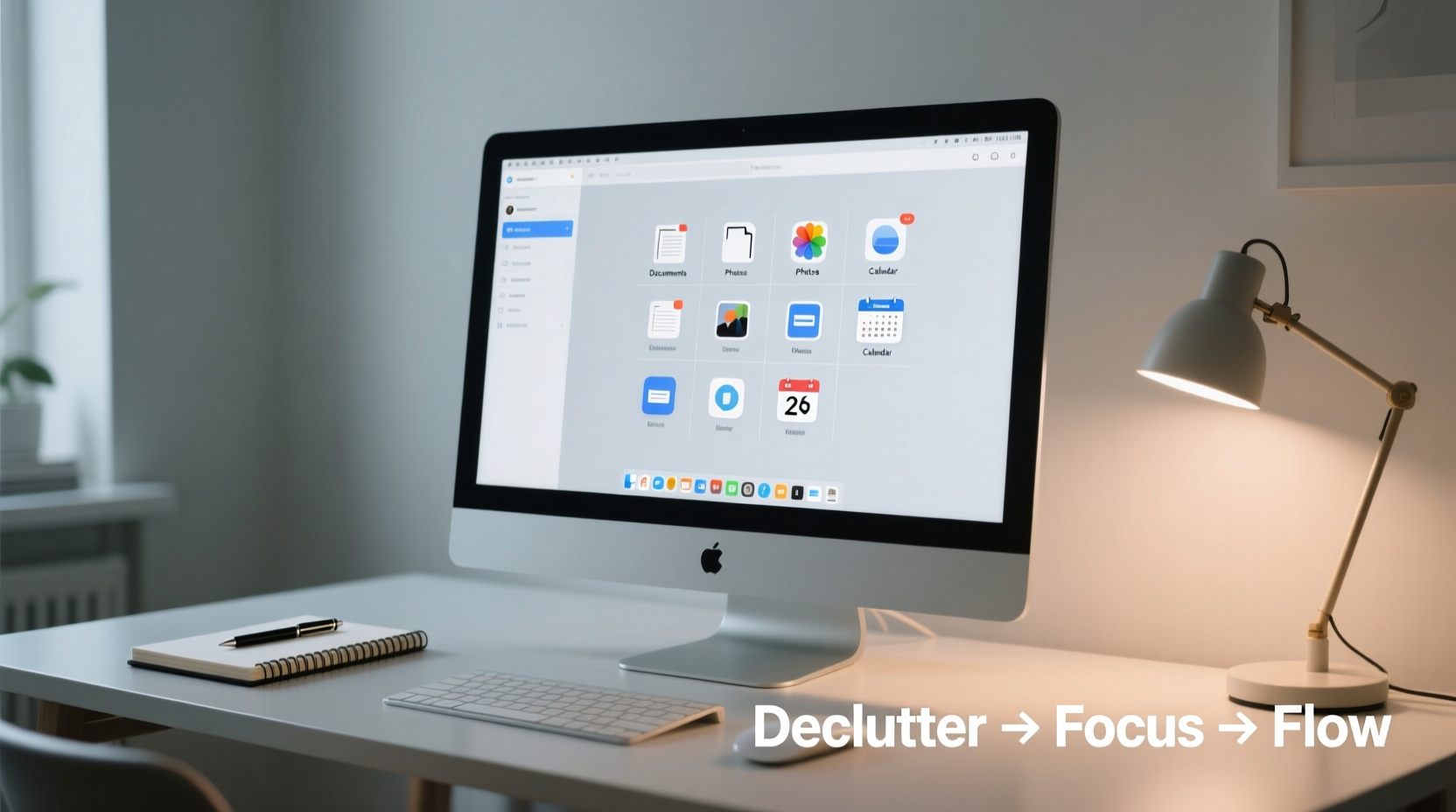
Your desktop is one of the first things you see when logging in. If it's disorganized, it sets a chaotic tone for the day. Beyond psychological effects, there are tangible performance impacts. Operating systems like Windows and macOS render every icon and thumbnail on startup, which means hundreds of files can delay boot times and consume system resources unnecessarily.
Moreover, clutter leads to decision fatigue. Every time you open your computer, your brain subconsciously registers the disorder. Even if you don’t act on it immediately, this background noise contributes to low-grade stress. Researchers at Princeton University found that physical (and by extension, digital) clutter limits your ability to process information and focus on tasks.
“Digital clutter has a real cognitive cost. Just like a messy desk, a crowded desktop forces your brain to filter out irrelevant stimuli, draining mental energy.” — Dr. Linda Ray, Productivity Psychologist
When files lack clear names or logical grouping, you waste time searching instead of working. One study estimated that knowledge workers spend nearly 50 minutes per week just looking for misplaced files. That’s four full days lost each year.
Step-by-Step Guide to a Clean Digital Workspace
Decluttering doesn’t have to be overwhelming. Follow this six-step process to reset your desktop efficiently and sustainably.
- Pause new additions. For the next 48 hours, redirect all downloads and saved files to a temporary folder (e.g., “To Sort”) rather than letting them land directly on the desktop.
- Back up everything. Before deleting or moving anything, ensure your data is safe. Use cloud storage (Google Drive, Dropbox, iCloud) or an external hard drive to create a full backup.
- Sort by type and date. Right-click on your desktop, choose “Sort by,” and cycle through options like file type, modification date, or size. This reveals patterns—such as old screenshots or duplicate downloads—that are easy to remove.
- Delete ruthlessly. Remove outdated files, duplicates, broken shortcuts, and anything you no longer need. If you haven’t opened it in six months and can’t recall its purpose, delete it.
- Create core folders. Establish a small set of high-level folders such as: Projects, References, Admin, Archive, and In Progress. Move relevant files into these categories.
- Set up a maintenance routine. Schedule a 10-minute weekly cleanup session every Friday afternoon to review, reorganize, and archive completed work.
This methodical approach prevents burnout and ensures long-term sustainability. The goal isn’t perfection—it’s functionality.
Smart Folder Structure & Naming Conventions
Once files are off your desktop, where should they go? A well-designed folder hierarchy makes retrieval intuitive. Avoid nesting too deeply—three levels deep is usually sufficient (e.g., Projects > 2024 > Q3 Campaign).
Equally important is consistent naming. Use descriptive, date-prefixed titles so files sort chronologically and reveal context at a glance. Instead of “Final_v2.docx,” use “2024-07-15_ClientProposal_Draft3.docx.” This eliminates confusion when multiple versions exist.
| Poor Naming | Better Naming | Why It Works |
|---|---|---|
| Report.docx | 2024-06-20_SalesReport_Q2.pdf | Includes date, topic, and period for instant recognition |
| New Folder (1) | ClientOnboarding_Checklists | Clear purpose, no ambiguity |
| Screenshot.png | 2024-07-10_UIFeedback_LoginFlow.png | Contextualizes when and why the screenshot was taken |
Apply these standards across all directories—not just those linked from the desktop. Consistency reduces friction every time you save or search for something.
Real Example: From Chaos to Control
Consider Sarah, a freelance graphic designer who worked from home. Her desktop had over 300 items: client drafts, font files, invoices, stock images, and years of unsorted screenshots. Launching her design software took minutes due to background rendering. She frequently missed deadlines because she couldn’t locate final deliverables.
Over a single weekend, she followed the step-by-step guide above. She backed up her data, deleted 180 obsolete files, and created five main folders synced to her cloud storage. She renamed key files using the YYYY-MM-DD_ProjectName_Version format and moved everything off the desktop except two active project shortcuts.
Within a week, Sarah reported faster boot times, fewer errors during file exports, and improved client communication due to reliable file access. More importantly, she felt calmer starting her workday. “It’s like I cleared space in my head,” she said. “I’m not constantly searching anymore.”
Do’s and Don’ts of Digital Organization
To reinforce healthy habits, follow this simple framework:
| Do | Don’t |
|---|---|
| Use your desktop only for current, high-priority projects | Treat your desktop as permanent storage |
| Enable automatic cloud sync for critical folders | Rely solely on local storage without backups |
| Review and archive monthly | Wait until performance suffers to clean up |
| Name files clearly and consistently | Use vague terms like “new,” “final,” or “edited” |
| Leverage keyboard shortcuts (Ctrl+S, Win+D, etc.) for efficiency | Click through multiple folders manually to find files |
These guidelines help prevent relapse into clutter. Discipline compounds: small, regular actions yield outsized benefits over time.
Essential Tools to Maintain Order
You don’t need complex software to stay organized, but a few tools can automate and reinforce good habits:
- Fences (Windows): Allows you to group desktop icons into labeled shaded areas, hide unused icons, and auto-organize based on rules.
- Cleanup (macOS): Built-in feature under Finder that automatically organizes files by type, date, or tags.
- Dropbox/Google Drive: Sync folders across devices and enable version history, so accidental deletions aren’t catastrophic.
- Hazel (macOS): Automates file management—move downloads to specific folders, rename files, or delete old logs based on customizable rules.
- Everything (Windows): Instantly search all files on your system by name or path, bypassing slow built-in search functions.
Automation is key. Set up rules once, and let your system maintain order while you focus on meaningful work.
FAQ: Common Questions About Digital Decluttering
How many files should I keep on my desktop?
Ideally, fewer than 10–15 items. These should be files you’re actively working on and need quick access to. Think of your desktop as a staging area, not a warehouse.
Is it safe to delete files from the desktop?
Yes, as long as you’ve verified they’re not needed and have been backed up. Always move files to the recycle bin first and wait 30 days before emptying it, just in case.
What if I work better with everything visible?
Some people claim visual access boosts productivity, but research suggests otherwise. Try an experiment: organize everything into folders, then use a tool like Fences or Spotlight/Search to retrieve files quickly. Track your time spent locating documents before and after. Most users discover they save time and feel less overwhelmed.
Checklist: Your Digital Declutter Action Plan
- ✅ Back up all desktop files to cloud or external drive
- ✅ Pause new downloads from landing directly on the desktop
- ✅ Sort existing files by type, date, and size to identify junk
- ✅ Delete duplicates, outdated versions, and unnecessary files
- ✅ Create 4–6 master folders for logical categorization
- ✅ Move all remaining files into appropriate folders
- ✅ Rename critical files using a consistent, date-based format
- ✅ Install automation tools (e.g., Hazel, Fences, Everything)
- ✅ Schedule a recurring 10-minute weekly cleanup session
- ✅ Test retrieval speed and system performance post-cleanup
Completing this checklist creates immediate improvement. Revisit it quarterly to maintain momentum.
Conclusion: Start Small, Gain Big
A clean digital desktop is more than a neat interface—it’s a mindset shift. It reflects intentionality, respect for your time, and awareness of how environment shapes behavior. You don’t need to overhaul your entire digital life in one day. Begin with a single pass: delete 20 old files, create two folders, and rename five key documents. That small action builds confidence and momentum.
Every minute spent organizing saves multiple minutes later in reduced search time, fewer errors, and smoother collaboration. Over weeks and months, these gains compound into greater control, clarity, and calm. Your computer should serve you—not distract you.




 浙公网安备
33010002000092号
浙公网安备
33010002000092号 浙B2-20120091-4
Comments
No comments yet. Why don't you start the discussion?