
Digital clutter is invisible, but its impact isn’t. A disorganized hard drive or cloud storage can waste hours of your time every week, increase stress, and even compromise data security. Unlike physical clutter, digital mess accumulates silently—old drafts, duplicate photos, forgotten downloads, and outdated project files pile up without warning. The good news? With a clear system and consistent habits, you can transform chaos into clarity. This guide walks you through a comprehensive approach to decluttering your digital life and building a folder structure that works for you—not against you.
Assess Your Current Digital Clutter
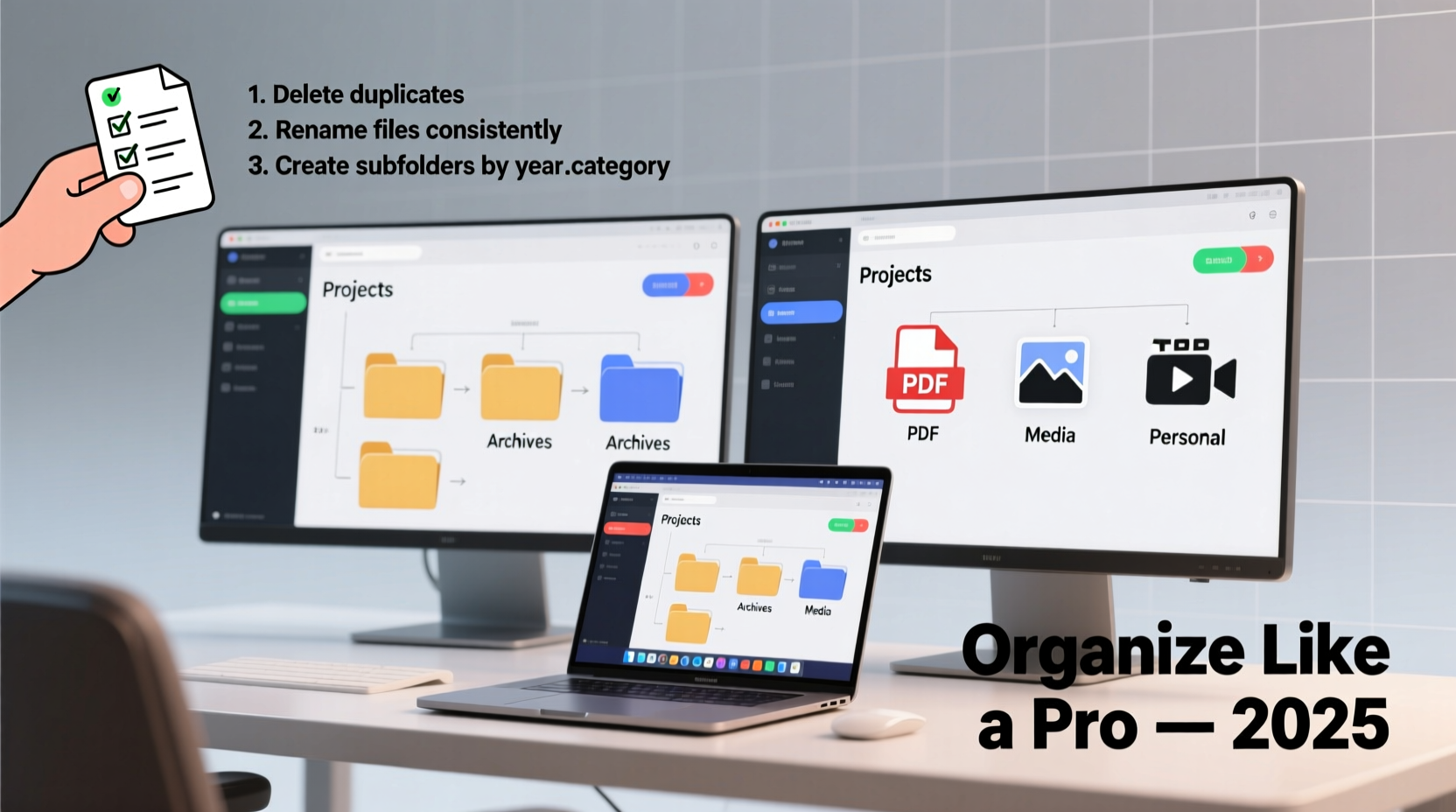
Before organizing, understand what you’re dealing with. Most people underestimate the volume of digital files they’ve accumulated. Start by auditing your devices: desktops, laptops, external drives, and cloud accounts. Open each location and take stock of file types, sizes, and age.
Use built-in tools to gain insight. On Windows, go to Settings > System > Storage to see a breakdown of space usage. On macOS, click the Apple menu > About This Mac > Storage. These reports reveal which categories dominate your space—documents, photos, apps, or system files.
Pay attention to common clutter zones: Downloads, Desktop, and email attachments. These areas act as digital dumping grounds. One professional surveyed found 17,000+ files on their desktop alone—most were duplicates or temporary items never moved.
Step-by-Step: Declutter Your Files in 5 Phases
Decluttering isn’t a one-click fix. It’s a process that requires intentionality. Follow this five-phase method to systematically clean and restructure your digital environment.
- Phase 1: Backup Everything
Before deleting anything, ensure all critical data is backed up. Use an external drive or cloud service like Google Drive, Dropbox, or Backblaze. This safety net prevents irreversible loss during cleanup. - Phase 2: Delete the Obvious Junk
Remove temporary files, duplicates, corrupted downloads, and outdated software installers. Tools like CCleaner (Windows) or DaisyDisk (macOS) help identify redundant files. Also delete old screenshots, misfired photos, and incomplete documents. - Phase 3: Consolidate and Merge
Find duplicate folders with similar names—“Project_Final,” “Project_Final_v2,” “Project_Completed.” Merge them into one authoritative version. Keep only the most current and complete files. - Phase 4: Categorize What Remains
Group files into broad categories: Work, Personal, Finance, Photos, Projects, Archives. Avoid over-nesting—no more than three folder levels deep. Shallow hierarchies are easier to navigate. - Phase 5: Archive and Purge
Moved infrequently accessed files (e.g., tax records from five years ago) to an “Archive” folder. Store archives on external media or cold cloud storage. Once archived and verified, delete local copies to free space.
Design a Sustainable Folder Structure
A well-designed folder system pays dividends for years. The goal isn’t perfection—it’s usability. Your structure should reflect how you work, not follow rigid rules.
Start with top-level folders based on function, not format. Instead of “Documents,” “Spreadsheets,” and “PDFs,” use purpose-driven labels like “Clients,” “Invoices,” “Research,” and “Travel.” This reduces decision fatigue when saving files.
Within each main category, apply subfolders logically. For example:
- Clients > Client A > Contracts, Invoices, Communications
- Projects > 2024 > Website Redesign > Assets, Drafts, Feedback
- Personal > Health > Medical Records, Insurance
Use consistent naming conventions. Include dates in YYYY-MM-DD format at the beginning of file names for automatic sorting: 2024-03-15_Invoice_ClientA.pdf. Avoid vague titles like “Final.docx”—they become meaningless over time.
| Do | Don’t |
|---|---|
| Use underscores or hyphens in file names | Use spaces or special characters like ? * | < > |
| Name folders with nouns (Projects, Clients) | Name folders with verbs (Doing, Working On) |
| Limit subfolder depth to 3 levels | Create nested paths like /Work/Client/Project/Folder/Sub/Temp |
| Include dates in YYYY-MM-DD format | Use ambiguous formats like “March 2024” or “03-15” |
“An intuitive folder structure saves the average knowledge worker 4.3 hours per month in file search time.” — Dr. Lena Torres, Digital Productivity Researcher, MIT Human Systems Lab
Real Example: How Sarah Reclaimed Her Workflow
Sarah, a freelance graphic designer, spent nearly two hours weekly searching for client assets. Her computer had 12 different “Logo_Project” folders across multiple drives. After a system crash, she lost a month of work due to poor backups.
She applied the five-phase method: first backing up everything to an encrypted external drive and Google Drive. Then, she deleted 42GB of duplicates and outdated mockups. She restructured her folders using client-first logic: Clients > BrandX > Logo > Versions, Deliverables, Revisions.
She implemented a naming convention: YYYY-MM-DD_Client_Project_Version.ext. Within three weeks, her file retrieval time dropped from minutes to seconds. More importantly, her peace of mind improved—she knew exactly where everything was.
Automate Organization for Long-Term Success
Manual organization doesn’t scale. Automation ensures consistency, especially as your file volume grows.
Use rule-based sorting tools. On macOS, create Smart Folders in Finder that auto-collect files by criteria (e.g., all PDFs tagged “Invoice”). On Windows, use Power Automate or third-party tools like Hazel (via Parallels) to monitor folders and move files based on rules.
Example automation rules:
- Move all .pdf files in Downloads labeled “invoice” to /Finance/Payables
- Rename new screenshots to include date: Screenshot_2024-04-10.png
- Tag files opened more than five times as “Frequent” for quick access
Cloud services also offer smart features. Google Drive uses AI to suggest files based on context. Dropbox displays recently worked-on items. Enable these features, but don’t rely solely on them—your folder structure should still make sense without AI assistance.
Essential Checklist: Your Digital Decluttering Action Plan
Follow this checklist to ensure nothing is missed during your cleanup:
- ✅ Back up all devices before making deletions
- ✅ Identify and remove duplicate files and folders
- ✅ Delete temporary, corrupted, or obsolete files
- ✅ Sort remaining files into core categories (Work, Personal, etc.)
- ✅ Create a logical, shallow folder hierarchy
- ✅ Apply consistent naming conventions with dates
- ✅ Move old files to an Archive folder or external storage
- ✅ Set up automated rules for future file sorting
- ✅ Schedule quarterly reviews to maintain order
- ✅ Test backup integrity by restoring a sample file
Frequently Asked Questions
How often should I declutter my digital files?
Conduct a full digital cleanup at least twice a year. Monthly micro-cleans—such as clearing your Downloads folder or reviewing recent documents—prevent buildup. Treat digital hygiene like physical tidiness: small, regular efforts beat infrequent overhauls.
What’s the best way to handle duplicate files?
Use dedicated tools like Duplicate Cleaner (Windows), Gemini 2 (macOS), or dupeGuru (cross-platform) to detect duplicates by content, not just name. Review results carefully—don’t automate deletions without verification. Keep the highest-quality version and delete the rest.
Should I organize files by date or by project?
Organize primarily by project or category, then sort within folders by date. A “Projects” folder with subfolders for each initiative is more intuitive than a flat list of dated folders. Inside each project, use chronological sorting (e.g., meeting notes named 2024-04-01_Meeting_Minutes.docx).
Conclusion: Take Control of Your Digital Environment
Decluttering your digital files isn’t just about freeing up space—it’s about reclaiming focus, efficiency, and control. A clean, well-structured system reduces cognitive load and eliminates the frustration of lost files. The effort you invest today will save hundreds of hours over the next few years.
Start small if needed. Pick one folder—your Desktop or Downloads—and apply the principles outlined here. Build momentum gradually. Remember, the goal isn’t perfection; it’s progress. Once your system is in place, maintain it with routine checks and smart automation.




 浙公网安备
33010002000092号
浙公网安备
33010002000092号 浙B2-20120091-4
Comments
No comments yet. Why don't you start the discussion?