
In the average professional’s digital workspace, there are over 300,000 files. Many of them are duplicates, outdated versions, or forgotten downloads buried in nested folders. The result? Hours lost each year searching for documents, frustration during urgent deadlines, and a constant sense of digital chaos. But it doesn’t have to be this way. With a structured approach to digital organization, you can transform your computer into a streamlined, intuitive system where everything has its place—and where retrieving any file takes mere seconds.
The key isn’t just deleting old files. It’s building a sustainable system that makes sense to you, aligns with how you work, and scales as your digital life grows. This guide walks through practical steps, backed by productivity experts and real-world testing, to help you reclaim control over your digital environment.
Start with a Digital Audit
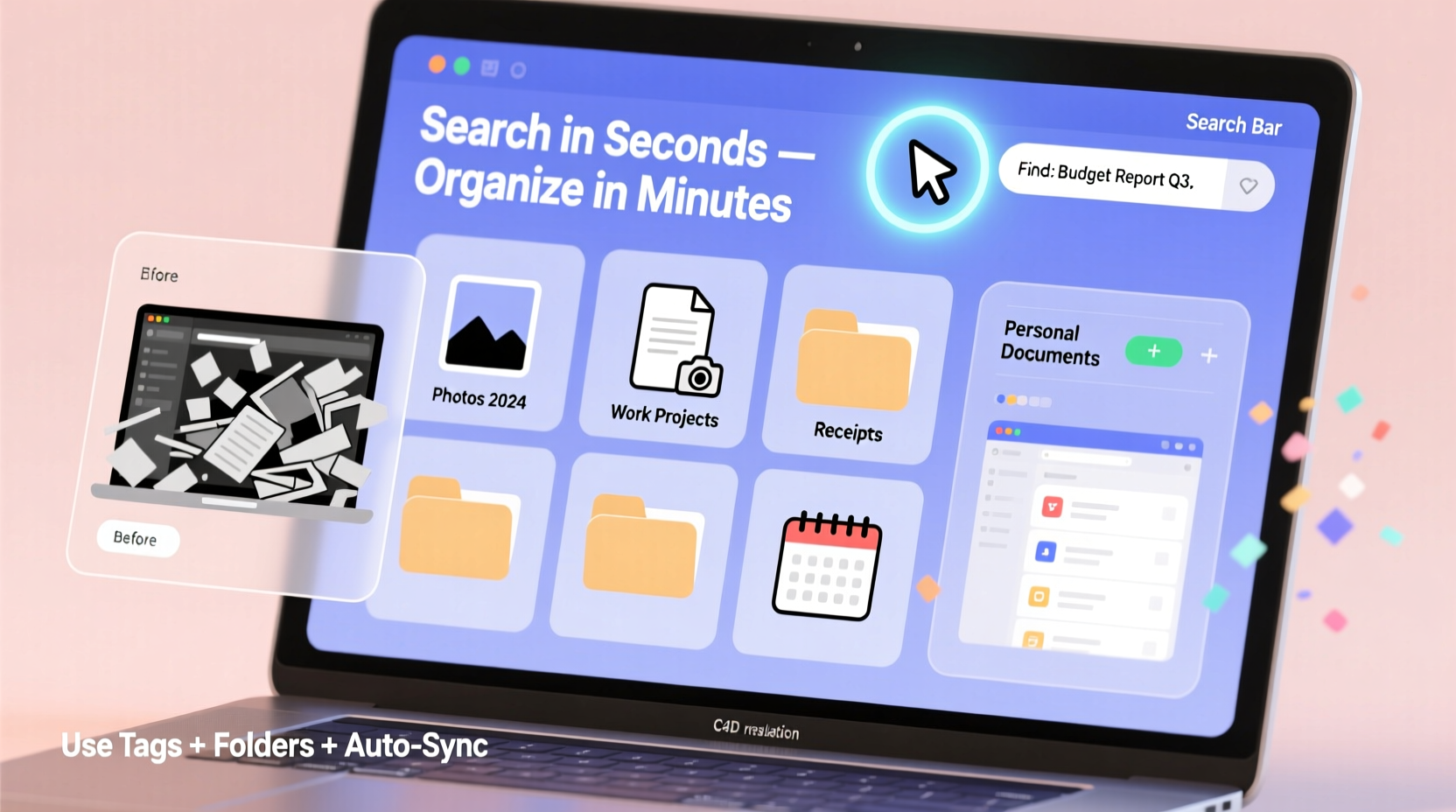
Before organizing anything, you need visibility. Most people begin decluttering by renaming folders or moving files around, but without understanding what they actually have, these efforts quickly fall apart. A digital audit gives you clarity on volume, duplication, and structure gaps.
Begin by listing all storage locations: your primary hard drive, external drives, cloud accounts (Google Drive, Dropbox, iCloud), and even email attachments. Use built-in search tools to identify large files, old downloads, and duplicate entries. On macOS, Spotlight can reveal files older than five years; on Windows, File Explorer filters let you sort by date modified or size.
Once you’ve mapped your digital landscape, categorize files into broad groups: Work Projects, Personal Documents, Photos, Media, Archives, and Downloads. This high-level view helps you spot redundancies—like having three separate folders labeled “Invoices,” “Bills,” and “Finance”—and decide what truly needs to be kept.
Create a Logical Folder Hierarchy
A well-designed folder structure is like a library catalog: intuitive, consistent, and scalable. Avoid vague names like “Stuff” or “Misc.” Instead, use clear, outcome-driven categories that reflect how you think and work.
For professionals, a top-level structure might look like:
- 📁 Clients
- 📁 Projects
- 📁 Admin
- 📁 Resources
- 📁 Personal
Within “Clients,” subfolders can be named by company or client initials. Under “Projects,” use project codes or names with start dates (e.g., “Project_Nexus_2024”). The “Admin” folder holds contracts, tax records, and HR documents, while “Resources” stores templates, stock images, or research materials.
Consistency matters more than perfection. Choose a naming convention and stick to it. For example:
“Folder names should be predictable, not clever. ‘Q3_Marketing_Report’ beats ‘Marketing Magic.’” — David Pledger, Digital Workflow Consultant
Naming Conventions That Work
File names are your first line of searchability. Default names like “Document1.pdf” or “IMG_2345.jpg” offer no context. Renaming files with descriptive, standardized formats dramatically improves retrieval speed.
Use this pattern: [YYYYMMDD]_[Project]_[Description]_[Version].ext
Examples:
- 20240415_ClientPitch_Presentation_v2.pptx
- 20240320_TaxReturn_Draft_Final.pdf
- 20240210_Budget_Worksheet_Q1.xlsx
This format ensures chronological sorting, includes context, and avoids confusion between versions. Leading zeros (e.g., 03 instead of 3) prevent misordering in file browsers.
Eliminate Clutter with a 4-Box Method
Adapted from physical organizing systems, the 4-Box Method applies perfectly to digital cleanup. As you review each file, assign it to one of four virtual “boxes”:
| Box | Action | Example |
|---|---|---|
| 🗂️ Keep | Essential, current, or irreplaceable | Tax returns, signed contracts, active project files |
| 🔄 Archive | Not needed daily but must be retained | Completed projects, past year’s reports |
| 🗑️ Delete | Duplicates, outdated drafts, junk | Old screenshots, temporary downloads, unused templates |
| ❓ Decide Later | Uncertain—review within 7 days | Files with unclear ownership or purpose |
This method forces deliberate decisions rather than passive accumulation. Set a timer for 25-minute sprints to avoid burnout. Focus on one folder at a time—start with “Downloads” or “Desktop,” which are often clutter epicenters.
Automate Organization and Maintenance
Manual filing works temporarily, but long-term success depends on automation. Modern tools can sort, rename, and back up files with minimal effort.
On macOS, use **Folder Actions** or **Shortcuts** to automatically move downloaded PDFs to specific folders based on filename keywords. On Windows, **Power Automate** or third-party tools like **DropIt** can route incoming files to correct directories. For cloud users, Google Drive’s **Workflows** or **Zapier integrations** can tag and organize new uploads.
Set up regular maintenance routines:
- Weekly: Review the “Downloads” folder and clear unnecessary items.
- Monthly: Audit recently added files for proper naming and location.
- Quarterly: Back up critical data and verify archive integrity.
Enable version history in cloud platforms so you can recover earlier iterations without saving multiple copies. Turn on sync across devices to ensure consistency and reduce duplication.
Mini Case Study: From Chaos to Control
Sarah, a freelance graphic designer, used to spend up to 20 minutes per client searching for project files. Her desktop was littered with layered folders: “Logo_Final,” “Logo_Final_v2,” “Logo_ActualFinal.” After applying the 4-Box Method and implementing a naming convention, she restructured her system in under six hours.
She created a master “Clients” folder with subfolders using the format: [ClientName]_[YYYY]_[ProjectType]. All deliverables were renamed using timestamps and version indicators. She also set up a Hazel rule (on Mac) to auto-sort new downloads into monthly archive folders.
Result: Sarah now finds any file in under 10 seconds. Client delivery times improved, and she reported a noticeable drop in work-related stress.
Your Digital Decluttering Checklist
Follow this step-by-step checklist to systematically clean and organize your digital files:
- ✅ Inventory all storage locations (local and cloud)
- ✅ Run searches for duplicates, large files, and old downloads
- ✅ Define top-level folder categories (e.g., Work, Personal, Archives)
- ✅ Apply consistent naming conventions to folders and files
- ✅ Sort files using the 4-Box Method (Keep, Archive, Delete, Decide Later)
- ✅ Move archived files to cold storage (external drive or offline cloud)
- ✅ Delete junk files and empty trash permanently
- ✅ Set up automated rules for future file sorting
- ✅ Schedule monthly maintenance reminders
- ✅ Test your system: try to find three random files in under 30 seconds each
Completing this checklist typically takes 6–10 hours for most users, depending on volume. Break it into manageable sessions to avoid fatigue.
Common Pitfalls and How to Avoid Them
Even with good intentions, many people sabotage their progress by falling into common traps:
- Over-nesting: Creating too many subfolder layers (“Work > Clients > North America > Canada > Toronto > SmithCo > Project”) makes navigation slower. Stick to 2–3 levels deep.
- Perfectionism: Waiting for the “perfect” system leads to paralysis. Start with something functional and refine it over time.
- Ignoring metadata: Tags, color labels, and star ratings in file managers (like Finder or Adobe Bridge) add powerful filtering options beyond folder paths.
- No backup plan: Organizing is pointless if a hardware failure wipes everything. Follow the 3-2-1 rule: 3 copies, 2 media types, 1 offsite.
Frequently Asked Questions
How often should I declutter my digital files?
Conduct a full digital cleanup once per year. However, maintain momentum with weekly micro-sessions—15 minutes to clear downloads, rename recent files, and delete clutter. Regular upkeep prevents overwhelming buildup.
Should I keep old emails with attachments, or save the files separately?
Extract important attachments and store them in your organized folder system. Relying on email as a file repository is risky—search is slow, backups are inconsistent, and platforms may limit access over time. Use email for communication, not storage.
What’s the best way to handle photos and videos?
Use dedicated photo management apps like Apple Photos, Google Photos, or Adobe Lightroom. These tools offer facial recognition, geotagging, and smart albums. Export only curated sets to your main file system—avoid dumping raw camera rolls into general folders.
Conclusion: Build a System That Works While You Sleep
Decluttering your digital files isn’t a one-time chore—it’s an investment in efficiency, peace of mind, and professional credibility. When you can retrieve any document in seconds, you free up mental energy for deeper work, faster decisions, and reduced stress. The system you build today will compound its value over months and years.
Start small. Pick one folder. Apply the 4-Box Method. Rename ten files. Each action builds momentum. Within a week, you’ll notice the difference. Within a month, you’ll wonder why you waited so long.




 浙公网安备
33010002000092号
浙公网安备
33010002000092号 浙B2-20120091-4
Comments
No comments yet. Why don't you start the discussion?