
In an age where the average professional receives over 120 emails a day and stores thousands of files across multiple devices and platforms, digital clutter has become a silent productivity killer. Unlike physical mess, digital disorganization is invisible—yet its effects are real: stress, distraction, wasted time, and decision fatigue. The good news? Just as you’d organize a closet or clear out a garage, your digital life can be streamlined with intention and consistency. This guide walks through proven methods to reclaim control—from taming your inbox to optimizing cloud storage—so you can work smarter, think clearer, and reduce digital anxiety.
Create a Zero-Inbox Strategy
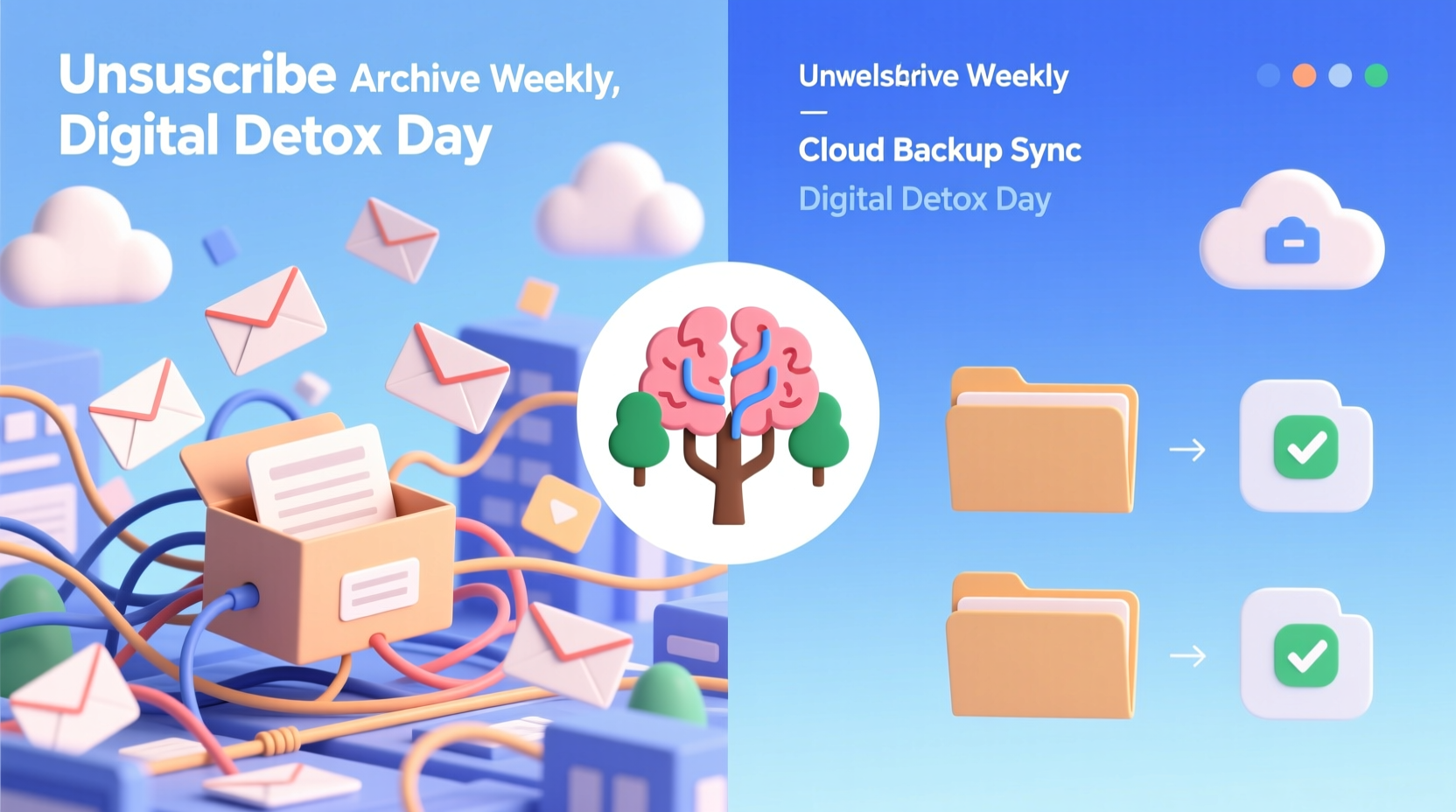
An overflowing inbox isn’t just annoying—it’s a cognitive burden. Studies show that constant email notifications reduce IQ more than missing a night’s sleep. The goal isn’t inbox zero as a one-time cleanup, but as a sustainable system.
Start by sorting existing messages into three categories: actionable, reference, or trash. Use filters and labels to automate incoming mail. For example, newsletters go to a “Read Later” folder; receipts to “Finance”; team updates to “Projects.” Unsubscribe ruthlessly from anything that no longer adds value—tools like Unroll.me or Gmail’s native unsubscribe feature make this fast.
Adopt the “touch it once” rule: when you open an email, decide immediately—reply, delegate, defer (using a task manager), or delete. This prevents messages from lingering in limbo. Over time, train your brain to treat email as a tool, not a taskmaster.
Organize and Optimize Cloud Storage
Cloud storage is both a blessing and a trap. While services like Google Drive, Dropbox, and iCloud offer convenience, they often become dumping grounds for outdated files, duplicates, and forgotten downloads. A cluttered cloud means slower searches, wasted subscription costs, and difficulty locating critical documents.
Begin with a full audit. Log into each platform and review file types. Sort by size to identify large video files or old backups. Delete duplicates using tools like Gemini Photos (for iOS) or Duplicate File Finder (for desktop). Archive completed projects into dated folders labeled “Project Name – Archived – [Year].”
Standardize your naming convention. Instead of “Final_v3_updated_FINAL.pdf,” use “2024-05-15_ProjectProposal_ClientName.pdf.” This makes sorting by name chronological and searchable. Create a master folder structure that reflects your life or work: “Work,” “Personal,” “Finance,” “Health,” each with consistent subfolders.
| Folder Type | Recommended Structure | Common Pitfalls |
|---|---|---|
| Work Projects | Client > Project > Year > Subfolders (Drafts, Assets, Final) | Using vague names like “Stuff” or “New Folder” |
| Personal Documents | Legal | Taxes | Health | Travel | Education | Storing sensitive files unencrypted or without backup |
| Media | Photos > YYYY-MM > Events; Videos > Categories | Letting screenshots and camera rolls grow unchecked |
“Digital organization isn’t about perfection—it’s about creating systems that reduce friction and mental load.” — Dr. Linda Ray, Digital Wellness Researcher, Stanford University
Streamline Your Digital Devices
Your phone, tablet, and laptop are likely filled with unused apps, redundant files, and fragmented data. Begin by auditing installed applications. On mobile, sort apps by usage frequency—delete those you haven’t opened in six months. On desktop, uninstall software you no longer need, especially trial versions or duplicate utilities.
Clear browser clutter: remove unused extensions, clear cache regularly, and organize bookmarks into folders. Use a password manager to eliminate saved passwords in browsers, which are less secure and harder to manage.
For photos and videos, implement a monthly purge. Most people take hundreds of photos but rarely revisit them. Keep only high-quality, meaningful images. Use facial recognition and AI tagging in Google Photos or Apple Photos to find and delete blurry shots, duplicates, or screenshots that served their purpose.
Mini Case Study: From Chaos to Clarity
Sarah, a freelance graphic designer, found herself spending hours each week searching for client files across her laptop, external drive, and three cloud accounts. Her inbox had over 18,000 unread messages, and her phone was constantly running out of storage. After a weekend digital detox, she implemented a structured approach: she archived old projects, standardized folder names, set up email filters, and unsubscribed from 70+ newsletters. She also began weekly 30-minute maintenance sessions. Within a month, her search time dropped by 70%, her focus improved, and she reclaimed over 40GB of storage. More importantly, she reported feeling “lighter”—a common sentiment among those who complete a digital reset.
Establish Sustainable Maintenance Habits
Decluttering isn’t a one-off event. Without routines, chaos returns quickly. Build habits that keep your digital environment lean and functional.
Set recurring calendar events: a 15-minute weekly review for email and files, and a quarterly audit for all digital assets. During these sessions, archive completed tasks, update folder structures if needed, and delete obsolete content. Automate wherever possible—use rules in email clients, sync folders across devices, and enable automatic photo backups with auto-delete options after upload.
Use a digital dashboard or second brain system—tools like Notion, Evernote, or Obsidian—to centralize notes, tasks, and references. This reduces reliance on scattered files and sticky notes. Link related items so information flows logically rather than being buried in folders.
Step-by-Step Guide: The 7-Day Digital Reset
Follow this timeline to transform your digital environment in under a week:
- Day 1: Tackle your inbox. Unsubscribe from 20+ senders and archive or delete 50% of unread messages.
- Day 2: Audit your primary device. Delete unused apps and clear temporary files.
- Day 3: Organize one major cloud folder (e.g., “Work” or “Personal”). Apply consistent naming and structure.
- Day 4: Clean your photo library. Delete duplicates, blurry shots, and old screenshots.
- Day 5: Review subscriptions and logins. Cancel at least two unused services and update passwords via a manager.
- Day 6: Set up automation—email filters, cloud sync, and backup reminders.
- Day 7: Create a maintenance plan. Schedule weekly reviews and document your new system.
This focused effort builds momentum and establishes clarity faster than sporadic attempts. Many report immediate improvements in focus and reduced anxiety after completion.
Avoid Common Digital Decluttering Mistakes
Even well-intentioned efforts can backfire without awareness of pitfalls. One common error is attempting to do everything at once, leading to burnout. Break the process into manageable chunks. Another mistake is over-organizing—creating too many subfolders or overly complex tagging systems that become burdensome to maintain.
Don’t confuse archiving with deleting. Important records—tax documents, contracts, medical history—should be preserved securely, ideally with encryption and offsite backup. At the same time, avoid hoarding “just in case” files. If you haven’t accessed a document in three years and it’s not legally required, it’s likely safe to delete.
Finally, resist the urge to keep everything in multiple places. Storing the same file on your desktop, cloud, and external drive creates confusion and wastes space. Choose one primary location and link to it when needed.
Frequently Asked Questions
How often should I declutter my digital files?
Aim for a light weekly review and a deeper cleanup every quarter. Major life or job changes—like starting a new role or moving—are also ideal triggers for reassessment.
Is cloud storage safe for sensitive documents?
Most major providers use strong encryption, but for highly sensitive data (e.g., legal or medical records), enable two-factor authentication and consider additional encryption tools like VeraCrypt or Boxcryptor before uploading.
What’s the best way to back up important files?
Follow the 3-2-1 rule: keep three copies of your data, on two different media (e.g., cloud and external drive), with one copy offsite (e.g., encrypted cloud storage). This protects against hardware failure, theft, and natural disasters.
Digital Minimalism for Long-Term Peace
The ultimate goal isn’t just tidiness—it’s digital minimalism: owning only what serves you, reducing noise, and creating space for focused work and presence. Cal Newport, author of *Digital Minimalism*, argues that intentional technology use leads to greater satisfaction and creativity. By removing the excess, you regain attention, time, and mental bandwidth.
This doesn’t mean abandoning technology. It means designing your digital ecosystem to support your goals, not distract from them. Every file, app, and notification should have a purpose. When something no longer aligns, let it go.
Conclusion: Take Control Starting Today
Your digital environment shapes your thinking. A cluttered screen leads to a cluttered mind. But with deliberate action, you can transform chaos into calm. Start small—clear 10 emails, delete five unused apps, rename one folder. Each step builds toward a more efficient, peaceful relationship with technology. The tools are already on your devices; what matters is consistency and intention.




 浙公网安备
33010002000092号
浙公网安备
33010002000092号 浙B2-20120091-4
Comments
No comments yet. Why don't you start the discussion?