
Digital clutter is silent but overwhelming. Among the most common sources: thousands of unsorted photos scattered across smartphones, tablets, and multiple cloud accounts. From blurry shots and duplicates to forgotten screenshots and outdated memes, digital photo libraries grow unchecked—until they become unmanageable. The good news? A systematic approach can restore clarity, free up space, and make your memories easier to find. This guide walks through a complete strategy to declutter your digital photos across devices and cloud platforms, using proven methods that scale whether you have 500 or 50,000 images.
Why Digital Photo Clutter Matters
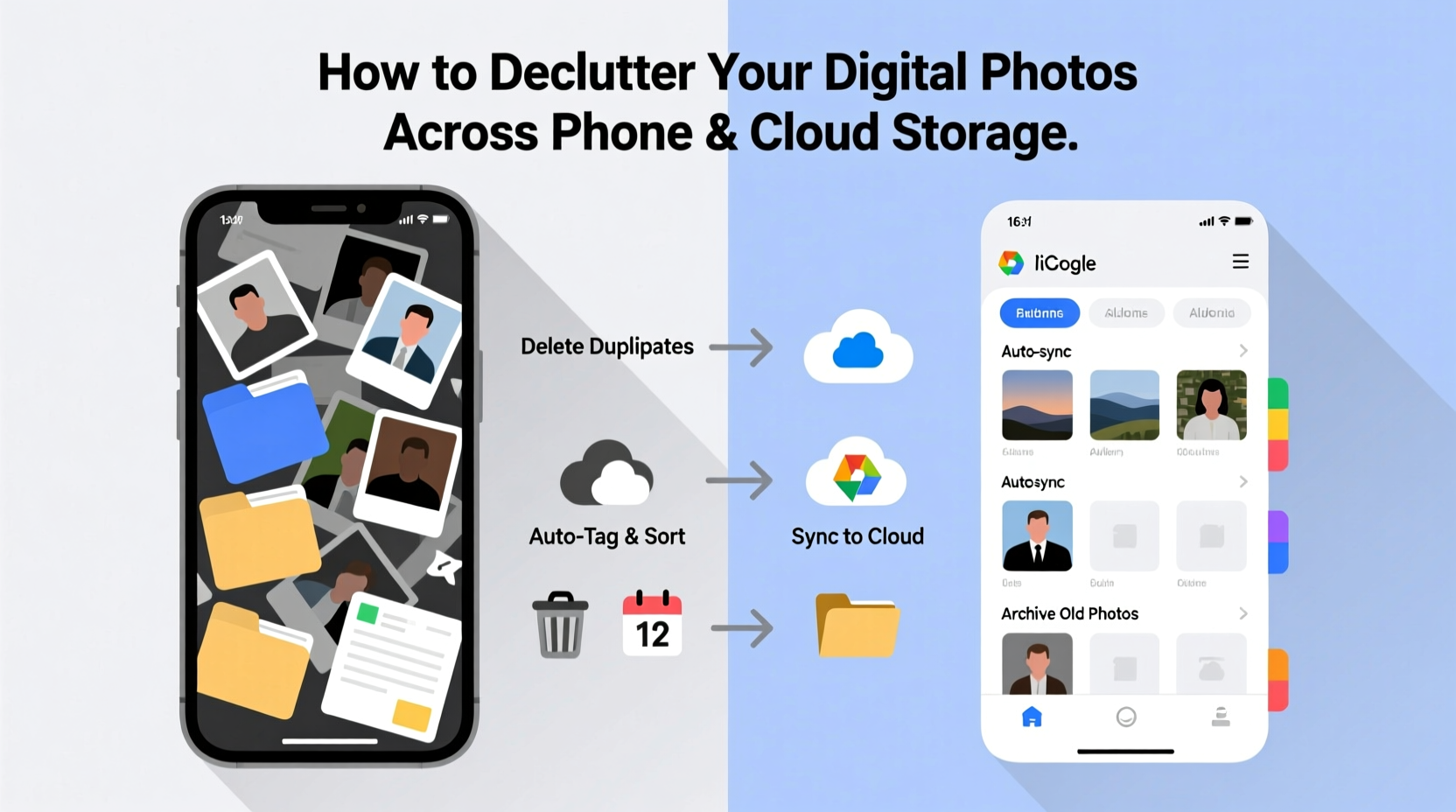
Most people don’t realize how much digital disorganization impacts both device performance and mental well-being. A bloated photo library slows down phones, eats into paid cloud storage, and makes it harder to retrieve meaningful moments. Research from the University of California, Irvine found that digital clutter contributes to cognitive overload, reducing focus and increasing stress—even when we’re not actively looking at our devices.
Moreover, unorganized photos are vulnerable. Without a clear system, important images get lost among duplicates, irrelevant captures, or forgotten folders. Decluttering isn’t just about saving space—it’s about reclaiming control over your digital legacy.
“Digital hoarding creates emotional friction. People feel guilt or anxiety when they open their photo roll and see chaos.” — Dr. Linda Ray, Digital Wellness Psychologist
A Step-by-Step System to Declutter Photos
Decluttering digital photos requires more than deleting random images. It needs a structured workflow that spans all your devices and syncs across cloud services. Follow this six-phase process to achieve lasting results.
- Assess Your Current State: Take inventory of where your photos live—iPhone, Android, Google Photos, iCloud, Dropbox, etc. Note total counts and storage usage per platform.
- Backup Everything First: Before deleting anything, ensure every photo is safely backed up to at least one cloud service or external drive.
- Remove Obvious Junk: Start with low-hanging fruit—screenshots, duplicate receipts, failed camera attempts, and out-of-focus images.
- Deduplicate Across Platforms: Use tools to identify and remove exact or near-duplicate photos that exist in multiple locations.
- Organize by Date and Event: Group remaining photos into logical albums or folders based on time, trip, or occasion.
- Maintain with Monthly Reviews: Schedule recurring maintenance to prevent re-cluttering.
Phase 1: Consolidate Your Photo Ecosystem
You likely have photos split between your phone’s local storage and one or more cloud services. The first step is centralization. Choose a primary platform—Google Photos, iCloud Photos, or a third-party service like Adobe Lightroom or Dropbox—and migrate everything there.
If you use both iPhone and Android devices, consider switching to a cross-platform solution like Google Photos, which syncs seamlessly across operating systems. Enable auto-backup features so future photos upload automatically.
Phase 2: Eliminate Duplicates and Near-Duplicates
Duplicates are one of the biggest space-wasters. They occur when you transfer photos manually, back up to multiple services, or take burst shots. While some duplicates are identical files, others are “near-duplicates”—slightly different versions of the same scene (e.g., slightly shifted framing).
Use dedicated tools to detect these efficiently:
- Google Photos: Built-in “cleanup” tool suggests duplicates for deletion.
- iCloud/iPhone: Apps like Gemini Photos use AI to identify similar images.
- Desktop Tools: Duplicate Photo Cleaner (Windows), VisiPics (cross-platform), or PhotoSweeper (Mac) offer advanced scanning.
| Tool | Platform | Duplicate Detection | Cost |
|---|---|---|---|
| Gemini Photos | iOS/Mac | AI-powered near-duplicates | Free + Premium ($4.99/mo) |
| Google Photos Cleanup | Android/Web | Exact duplicates only | Free |
| Duplicate Photo Cleaner | Windows | Pixel-level comparison | $19.90 (one-time) |
| PhotoSweeper | Mac | Smart similarity scoring | $9.90 (one-time) |
Phase 3: Delete the Unnecessary
Not every photo deserves to be preserved. Apply the “three-second rule”: if a photo doesn’t bring value, joy, or information within three seconds of viewing, it’s likely disposable.
Common categories to delete:
- Blurred or poorly lit images
- Screenshots of text messages, emails, or social media posts
- Multiple nearly identical shots from the same moment
- Old memes, chain messages, or temporary downloads
- Receipts or documents better stored in note-taking apps
Be ruthless. Keeping 10 slightly different versions of the same sunset doesn’t enhance memory—it dilutes it.
How to Organize What Remains
After deletion, organize your remaining photos into a sustainable structure. Avoid vague labels like “Misc” or “Photos 2023.” Instead, use consistent naming and hierarchical grouping.
A recommended folder/album structure:
- Year (e.g., 2024)
- Month + Event (e.g., 07_July_Vacation_Portugal)
- Subcategories if needed (e.g., 07_July_Vacation_Portugal/Food or /Beaches)
For cloud platforms that support tagging (like Google Photos or Adobe Bridge), supplement folders with keywords such as “family,” “pets,” “travel,” or “work project.” This enables powerful search later.
“Organization isn’t about perfection—it’s about creating pathways to your memories.” — Sarah Kim, Digital Archivist & Founder of ClearFrame Archive
Real Example: Maria’s Phone Transformation
Maria, a freelance designer with an iPhone and iPad, had over 18,000 photos spread across devices and iCloud. Her phone was constantly running out of storage, and she couldn’t find photos for client portfolios. She followed the decluttering process over four weekends:
- Week 1: Backed up all devices to iCloud and exported older photos to an external SSD.
- Week 2: Used Gemini Photos to identify 2,300 duplicates and near-duplicates; deleted them after review.
- Week 3: Created annual folders and migrated 12,000 meaningful photos into dated event albums.
- Week 4: Set up monthly reminders to review new photos and delete junk immediately.
Result: Her phone gained 12GB of space, iCloud storage dropped from 89% to 62% used, and she now finds portfolio images in under 30 seconds.
Best Practices for Ongoing Maintenance
Decluttering once isn’t enough. Without habits, clutter returns quickly. Implement these routines to maintain a clean photo ecosystem.
Monthly Photo Review Routine
Set a recurring calendar event (e.g., first Sunday of each month) to review new photos. During this session:
- Delete blurry shots, duplicates, and irrelevant captures.
- Move important photos into organized albums.
- Verify backups are complete.
Automate Where Possible
Leverage automation to reduce manual effort:
- Enable “Optimize iPhone Storage” in Settings > Photos to keep small versions locally and full-resolution copies in iCloud.
- Turn on Google Photos backup for Android users to auto-upload and free up device space.
- Use IFTTT or Shortcuts (iOS) to auto-move screenshots to a designated folder or delete old ones after 30 days.
Set Cloud Storage Limits
Many people only notice photo clutter when they hit cloud storage limits. Proactively manage this by:
- Choosing a tier that matches your real needs (e.g., 100GB vs. 2TB).
- Using external drives for long-term archival of less-frequently accessed photos.
- Compressing older videos (which consume far more space than photos) using tools like HandBrake.
Frequently Asked Questions
How do I know which photos to keep?
Prioritize photos that capture emotions, milestones, relationships, or unique experiences. Ask: Does this image tell a story? Would I want to show this to someone years from now? If not, consider letting it go.
Is it safe to delete photos after backing up?
Yes—provided your backup is verified. Wait at least 24 hours after backup before deleting originals. Check that photos appear correctly in your cloud service or external drive. Keep two backup copies (e.g., iCloud + external hard drive) for critical images.
Can I recover photos after permanent deletion?
Most platforms have a “Recently Deleted” folder that retains photos for 30 days (iOS, Google Photos). After that, recovery is unlikely unless you have a separate backup. Never assume a cloud service keeps deleted items forever.
Final Checklist: Your Digital Photo Declutter Plan
- ✅ Inventory all photo locations (phone, tablet, cloud, computer)
- ✅ Back up all photos to at least one secure location
- ✅ Install duplicate-finding tools appropriate to your platform
- ✅ Delete obvious junk: screenshots, duplicates, blurry images
- ✅ Organize remaining photos into dated, event-based albums
- ✅ Label or tag key photos for easy search
- ✅ Set up monthly review and cleanup habit
- ✅ Automate backups and optimize storage settings
Take Control of Your Digital Memories
Your photos are more than data—they’re fragments of your life. But when buried under clutter, even the most precious moments lose their meaning. By systematically decluttering across devices and cloud storage, you’re not just freeing up space; you’re making room for clarity, accessibility, and intentionality. Start small, stay consistent, and build a photo library that serves you—not overwhelms you. The peace of mind is worth every minute invested.




 浙公网安备
33010002000092号
浙公网安备
33010002000092号 浙B2-20120091-4
Comments
No comments yet. Why don't you start the discussion?