
Email overload is one of the most common productivity drains in modern work life. The average professional receives over 120 emails per day, and without a clear system, it’s easy for the inbox to become a digital junkyard—full of unread messages, outdated threads, and forgotten tasks. But what if you could clear it all out in less than 60 minutes and set up a sustainable system to keep it that way? This guide walks you through a proven method to not only eliminate clutter but also build habits that maintain order, reduce stress, and reclaim focus.
Why a Cluttered Inbox Hurts Your Productivity
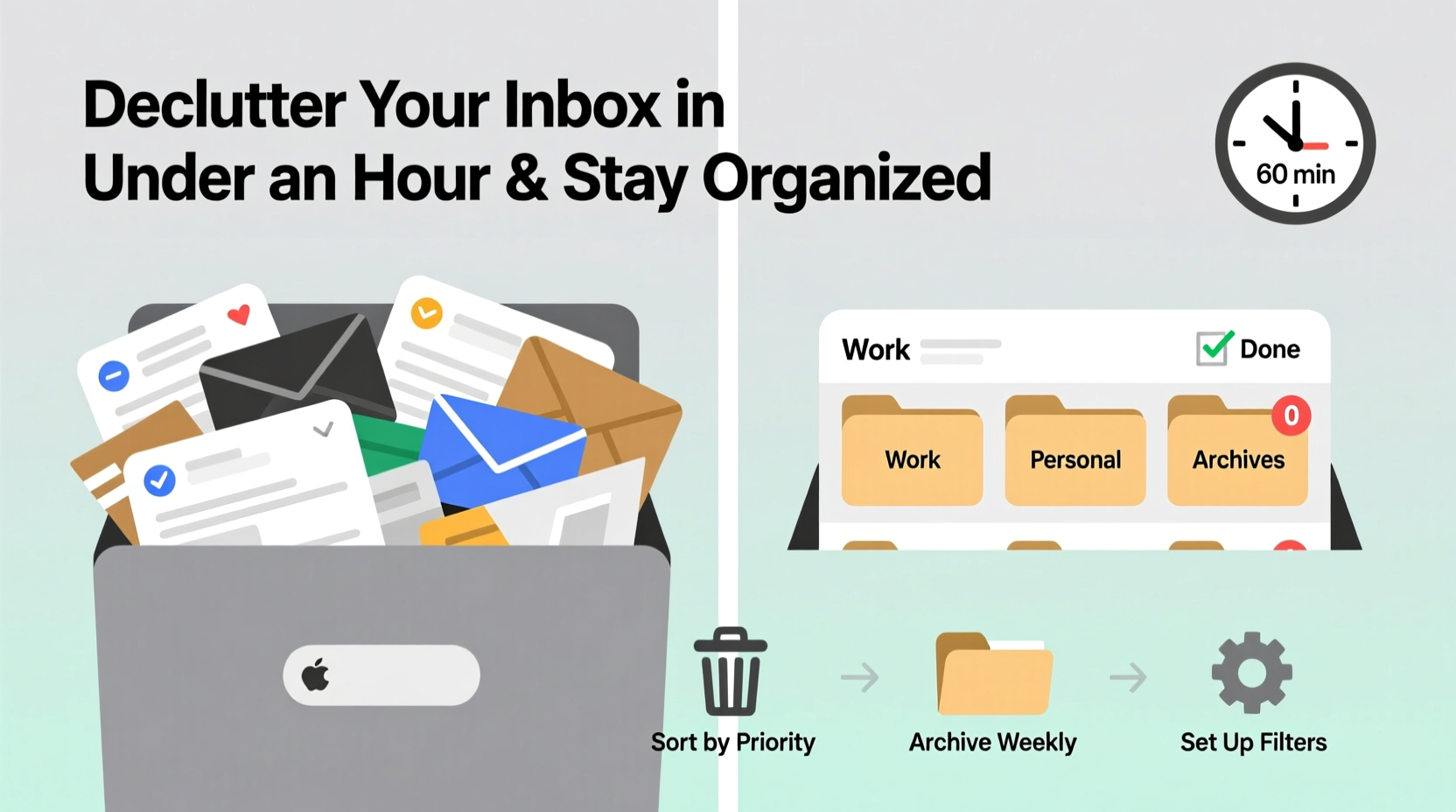
A messy inbox isn’t just visually overwhelming—it actively undermines your ability to think clearly and act decisively. Research from McKinsey shows knowledge workers spend nearly 30% of their week managing email. When your inbox is disorganized, every new message competes for attention, increasing cognitive load and decision fatigue.
Unprocessed emails create mental residue. Even if you don’t open them, their presence triggers subconscious anxiety about unresolved obligations. A study by the University of California, Irvine found that employees interrupted by email took an average of 25 minutes to return to deep work after checking messages. By cleaning your inbox and implementing structure, you reduce distractions and improve both efficiency and peace of mind.
The 60-Minute Decluttering Framework
This time-bound approach breaks down the process into manageable phases, each designed to move you quickly from chaos to clarity. Follow these steps in order, allocating roughly 10–15 minutes per phase.
- Preparation (5 minutes): Close all other tabs and apps. Silence notifications. Open your email client and go full-screen. Have a notebook or digital note app ready for quick jotting.
- Phase 1: Delete the Obvious (10 minutes)
- Phase 2: Unsubscribe Ruthlessly (10 minutes)
- Phase 3: Archive or File Old Messages (10 minutes)
- Phase 4: Flag & Schedule Action Items (10 minutes)
- Phase 5: Set Up Filters and Labels (10 minutes)
- Phase 6: Review and Reset (5 minutes)
Stick to the clock. The goal isn’t perfection—it’s progress. You’ll refine the system afterward.
Phase 1: Delete the Obvious (10 Minutes)
Start by removing low-hanging clutter. Scan your inbox and delete anything that no longer serves you:
- Promotional emails older than two weeks
- Receipts you’ve already processed
- Meeting invites for events that have passed
- Duplicate messages or chain fragments
- Spam or phishing attempts (mark as spam while deleting)
Use bulk selection tools. In Gmail, for example, hold “Shift” to select a range or use the checkbox next to emails to multi-select. Don’t hesitate—when in doubt, delete. You can recover items from trash for up to 30 days in most systems.
Phase 2: Unsubscribe Ruthlessly (10 Minutes)
Newsletters and automated updates are major contributors to inbox bloat. Use this phase to cut off unwanted subscriptions at the source.
Navigate to emails from brands, blogs, or services you no longer read. Look for the “Unsubscribe” link at the bottom. Click it immediately. If the link isn’t visible, forward the message to unsubscribe@ or use tools like Unroll.me (use cautiously due to privacy concerns) or built-in features like Gmail’s “Unsubscribe” button above certain messages.
Phase 3: Archive or File Old Messages (10 Minutes)
Your inbox is not an archive. Move anything older than 30 days that doesn’t require action into folders or labels. Most email platforms allow you to create categories such as:
- Receipts
- Travel Itineraries
- Contracts
- Reference
- Projects (by name)
In Gmail, select multiple old messages, click the folder icon, and choose “Move to.” In Outlook, right-click and file into custom folders. Archiving removes clutter while preserving access. Remember: if you need to search for it later, keyword search is faster than scrolling through an inbox.
Phase 4: Flag & Schedule Action Items (10 Minutes)
Now identify the emails requiring your attention. These fall into three buckets:
- Respond: Need to reply within 24–48 hours
- Do: Tasks tied to the email (e.g., submit form, approve request)
- Wait For: Messages where you’re expecting a follow-up
Flag or star these emails. Better yet, integrate with a task manager. In Gmail, use “Tasks” in the sidebar. In Outlook, drag emails to “To Do” or assign follow-up flags. Schedule time in your calendar to address flagged items—ideally within the next business day.
“Your inbox should reflect only what demands immediate attention, not serve as a memory palace for future obligations.” — Cal Newport, Author of *Digital Minimalism*
Phase 5: Set Up Filters and Labels (10 Minutes)
Automation prevents future clutter. Create filters that sort incoming mail before it hits your inbox. Common rules include:
| Rule | Action | Example |
|---|---|---|
| From: noreply@*, newsletters@* | Skip inbox, apply label “Read Later” | Auto-sorted weekly digests |
| To: team@company.com | Apply label “Team Updates”, archive | Internal announcements |
| Subject contains “Invoice” | Apply label “Finance”, mark important | Bills and payments |
| Has attachment | Label “Needs Review”, flag | Reports or documents |
In Gmail, go to Settings > See all settings > Filters and Blocked Addresses > Create a new filter. Define conditions, then choose actions like “Skip the Inbox (Archive it)” or “Apply label.” Repeat for 3–5 high-volume senders or categories.
Phase 6: Review and Reset (5 Minutes)
Take a final look at your inbox. Ideally, you now see fewer than 20 unprocessed messages. If more remain, scan quickly and apply one of four decisions:
- Delete – No longer relevant
- Archive – Reference only
- Respond – Write a one-line reply now if it takes under 2 minutes
- Flag – Save for scheduled processing time
Close your email client. Take a breath. You’ve just reclaimed control.
Building Long-Term Email Discipline
Decluttering once is helpful; maintaining order is transformative. The real win comes from adopting habits that prevent relapse. Here’s how to sustain momentum:
Adopt the “Inbox Zero” Mindset (Not Literally)
Inbox Zero, popularized by productivity expert Merlin Mann, isn’t about having zero emails. It’s about having zero *unprocessed* emails. Every message should be handled with intention—either deleted, delegated, responded to, or deferred.
Set a daily rhythm. Check email only at designated times—e.g., 10:00 AM, 1:00 PM, and 4:00 PM. Avoid constant monitoring. During each session, process every new message using the same four Ds: Delete, Defer, Delegate, Do.
Create a “Someday/Maybe” Folder
Some emails contain ideas or opportunities you’re not ready to act on. Instead of leaving them in your inbox, move them to a folder called “Someday” or “Ideas.” Review it monthly. If an item hasn’t gained urgency in 90 days, delete it.
Leverage Snooze and Send-Later Features
Use snooze to resurface time-sensitive messages. If you receive an email about a meeting next Thursday, snooze it to appear in your inbox on Wednesday morning. Tools like Boomerang (for Gmail) or native snooze functions help manage timing without mental clutter.
Mini Case Study: From Overwhelmed to Organized in One Afternoon
Sarah, a project manager at a mid-sized tech firm, had over 8,000 unread emails. She dreaded opening her inbox, often missing critical deadlines buried in chains. After following the 60-minute framework:
- She deleted 3,200 promotional and outdated messages
- Unsubscribed from 47 recurring newsletters
- Moved 2,100 reference emails to labeled folders
- Flagged 18 urgent tasks and scheduled them in her planner
- Created filters for team updates, client requests, and billing alerts
Within a week, Sarah reduced her daily email processing time from 90 minutes to 20. Her team noticed faster response times, and she reported feeling “lighter” at work. Six months later, she maintains fewer than 50 messages in her inbox at any time.
Essential Checklist: Maintain a Clean Inbox
Print or save this checklist to reinforce daily habits:
- ✅ Process inbox to zero unactioned items at least once per week
- ✅ Unsubscribe from at least one unwanted list monthly
- ✅ Use filters to auto-sort newsletters, receipts, and team updates
- ✅ Schedule 2–3 fixed times daily to check email
- ✅ Archive or file emails older than 30 days weekly
- ✅ Review flagged messages during planned task blocks
- ✅ Turn off non-essential notifications
FAQ: Common Email Organization Questions
How often should I declutter my inbox?
Perform a full sweep every 90 days. However, maintain daily micro-habits: delete, archive, or respond to each message upon reading. Weekly reviews prevent accumulation.
Is it safe to delete emails after archiving?
Yes, as long as they’re moved—not deleted. Archived emails remain searchable and retrievable. Only purge what you’re certain you won’t need. For legal or financial records, back up externally.
What if my job requires constant email monitoring?
Even high-responsiveness roles benefit from structure. Use priority filters to highlight key senders (clients, executives). Route low-priority messages to secondary folders. Communicate response windows to stakeholders—e.g., “I respond to non-urgent emails within 24 business hours.”
Conclusion: Take Control One Email at a Time
A cluttered inbox doesn’t just slow you down—it erodes confidence and focus. The good news is that restoration is possible in less time than you think. With a focused 60-minute session and consistent follow-through, you can transform your inbox from a source of stress into a streamlined command center.
The system works not because it’s complex, but because it’s simple. Delete what you don’t need. Automate what you can. Act on what matters. Repeat.




 浙公网安备
33010002000092号
浙公网安备
33010002000092号 浙B2-20120091-4
Comments
No comments yet. Why don't you start the discussion?