
Email is a powerful tool, but without control, it becomes a source of stress, distraction, and inefficiency. The average professional receives over 120 emails per day, many of which are irrelevant, repetitive, or outdated. A cluttered inbox isn’t just messy—it’s costly. Studies show that employees spend nearly 3 hours daily managing email, often reacting instead of focusing on high-value work. The good news: permanent inbox clarity isn’t about willpower or constant cleaning. It’s about systems—smart filters and consistent routines that automate order and protect your attention.
The Real Cost of a Cluttered Inbox
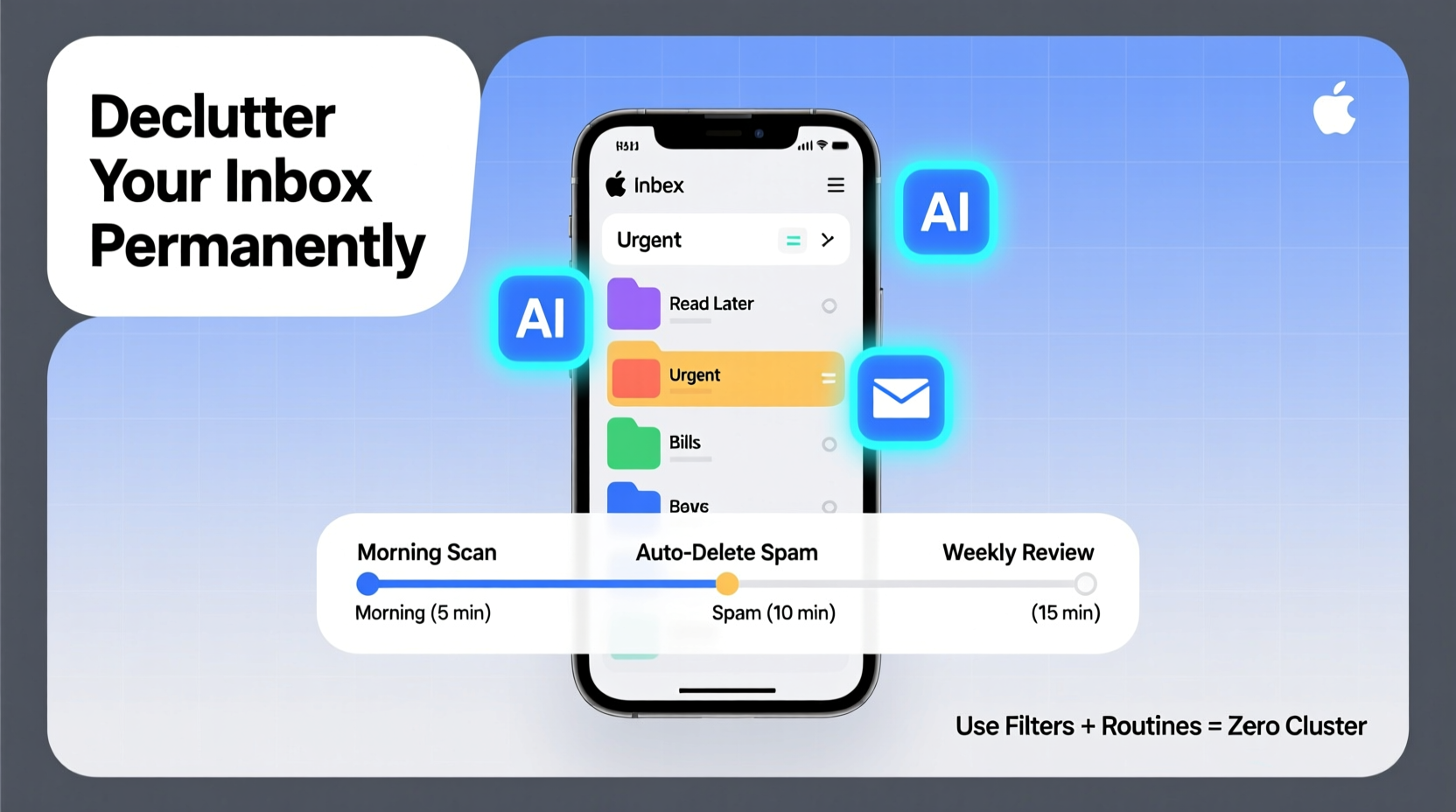
A full inbox doesn’t just look bad—it impacts productivity, mental focus, and decision-making. When every message competes for attention, important emails get buried, deadlines slip, and anxiety rises. Cognitive overload from constant notifications and unread messages reduces working memory and increases response time. Worse, many people fall into reactive cycles: checking email first thing, responding immediately, and never regaining control of their schedule.
The solution isn’t checking email less—it’s making your inbox work for you. That starts with understanding what types of messages flood your account and designing automated responses to them.
Step-by-Step: Building Your Permanent Declutter System
Permanent inbox organization requires two components: automation (filters and labels) and behavior (routines). Here’s how to implement both.
- Start with a clean slate. Dedicate 60–90 minutes to clear your current inbox completely. Archive, delete, or label every message until your inbox is empty. This one-time reset builds momentum and shows what’s possible.
- Categorize incoming mail by type. Track what comes in over three days. Common categories include:
- Newsletters and promotions
- Automated alerts (shipping updates, calendar invites)
- Team communication (Slack digests, project updates)
- Personal messages
- Billing and receipts
- Create filters based on sender, subject, or keywords. In Gmail (and most modern clients), go to Settings > Filters and Blocked Addresses > Create a new filter. For example:
- From: “newsletter@company.com” → Skip inbox, apply label “Read Later”
- Subject: “Your order has shipped” → Apply label “Shipping”
- To: me@mywork.com AND Subject: “Daily Digest” → Archive automatically
- Set up labels and folders. Labels keep related messages organized without duplication. Use broad categories like “Action Required,” “Finance,” “Projects,” and “Reference.” Avoid over-labeling—stick to 5–7 core labels.
- Enable auto-archive rules. Messages that don’t require action should never hit your inbox. Filter them directly into labeled archives.
Designing Sustainable Email Routines
Filters handle the predictable. Routines manage the rest. Without disciplined habits, even the best system breaks down. The goal is to check email intentionally—not constantly.
Adopt a time-blocked approach. Check email only at scheduled intervals: once in the morning, once after lunch, and optionally once before logging off. During these sessions:
- Process each message in one pass: delete, archive, reply, or defer.
- Use the “Two-Minute Rule”: if a reply takes under two minutes, do it now.
- Move longer tasks to your task manager with a clear next step.
This prevents email from hijacking your workflow. Instead of reacting all day, you respond with purpose during designated windows.
“Email should be a tool you use, not a task you endure. Automation and timing turn chaos into control.” — David Pogue, Tech Journalist and Productivity Author
Smart Filter Examples by Category
Different email types need different handling. The table below outlines common message types, recommended actions, and sample filter logic.
| Email Type | Action | Filter Criteria Example | Label/Outcome |
|---|---|---|---|
| Newsletters | Skip inbox, archive | From: *@mail.bulletin.com OR Subject: *Weekly Roundup* | “Read Later” |
| Shipping Notifications | Auto-label, no notification | Subject: “Your package is on the way” | “Shipping” |
| Meeting Invites | Keep in inbox until accepted | Has attachment: .ics OR Subject: “Invitation:” | Default inbox + calendar sync |
| Billing & Receipts | Archive, label, no alert | From: billing@*, receipts@* OR Subject: “Receipt for” | “Finance/Receipts” |
| Team Digests (e.g., Slack, Asana) | Skip inbox, auto-archive | Subject: “Daily Summary” OR From: “digest@slack.com” | Archived |
| High-Priority Contacts | Notify + star | From: boss@company.com, mentor@field.com | Inbox + Starred |
Mini Case Study: From 12,000 Unread to Zero in 5 Days
Sarah, a marketing manager at a mid-sized tech firm, started with 12,473 unread emails. She checked her inbox over 20 times a day, often replying instantly out of guilt or urgency. Her mornings were spent catching up instead of planning.
She committed to a five-day reset:
- Day 1: Archived everything older than 30 days. Created filters for newsletters, billing, and team digests.
- Day 2: Processed remaining messages using the two-minute rule. Deferred longer replies to her task list.
- Day 3: Set up labels for active projects and customer accounts.
- Day 4: Scheduled email checks for 9:30 AM, 1:00 PM, and 4:30 PM. Disabled all notifications.
- Day 5: Reviewed filter accuracy and adjusted rules for missed messages.
By day six, Sarah had zero unread messages. More importantly, she stopped feeling overwhelmed. Her team noticed faster, clearer responses because she was no longer multitasking. Within three weeks, her daily email time dropped from 3 hours to 45 minutes.
Essential Checklist: Build Your Permanent Inbox System
Follow this checklist to lock in lasting organization:
- ⬜ Archive or delete all non-essential historical emails
- ⬜ Identify top 5 recurring email types (e.g., newsletters, receipts)
- ⬜ Create filters to divert each type (skip inbox + apply label)
- ⬜ Set up 5 core labels: e.g., Action, Finance, Projects, Read Later, Reference
- ⬜ Enable filters for high-priority senders (e.g., managers, clients)
- ⬜ Schedule 2–3 fixed email processing times per day
- ⬜ Turn off all email notifications on devices
- ⬜ Review filter performance weekly for first month, then monthly
Common Mistakes That Undo Progress
Many attempts at inbox cleanup fail due to subtle but critical errors:
- Over-filtering. Creating too many labels or overly aggressive rules can cause important messages to vanish. Start simple.
- No follow-up routine. Filters alone aren’t enough. If you don’t process messages regularly, your inbox fills again.
- Ignoring mobile settings. Notifications on your phone can undo discipline. Disable alerts in your email app settings.
- Trying to keep everything. Not every email needs saving. Ask: “Will I need this in 6 months?” If not, delete it.
- Skipping the reset. Starting with a clean inbox provides psychological clarity and reveals what truly matters.
Frequently Asked Questions
What if I miss an important email because of a filter?
It’s rare—but possible. To prevent this, test filters on a small batch first. Also, periodically review your “All Mail” or “Archived” folder. Most email platforms allow searching across all messages, so nothing is truly lost. Consider starring or labeling critical senders to ensure visibility.
Can I use this system with Outlook or Apple Mail?
Absolutely. While the interface differs, all major email clients support rules (Outlook) or smart mailboxes (Apple Mail). In Outlook, go to Rules > Create Rule. In Apple Mail, use Mailbox > New Smart Mailbox. The principles—filter by sender, subject, or keyword—apply universally.
How do I handle emails that require action but not immediately?
Use a “Someday/Maybe” or “Pending” label, or better yet, move the task to a dedicated productivity app like Todoist, Trello, or Microsoft To Do. Include a note like “Follow up with Alex re: Q3 budget” and set a reminder. Your inbox is for messages, not tasks.
Conclusion: Make Order Automatic
Decluttering your email inbox permanently isn’t about discipline—it’s about design. Once filters are in place and routines established, maintaining a clear inbox takes minimal effort. The real victory isn’t a clean screen; it’s the reclaimed time, reduced stress, and regained focus. You stop serving your inbox and start using it as a tool.
Start today. Clear your inbox, build three essential filters, and block two 20-minute slots for email processing. In a week, you’ll wonder why you waited so long. Small systems create big results—especially when they run on autopilot.




 浙公网安备
33010002000092号
浙公网安备
33010002000092号 浙B2-20120091-4
Comments
No comments yet. Why don't you start the discussion?