
Email is a powerful tool, but it can quickly become overwhelming. Without structure, your inbox turns into a digital junk drawer—missed messages buried under newsletters, receipts, and automated alerts. The good news: you don’t have to sort through every message manually. With smart filters and rules, you can automate the process, reduce clutter, and reclaim your focus. This guide walks through practical strategies to transform your inbox from chaotic to curated.
Why Manual Sorting Isn’t Enough
Most people rely on manual inbox management—deleting, archiving, or moving emails one by one. But this approach is time-consuming and unsustainable. According to a study by McKinsey, the average professional spends nearly 30% of their workweek managing email. That’s over 13 hours lost to triage instead of productivity.
Manual sorting also leads to inconsistency. One day you might diligently archive old threads; the next, you’re overwhelmed and let everything pile up. Over time, this creates anxiety around opening your inbox. The solution isn’t working harder—it’s working smarter with automation.
“Automation in email management isn’t about avoiding communication—it’s about making space for what truly matters.” — Dr. Lena Torres, Digital Productivity Researcher, Stanford University
Understanding Filters and Rules Across Platforms
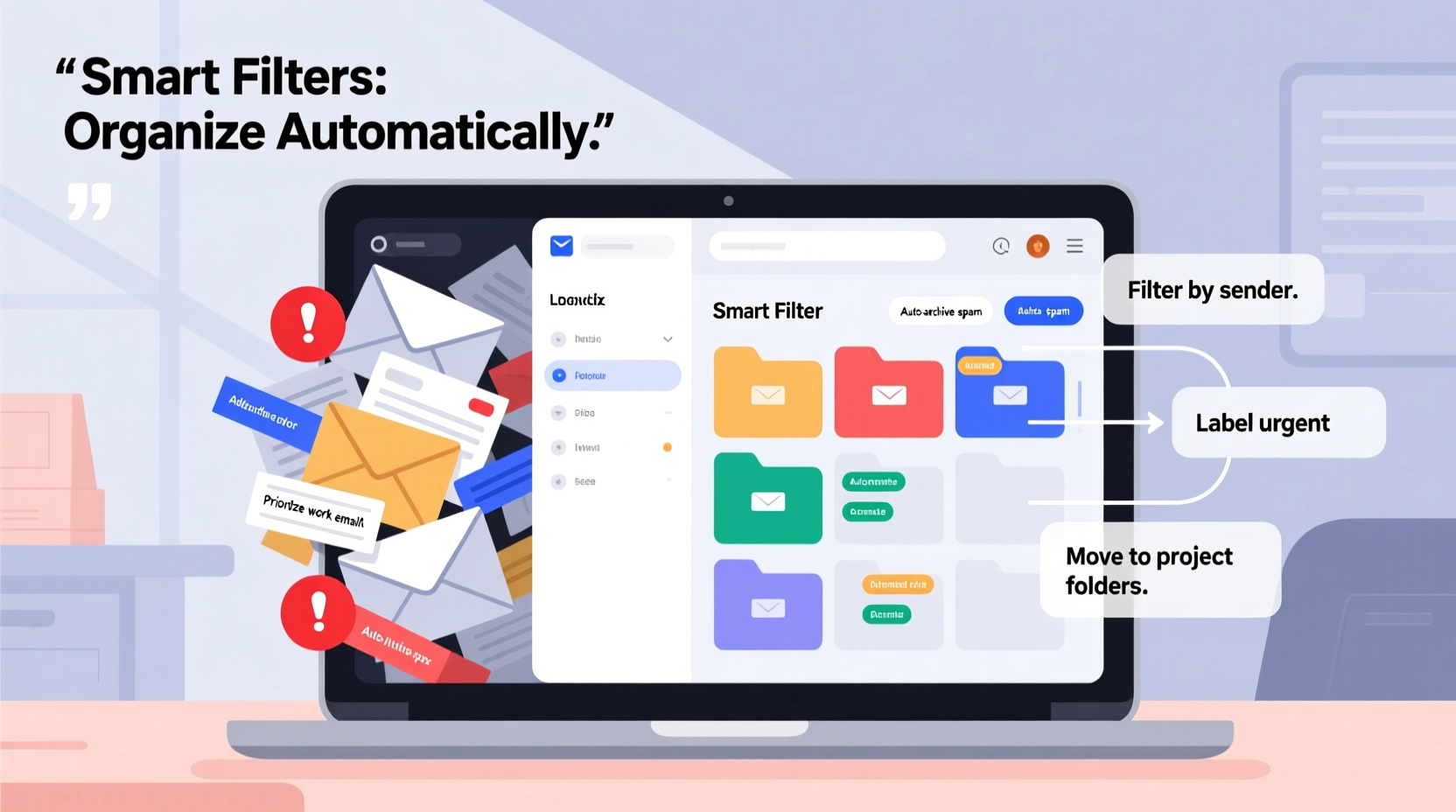
Filters (in Gmail) and rules (in Outlook and other clients) are conditional commands that automatically act on incoming or existing emails based on criteria like sender, subject, keywords, or labels. While terminology varies, the function is similar across platforms:
| Platform | Term Used | Key Features |
|---|---|---|
| Gmail | Filters | Create via Settings > See all settings > Filters and Blocked Addresses. Can skip inbox, apply labels, star, forward, or delete. |
| Outlook (Desktop) | Rules | Access via Home > Rules. Supports complex conditions, including attachment types and message size. |
| Outlook (Web) | Rules | Simplified interface with basic filtering options. Less robust than desktop version. |
| Apple Mail | Rules | Located under Mail > Preferences > Rules. Effective for sorting by sender or subject, but limited cloud sync. |
| ProtonMail | Filters | End-to-end encrypted filters. Actions include move to folder, mark as read, or notify. |
Despite differences, all systems allow you to define triggers and actions. The key is consistency in setup and maintenance.
Step-by-Step Guide to Building Smart Email Automation
Follow this five-step process to create an efficient, self-maintaining inbox system.
- Analyze Your Inbox Flow
Review your last 100 emails. Categorize them: newsletters, receipts, team updates, personal messages, promotions, social notifications. Identify which categories repeat regularly and cause clutter. - Define Priority Tiers
Group emails by importance:- High Priority: Messages from key contacts (manager, clients, family).
- Medium Priority: Notifications requiring occasional attention (e.g., project updates).
- Low Priority: Automated reports, newsletters, promotional offers.
- Create Filter Criteria
For each category, determine unique identifiers:- Sender domain (e.g., @newsletter.company.com)
- Subject line keywords (“Weekly Report,” “Receipt,” “Digest”)
- Message content (e.g., “Your order has shipped”)
- Frequency patterns (daily, weekly, monthly)
- Assign Actions
Decide what happens when a filter triggers:- Skip the inbox and go directly to a labeled folder
- Mark as read automatically
- Apply a color label or star
- Forward to another account (e.g., assistant or filing mailbox)
- Delete immediately (use cautiously)
- Test and Refine
Activate one filter at a time. Check results over 2–3 days. Adjust criteria if legitimate emails are misrouted or spam slips through.
Example: Automating Newsletter Management
Let’s say you receive seven newsletters weekly. Instead of letting them flood your inbox:
- Create a filter for any email where the sender contains “@newsletter.”
- Set action: Skip inbox and apply label “Read Later – Newsletters.”
- Add exception: If subject contains “unsubscribe” or “urgent,” deliver to inbox.
This keeps your primary view clean while preserving access during scheduled reading times.
Real Example: From Chaos to Control in One Week
Jamal, a project manager at a mid-sized tech firm, received over 200 emails daily. His inbox was unsearchable, and he often missed critical client messages. After auditing his email flow, he discovered that 78% were automated system alerts, internal status updates, and marketing blasts.
He implemented the following filters:
- All Jira and GitHub notifications → labeled “Dev Alerts” and archived.
- Internal team digests from Slack and Notion → moved to “Team Updates” folder, marked read.
- Emails from his direct reports → starred and labeled “Action Required – Team.”
- Client emails containing “proposal” or “contract” → forwarded to a priority folder with desktop notifications.
Within three days, his active inbox dropped from 4,300 unread messages to fewer than 50. He now checks low-priority folders once per week and handles high-priority items within hours. Jamal estimates he saves 7–10 hours weekly.
Do’s and Don’ts of Email Filtering
To avoid common pitfalls, follow this balanced approach.
| Do | Don't |
|---|---|
| Use specific sender domains instead of broad keywords | Filter based solely on vague terms like “update” or “info” |
| Include exceptions for urgent keywords (e.g., “urgent,” “ASAP”) | Automatically delete without reviewing first |
| Label and organize filtered emails for later retrieval | Create overlapping rules that conflict |
| Review filter performance monthly | Set and forget—rules degrade as senders change formats |
| Backup important filters (export rule sets if supported) | Rely only on default spam filters for critical blocking |
Advanced Tactics for Power Users
Once you’ve mastered basics, consider these advanced techniques:
- Time-Based Routing: Use calendar integration to adjust rules by schedule. For example, route non-urgent emails to a “Batch Review” folder during core work hours and suppress notifications after 6 PM.
- Attachment Detection: In Outlook, create rules that flag emails with .zip, .pdf, or .xlsx attachments for immediate review or backup.
- Sender Reputation Filtering: Block domains known for spam or low-value content. Tools like Google Workspace Admin or third-party add-ons (e.g., Clean Email) enhance this capability.
- Auto-Archiving Old Threads: Set up recurring scripts (via Gmail’s native search + filter or tools like Zapier) to archive conversations older than 90 days unless labeled “Keep.”
For enterprise users, combine email rules with CRM integrations. For instance, any email from a known customer in Salesforce can be auto-tagged and routed to a support queue.
Checklist: Build Your Decluttering System in One Hour
Follow this checklist to implement a functional filtering system today:
- ☐ Audit your inbox: Identify top 5 sources of clutter.
- ☐ Define 3–5 custom labels or folders (e.g., “Newsletters,” “Receipts,” “Pending Action”).
- ☐ Create filters for high-volume, low-priority senders (e.g., subscriptions).
- ☐ Set up one priority rule for key contacts (e.g., star and notify).
- ☐ Test each filter with recent emails to confirm accuracy.
- ☐ Disable notifications for filtered folders to reduce distractions.
- ☐ Schedule a monthly review to update or retire outdated rules.
FAQ: Common Questions About Email Filters and Rules
Can filters accidentally delete important emails?
Yes—if poorly configured. Avoid deleting emails outright. Instead, use “archive” or “move to folder” actions. Always include exceptions for keywords like “invoice,” “contract,” or names of key contacts. Regularly audit filtered folders to ensure nothing critical is missed.
What if a sender changes their email address or subject line format?
Filters break when senders evolve. That’s why ongoing maintenance matters. Review your rules quarterly. Use broader matching where possible (e.g., “contains @marketing” instead of exact address). Consider tools like SaneBox or Unroll.me that adapt to changing patterns using AI.
Do filters work on mobile devices?
Yes. Once set up on desktop or web, filters apply server-side, meaning they work across all devices. However, creating or editing rules is usually easier on desktop due to interface limitations in mobile apps.
Conclusion: Take Back Your Attention
Your inbox shouldn’t be a source of stress. With smart filters and rules, you shift from reactive management to proactive control. Automation doesn’t eliminate email—it refines it. You decide what deserves your attention and when. The result? More mental clarity, fewer distractions, and regained hours each week.
Start small: pick one category of clutter and build one reliable filter today. Expand gradually. Within a week, you’ll notice the difference. An organized inbox isn’t just tidy—it’s a strategic advantage.




 浙公网安备
33010002000092号
浙公网安备
33010002000092号 浙B2-20120091-4
Comments
No comments yet. Why don't you start the discussion?