
Mechanical keyboards are prized for their tactile feedback, durability, and long-term performance. However, over time, dust, debris, oils from fingertips, and airborne particles accumulate between the keycaps and switches. This buildup can affect typing accuracy, introduce unpleasant odors, and even lead to switch failure. While many guides recommend removing every keycap for a full cleaning, not everyone has the patience—or confidence—to do so. The good news is that you can perform a thorough deep clean without detaching a single key.
This guide walks through a complete, non-invasive approach to deep cleaning your mechanical keyboard. You’ll learn how to safely remove grime, sanitize surfaces, improve responsiveness, and maintain hygiene—all while preserving the integrity of your device. Whether you're a remote worker, gamer, or writer, keeping your keyboard in top condition enhances both comfort and longevity.
Why Clean Without Removing Keys?
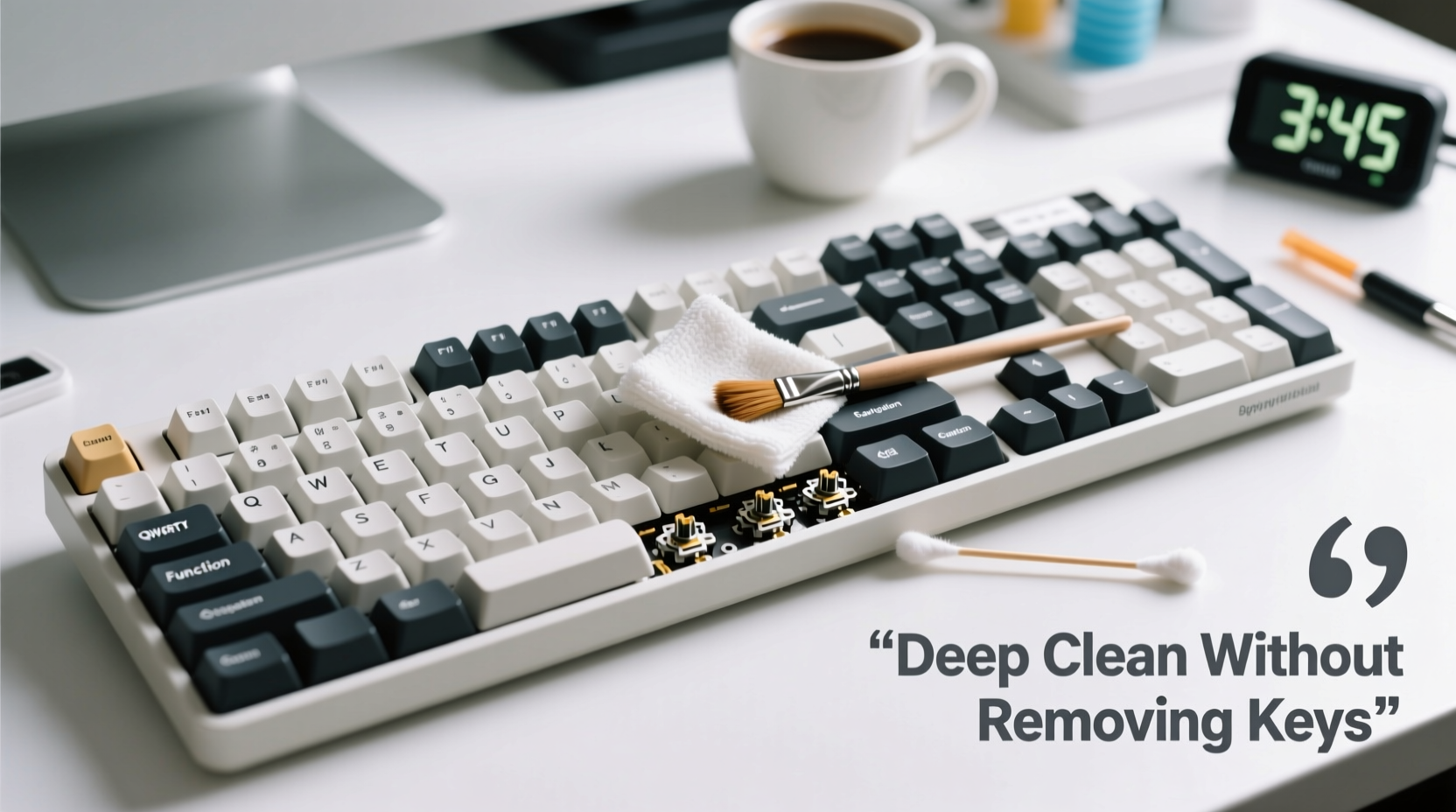
Removing keycaps allows for the most comprehensive cleaning, but it comes with risks. Prying off keycaps incorrectly can damage stabilizers, especially on larger keys like shift or spacebar. Additionally, reattaching them unevenly may cause wobbling or inconsistent actuation. For users with tight schedules, anxiety about reassembly, or keyboards with delicate designs (such as low-profile or gasket-mounted builds), a no-keycap-removal method offers a practical alternative.
Cleaning without removal also reduces exposure to moisture and physical stress on internal components. It’s ideal for routine maintenance between deeper cleans and perfect for those who want immediate results with minimal effort.
Essential Tools and Supplies
Effective cleaning starts with the right tools. Using improper materials—like paper towels or household cleaners—can scratch surfaces or corrode electrical contacts. Below is a curated list of safe, accessible supplies designed specifically for electronics and mechanical keyboards.
| Tool/Supply | Purpose | Recommended Options |
|---|---|---|
| Compressed air canister | Dislodge dust and debris from between keys | Falcon Dust-Off, Office Depot Air Duster |
| Soft-bristle brush | Sweep away loosened particles | Makeup brush, paintbrush (natural bristles) |
| Microfiber cloth | Wipe surfaces without scratching | Glasses-cleaning cloths, camera lens wipes |
| Isopropyl alcohol (70% minimum) | Sanitize and dissolve oils | Rubbing alcohol (pharmacy-grade) |
| Cotton swabs (q-tips) | Reach tight spaces around switches | Paper-stem swabs (plastic stems risk static) |
| Vacuum with narrow nozzle | Extract dislodged debris | Handheld vacuum or PC cleaning vacuum |
“Even light daily use deposits microscopic oils and skin cells. A monthly surface-level clean prevents long-term contamination.” — David Lin, Peripheral Maintenance Technician at TechCare Labs
Step-by-Step Deep Cleaning Process
A successful deep clean follows a logical sequence: start dry, then move to damp cleaning, and finish with inspection. Rushing steps or skipping preparation increases the risk of damage. Follow this timeline carefully to ensure safety and effectiveness.
- Power Down and Unplug: Disconnect the keyboard from your computer or turn off wireless mode. Never apply any liquid near powered devices.
- Shake Out Loose Debris: Hold the keyboard upside down over a trash can and gently shake it. Crumbs, hair, and dust will fall out naturally.
- Blast With Compressed Air: Use short bursts at a 45-degree angle to blow dust from between keys. Move row by row to avoid missing spots. Avoid tilting the can too far—liquid propellant can spray out and damage circuits.
- Brush Away Residue: Gently sweep a soft-bristle brush across the surface, focusing on corners and gaps. Use circular motions to lift stubborn particles.
- Vacuum Remaining Dust: Attach a narrow nozzle to your vacuum and hover just above the keys. Do not press down—suction alone removes what brushing and air have loosened.
- Dampen Microfiber Cloth With Alcohol: Moisten (not soak) a corner of the cloth with isopropyl alcohol. Wipe each keycap surface thoroughly, paying attention to frequently touched areas like WASD and spacebar.
- Clean Between Keys With Swabs: Dip a cotton swab lightly in alcohol and carefully run it along the edges of clusters. Rotate the swab as it gets dirty. Replace when necessary.
- Let It Dry Completely: Allow at least 15–30 minutes for any residual moisture to evaporate before reconnecting.
- Test Key Functionality: Type a few sentences or use a keyboard tester online to confirm all keys respond properly.
Do’s and Don’ts of Keyboard Hygiene
Even with the best intentions, common mistakes can shorten your keyboard’s life. Refer to this checklist to avoid pitfalls and reinforce proper habits.
| Do’s | Don’ts |
|---|---|
| Use 70–90% isopropyl alcohol for sanitizing | Use water, window cleaner, or bleach-based products |
| Clean every 4–6 weeks under normal use | Wait until keys feel sticky or unresponsive |
| Store covered when not in use (e.g., silicone skin or dust cover) | Leave exposed on desks near food or drinks |
| Hold compressed air upright during use | Shake or tilt the can excessively |
| Use lint-free cloths to prevent fiber shedding | Wipe with paper towels or napkins |
Real-World Example: Remote Worker Revives Year-Old Keyboard
Jamie, a freelance copywriter based in Portland, noticed her favorite mechanical keyboard had become sluggish after a year of heavy use. She often ate lunch at her desk and rarely cleaned her setup. One morning, the 'E' key registered double presses, and a faint musty smell emerged when she typed quickly.
Unwilling to dismantle the board (she’d broken a stabilizer once before), Jamie followed the no-removal deep clean process. After shaking out debris, she used compressed air and a makeup brush to clear visible dust. Then, she wiped each key with an alcohol-dampened microfiber cloth and cleaned between rows with swabs. The third pass revealed dark residue on the swabs—months of accumulated oil and dead skin.
After drying for 20 minutes, she reconnected the keyboard. All keys responded crisply, including the problematic 'E'. The odor disappeared entirely. Jamie now cleans her keyboard every five weeks and keeps a small cleaning kit in her office drawer.
Checklist: Your No-Keycap-Removal Cleaning Routine
- ✅ Disconnect keyboard from power source
- ✅ Shake out loose debris over trash can
- ✅ Use compressed air in short bursts between keys
- ✅ Brush surface with soft-bristle tool
- ✅ Vacuum loosened particles with narrow nozzle
- ✅ Dampen microfiber cloth with isopropyl alcohol
- ✅ Wipe all keycap tops and sides
- ✅ Clean tight spaces with alcohol-swabbed cotton swabs
- ✅ Allow 15–30 minutes drying time
- ✅ Reconnect and test functionality
- ✅ Store under dust cover when idle
Frequently Asked Questions
Can I use hand sanitizer to clean my keyboard?
No. Hand sanitizers often contain glycerin, fragrances, and other additives that leave sticky residues. These can attract more dust and potentially degrade plastic keycaps over time. Stick to pure isopropyl alcohol for best results.
How often should I deep clean without removing keys?
For average daily use (6–8 hours), aim for a full deep clean every 4 to 6 weeks. Heavy users—gamers, programmers, writers—should do it every 3 weeks. Light users can stretch to 8 weeks. Visible dust, stickiness, or odor are signs it’s time to clean immediately.
Will compressed air damage my switches?
When used correctly, compressed air poses no risk. Always hold the can upright and use short bursts. Tilting the can can release cold liquid propellant, which may condense inside the switch housing and cause corrosion. Keep the nozzle at least half an inch away from the surface.
Final Thoughts and Call to Action
Your mechanical keyboard is more than a tool—it’s an extension of your workflow, creativity, and precision. Treating it with regular care ensures consistent performance, better hygiene, and extended lifespan. You don’t need to be a technician or own specialty gear to keep it pristine. With just a few simple tools and a structured routine, you can maintain a clean, responsive keyboard without ever popping off a single key.
Start today. Set a calendar reminder for your next cleaning session. Share this guide with fellow typists, gamers, or coworkers who eat at their desks. Small habits compound into lasting results. A well-maintained keyboard isn’t just functional—it feels better, lasts longer, and reflects pride in your digital workspace.




 浙公网安备
33010002000092号
浙公网安备
33010002000092号 浙B2-20120091-4
Comments
No comments yet. Why don't you start the discussion?