
Mechanical keyboards are prized for their tactile feedback, durability, and customization options. But over time, dust, crumbs, oils from fingertips, and environmental debris accumulate between switches and keycaps, degrading performance and hygiene. While many users instinctively reach for water or disassemble the entire unit, doing so improperly can void the manufacturer’s warranty—leaving you with a pristine but unsupported device.
The good news: deep cleaning is possible without opening the case or submerging the board. With the right tools, timing, and techniques, you can restore your keyboard to near-factory condition while keeping warranty protection intact. This guide walks through a safe, thorough process that balances effectiveness with caution, based on industry standards and technician insights.
Why Deep Cleaning Matters (and When to Do It)
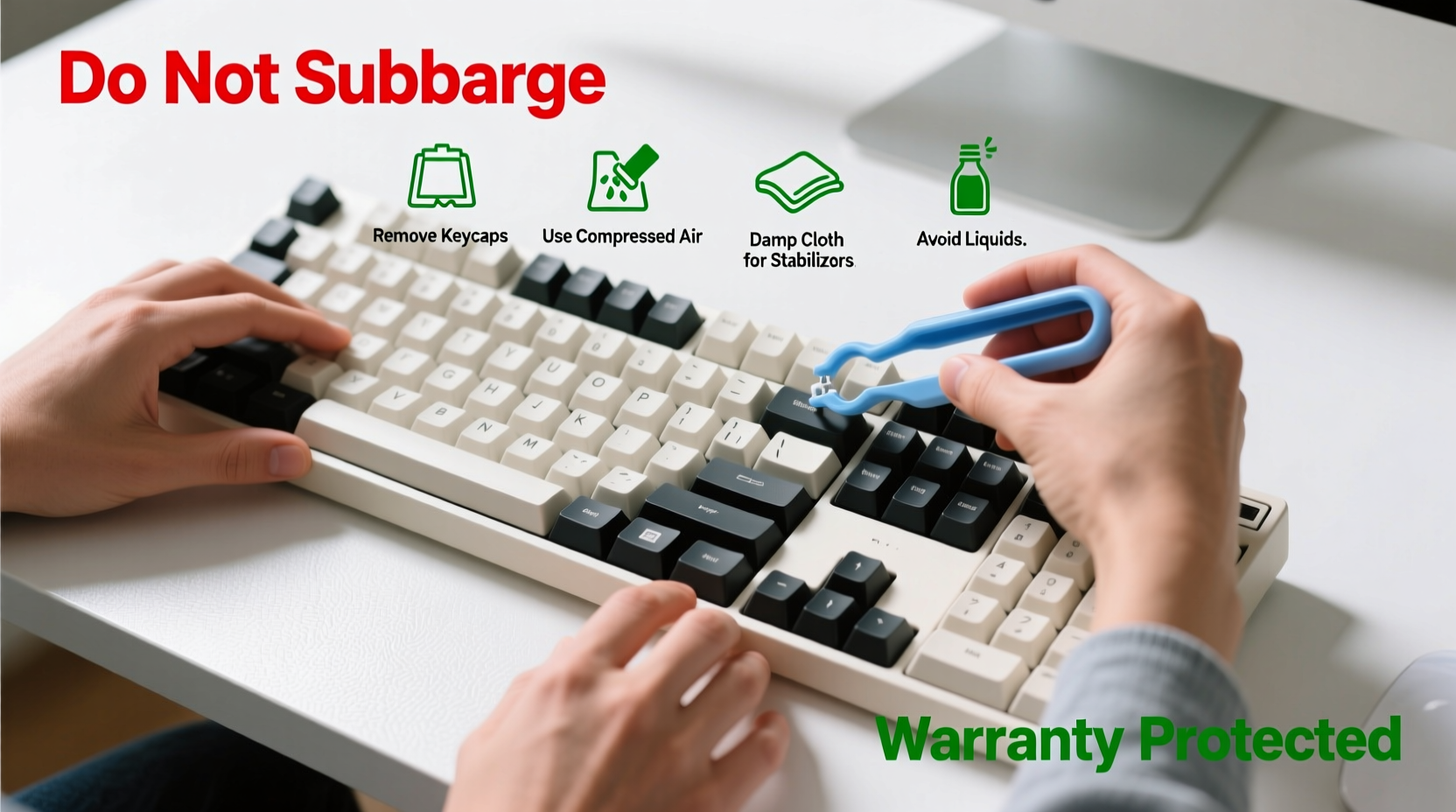
A dirty keyboard isn’t just unsightly—it affects functionality. Sticky keys, inconsistent actuation, and even electrical interference can stem from grime buildup beneath the surface. Most manufacturers recommend periodic maintenance, but few specify what constitutes “safe” cleaning.
Signs it’s time for a deep clean:
- Keys feel gummy or require extra force to register
- Visible dust or debris under keycaps
- Faint odors when typing, especially after long sessions
- Intermittent keystrokes or ghost inputs
For most users, a full deep clean every 3–6 months is sufficient. Heavy typists, gamers, or those who eat near their desk may benefit from more frequent care.
What Voids a Warranty—and What Doesn’t
Many warranties cover defects in materials and workmanship but exclude damage caused by user error. The line between acceptable maintenance and voided coverage often hinges on two factors: physical modification and liquid exposure.
Actions that typically void warranty:
- Removing screws from the bottom plate or case
- Desoldering switches or modifying internal components
- Submerging the PCB in liquid (e.g., dishwasher or sink washing)
- Using conductive cleaners or compressed air with moisture
Safe practices that preserve warranty:
- Removing and cleaning keycaps (standard user maintenance)
- Using compressed air to dislodge debris
- Wiping surfaces with alcohol-dampened swabs (70% isopropyl or lower)
- External cleaning of ports and frame
“Most mechanical keyboard warranties assume basic user maintenance. As long as you don’t open the housing or expose the circuitry to excess moisture, you’re within bounds.” — David Lin, Senior Technician at KeyTech Repair Labs
Step-by-Step: Safe Deep Cleaning Process
This method delivers professional-level results without risking warranty status. Estimated time: 60–90 minutes.
- Power down and unplug
Disconnect the keyboard from your computer. If wireless, turn it off and remove batteries if applicable. Never clean a powered device. - Remove keycaps
Use a plastic keycap puller to gently lift each keycap. Start with smaller keys (ASDF, JKL;), then move to larger ones with stabilizers (spacebar, shift, enter). Place them in a labeled container to avoid mix-ups. - Clean keycaps
Soak keycaps in warm water with mild dish soap for 20–30 minutes. Avoid boiling water, which can warp PBT or ABS plastic. Use a soft toothbrush to scrub stubborn grime. Rinse thoroughly and lay flat on a microfiber towel to dry—minimum 4 hours. - Clear debris from the board
Hold the keyboard at a 45-degree angle and use compressed air to blow out particles. Move in rows from top to bottom. For tight spaces around switches, use a soft-bristled brush or wooden pick to dislodge compacted dust—never metal tools. - Disinfect switch stems and plate
Dampen a cotton swab with 70% isopropyl alcohol (IPA). Wipe around each switch stem and visible plate surface. Use one swab per row to avoid redistributing dirt. Let the area air-dry completely before proceeding. - Sanitize cables and ports
With a new IPA swab, gently clean the USB connector and port edges. Avoid inserting anything into the port itself. For fabric-braided cables, wipe with a slightly damp microfiber cloth and dry immediately. - Reattach keycaps
Once fully dry, begin reattaching keycaps. Press straight down until they click into place. Double-check spacing and alignment, especially on staggered layouts. - Test functionality
Reconnect the keyboard and open a text editor. Test every key, including modifiers and combinations. Listen for smooth actuation and watch for missed inputs.
Do’s and Don’ts: Quick Reference Table
| Do | Don’t |
|---|---|
| Use a plastic keycap puller | Use metal tweezers or screwdrivers to remove caps |
| Clean keycaps with mild soap and water | Soak keycaps in bleach or acetone-based cleaners |
| Use 70% isopropyl alcohol on swabs | Pour liquid directly onto the PCB |
| Use compressed air in short bursts | Shake the can upside down (releases propellant fluid) |
| Let all parts dry 4+ hours before reassembly | Reassemble damp keycaps or housing |
| Follow manufacturer’s care guidelines | Open the back case unless authorized |
Real-World Example: A Gamer’s Recovery Story
Mark, a competitive FPS player from Austin, noticed his spacebar was registering double presses during matches. Fearing he’d ruined his $180 gaming keyboard, he almost replaced it—until he checked the warranty terms. He discovered that keycap removal was explicitly permitted.
Following a process similar to this guide, he removed all caps, cleaned them in soapy water, and used compressed air to clear years of pet hair and dust from under the switches. After drying and reassembling, the spacebar issue vanished. His keyboard now performs better than it did six months ago—all without sending it in for service or losing warranty coverage.
“I assumed I had to send it to support or buy a new one,” Mark said. “But ten minutes with a keycap puller fixed everything.”
Expert-Approved Tools and Supplies Checklist
Having the right gear makes the job faster and safer. Here’s what professionals recommend keeping on hand:
- Plastic keycap puller (not metal)
- Bowl or container for soaking keycaps
- Mild dish soap (no degreasers or abrasives)
- Soft-bristle toothbrush (dedicated to cleaning, not oral use)
- Canned compressed air (with plastic straw nozzle)
- Cotton swabs (standard or foam-tipped)
- 70% isopropyl alcohol (higher concentrations can degrade plastics over time)
- Microfiber cloths (lint-free)
- Small container or tray for organizing keycaps
- Ziplock bag for storing small parts
Frequently Asked Questions
Can I use hand sanitizer to clean my switches?
No. Hand sanitizers often contain glycerin, fragrances, and other additives that leave sticky residues. Stick to pure 70% isopropyl alcohol on swabs for best results.
Is it safe to clean a hot-swappable keyboard the same way?
Yes—with one caveat. You can remove switches only if the manufacturer allows it. Most hot-swap boards permit switch replacement without voiding warranty, but always check the manual first. If unsure, clean around switches without removing them.
How do I know if my keyboard has a sealed PCB?
Most modern mechanical keyboards use enclosed PCBs protected by the plate and case. Unless you’ve opened the back panel, the circuitry should be shielded. Look for rubber gaskets around the USB port or seamless casing—these indicate environmental protection.
Final Thoughts: Maintain Performance, Preserve Protection
Your mechanical keyboard is an investment in comfort, speed, and precision. Treating it with regular, intelligent care ensures it lasts for years—without sacrificing warranty benefits. The key is respecting the boundaries set by manufacturers: clean externally, avoid invasive steps, and never rush the drying process.
By following this approach, you’re not just removing dirt—you’re extending the functional life of your device, maintaining hygiene, and preserving resale value. Whether you type 10 hours a day or game competitively, a clean keyboard responds faster, feels better, and looks sharper.




 浙公网安备
33010002000092号
浙公网安备
33010002000092号 浙B2-20120091-4
Comments
No comments yet. Why don't you start the discussion?