
USB ports are essential for connecting peripherals like keyboards, mice, external drives, smartphones, and more. When they stop working, productivity takes a hit. The good news is that many USB port problems can be diagnosed and resolved without replacing hardware. This guide walks through proven methods to identify the root cause—whether it's software-related, physical damage, or power delivery issues—and apply effective fixes.
Step 1: Identify the Symptoms
Before jumping into repairs, clearly define what’s going wrong. Common signs of USB port failure include:
- Device not recognized when plugged in
- Intermittent connection (device disconnects randomly)
- Slow data transfer speeds
- Port not supplying power (device won’t charge)
- Burning smell or visible damage around the port
Distinguishing between a faulty device, cable, or port is crucial. Plug a known-working device into the suspect port. Then, plug the problematic device into a known-good port. This isolates whether the issue lies with the hardware or the connection point.
Step 2: Perform Basic Troubleshooting
Many USB issues stem from simple software glitches or driver conflicts. Start with non-invasive solutions:
- Restart your computer. A reboot clears temporary system errors that may affect USB recognition.
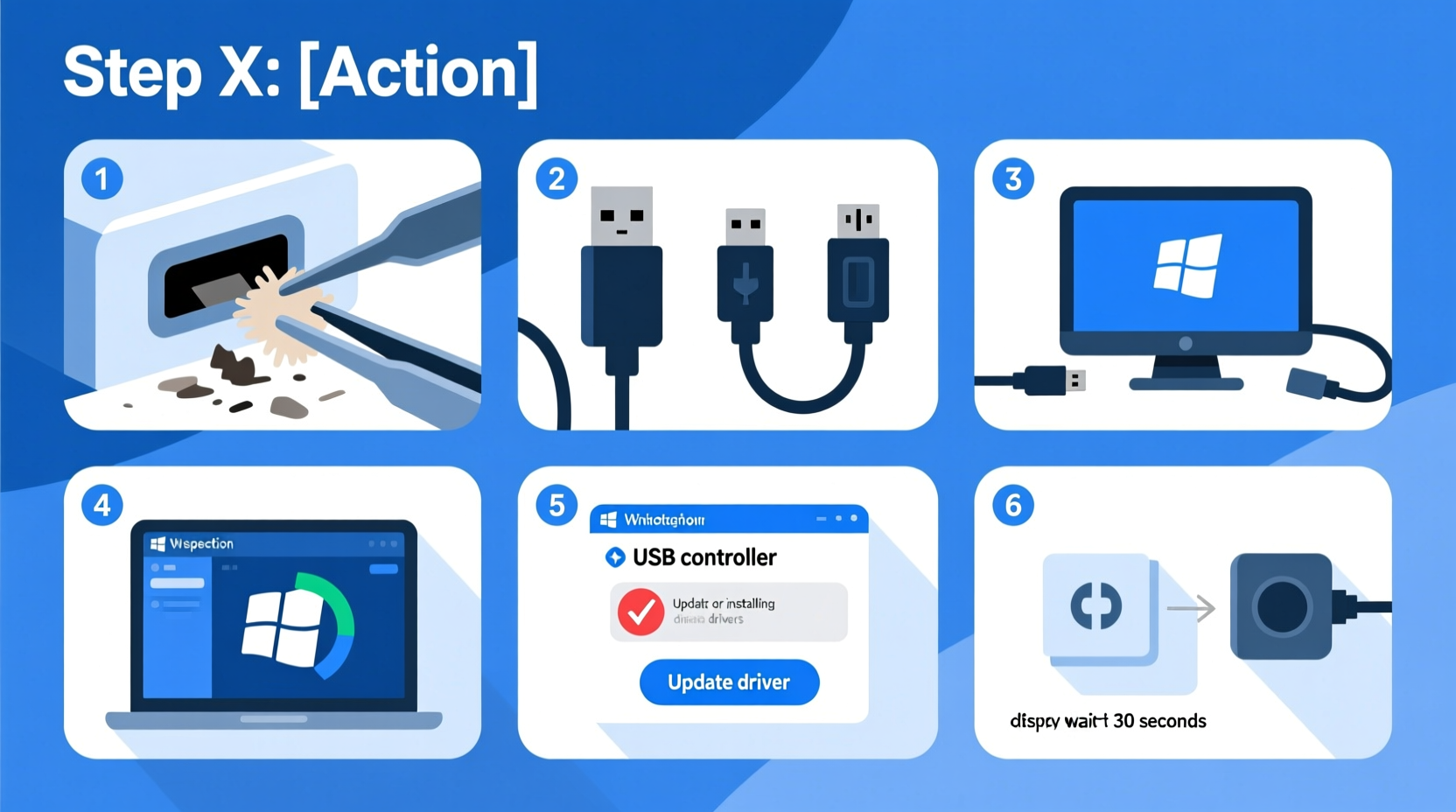
- Check Device Manager (Windows). Open Device Manager and look under “Universal Serial Bus controllers.” If you see yellow exclamation marks, right-click and select \"Update driver.\"
- Uninstall and reinstall USB drivers. In Device Manager, right-click each USB controller and choose \"Uninstall device.\" Restart the computer—the system will reinstall the drivers automatically.
- Reset SMC and NVRAM (Mac). On macOS, reset the System Management Controller (SMC) and NVRAM to resolve power and peripheral detection issues.
- Try another operating system. Boot from a Linux live USB. If the port works there, the issue is likely OS-specific.
If the problem persists after these steps, move to deeper diagnostics.
Step 3: Inspect for Physical Damage
Physical wear is a leading cause of USB failure, especially on laptops and frequently used desktops. Carefully examine the port for:
- Bent or broken pins inside the connector
- Loose fit when plugging in devices
- Debris such as dust, lint, or pocket fluff
- Signs of overheating or melting
To clean the port:
- Power off the device completely.
- Use compressed air to blow out loose debris.
- For stubborn particles, use a wooden toothpick or plastic spudger—never metal tools that could short the circuitry.
- Gently scrape along the sides if necessary, avoiding contact with internal contacts.
Step 4: Test Power and Data Delivery
A port might appear functional but fail to deliver sufficient power or data throughput. Use these methods to verify performance:
- Measure voltage (advanced): With a multimeter, set to DC voltage, gently touch the probes to the VCC (power) and GND (ground) pins inside the port (refer to USB pinout diagrams). A healthy USB 2.0/3.0 port should read ~5V when idle.
- Test charging capability: Plug in a smartphone. If it doesn’t charge or charges extremely slowly, the port may not supply adequate power.
- Monitor data speed: Transfer a large file from a flash drive. If speeds are below 10 MB/s on a modern system, there could be a data line fault.
Note: Some ports are designed only for charging (e.g., powered USB-A on monitors), so confirm the port’s intended function first.
Common USB Port Types and Expected Performance
| USB Standard | Max Data Speed | Power Output | Typical Use Case |
|---|---|---|---|
| USB 2.0 | 480 Mbps | 5V / 500mA | Keyboards, mice, older flash drives |
| USB 3.0 / 3.1 Gen 1 | 5 Gbps | 5V / 900mA | External SSDs, high-speed drives |
| USB-C with USB 3.2 | 10–20 Gbps | 5–20V / up to 5A | Laptops, docks, fast charging |
| Powered USB (non-data) | N/A | 5V / 1A+ | Charging-only ports |
“We’ve seen over 60% of reported ‘dead’ USB ports actually suffer from driver misconfigurations or debris buildup—not hardware failure.” — Rajiv Mehta, Senior Hardware Technician at TechCare Labs
Step 5: Advanced Fixes and When to Seek Help
If basic and intermediate steps fail, consider these advanced options—proceed with caution.
Soldering Loose Connections (Expert Only)
On some motherboards or devices, USB ports become disconnected due to physical stress. If you have soldering experience:
- Disassemble the device safely.
- Inspect the motherboard-side USB connector for cracked solder joints.
- Use a fine-tip soldering iron to reflow connections, ensuring no bridges form between pins.
- Reassemble and test.
This requires precision and carries risk. One mistake can render the entire board unusable.
Replace the Port or Use a Header Adapter
If the port is damaged beyond repair:
- For desktops: Install a PCIe USB expansion card. These add multiple high-speed ports and bypass internal failures.
- For laptops: Replacement is complex. Consider using a USB hub connected via HDMI, Ethernet, or Thunderbolt as an alternative.
- Internal header adapters: Some motherboards support front-panel USB headers. You can route an external port using internal connectors.
Mini Case Study: Recovering a Non-Functional Laptop USB Port
Sarah, a freelance designer, noticed her laptop stopped recognizing her Wacom tablet. She tested the tablet on another machine—it worked. She then tried a mouse in the same USB port—no response. After cleaning the port with compressed air, she checked Device Manager and found a disabled USB Root Hub. Enabling it restored functionality immediately. No hardware repair was needed. This highlights how often software misconfigurations mimic hardware failure.
Prevention Checklist: Keep Your USB Ports Working Longer
Maintain your ports with this routine:
- ✅ Regularly clean ports with compressed air every 3–6 months
- ✅ Avoid forcing connectors—align properly before insertion
- ✅ Use strain-relief supports for heavy devices (e.g., external HDDs)
- ✅ Update system BIOS and chipset drivers periodically
- ✅ Unplug devices gently by the plug, not the cable
- ❌ Don’t use cheap, poorly shielded cables that can cause electrical noise
Frequently Asked Questions
Can a USB port be fixed without replacing it?
Yes, in many cases. Software issues, driver corruption, and debris buildup can all be resolved without hardware replacement. Even minor physical damage may be repairable with soldering if the circuit traces are intact.
Why does my USB device work sometimes but not others?
Intermittent connectivity usually indicates a loose connection—either in the port’s internal solder joint, worn-out spring contacts, or a frayed cable. Try wiggling the plug slightly while inserted. If the device connects and disconnects during movement, the port or cable is likely failing.
Is it safe to use a USB hub if my ports are failing?
Yes, provided the hub connects through a working port (e.g., USB-C, HDMI, or Thunderbolt). Powered hubs are preferable, as they reduce strain on the host system’s power delivery. Just ensure the hub itself is from a reputable brand to avoid introducing new issues.
Conclusion: Take Action Before Problems Worsen
USB port issues are common but rarely require immediate hardware replacement. By methodically testing for software faults, inspecting for physical damage, and validating power and data delivery, most problems can be resolved quickly and affordably. Ignoring early warning signs—like sluggish transfers or loose connections—can lead to complete port failure and data access challenges down the line.




 浙公网安备
33010002000092号
浙公网安备
33010002000092号 浙B2-20120091-4
Comments
No comments yet. Why don't you start the discussion?