
YouTube’s autoplay feature is designed to keep you engaged by automatically playing the next video in a queue. While this can be convenient when browsing content on Wi-Fi, it becomes a problem when you're using mobile data. Unexpected video playback eats up bandwidth quickly, increases your data bill, and shortens battery life. For users on limited data plans or those trying to minimize distractions, disabling autoplay is essential. The good news is that YouTube provides built-in settings to control this behavior across all platforms — you just need to know where to look.
This guide walks you through how to disable autoplay on YouTube on Android, iOS, and desktop browsers. It also explains why turning off autoplay helps conserve data, reduce screen time, and improve focus. Whether you're a parent managing children's screen habits or a professional trying to avoid unnecessary streaming, these steps will help you regain control over your viewing experience.
Why Disabling Autoplay Saves Data
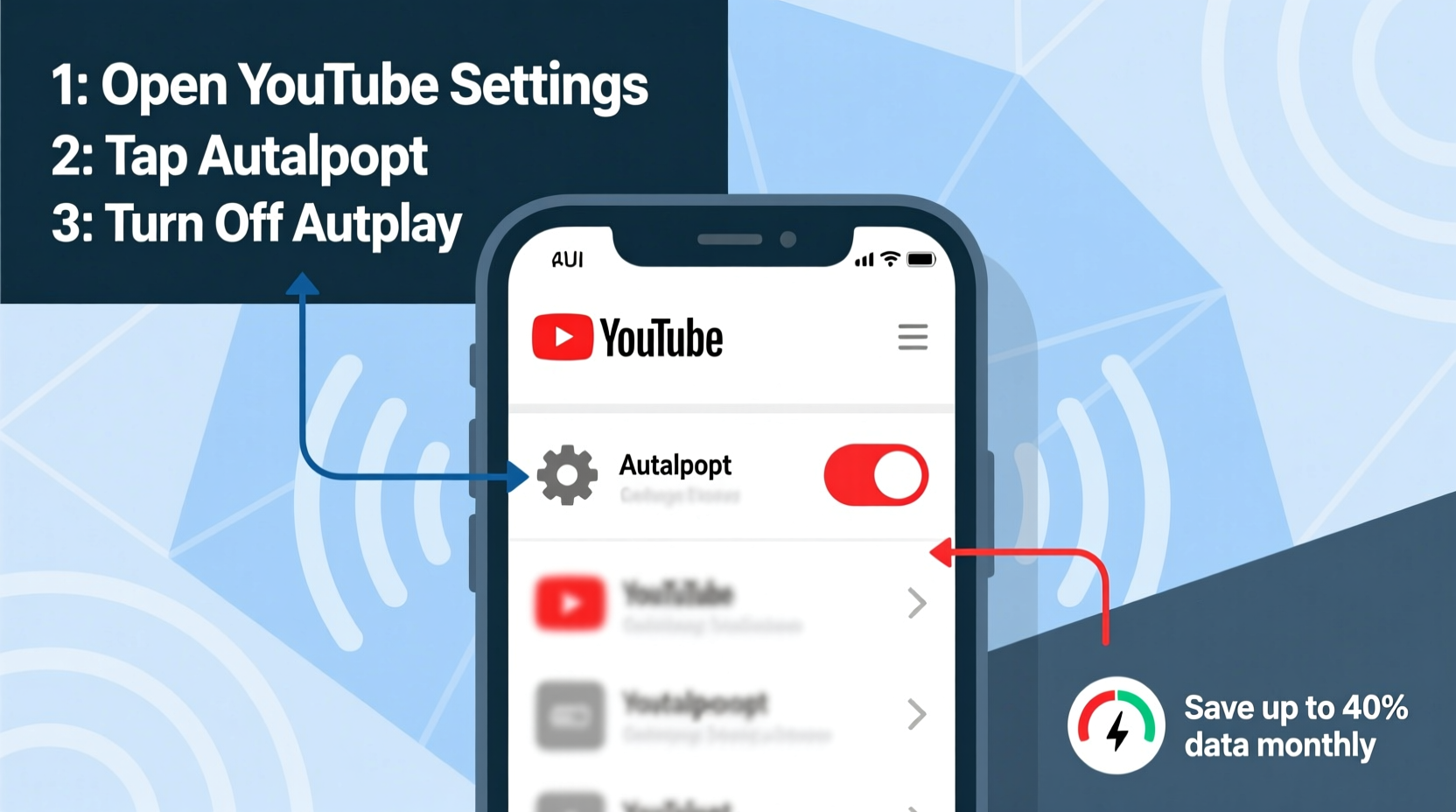
Autoplay may seem harmless, but its impact on data consumption adds up fast. A single HD video can use 100–300 MB per hour. When autoplay is enabled, one video leads to another, and before you know it, hundreds of megabytes are gone — often without your intent to watch.
Consider this: if you watch a 5-minute tutorial and then get pulled into three unrelated videos via autoplay, you’ve consumed nearly 40 minutes of content you didn’t plan to view. On mobile networks, especially in areas with poor signal (where buffering increases data use), this can result in rapid depletion of your monthly allowance.
Disabling autoplay forces intentional viewing. You decide what to watch, when to watch it, and when to stop. This not only conserves data but also reduces digital clutter and improves mental focus.
How to Disable Autoplay on Android Devices
Mobile users spend most of their YouTube time on smartphones, making Android one of the most important platforms for managing autoplay settings. Fortunately, the YouTube app makes it easy to toggle autoplay off directly from the player interface.
- Open the YouTube app on your Android device.
- Start playing any video.
- Look for the “Autoplay” toggle located in the top-right corner of the screen, next to the recommended video queue.
- If the toggle is blue, autoplay is active. Tap it once to turn it off (the toggle will become gray).
Once disabled, YouTube will no longer play the next suggested video after the current one ends. Instead, the screen will display a \"Video ended\" message with thumbnails of related content — but none will begin automatically.
Note: This setting is session-based. If you close and reopen the app, autoplay may reset to its previous state depending on your account preferences. To make the change more permanent, adjust your settings within your Google Account.
Set Default Autoplay Preference in YouTube Account Settings (Android)
To ensure your autoplay preference sticks across sessions:
- Navigate to your profile picture in the top-right corner of the app.
- Select “Settings.”
- Tap “General.”
- Find “Autoplay” under the “Playback” section.
- Switch it off.
This global setting applies whenever you're logged into your YouTube account on any Android device, reducing the chance of accidental data usage.
How to Turn Off Autoplay on iPhone and iPad
iOS users follow a nearly identical process to disable autoplay, both during playback and in app settings.
- Launch the YouTube app on your iPhone or iPad.
- Begin playing a video.
- Locate the autoplay toggle at the top-right of the video player.
- Tap the toggle to disable it (it will change from red to gray).
As with Android, this disables automatic playback for the current session. However, like its Android counterpart, the setting might revert unless changed globally.
Adjust Autoplay in YouTube App Settings (iOS)
To lock in your preference:
- Tap your profile icon in the top-right corner.
- Go to “Settings.”
- Select “General.”
- Tap “Autoplay.”
- Toggle it off.
This ensures that even after restarting the app or updating content, autoplay remains disabled by default.
Disabling Autoplay on Desktop Browsers
On laptops and desktops, YouTube autoplay behaves slightly differently. While there’s no persistent autoplay toggle visible during playback, the feature can still be managed through browser controls and account-level settings.
Step-by-Step: Disable Autoplay on YouTube Website
- Go to youtube.com and sign in.
- Play any video.
- Below the video player, find the “Up next” panel.
- Click the toggle next to “Autoplay” so it turns gray.
This action disables autoplay for that session. However, YouTube does not currently offer a permanent website-wide setting to remember this choice. You’ll need to manually disable autoplay each time you start a new browsing session — unless you take additional steps.
Use Browser Extensions to Block Autoplay
For a more permanent solution on desktop, consider installing browser extensions such as:
- uBlock Origin – Blocks unwanted scripts and autoplay behaviors.
- YouTube Auto Pause – Pauses videos after they end.
- Disable HTML5 Autoplay – Prevents media autoplay across websites.
These tools work at the browser level, stopping videos from playing automatically even if YouTube tries to initiate them.
“Many users don’t realize that autoplay contributes significantly to unintentional data usage. Taking control of playback settings is one of the simplest ways to manage bandwidth and attention online.” — Dr. Lena Torres, Digital Wellness Researcher at TechBalance Institute
Data Savings Comparison: With vs. Without Autoplay
The difference in data usage between having autoplay on and off can be dramatic, especially over time. The table below illustrates estimated monthly data consumption based on typical user behavior.
| Scenario | Avg. Daily Viewing Time | Autoplay Status | Estimated Monthly Data Use |
|---|---|---|---|
| User watches planned videos only | 30 mins | Off | ~3 GB (720p) |
| User gets drawn into recommendations | 60+ mins | On | ~10 GB (720p) |
| Background autoplay while multitasking | 90 mins | On | ~15 GB (1080p) |
| Same as above, autoplay disabled | 45 mins | Off | ~5 GB (720p) |
As shown, enabling autoplay nearly triples average data usage compared to intentional viewing. For users on capped data plans (e.g., 10–20 GB/month), this could mean exceeding limits and facing throttled speeds or extra charges.
Mini Case Study: Maria Reduces Her Data Bill by 40%
Maria, a freelance graphic designer from Austin, relied on her smartphone hotspot for internet access while traveling between client meetings. She noticed her 15 GB monthly plan was consistently exhausted by the third week. After reviewing her usage stats, she discovered YouTube accounted for over 8 GB — much of it from autoplayed videos she hadn’t intended to watch.
She followed the steps to disable autoplay on her iPhone and activated Data Saver mode in the YouTube app. Within two weeks, her daily YouTube usage dropped from 90 minutes to 40 minutes, and her total data consumption fell by 40%. By the end of the month, she had 5 GB remaining — enough to comfortably last until her next billing cycle.
“I didn’t realize how much I was watching passively,” Maria said. “Turning off autoplay made me more mindful of what I actually wanted to see. Plus, my phone battery lasts longer now.”
Checklist: How to Fully Disable YouTube Autoplay and Save Data
Follow this checklist to ensure autoplay stays off and data is preserved:
- ✅ Disable autoplay toggle during video playback on mobile and desktop.
- ✅ Change autoplay setting in YouTube app “General” settings (mobile).
- ✅ Enable “Data Saver” mode in YouTube app settings.
- ✅ Use lower video resolution (480p or 720p) when on mobile data.
- ✅ Install a browser extension to block autoplay on desktop.
- ✅ Monitor data usage in your phone settings weekly.
- ✅ Log out of YouTube on shared devices to prevent unintended playback.
Frequently Asked Questions
Will disabling autoplay affect offline downloads?
No. Disabling autoplay only stops videos from playing automatically after the current one ends. Downloaded videos can still be watched offline normally, and autoplay has no effect on downloaded content.
Can I disable autoplay for Kids or supervised accounts?
Yes. In YouTube Kids, autoplay is enabled by default but can be turned off in parental controls. For Family Link-managed accounts, parents can restrict autoplay through the YouTube app settings under the child’s profile.
Does disabling autoplay improve battery life?
Yes. Preventing continuous video playback reduces CPU and screen usage, which extends battery life — especially on mobile devices. Fewer background processes mean less strain on your device.
Take Control of Your Viewing Habits Today
Autoplay may keep you entertained, but it comes at a cost: wasted data, shorter battery life, and fragmented attention. By taking a few minutes to disable autoplay across your devices, you gain back control over your digital experience. Whether you're trying to stick to a tight data plan, reduce screen time, or simply watch only what matters to you, these small changes deliver real results.
Start today. Open YouTube, play a video, and flip that autoplay switch. Make it permanent by adjusting your app settings. Pair it with data-saving features and mindful viewing, and you’ll notice the difference within days.




 浙公网安备
33010002000092号
浙公网安备
33010002000092号 浙B2-20120091-4
Comments
No comments yet. Why don't you start the discussion?