
Google Chrome dominates the browser market with speed, integration, and convenience. But its default settings often prioritize data collection, background activity, and automatic updates—features that can compromise privacy, drain system resources, or interfere with user control. While Chrome isn’t designed to be easily “disabled” entirely, you can significantly limit its functionality, turn off intrusive features, and even prevent it from launching automatically. This guide walks through practical, actionable steps to regain control over Chrome’s behavior.
Why Disable or Limit Chrome Features?
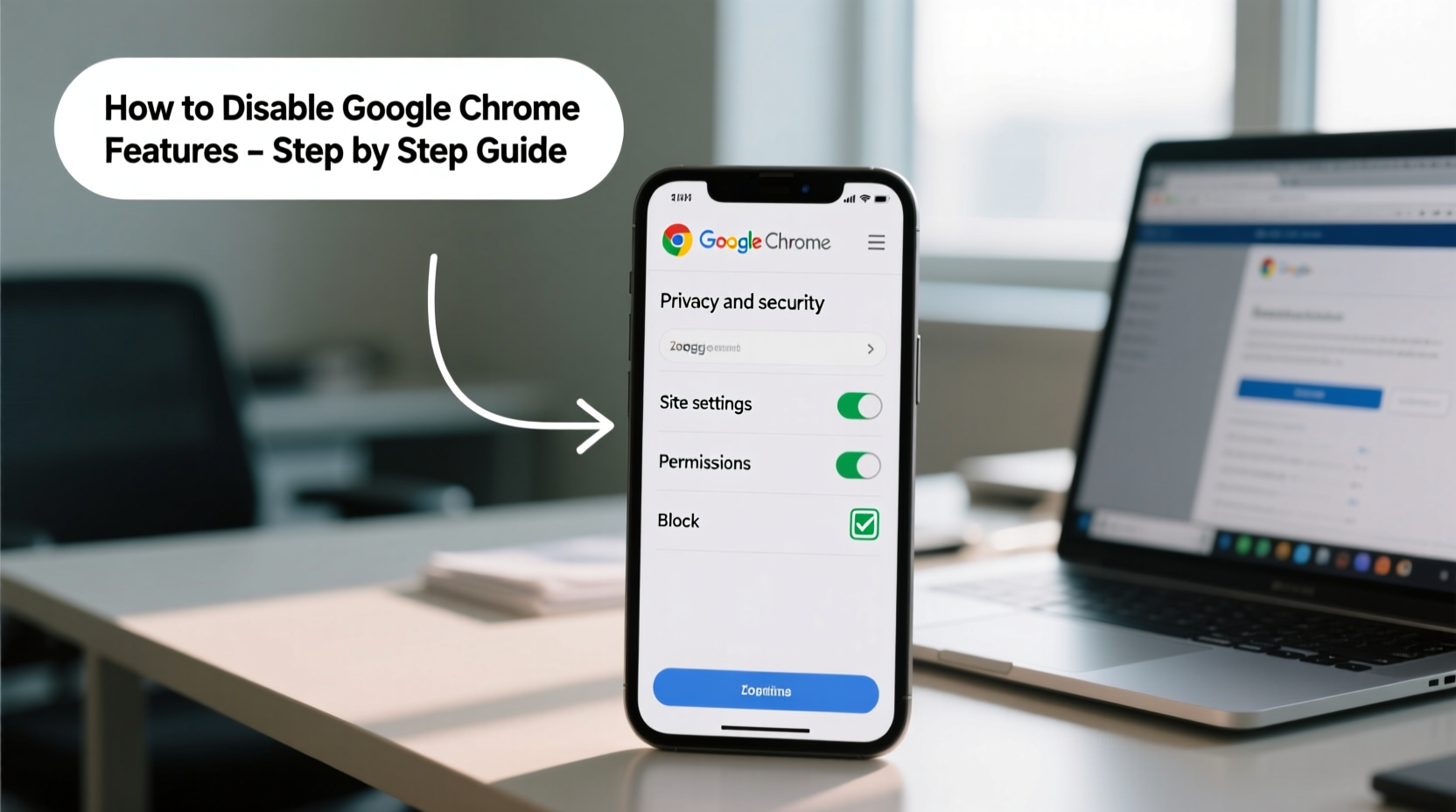
Many users assume Chrome is essential, but in reality, much of its background operation runs without explicit consent. Automatic updates install silently, telemetry collects usage data, and background processes continue running even after closing the browser. For users concerned about privacy, battery life, or system performance, selectively disabling these features makes a tangible difference.
“Modern browsers collect more data than most users realize. Taking deliberate steps to disable non-essential features is a foundational part of digital hygiene.” — Dr. Lena Patel, Cybersecurity Researcher at OpenWeb Initiative
Step-by-Step: How to Disable Key Chrome Features
Follow this structured approach to systematically reduce Chrome’s footprint on your device.
1. Stop Chrome from Running in the Background
Chrome often continues using memory and CPU after you close all windows. This happens because background apps and services remain active.
- Open Chrome and click the three-dot menu (⋮) in the top-right corner.
- Select Settings.
- Navigate to System in the sidebar.
- Toggle off Continue running background apps when Google Chrome is closed.
2. Disable Sync and Data Collection
Chrome syncs bookmarks, passwords, history, and preferences across devices—but it also shares this data with Google servers.
- Go to Settings > You and Google.
- Click Sync and Google services.
- Toggle off Sync everything, then individually disable syncing for passwords, history, open tabs, etc.
- Scroll down and disable Make searches and browsing better and Help improve Chrome's features and performance.
3. Turn Off Predictive Network and Preloading
Chrome preloads pages it thinks you’ll visit, consuming bandwidth and potentially tracking navigation patterns.
- In Settings, go to Privacy and security > Security.
- Disable Preload pages for faster browsing and searching.
- Under Privacy Sandbox, toggle off all related options unless required.
4. Disable Unwanted Extensions and Permissions
Extensions often run in the background and request excessive permissions.
- Type
chrome://extensionsin the address bar. - Review each extension and remove those not actively used.
- For remaining extensions, disable Allow in incognito and check permissions under “Details.”
5. Prevent Chrome from Launching at Startup
On Windows and macOS, Chrome may auto-start with the operating system.
- Windows: Press Ctrl+Shift+Esc to open Task Manager. Go to the Startup tab, find Google Chrome, and click Disable.
- macOS: Open System Settings > General > Login Items. Find Chrome and click the minus (-) button to remove it.
Disabling Chrome Updates (Advanced)
While Chrome updates deliver security patches, they can disrupt workflows or re-enable disabled features. Disabling updates requires administrative access and should be done cautiously.
On Windows
- Press Win + R, type
services.msc, and press Enter. - Locate Google Update Service (gupdate) and Google Update Service (gupdatem).
- Right-click each, select Properties, and set Startup type to Disabled.
- Stop the service if currently running.
On macOS
- Open Terminal (Applications > Utilities).
- Run the command:
sudo launchctl unload /Library/LaunchDaemons/com.google.keystone.daemon.plist - To prevent reactivation, rename or remove the file:
sudo mv /Library/Google/GoogleSoftwareUpdate ~/Desktop/(backup first).
Complete Checklist: Minimize Chrome’s Impact
Use this checklist to audit and restrict Chrome’s behavior comprehensively.
- ☐ Disable background app running
- ☐ Turn off sync and personalization features
- ☐ Disable preloading and predictive services
- ☐ Remove unused extensions
- ☐ Block startup launch
- ☐ Disable Google Update services (optional)
- ☐ Clear browsing data regularly
- ☐ Use Incognito mode for sensitive sessions
Do’s and Don’ts: Managing Chrome Features
| Do | Don't |
|---|---|
| Regularly review permissions in chrome://settings/siteSettings | Allow all site notifications and location access by default |
| Use Guest mode or separate profiles for untrusted activities | Stay signed into Chrome on shared or public computers |
| Clear cookies and cache weekly if privacy is a priority | Assume Incognito mode makes you completely anonymous |
| Check chrome://flags only if you understand experimental features | Enable unknown flags for performance gains without research |
Real Example: A Professional Reclaims Control
Sophie, a freelance graphic designer, noticed her laptop was sluggish despite having minimal apps open. Task Manager revealed Chrome was using 1.2 GB of RAM—even though she hadn’t opened it that day. After investigation, she discovered Chrome was restarting at boot, syncing data, and preloading sites. By following the steps above—disabling background apps, stopping startup launch, and removing unnecessary extensions—she reduced Chrome’s idle footprint by 85%. Her system responsiveness improved immediately, and her battery lasted longer during client meetings.
Frequently Asked Questions
Can I completely uninstall Chrome instead?
Yes. On Windows, go to Settings > Apps > Installed apps, find Google Chrome, and click Uninstall. On macOS, drag Chrome from Applications to Trash and delete associated files in ~/Library/Application Support/Google/. Note that some apps (like Android Studio) may depend on Chrome components.
Will disabling Chrome features affect website functionality?
Most websites will work normally. However, disabling JavaScript or third-party cookies may break certain logins or interactive elements. Adjust site-specific permissions under Settings > Privacy and security > Site Settings as needed.
Is it safe to disable Google Update services?
It reduces automatic patching, increasing exposure to vulnerabilities. Only disable updates if you have a strict testing environment or plan to update manually. Never disable updates on public-facing or high-risk machines.
Final Steps: Alternative Browsers and Long-Term Strategy
Disabling Chrome features helps, but switching to a more privacy-focused browser may offer greater long-term benefits. Consider alternatives like Firefox (configurable tracking protection), Brave (built-in ad-blocking), or LibreWolf (hardened privacy defaults). These browsers minimize telemetry and give users more control out of the box.
If you must keep Chrome for compatibility, treat it as a utility—not your primary browser. Reserve it for specific services (e.g., Google Workspace) while using a leaner browser for general surfing.
“Reducing reliance on dominant platforms starts with small acts of control—like disabling unwanted features. It’s not about rejection, but intentionality.” — Mark Tran, Digital Minimalism Advocate
Take Back Control Today
Disabling Chrome features isn’t about rejecting technology—it’s about aligning tools with your values. Whether you’re protecting privacy, conserving system resources, or simply reducing digital clutter, each setting you adjust brings you closer to a cleaner, more intentional browsing experience. Start with one change today. Then revisit your settings monthly. Over time, you’ll build a browser environment that works for you—not the other way around.




 浙公网安备
33010002000092号
浙公网安备
33010002000092号 浙B2-20120091-4
Comments
No comments yet. Why don't you start the discussion?