
In an era where digital surveillance is more prevalent than ever, controlling what apps can hear you is a critical part of personal privacy. Your smartphone's microphone has the potential to capture private conversations, background noise, and even sensitive information—sometimes without your knowledge. While some app permissions are necessary (like voice assistants or recording tools), many applications request microphone access unnecessarily, often for data collection or targeted advertising.
Disabling microphone access on your cell phone isn’t just about paranoia—it’s about taking control. This guide walks you through practical steps to audit, restrict, and fully disable microphone permissions across both Android and iOS devices. Whether you're concerned about eavesdropping, data harvesting, or simply want tighter privacy controls, these methods will help you lock down one of the most invasive features on your phone.
Audit Your App Permissions: Know What’s Listening
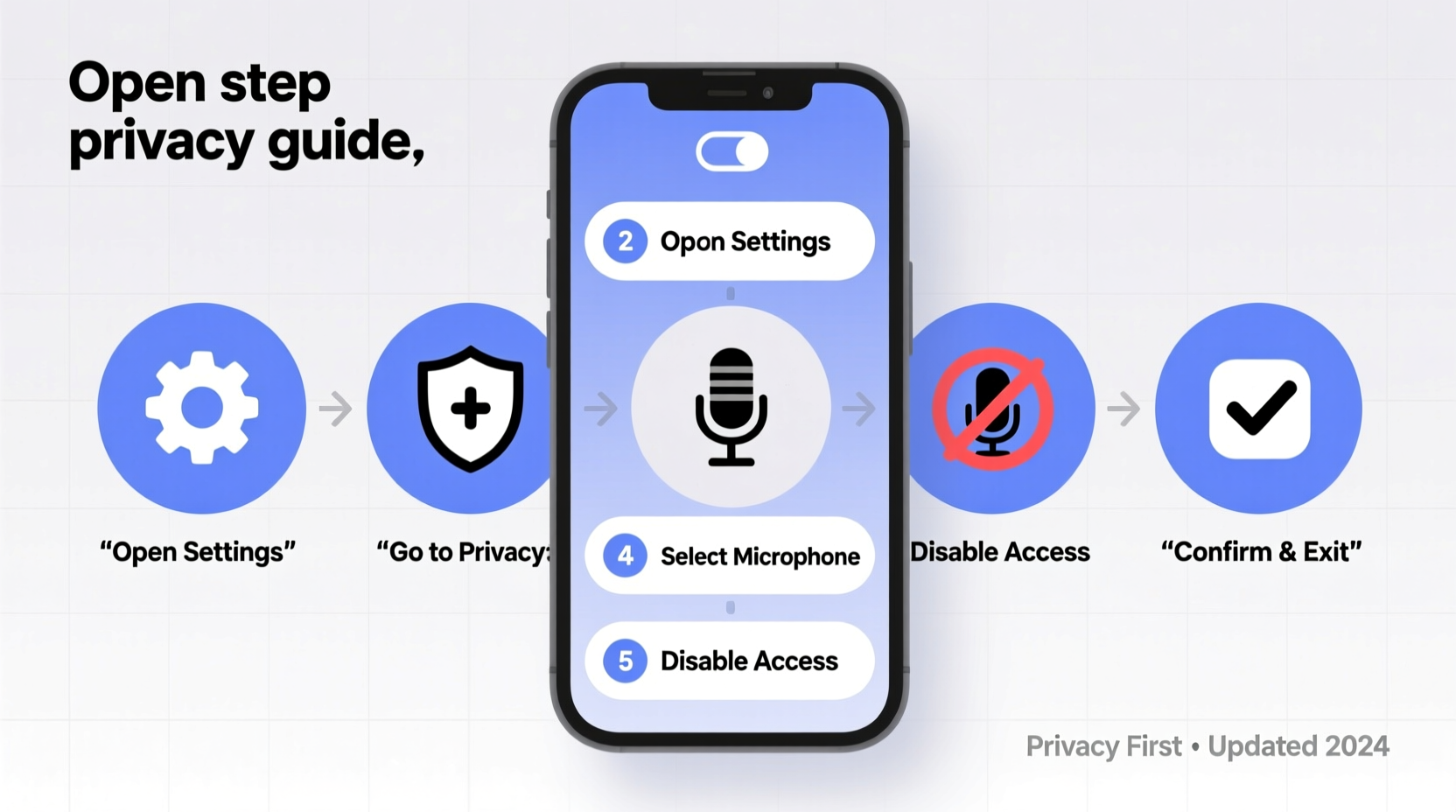
Before disabling microphone access entirely, it's essential to understand which apps currently have permission to use your microphone. Most users unknowingly grant access during initial app setup, often without reading the prompts. Over time, dozens of apps may accumulate permissions with no legitimate need.
To begin:
- Open your phone’s Settings app.
- Navigate to Privacy or Security settings.
- Select Microphone or App Permissions.
- Review the list of apps with microphone access enabled.
You’ll likely find social media apps, games, browsers, and even flashlight utilities listed. Ask yourself: does this app genuinely need to record audio? If not, disable access immediately.
Disable Microphone Access on Android Devices
Android offers granular control over app permissions, allowing users to manage microphone access on a per-app basis. The exact path may vary slightly depending on your device manufacturer (Samsung, Google Pixel, OnePlus, etc.), but the general process remains consistent.
Step-by-Step Process for Android:
- Go to Settings.
- Tap Apps or Apps & notifications.
- Select See all apps if prompted.
- Choose the app you want to modify.
- Tap Permissions.
- Find Microphone in the list and tap it.
- Select Deny or Don’t allow.
For broader protection, consider using Android’s Permission Manager:
- Settings → Privacy → Permission Manager → Microphone
- Here, you’ll see a timeline of recent microphone usage.
- Tap any app to change its status instantly.
Some Samsung devices also offer a physical indicator—a small dot or bar at the top of the screen—when the microphone is active. Enable this under Settings > Privacy > App permissions > Microphone indicator.
Restricting Microphone Access on iPhone (iOS)
iOS provides robust privacy tools, including detailed logs and real-time indicators when the microphone is in use. Apple displays a small orange dot in the upper-right corner whenever an app accesses the microphone—a subtle but powerful transparency feature.
Steps to Disable Microphone Access on iPhone:
- Open the Settings app.
- Scroll down and select Privacy & Security.
- Tap Microphone.
- You'll see a list of all apps that have requested microphone access.
- Toggle off the switch next to any app you don’t trust or don’t need.
Note: Disabling access doesn’t uninstall the app. It only prevents it from recording audio. Some apps may prompt you again later, especially after updates—but you can deny access repeatedly without penalty.
“Users should treat microphone permissions like house keys—only give them to trusted entities.” — Dr. Lena Patel, Cybersecurity Researcher at Stanford University
Advanced Privacy Measures
Simply toggling off permissions isn't always enough. Some apps cache access, and others may exploit system-level vulnerabilities. For maximum security, implement these advanced strategies:
Use Privacy-Focused Alternatives
Replace high-risk apps with privacy-conscious alternatives. For example:
- Use Signal instead of WhatsApp for messaging.
- Switch to DuckDuckGo or Brave Browser instead of Chrome.
- Opt for open-source camera or note-taking apps that don’t require microphone access.
Enable System-Wide Restrictions
On Android, use Google Play Protect to scan apps for suspicious behavior. On iOS, enable Limit Ad Tracking and disable Allow Apps to Request to Track in Settings > Privacy & Security > Tracking.
Consider Physical Barriers
While not common, some users apply tiny adhesive microphone covers—similar to webcam sliders—to physically block sound input. Though extreme, this method guarantees zero audio capture when engaged.
| Platform | Action | Effectiveness |
|---|---|---|
| Android | Deny mic access per app | High |
| iOS | Disable in Privacy settings | Very High |
| Both | Uninstall unused apps with mic access | Very High |
| Both | Use microphone blocker sticker | Maximum (physical layer) |
Mini Case Study: How One User Discovered Unauthorized Listening
Jamal, a freelance journalist based in Chicago, noticed his phone battery draining unusually fast. After reviewing settings, he discovered an obscure weather app was accessing his microphone daily—even when not in use. Curious, he recorded a fake conversation about buying a motorcycle while the app was running in the background. Within hours, ads for motorcycle gear appeared on unrelated websites.
He immediately revoked microphone access, uninstalled the app, and cleared browsing data. Since then, he audits his permissions monthly and uses only open-source apps for sensitive tasks. “It felt like being watched,” he said. “But once I took control, my peace of mind returned.”
Checklist: Securing Your Phone’s Microphone
Follow this checklist to ensure your microphone isn’t compromised:
- ✅ Review all apps with microphone permissions
- ✅ Disable access for non-essential apps
- ✅ Watch for the orange (iOS) or green (Android) indicator when mic is active
- ✅ Uninstall apps that repeatedly request unnecessary access
- ✅ Use alternative apps with minimal permissions
- ✅ Enable automatic permission resets (on Android: Settings > Privacy > Permission manager > Auto-reset)
- ✅ Educate family members or children using shared devices
Frequently Asked Questions
Will disabling microphone access affect my phone’s functionality?
Only for apps that require voice input. Voice assistants, voice memos, video calls, and dictation tools will stop working unless permissions are restored. Most other functions—calls, alarms, music playback—are unaffected.
Can apps still record me if I disable microphone access?
No. When properly denied, apps cannot access the microphone through standard means. However, malware or rooted/jailbroken devices may bypass restrictions. Keep your OS updated and avoid sideloading unknown apps.
Is there a way to temporarily re-enable microphone access?
Yes. You can toggle permissions back on anytime via Settings. For occasional use, disable access immediately after use to minimize exposure.
Conclusion: Take Control of Your Digital Privacy Today
Your smartphone is one of the most intimate devices you own—carrying your conversations, habits, and routines wherever you go. Allowing unrestricted microphone access hands over a powerful surveillance tool to apps that may not have your best interests in mind. By following the steps outlined in this guide, you reclaim authority over your personal space and reduce the risk of silent eavesdropping.
Privacy isn’t about hiding—it’s about choosing who gets access to your life. Start today: open your settings, review your permissions, and disable microphone access for any app that doesn’t absolutely need it. Small actions create lasting security. Share this guide with friends and family to help them protect their voices too.




 浙公网安备
33010002000092号
浙公网安备
33010002000092号 浙B2-20120091-4
Comments
No comments yet. Why don't you start the discussion?