
Apple’s AirPods are designed to keep users connected, but the convenience of hearing notifications read aloud can quickly become a source of constant interruption. Whether you're in a meeting, focusing on deep work, or simply enjoying a quiet moment, automatic voice announcements can disrupt your flow. The good news is that this feature—called “Announce Notifications”—is fully customizable. With a few quick adjustments in your iPhone settings, you can silence these alerts while preserving other useful functionalities like hands-free Siri and spatial audio.
This guide walks through every method to disable notification announcements on AirPods across different models and iOS versions. You’ll also find practical advice for managing interruptions without sacrificing accessibility, ensuring a truly distraction-free listening experience.
Understanding Announce Notifications on AirPods
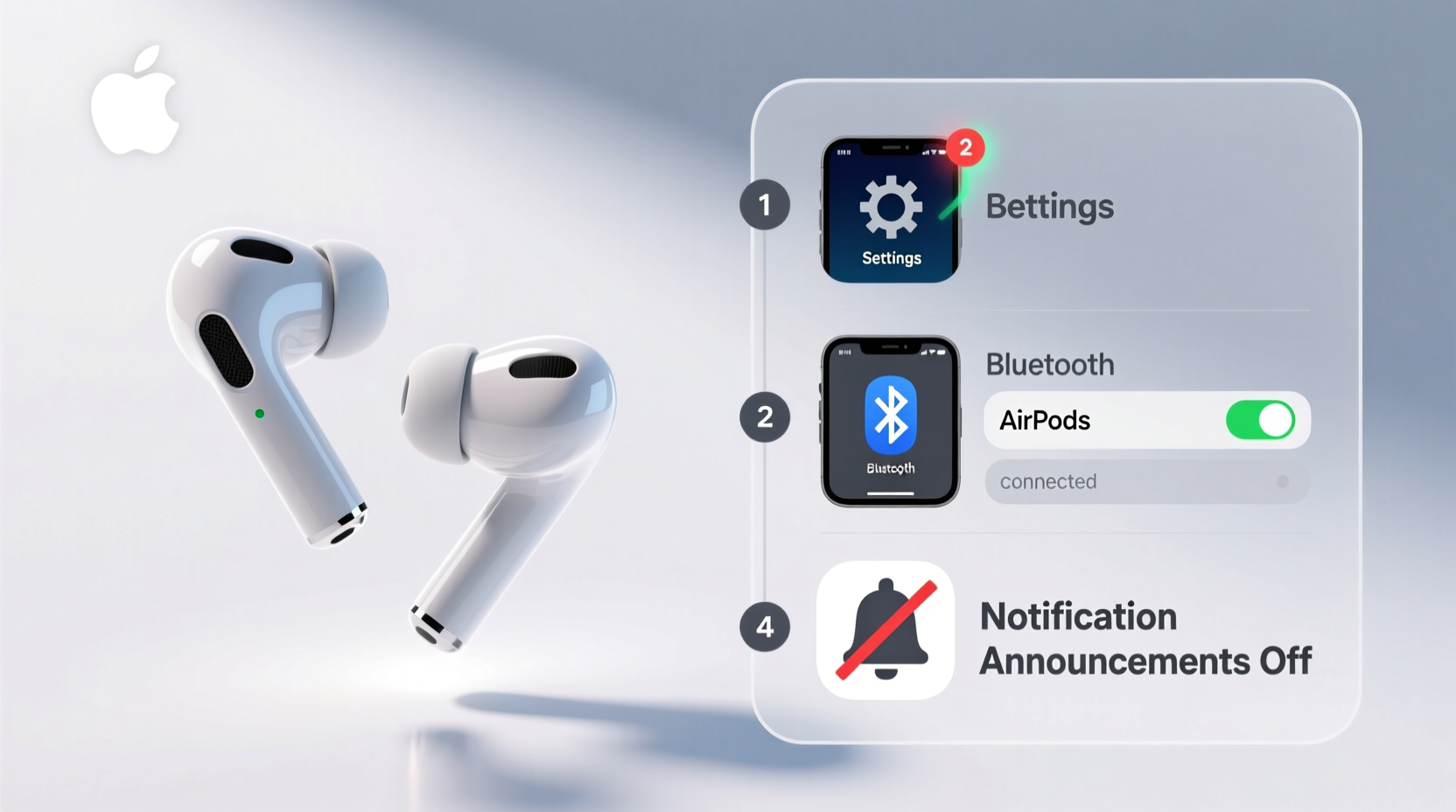
Introduced with iOS 14, “Announce Notifications” uses Siri to audibly read incoming messages and alerts when AirPods are connected. It supports apps like Messages, WhatsApp, Mail, Calendar, and third-party messaging services that integrate with Siri. While helpful for multitasking, the feature often triggers at inopportune times—like during phone calls, presentations, or meditation sessions.
The system works by detecting when your AirPods are in your ears and a notification arrives. Siri then briefly pauses your audio, reads the message sender and content, and resumes playback. Although Apple designed it with user control in mind, many people remain unaware of how to adjust or disable it.
“Voice-based notifications can improve accessibility, but they should never come at the cost of focus or privacy.” — Dr. Lena Torres, Digital Wellness Researcher at Stanford University
Step-by-Step: How to Turn Off Announce Notifications
If you’re receiving unwanted voice alerts from Siri through your AirPods, follow these steps to disable the feature entirely or customize which apps can announce notifications.
- Open the Settings app on your iPhone.
- Tap Notifications.
- Select Announce Notifications.
- Toggle off the switch next to Announce Notifications with Siri.
Once disabled, Siri will no longer interrupt your music, podcast, or audiobook to read notifications aloud. This setting applies globally across all connected AirPods and supported devices signed into the same iCloud account.
Customizing Per-Device Settings
You may want to keep announcement features enabled on your iPad but disable them on your iPhone. Fortunately, settings are device-specific:
- Changes made on your iPhone do not automatically sync to your iPad or Mac.
- To manage settings on another device, repeat the steps above on that specific device.
- Ensure each device has its preferred configuration based on usage context (e.g., work vs. personal).
Selective App Control: Allow Only Important Alerts
Disabling all announcements might feel too extreme if you still want updates from key contacts or urgent apps. Instead of turning the feature off completely, refine which apps are allowed to trigger voice alerts.
Managing Allowed Apps
To choose which apps can announce notifications:
- Go to Settings > Notifications > Announce Notifications.
- Tap Allowed Apps.
- Toggle off apps you don’t want reading alerts aloud (e.g., social media, promotional emails).
- Keep only high-priority apps like Messages from family members or work-related tools enabled.
This selective approach ensures you stay informed about what matters without being bombarded by non-essential updates.
Do’s and Don’ts When Managing Notification Access
| Do’s | Don’ts |
|---|---|
| Allow only mission-critical communication apps (e.g., SMS, Slack) | Enable announcements for all social media platforms |
| Review app permissions monthly | Assume default settings are optimal long-term |
| Use Focus modes to temporarily suspend announcements | Rely solely on muting AirPods physically during meetings |
| Test changes by sending yourself a message | Disable everything and forget to re-enable critical alerts |
Using Focus Modes to Suppress Announcements Temporarily
Sometimes, silencing notifications permanently isn’t ideal. For scenarios like working remotely, attending classes, or practicing mindfulness, temporary suppression works better. Apple’s Focus modes offer an elegant solution.
Here’s how to configure Focus mode to block announcement interruptions:
- Navigate to Settings > Focus.
- Select an existing Focus (e.g., Work, Sleep) or create a new one.
- Under “Allowed Notifications,” set exceptions as needed.
- Scroll down and tap Notifications under the chosen Focus.
- Disable Announce Notifications for this mode.
When activated, this Focus mode will prevent Siri from reading any alerts—even if global Announce Notifications are enabled. Pair this with AirPod detection so the mode activates automatically when you connect your headphones.
Mini Case Study: A Writer Regains Concentration
Jamal, a freelance journalist, found himself constantly pulled out of writing flow by Siri announcing every new email, tweet, and group chat message. He initially thought the issue was general notification overload—but realized the real disruption came from auditory interruptions, not visual ones.
After disabling “Announce Notifications” and configuring a “Writing Zone” Focus mode that only permitted alerts from his editor, Jamal reported a 40% increase in productive output over two weeks. “I didn’t realize how much mental reset time I was losing after each voice alert,” he said. “Turning them off was like removing invisible speed bumps from my day.”
Frequently Asked Questions
Can I disable announcement only for certain AirPods?
No, the Announce Notifications setting applies per iOS device, not per pair of AirPods. However, if you own multiple iPhones or iPads, you can configure each separately depending on which AirPods you typically use with it.
Does turning off Announce Notifications affect Siri voice responses?
No. Disabling announcement alerts does not stop you from using “Hey Siri” or getting verbal responses to direct queries. It only prevents unsolicited reading of incoming notifications.
Why do I still hear notifications after disabling the feature?
If alerts persist, check whether another device (like an iPad) has Announce Notifications enabled and is connected to the same AirPods. Also, ensure no third-party apps are bypassing standard protocols by using their own voice-read systems.
Checklist: Achieve a Distraction-Free AirPods Experience
- ✅ Disable “Announce Notifications with Siri” in Settings > Notifications
- ✅ Review and limit allowed apps to essential communicators only
- ✅ Set up a Focus mode (e.g., Work, Do Not Disturb) that suppresses announcements
- ✅ Test the change by sending a message to yourself while wearing AirPods
- ✅ Repeat settings adjustment on all your Apple devices for consistency
- ✅ Re-evaluate monthly to ensure alignment with current priorities
Final Thoughts: Take Back Your Attention
In an age where attention is the most valuable resource, small digital intrusions add up fast. Voice announcements on AirPods, though well-intentioned, can fragment concentration and erode mental clarity. By taking deliberate control over what gets permission to speak to you—and when—you reclaim agency over your cognitive space.
Disabling notification announcements isn’t about disconnecting—it’s about choosing presence. Whether you’re crafting a project, having a conversation, or simply savoring silence, these tweaks empower you to listen on your terms.




 浙公网安备
33010002000092号
浙公网安备
33010002000092号 浙B2-20120091-4
Comments
No comments yet. Why don't you start the discussion?