
Keeping track of time without minimizing your work or switching applications can significantly improve focus and efficiency. For users still relying on the stability and familiarity of Windows 7, adding a custom digital clock directly to the desktop offers both functional and aesthetic benefits. Unlike built-in system clocks tucked into the taskbar, a desktop digital clock remains visible at all times—perfect for remote workers, students, or anyone managing multiple timelines throughout the day.
While Windows 7 doesn’t support live desktop widgets by default after retiring the Windows Sidebar, third-party tools and lightweight software make it easy to integrate customizable clocks with style, transparency, alarms, and even calendar integration. This guide walks through practical methods, safety considerations, customization options, and troubleshooting tips to help you bring real-time awareness directly onto your screen.
Why Use a Desktop Digital Clock?
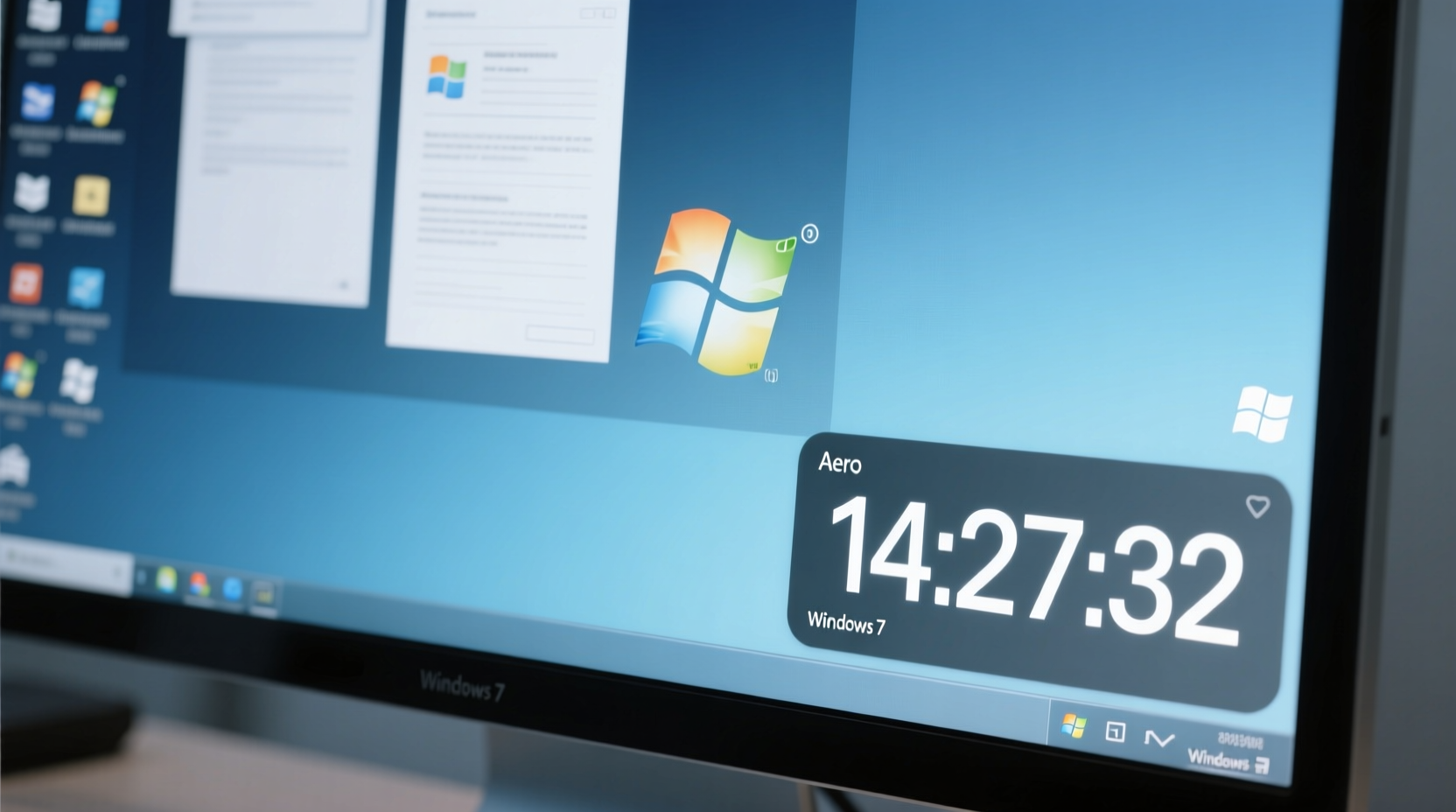
A desktop digital clock isn't just a novelty—it serves as a subtle but effective productivity tool. Visual time tracking helps reduce context switching, minimizes distractions from checking phones or other devices, and supports better time management habits.
For example, professionals working in shifts, freelancers billing hourly, or students following strict study schedules benefit from having an always-visible timer. Additionally, clocks with date, timezone, or stopwatch features extend functionality beyond simple timekeeping.
“Visual time cues reduce cognitive load and help maintain workflow continuity.” — Dr. Alan Reed, Human-Computer Interaction Researcher
Step-by-Step Guide: Installing a Custom Digital Clock
The most reliable way to add a digital clock to your Windows 7 desktop is through trusted widget platforms like Rainmeter or dedicated lightweight applications such as T-Clock Redux or Desktop Digital Clock by Etwok. Below is a detailed walkthrough using Rainmeter, one of the most flexible and widely used tools.
- Download Rainmeter: Visit rainmeter.net and download the latest version compatible with Windows 7 (version 4.4 or earlier may be required for full compatibility).
- Install the Application: Run the installer and follow prompts. Choose default settings unless you have specific preferences for skin locations or autostart options.
- Launch Rainmeter: After installation, Rainmeter runs in the background. You’ll see its icon in the system tray near the clock.
- Browse or Download Skins: Navigate to the “Skins” folder located in your Rainmeter directory (usually
C:\\Users\\[YourName]\\Documents\\Rainmeter\\Skins). Alternatively, visit community sites like DeviantArt or Reddit’s r/Rainmeter to find digital clock skins. - Install a Clock Skin: Extract downloaded skin folders into the Skins directory. Each skin typically includes .ini files that define appearance and behavior.
- Activate the Skin: Right-click the Rainmeter tray icon > “Manage” > locate your new clock under the list > click “Load.” Adjust position by dragging the clock on your desktop.
- Customize Appearance: Right-click the clock > “Edit Skin” to modify colors, font size, transparency, update frequency, or time format (12h vs 24h).
- Set to Auto-Start: In the Rainmeter Manager, check “Remember active skins” and enable “Run when user logs in” to ensure the clock appears every session.
Alternative Tools Compared
If Rainmeter feels too advanced, simpler alternatives exist. The table below compares popular options based on ease of use, customization, and resource usage.
| Tool | Setup Difficulty | Customization Level | RAM Usage | Auto-Start Support |
|---|---|---|---|---|
| Rainmeter | Moderate | High (themes, scripts, layers) | ~30–60 MB | Yes |
| T-Clock Redux | Easy | Medium (enhances taskbar clock) | ~5–10 MB | Yes |
| Desktop Digital Clock (Etwok) | Easy | Medium (transparency, font, position) | ~15–25 MB | Yes |
| ObjectDock + Widget | Moderate | Medium (dock-based interface) | ~40–70 MB | Yes |
T-Clock Redux is ideal if you prefer enhancing the existing taskbar clock with larger fonts or seconds display, while Etwok’s Desktop Digital Clock provides a standalone floating window perfect for multi-monitor setups.
Real-World Example: Boosting Focus in Remote Work
Jessica, a freelance editor based in Portland, struggled with time blindness during long writing sessions. She often lost track of hours, leading to missed deadlines and burnout. After installing a semi-transparent 24-hour digital clock via Rainmeter in the top-right corner of her secondary monitor, she reported immediate improvements.
“Seeing the time constantly helped me structure my Pomodoro intervals without relying on phone alerts,” she said. “I configured it to show seconds and changed the color to red during overtime blocks. It became a visual accountability partner.”
Within two weeks, her task completion rate increased by nearly 30%, and she adopted the same setup across client projects involving tight turnarounds.
Best Practices and Safety Tips
When modifying system behavior—even with cosmetic tools—certain precautions protect performance and security.
- Verify software authenticity: Only download installers from official websites or well-known repositories.
- Check digital signatures: Right-click executable files > Properties > look for a valid publisher signature.
- Avoid excessive skins: Running more than 10–15 active Rainmeter meters can slow older systems.
- Disable animations if lag occurs: Some skins use animated transitions; disable them in the .ini file if responsiveness drops.
- Update regularly: Though Windows 7 is unsupported, some developers still patch their apps for legacy OS compatibility.
Frequently Asked Questions
Can I run a digital clock app safely on Windows 7 now that Microsoft no longer supports it?
Yes, provided you only install software from trusted sources and operate behind a firewall or antivirus suite. While Windows 7 lacks security updates, isolated utilities like desktop clocks pose minimal risk if kept up to date and scanned before installation.
Will a desktop clock slow down my computer?
Most modern clock tools are lightweight. A basic digital clock consumes less than 20MB of RAM. However, complex Rainmeter skins with frequent updates or animations may impact older hardware. Monitor performance via Task Manager and adjust accordingly.
Is there a way to show multiple time zones on one clock?
Yes. Advanced Rainmeter skins like “World Time” or “TimeZones” allow displaying 2–4 different regions simultaneously. Configure this by editing the skin’s variables.ini file and inputting desired time zone offsets.
Conclusion and Next Steps
Adding a custom digital clock to your Windows 7 desktop transforms how you interact with time. Whether you're managing project timelines, coordinating across time zones, or simply want a cleaner visual reference, the right tool enhances both usability and personal workflow rhythm. With free, lightweight solutions like Rainmeter and Etwok’s Desktop Clock, implementation takes less than ten minutes—and the long-term benefits far outweigh the initial setup effort.




 浙公网安备
33010002000092号
浙公网安备
33010002000092号 浙B2-20120091-4
Comments
No comments yet. Why don't you start the discussion?