
Navigating multiple Facebook accounts—whether for personal use, managing a business page, or handling client profiles—is increasingly common in today’s digital landscape. Constantly logging in and out is inefficient and disrupts workflow. Fortunately, Facebook offers built-in tools and third-party methods that make switching between accounts fast and secure. This guide walks through practical strategies to add, organize, and manage multiple Facebook accounts without confusion or risk.
Why Managing Multiple Accounts Matters
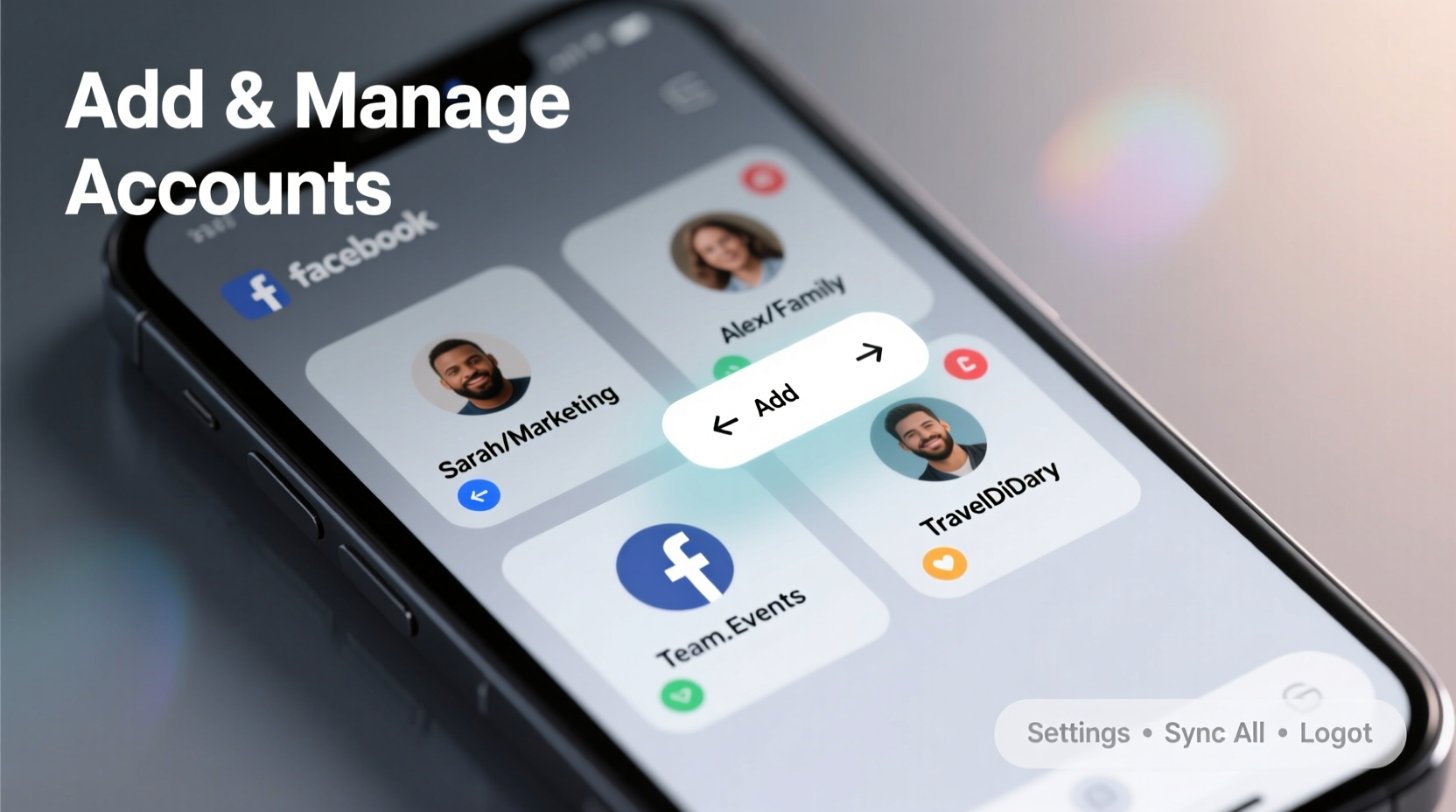
Many users juggle more than one Facebook profile: a personal account, a business page, or even separate regional brand profiles. Content creators, social media managers, entrepreneurs, and freelancers often need simultaneous access to different identities. Without an organized system, this leads to forgotten passwords, accidental posts from the wrong account, or time wasted on repeated logins.
Effective multi-account management isn’t just about convenience—it enhances productivity, reduces errors, and strengthens online security by minimizing risky behaviors like saving passwords in browsers or using weak credentials.
Step-by-Step: Adding Multiple Accounts on Mobile Devices
The Facebook mobile app (available on iOS and Android) supports multiple account switching natively. This eliminates the need to log out every time you want to switch profiles.
- Open the Facebook app and tap your profile picture in the top-right corner.
- Scroll down and select “Add Account.”
- Enter the email or phone number and password for the second account.
- Tap “Log In.” The new account will now appear under “Switch Account.”
- To switch, return to the menu and tap the desired profile at the bottom of the screen.
This process supports up to five accounts per device. Once added, transitions take seconds, allowing real-time responses across personal and professional networks.
Managing Multiple Accounts on Desktop
Unlike the mobile app, Facebook doesn't allow direct account switching within its desktop interface. However, several reliable workarounds exist:
- Browser Profiles: Use separate browser profiles (Chrome, Firefox, Edge) dedicated to each Facebook account. Each profile maintains independent cookies and login sessions.
- Incognito/Private Windows: Log into a secondary account in an incognito tab while keeping the primary logged in normally.
- Dedicated Browsers: Assign one browser (e.g., Chrome) to your personal account and another (e.g., Firefox) to your business account.
For teams or agencies managing many accounts, consider using approved social media management platforms like Meta Business Suite, Hootsuite, or Buffer, which offer secure, audited access to multiple Pages and Ads accounts.
Setting Up Chrome Profiles for Facebook
Google Chrome’s profile feature is ideal for isolating Facebook logins:
- Click your profile icon in the top-right of Chrome.
- Select “Add” and create a new profile (e.g., “Work”).
- Name it and choose an avatar for easy identification.
- Open the new profile window and navigate to facebook.com.
- Log in with the appropriate credentials.
Now, each profile runs independently. Open both windows side-by-side to monitor activity across accounts without interference.
| Method | Best For | Limits |
|---|---|---|
| Mobile Account Switching | Individuals with 2–5 personal/business accounts | Max 5 accounts; mobile-only |
| Browser Profiles | Desktop users needing full separation | Requires organization; not automatic sync |
| Meta Business Suite | Teams managing Pages, Ads, and Instagram | Only for business assets, not personal profiles |
| Password Manager + Tabs | Light users with occasional switching needs | Risk of session overlap or logout |
Security Best Practices When Managing Multiple Logins
Holding access to multiple accounts increases responsibility. A breach in one could compromise others—especially if reused passwords or unsecured devices are involved.
“Using isolated browser environments and two-factor authentication drastically reduces cross-account exposure.” — Lena Patel, Cybersecurity Consultant at DigitalShield Labs
To maintain strong security:
- Enable two-factor authentication (2FA) on every account.
- Use a trusted password manager (like Bitwarden, 1Password, or Dashlane) to generate and store unique passwords.
- Avoid staying logged in on public or shared computers.
- Regularly review active sessions under “Settings & Privacy” > “Where You’re Logged In.”
- Log out of unused devices remotely if they appear suspicious.
Mini Case Study: A Social Media Manager’s Workflow
Jamal, a freelance social media strategist, manages seven Facebook Pages for small businesses. Initially, he used one browser and constantly logged in and out—a process that took over 20 minutes daily and led to a mistaken post on a client’s feed from his personal account.
He restructured his setup: creating individual Chrome profiles for each major client and using Meta Business Suite for scheduling. He also enabled 2FA and stored all credentials in Bitwarden. Now, he switches between accounts instantly, maintains clear audit trails, and reports zero login-related errors in six months. His efficiency improved by nearly 30%, according to self-tracked time logs.
Checklist: Setting Up Your Multi-Account System
Follow this checklist to ensure a smooth, secure setup:
- ✅ Audit all Facebook accounts you need regular access to.
- ✅ Enable two-factor authentication on each.
- ✅ Use a password manager to update and store unique credentials.
- ✅ On mobile: Add accounts via “Switch Account” in the app.
- ✅ On desktop: Set up separate browser profiles or use incognito tabs.
- ✅ For business pages: Assign roles via Meta Business Suite instead of sharing logins.
- ✅ Review active sessions monthly and remove unknown devices.
- ✅ Educate team members on secure access protocols if collaborating.
Frequently Asked Questions
Can I be logged into two Facebook accounts at once on desktop?
No, Facebook does not support simultaneous logins on the same browser. However, you can stay logged into one account in a regular tab and another in an incognito/private window. Alternatively, use separate browser profiles for full isolation.
Is it safe to use third-party apps to manage multiple Facebook accounts?
Only use apps authorized by Meta and listed in the Meta Business Partner directory. Unauthorized tools may violate Facebook’s policies and expose your data. Stick to trusted platforms like Hootsuite, Sprout Social, or Buffer for external management.
How many accounts can I add to the Facebook mobile app?
You can add up to five accounts to the Facebook mobile app. After adding them, you can switch between profiles instantly under the “Switch Account” option in the menu.
Conclusion: Streamline Access Without Compromising Security
Effortlessly managing multiple Facebook accounts is no longer a technical hurdle—it's a matter of adopting the right tools and habits. Whether you're balancing personal and professional identities or overseeing multiple brands, structured access improves accuracy, saves time, and strengthens your digital security posture.
Start today by organizing your accounts, enabling two-factor authentication, and setting up clean switching systems on both mobile and desktop. Small changes in how you manage logins can lead to significant gains in control and confidence.




 浙公网安备
33010002000092号
浙公网安备
33010002000092号 浙B2-20120091-4
Comments
No comments yet. Why don't you start the discussion?