
In today’s competitive YouTube landscape, high-quality audio is just as critical as sharp visuals. Viewers are more likely to stay engaged—and return—if the sound in your videos is clear, well-balanced, and professionally synced. Poor audio can distract, confuse, or even cause viewers to click away within seconds. Whether you're creating vlogs, tutorials, or commentary videos, mastering the art of adding and syncing audio effectively can dramatically improve audience retention and overall production quality.
The good news? You don’t need expensive gear or advanced editing skills to get it right. With the right tools and techniques, syncing audio to your YouTube videos can be a smooth, repeatable process—regardless of your experience level.
Why Audio Sync Matters for Viewer Engagement
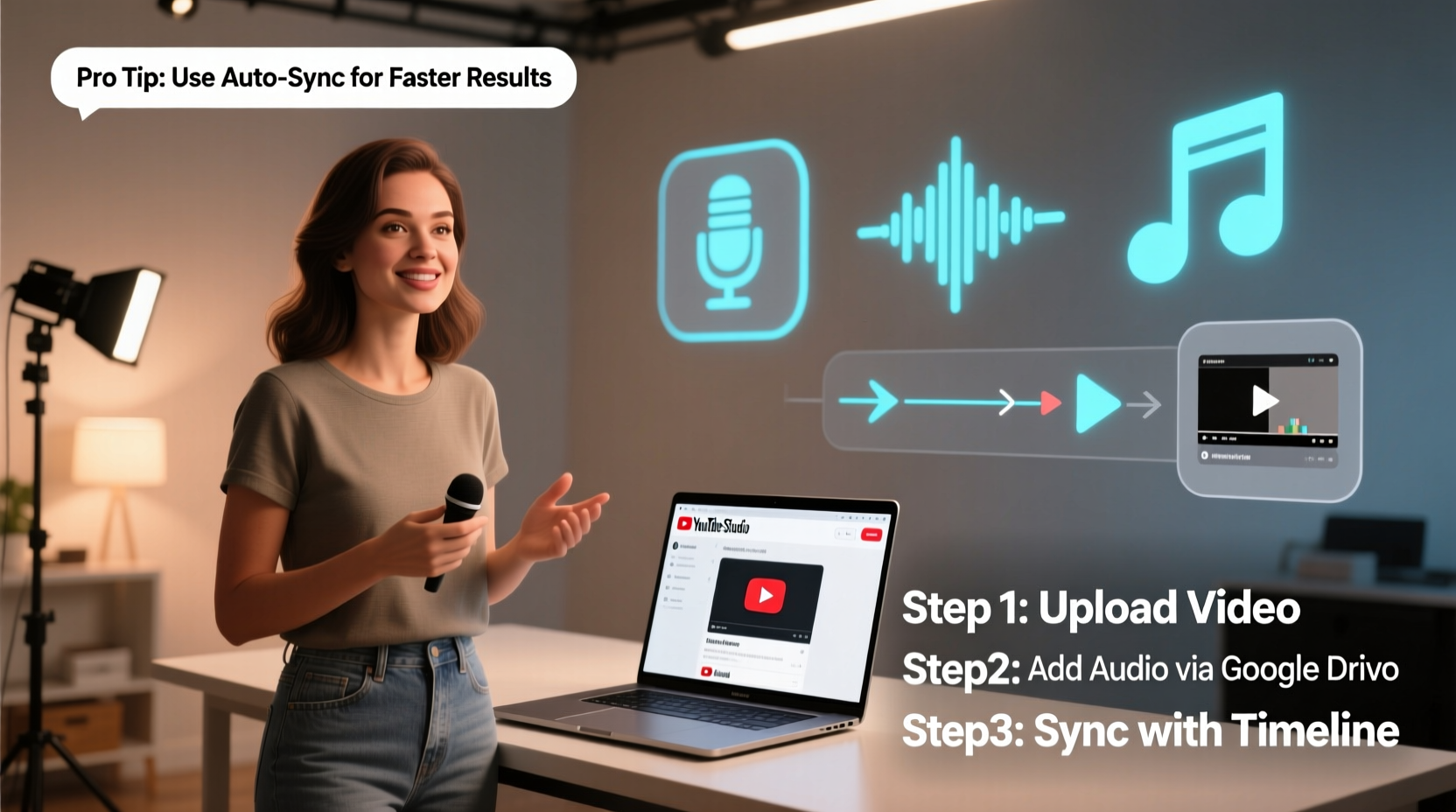
When audio and video are out of sync—even by half a second—it creates a jarring experience. The brain detects mismatches between lip movements and spoken words almost instantly, triggering discomfort and reducing comprehension. According to research from the University of California, San Diego, audiovisual desynchronization of more than 60 milliseconds can significantly impair viewer understanding and satisfaction.
Beyond technical accuracy, well-synced audio contributes to professionalism. A polished video with crisp voiceovers, background music that enhances rather than overwhelms, and ambient sounds timed perfectly builds trust with your audience. This trust translates into longer watch times, higher likes, and increased subscriber conversion.
“Audio is 50% of the viewing experience. If it's off, no matter how great your visuals are, the audience feels something is wrong.” — Mark Johnson, Emmy-winning sound designer
Step-by-Step Guide to Adding and Syncing Audio
Whether you’re replacing on-camera audio with a cleaner recording or layering music and effects, follow this structured workflow to ensure precision and efficiency.
- Record Clean Source Audio: Use an external microphone (like a lavalier or shotgun mic) when filming. Record a separate clean audio track if possible, especially in noisy environments.
- Import Footage into Your Editor: Use software like Adobe Premiere Pro, DaVinci Resolve, or free tools like Shotcut or Audacity + OpenShot.
- Align Visual and Audio Tracks: Find a visual cue—like a clap or hand snap—at the start of your recording. Match the peak in the audio waveform to the exact frame where the action occurs.
- Lock and Test Sync: Once aligned, lock the tracks together. Play back a few seconds to confirm alignment remains consistent throughout.
- Add Background Music or SFX: Place secondary audio on lower tracks. Adjust volume so speech remains dominant (typically -6dB for voice, -18dB for background).
- Export with Proper Settings: Choose MP4 (H.264) at 1080p or higher, with AAC audio at 192kbps for optimal YouTube compatibility.
Best Tools for Audio Sync and Editing
Not all editors handle audio syncing equally. Here’s a comparison of popular tools based on ease of use, features, and cost.
| Software | Sync Features | Learning Curve | Cost |
|---|---|---|---|
| Adobe Premiere Pro | Auto-sync via clapper, multi-track mixing | Moderate | $20.99/mo |
| Davinci Resolve | Smart Sync, AI-based voice isolation | Moderate to High | Free / $295 one-time |
| Final Cut Pro | Automatic audio alignment, magnetic timeline | Low-Moderate | $299 one-time |
| Shotcut | Manual waveform alignment | Moderate | Free |
| iMovie | Basic drag-and-drop sync | Low | Free |
For beginners, iMovie or Shotcut offer accessible entry points. Professionals seeking precision should consider Premiere Pro or DaVinci Resolve, which include auto-sync functions that detect matching waveforms across multiple clips.
Avoid These Common Audio Sync Mistakes
- Ignoring Sample Rate Mismatches: Mixing 44.1kHz and 48kHz audio can cause drift over time. Ensure all files match your project settings.
- Using Auto-Sync Without Verification: Automated tools help, but always manually check alignment at the beginning, middle, and end.
- Overloading with Music: Background tracks should support, not compete. Keep music below -18dB during speech.
- Failing to Monitor on Multiple Devices: Test your final video on headphones, phone speakers, and laptop audio to catch balance issues.
Mini Case Study: Improving a DIY Tutorial Series
Sarah runs a YouTube channel teaching woodworking. Her early videos had strong visuals but suffered from muffled audio due to her camera’s built-in mic. After switching to a wireless lavalier mic and recording separate audio, she noticed inconsistent sync in post-production.
She began using a clap at the start of each scene and imported both video and audio into DaVinci Resolve. Using the “Synchronize Clips” feature, she aligned them automatically, then fine-tuned manually. She added subtle workshop ambiance and soft background music at low volume.
Within two months, her average view duration increased by 37%, and comments praised the improved clarity. “I finally feel like I’m learning without straining to hear,” wrote one viewer.
Checklist: Audio Sync Best Practices
Use this checklist before publishing any YouTube video:
- ✅ Record a visible and audible clap at the start of each take
- ✅ Use consistent sample rates (preferably 48kHz) across all devices
- ✅ Import and align audio and video tracks using waveform peaks
- ✅ Lock synced clips to prevent accidental shifts
- ✅ Balance voice, music, and effects using volume automation
- ✅ Export in YouTube-optimized format (MP4, H.264, AAC 192kbps)
- ✅ Preview on mobile and desktop before uploading
Frequently Asked Questions
Can I fix audio sync after uploading to YouTube?
No—once a video is uploaded, YouTube does not allow re-syncing. You must delete the video, correct the sync in your editor, and re-upload. Always double-check before publishing.
Is it better to sync in-camera or in post?
In-camera sync works if your camera records high-quality audio directly. However, for professional results, record clean external audio and sync in post. This gives you full control over levels, noise reduction, and timing.
Do I need paid software to sync audio properly?
No. Free tools like Shotcut and Audacity (paired with OpenShot) allow manual waveform alignment. While they lack auto-sync, they’re fully capable for precise editing with a bit more effort.
Conclusion: Elevate Your Content with Perfect Audio Sync
Great YouTube videos aren’t just seen—they’re heard. By taking the time to properly add and sync audio, you create a seamless, immersive experience that keeps viewers watching, sharing, and coming back for more. The tools are accessible, the techniques are straightforward, and the payoff in engagement is measurable.
Start small: implement the clap method in your next shoot, align your tracks carefully, and listen critically before exporting. Over time, these practices will become second nature—transforming your content from amateur to authoritative.




 浙公网安备
33010002000092号
浙公网安备
33010002000092号 浙B2-20120091-4
Comments
No comments yet. Why don't you start the discussion?