
Accurate timekeeping is essential in today’s connected world. Whether you're scheduling meetings, syncing calendars, or simply staying on track with daily routines, having consistent date and time settings across all your devices prevents confusion and missed appointments. Yet many people still manually set clocks or overlook automatic synchronization options, leading to discrepancies between their smartphone, laptop, tablet, and wearable tech.
The good news: modern operating systems make it easier than ever to maintain accurate time with minimal effort. By leveraging built-in features and understanding device-specific settings, you can ensure every screen in your life displays the correct time—automatically.
Why Consistent Time Settings Matter
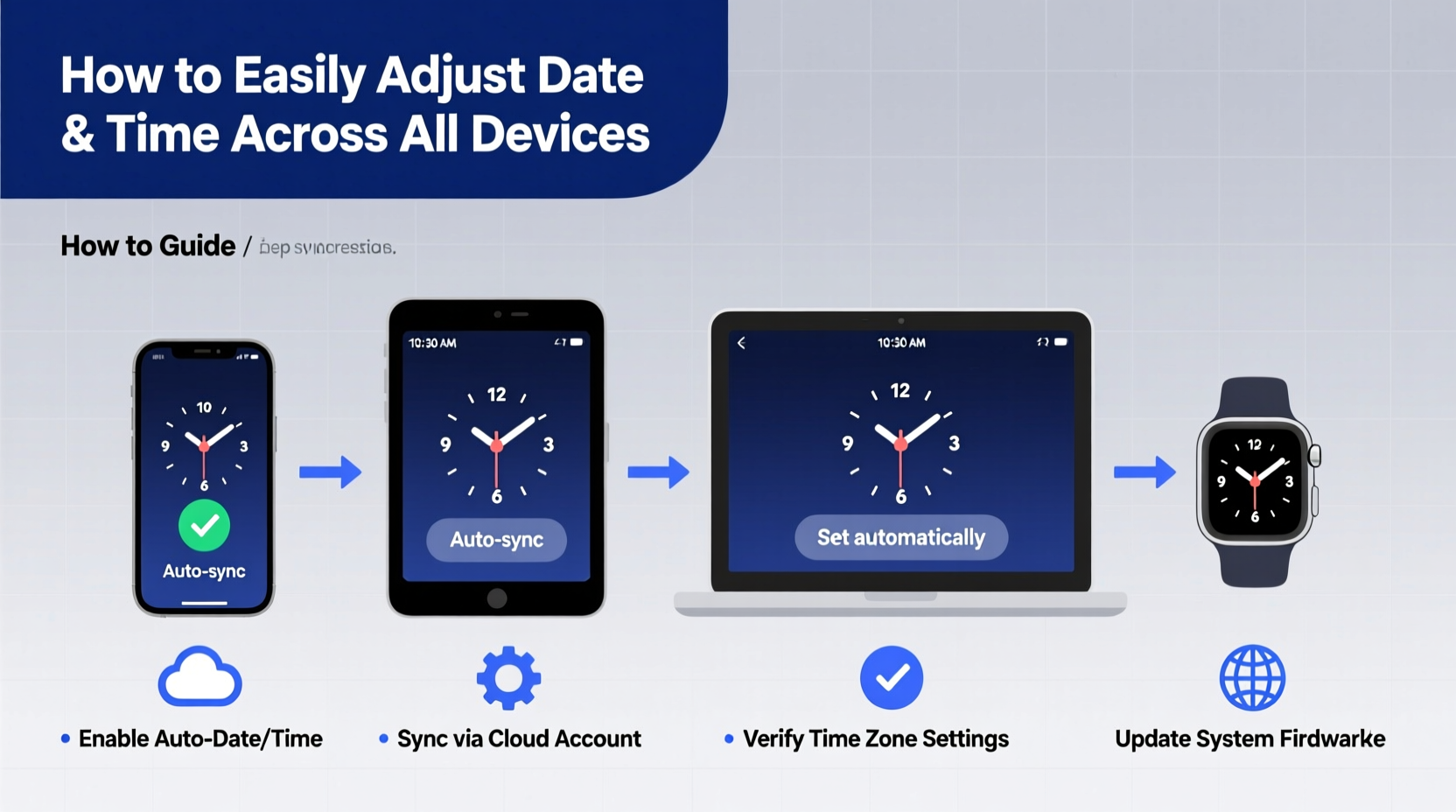
It might seem trivial, but a five-minute difference between your phone and laptop can disrupt productivity. Calendar alerts may fire late, video calls start early, and file timestamps become unreliable. For professionals, students, remote workers, and travelers, synchronized time is not just convenient—it's necessary.
Time accuracy also plays a role in security. Many authentication systems rely on time-based tokens (like two-factor apps). If your device clock is off by even 30 seconds, login attempts may fail. Additionally, outdated timestamps can interfere with cloud backups, email sorting, and smart home automation triggers.
“Even small time drifts across devices can create cascading issues in digital workflows. Automatic time sync should be non-negotiable.” — Dr. Lena Patel, Systems Engineer at TechSync Labs
Step-by-Step Guide to Sync Time Across Devices
Follow this universal process to align your devices efficiently:
- Enable automatic time detection on each device using network-provided time servers.
- Set the correct time zone based on your current location or preferred region.
- Verify internet connectivity, as time synchronization relies on online NTP (Network Time Protocol) services.
- Cross-check all devices after setup to confirm consistency.
- Review periodically, especially after daylight saving changes or travel.
Device-Specific Configuration
Different platforms offer slightly different paths to time settings. Here’s how to navigate them:
iPhone and iPad (iOS)
Go to Settings > General > Date & Time. Toggle on “Set Automatically.” This uses Apple’s time servers and GPS data to keep your device accurate. If disabled, you’ll need to manually select your time zone under “Time Zone.”
Android Phones and Tablets
Navigate to Settings > System > Date & Time (path may vary slightly by manufacturer). Enable “Use network-provided time” and “Use network-provided time zone.” Some models label these options as “Automatic date & time” and “Automatic time zone.”
Windows PCs
Right-click the clock in the taskbar and select Adjust date/time. Turn on “Set time automatically” and “Set time zone automatically.” Windows uses time.windows.com by default, but advanced users can configure custom NTP servers via command line.
macOS Computers
Open System Settings > Date & Time. Check “Set date and time automatically” and choose a server like time.apple.com. macOS will update the time zone if Location Services are enabled and accurate.
Smartwatches (Apple Watch, Wear OS)
These typically inherit time settings from paired smartphones. Ensure your phone has automatic time enabled; the watch will follow. In rare cases, restarting the connection or unpairing/re-pairing resolves sync delays.
Smart Home Devices (Google Nest, Amazon Echo)
Voice assistants pull time from your account’s primary device or regional settings. Verify through the companion app—e.g., Google Home or Alexa—and ensure your profile’s time zone is correct.
Do’s and Don’ts of Time Management Across Devices
| Do | Don't |
|---|---|
| Use automatic time sync on every capable device. | Manually set the time unless absolutely necessary. |
| Keep your device updated—OS updates often include time protocol improvements. | Ignore time warnings during travel or DST transitions. |
| Check one central device first when troubleshooting—usually your smartphone. | Assume all devices sync instantly—some may take up to a minute after reconnecting to Wi-Fi. |
| Use the same time format (12h vs 24h) across screens to reduce cognitive load. | Disable location services solely to stop time zone changes—use a fixed zone instead. |
Mini Case Study: Solving Time Drift for a Remote Team
A distributed marketing team across three continents struggled with recurring meeting delays. Despite shared calendar invites, members joined late due to inconsistent device times. One employee in Berlin had manually set his laptop clock during a power outage and forgot to re-enable auto-sync. Another in Denver had disabled location tracking, preventing automatic daylight saving adjustment.
The team lead implemented a simple audit: everyone verified their devices using the steps above. Within 24 hours, all systems were aligned. They now conduct quarterly checks before major campaign launches. Meeting punctuality improved by over 90%, and internal trust in digital coordination strengthened.
FAQ
What if my device doesn’t offer automatic time settings?
Older or budget devices may lack full auto-sync capabilities. In such cases, manually set the time using a trusted source like time.is. Consider upgrading firmware or replacing the device if time accuracy is critical.
Why does my computer show a different time than my phone even though both are set to automatic?
This usually happens when one device lacks internet access during boot-up or has an incorrect time zone setting. Restart the device while connected to Wi-Fi or Ethernet. Also, verify that “Set time zone automatically” is enabled, not just the time itself.
Can I force all my devices to use a specific time zone regardless of location?
Yes. On most devices, you can disable automatic time zone detection and manually select a fixed zone (e.g., “New York” even if you’re in Tokyo). Useful for business owners managing teams in a single operational zone.
Final Checklist: Achieve Perfect Time Sync
- ✅ Enabled “Set Automatically” for date and time on all smartphones
- ✅ Verified time zone settings match your actual or desired location
- ✅ Confirmed internet connection on each device
- ✅ Checked that computers use NTP synchronization
- ✅ Ensured wearables are paired correctly with host phones
- ✅ Reviewed smart speaker and IoT device settings via companion apps
- ✅ Performed a side-by-side comparison of clocks across devices
Conclusion
Synchronized time shouldn’t be a chore—it should be seamless. With the right settings enabled, your devices will stay in harmony whether you're crossing time zones, switching networks, or simply powering up after a reboot. Accuracy builds reliability, and reliability builds trust—in your tools, your schedule, and yourself.




 浙公网安备
33010002000092号
浙公网安备
33010002000092号 浙B2-20120091-4
Comments
No comments yet. Why don't you start the discussion?