
Accurate timekeeping is essential for daily life—whether you're scheduling meetings, catching flights, or simply staying punctual. Smartphones automatically sync time in most cases, but sometimes manual adjustments are necessary. This could be due to travel across time zones, incorrect automatic settings, or troubleshooting display issues. This comprehensive guide walks you through everything you need to know to adjust the time on any smartphone, whether it runs iOS, Android, or another operating system.
Why Time Accuracy Matters
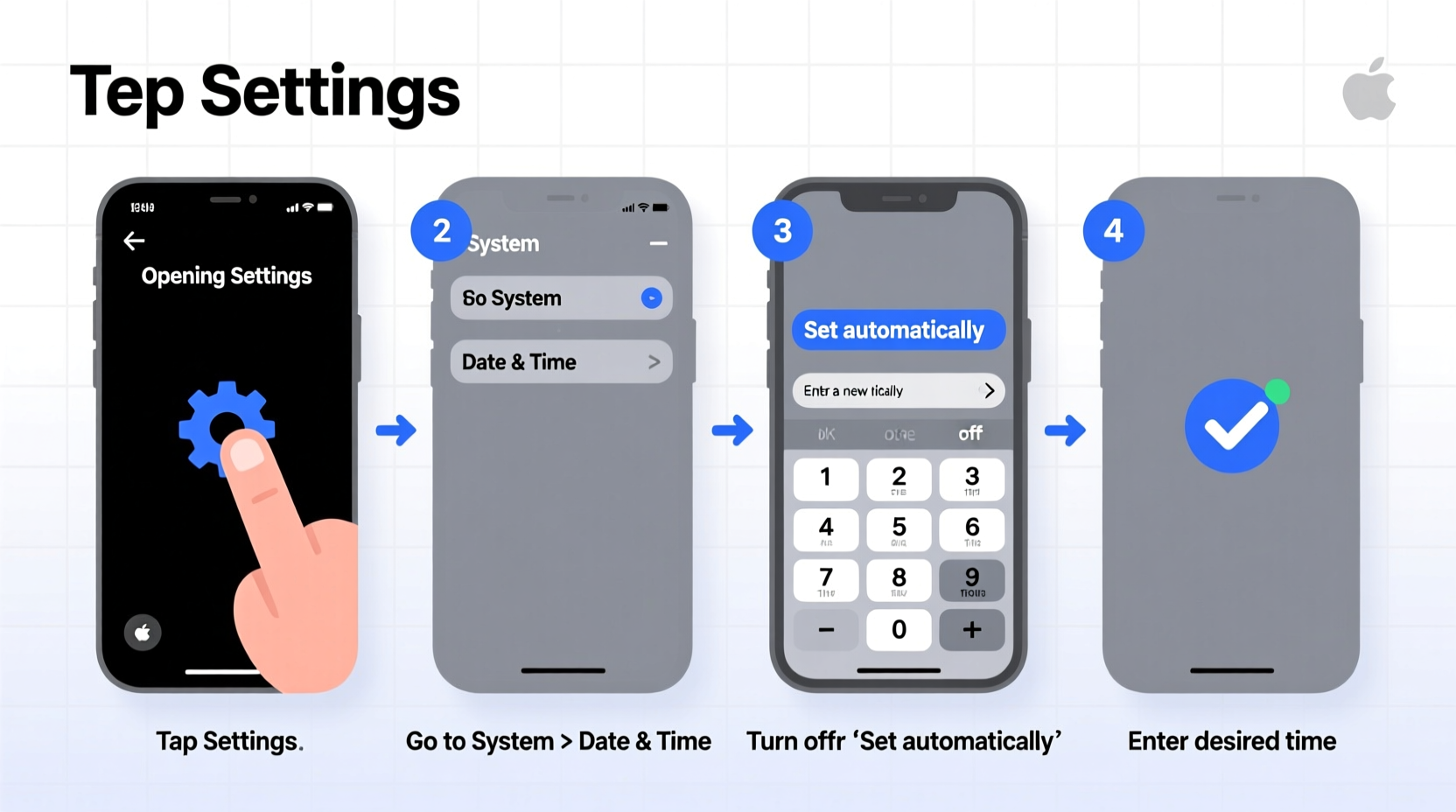
Modern smartphones rely on precise timestamps for apps like calendars, email, banking, and navigation. An incorrect time can lead to missed appointments, failed two-factor authentication, or even syncing errors across devices. While most phones use Network Time Protocol (NTP) to stay accurate, there are situations where manual intervention is required. Understanding how to manage your device’s clock ensures reliability and peace of mind.
How Automatic Time Sync Works
Smartphones typically use a combination of GPS signals, cellular network data, and internet-based time servers to maintain accuracy. When “Set Automatically” is enabled, your phone detects your location and applies the correct local time zone. This feature reduces user error and adapts seamlessly when traveling.
However, some users disable automatic time settings to test apps, bypass region locks, or fix glitches after software updates. In such cases, knowing how to manually set the time becomes crucial.
“Time synchronization isn’t just about convenience—it's foundational to secure digital operations.” — Dr. Alan Reyes, Cybersecurity Researcher at MobileTrust Labs
Step-by-Step Guide to Adjusting Time on iPhone (iOS)
iPhones running iOS offer straightforward access to time settings through the Settings app. Follow these steps to adjust the time:
- Open the Settings app.
- Tap General, then select Date & Time.
- If Set Automatically is turned on and causing issues, toggle it off.
- Tap Time Zone to enter a city or manually type one if traveling.
- To set the time manually, tap Set Date & Time and use the scroll wheels to adjust hours, minutes, and AM/PM.
- Ensure the date is also correct by scrolling to the desired day, month, and year.
- Once adjusted, consider re-enabling Set Automatically to prevent future drift.
Note: Disabling automatic time may affect features like reminders, alarms, and calendar alerts, especially if daylight saving rules aren't applied correctly.
Adjusting Time on Android Devices
Android phones vary slightly depending on brand and OS version (e.g., Samsung One UI, Google Pixel UI), but the core process remains consistent:
- Navigate to Settings.
- Scroll down and tap System (on newer devices) or Date & Time directly.
- Look for options labeled Automatic date & time and Automatic time zone.
- Toggle both off if you want full control over the clock.
- Select Set time to open a dial or digital interface for adjustment.
- Change the hour, minute, and 12/24-hour format as needed.
- Go back and choose Set date to update the calendar if necessary.
- Optionally, return to enable auto-sync once done.
On Samsung Galaxy devices, this menu may appear under General Management > Date and Time. Some older models place it within the Clock app settings.
Manual vs. Automatic: What You Should Know
While manual time setting gives you control, it comes with risks. Here’s a comparison to help decide which method suits your needs.
| Feature | Automatic Time | Manual Time |
|---|---|---|
| Accuracy | High – synced with atomic clocks via NTP | Depends on user input; prone to error |
| Daylight Saving Adjustment | Automatic | Must be updated manually |
| Travel-Friendly | Yes – changes time zone based on location | No – requires manual reset |
| Security Impact | Supports secure logins and certificates | Risk of login failures due to time mismatch |
| Best For | Daily use, travelers, professionals | Testing, troubleshooting, niche use cases |
When to Use Manual Time Settings
- Troubleshooting an app that malfunctions due to incorrect time detection.
- Testing software behavior under different time conditions.
- Devices used in areas without reliable network connectivity.
- Legacy systems or kiosk mode setups requiring fixed timestamps.
Real-World Example: Traveler Resets Time After International Flight
Sophia flew from New York to Tokyo and noticed her iPhone still displayed Eastern Time despite landing hours ago. Her calendar events were appearing at the wrong local time, and messaging apps showed confusing timestamps.
She opened Settings > General > Date & Time and confirmed that “Set Automatically” was enabled. However, Location Services were temporarily off due to airplane mode lingering. She toggled Location Services back on, waited 30 seconds, and the phone instantly updated to Japan Standard Time. Her calendar realigned, and notifications resumed normal behavior.
This scenario highlights the importance of ensuring both network and location services are active for automatic time to function properly.
Checklist: How to Verify and Fix Your Smartphone’s Time
Use this checklist whenever you suspect your phone’s clock is inaccurate:
- ✅ Confirm airplane mode is off.
- ✅ Ensure Wi-Fi or cellular data is connected.
- ✅ Check that Location Services are enabled (required for some auto-time functions).
- ✅ Verify “Set Automatically” is turned on in Date & Time settings.
- ✅ Restart the device if time fails to update.
- ✅ Manually set time and time zone only if auto-detection fails repeatedly.
- ✅ Test alarms and calendar events after adjustment.
Frequently Asked Questions
Why won’t my phone update the time automatically?
This usually happens when Location Services or internet connectivity is disabled. Some carriers also delay time signal transmission. Rebooting the phone or toggling Airplane Mode on and off often resolves the issue.
Can wrong time affect my apps?
Yes. Banking apps, authentication tools (like Google Authenticator), and encrypted messaging platforms rely on accurate time. Even a few minutes’ difference can trigger security blocks or failed logins.
Do I need to change the time when traveling?
No—if automatic time is enabled and your phone has network or GPS access, it will detect the new time zone and adjust accordingly. Only intervene if the update doesn’t occur within 5–10 minutes of arrival.
Conclusion: Take Control of Your Device’s Clock
Adjusting the time on your smartphone doesn’t require technical expertise. Whether you’re correcting a glitch, preparing for travel, or managing a specialized setup, the tools are readily available in your device’s settings. The key is understanding when to rely on automation and when manual input is justified. By following the steps outlined here, you ensure your phone remains synchronized, functional, and aligned with your schedule.




 浙公网安备
33010002000092号
浙公网安备
33010002000092号 浙B2-20120091-4
Comments
No comments yet. Why don't you start the discussion?