
Digital memories are fragile. A corrupted device, a forgotten password, or a service shutdown can erase years of photos in seconds. Google Photos offers convenient cloud storage, but relying solely on it is risky. For true peace of mind, you need a personal backup strategy that ensures your photos survive changes in technology, platforms, or access. Organizing them properly from the start makes retrieval meaningful—not just possible, but effortless.
This guide walks through a reliable, step-by-step method to extract your Google Photos, store them securely offline and in multiple locations, and structure them so future-you can find that exact beach sunset from 2019 without scrolling through thousands of thumbnails.
Create a Complete Download of Your Google Photos Library
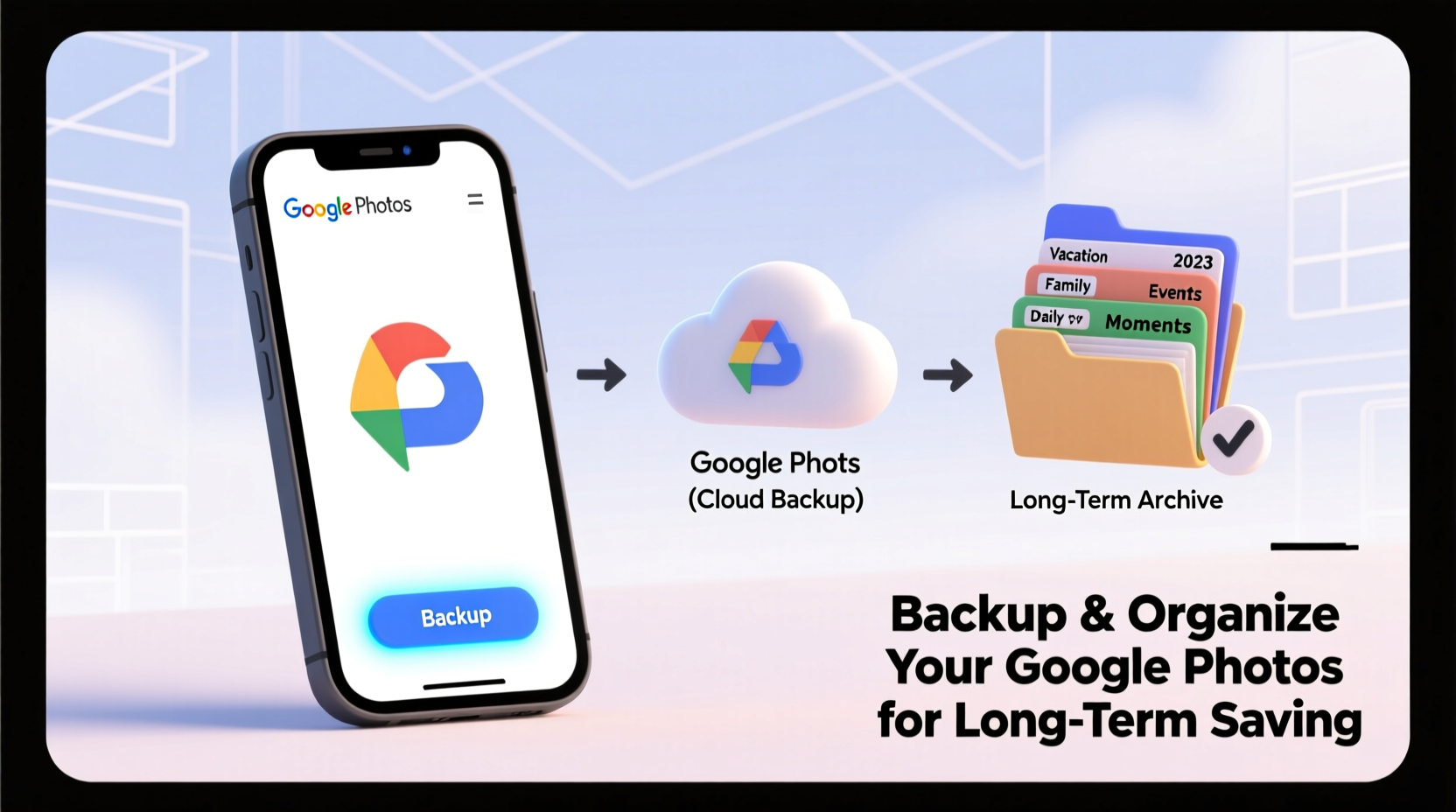
The first step in preserving your digital legacy is getting your photos out of Google’s ecosystem and into your control. Google Takeout allows full export of your library, including metadata like timestamps and album associations.
- Go to takeout.google.com.
- Deselect all services, then check only “Google Photos.”
- Choose file type: .zip (for smaller archives) or .tgz (more efficient for large libraries).
- Select archive size: 2GB is safest for compatibility with older systems or USB drives.
- Choose delivery method: direct download or send to cloud storage (e.g., Dropbox, OneDrive).
- Click “Create Export.”
Large libraries may take hours or days to process. You’ll receive an email when ready. Download the files and verify their integrity by opening a few folders to confirm images are intact.
Organize Your Photos with a Logical Folder Structure
A downloaded photo dump is useless if you can’t find anything. Use a consistent naming convention that works across operating systems and devices.
Adopt a hierarchical system based on time and event:
Photos/2023/2023-07-04_Family_Reunion_Michigan/Photos/2024/2024-02-14_Valentines_Dinner_Home/
This format sorts chronologically by default in any file browser. Avoid special characters like ?, *, or |, which can cause errors on Windows or external drives.
Use subfolders for major events within a day. For example:
Photos/
└── 2023/
    ├── 2023-05-12_Wedding_Anniversary/
    │   ├── Ceremony/
    │   ├── Reception/
    │   └── Family_Portraits/
    └── 2023-08-15_Vacation_Canada/
        ├── Hiking_Trip/
        └── City_Tours/
Stick to this system religiously. Even minor deviations create confusion years later.
Store Across Multiple Physical and Cloud Locations
One copy is no copy. The 3-2-1 backup rule is standard in data preservation: keep 3 copies of your data, on 2 different media, with 1 offsite.
| Copy | Location | Media Type | Pros | Cons |
|---|---|---|---|---|
| Primary | Home external SSD | Solid-state drive | Fast access, durable | Vulnerable to theft/fire |
| Secondary | External HDD (rotational) | Mechanical hard drive | Cheaper per TB, good for archival | Slower, sensitive to drops |
| Offsite | Cloud storage or relative’s home | Encrypted drive or cloud sync | Survives local disasters | Slower restore, subscription cost |
For the offsite copy, consider encrypted cloud storage like iDrive, Backblaze B2, or pCloud. Alternatively, store a physical drive at a trusted friend or family member’s house.
“Digital preservation isn’t about preventing every failure—it’s about surviving the inevitable ones.” — Dr. Alan Liu, Digital Archiving Researcher, UC Santa Barbara
Case Study: Recovering a Decade of Memories After a Hard Drive Crash
Sarah, a freelance photographer, lost her primary laptop and external drive in a house fire. She assumed her childhood photos, wedding gallery, and travel work were gone. But six months earlier, she had followed the 3-2-1 rule using Google Takeout, a second HDD stored at her sister’s apartment, and Backblaze.
Within two days, she restored her entire library. The emotional relief was immense—especially when she found a folder labeled 2011-08-20_First_Day_of_School_Jamie that she hadn’t seen in years. Her structured organization made restoration seamless; she didn’t have to sort or rename anything.
Without backups, she would have lost over 18,000 photos. Because of them, she only lost a week of new edits.
Automate Future Backups and Maintenance
Manual processes fail. Automate as much as possible to maintain consistency.
Use tools like:
- FreeFileSync – Open-source tool to mirror your photo folders to external drives automatically.
- SyncThing – Real-time folder syncing across devices without relying on cloud providers.
- CrashPlan or Backblaze – Background cloud backup services that run silently.
Set calendar reminders every three months to:
- Verify backups are up to date.
- Check drive health (SMART status on macOS/Windows).
- Update folder structure if needed.
- Rotate offsite drives if using physical media.
Frequently Asked Questions
Does downloading from Google Takeout preserve dates and locations?
Yes. Google embeds EXIF metadata in photos, including capture date, GPS coordinates (if available), and file creation time. Most modern viewers and operating systems read this data correctly after download.
What if I have too many photos to download at once?
Google Takeout lets you filter exports by date range. Break your library into yearly chunks: start with the oldest year, then move forward. This reduces strain on bandwidth and storage planning.
Can I delete photos from Google Photos after backing them up?
You can, but wait at least 30 days after verifying your backup. Test random folders, open videos, and ensure albums reconstruct correctly. Once confirmed, deletion is safe. Consider keeping a minimal cloud presence as a fourth copy.
Final Checklist: Secure Your Photo Archive in 7 Steps
- ✅ Request a full Google Photos export via Google Takeout.
- ✅ Download and extract the archive to a dedicated folder.
- ✅ Rename and organize files using a YYYY-MM-DD_Event_Name structure.
- ✅ Copy the organized library to a high-capacity external SSD (primary backup).
- ✅ Duplicate to a second external HDD (secondary backup).
- ✅ Store one drive offsite or upload to encrypted cloud storage (offsite backup).
- ✅ Set up automated sync or quarterly manual checks to maintain all copies.
Preserve More Than Pixels—Protect Your Personal History
Your photos aren’t just data—they’re proof of moments lived, people loved, and places explored. Technology changes, but memory doesn’t have to be temporary. By taking control of your Google Photos today, you ensure that decades from now, someone can still smile at a picture of your dog chasing leaves in the backyard.
Don’t wait for loss to motivate action. Backup your photos this week. Organize them with intention. Share the practice with family. Make digital preservation part of your routine, like changing smoke detector batteries or updating passwords.




 浙公网安备
33010002000092号
浙公网安备
33010002000092号 浙B2-20120091-4
Comments
No comments yet. Why don't you start the discussion?