
Changing your device’s background image is one of the simplest ways to personalize your digital experience. Whether you're using a smartphone, tablet, laptop, or desktop computer, updating your wallpaper can refresh your interface and reflect your current mood or style. The process varies slightly across platforms, but none of it requires technical expertise. This guide walks you through every major operating system—Windows, macOS, Android, and iOS—with clear instructions, practical tips, and real-world examples to ensure success on any device.
Why Changing Your Background Matters
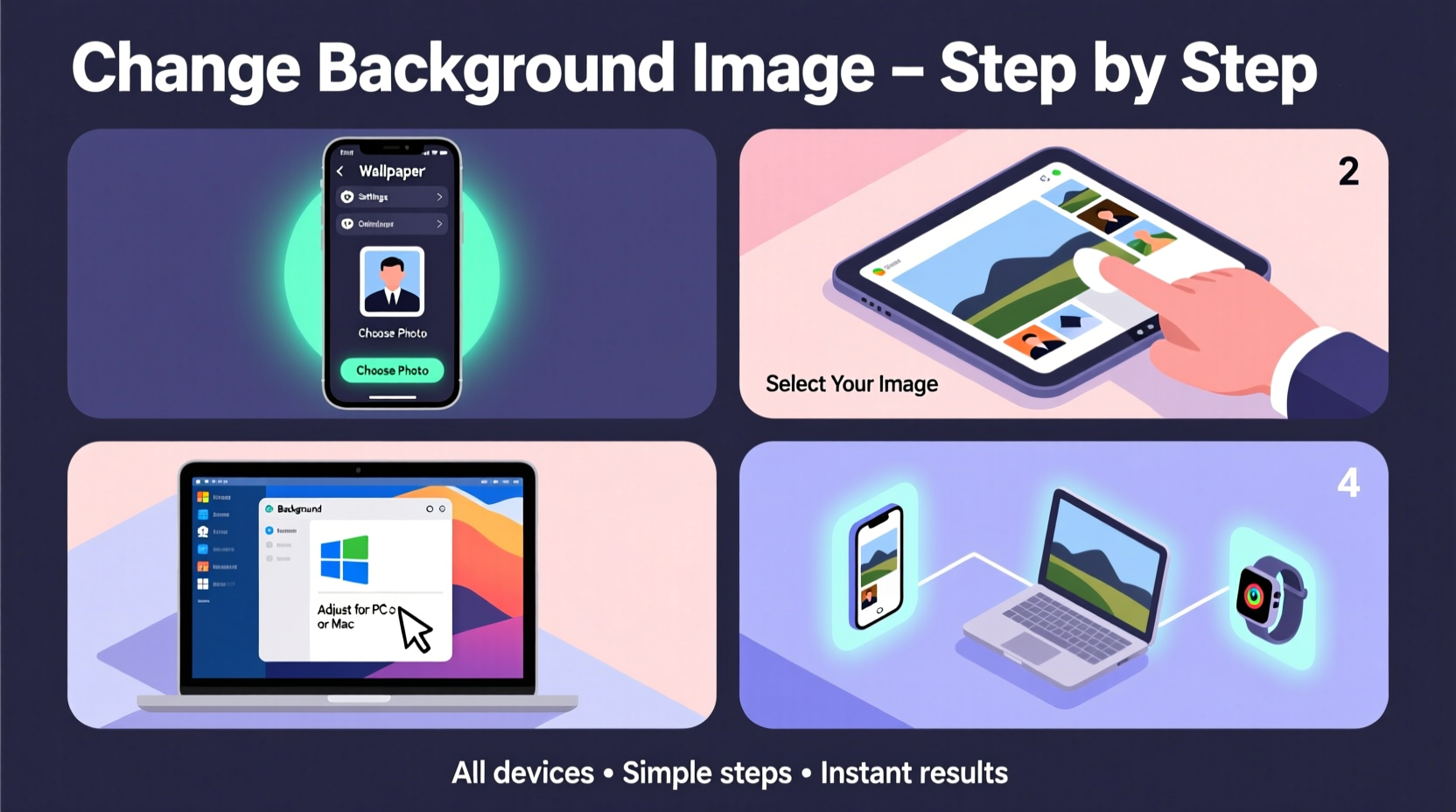
A personalized background does more than just look good. Studies in environmental psychology suggest that visual surroundings influence focus, mood, and productivity. A calming landscape might help reduce stress during work hours, while an energizing abstract design could boost motivation. Additionally, rotating backgrounds prevents visual fatigue from staring at the same screen daily. With high-resolution displays now standard, choosing a high-quality image enhances both aesthetics and user satisfaction.
Step-by-Step Guide for Each Device
Changing Background on Windows 10 and 11
- Right-click on an empty area of your desktop and select Personalize.
- In the Settings window, click on Background in the left sidebar.
- Under “Background,” choose Pictures from the dropdown menu.
- Click Browse to select an image from your folders, or pick one from the default Windows collection.
- Select your preferred image, and it will instantly appear as your desktop background.
- Adjust how the image appears using the “Choose a fit” option: Fill, Fit, Stretch, Tile, Center, or Span (for dual monitors).
You can also set up a slideshow by selecting multiple photos and enabling auto-rotation at intervals of 30 seconds to one day.
Setting a New Background on macOS
- Click the Apple logo in the top-left corner and select System Settings (or System Preferences on older versions).
- Navigate to Wallpaper in the sidebar.
- Click the Add Folder button or choose from built-in options like Dynamic, Stills, or Photos.
- If adding a custom image, locate it in Finder and drag it into the Wallpaper window.
- Select the image and choose how it fits: Fill Screen, Fit to Screen, Stretch, or Center.
- To use a photo from your library, open the Photos app, right-click the desired image, and choose “Use as Wallpaper.”
macOS supports dynamic wallpapers that change based on time of day—a feature particularly effective on Retina displays.
Updating Wallpaper on iPhone (iOS)
- Open the Photos app and find the image you want to use.
- Tap the share icon (square with arrow) and select Use as Wallpaper.
- Tap Set, then choose either Set Lock Screen, Set Home Screen, or both.
- Use two fingers to zoom and pan the image into position before confirming.
- To change existing wallpaper: Go to Settings > Wallpaper > Add New Wallpaper.
iOS allows different images for the lock screen and home screen, offering creative flexibility. You can also apply live photos or create layered effects if your device supports them.
Customizing Background on Android Devices
- Long-press on an empty area of your home screen.
- Select Wallpapers from the pop-up menu.
- Browse preloaded themes, Google Wallpapers, or choose My Photos.
- Select an image from your gallery and adjust its framing for both home and lock screens.
- Tap Set and choose whether to apply to Home screen, Lock screen, or both.
Some manufacturers, like Samsung and OnePlus, offer additional customization through their own apps (e.g., Samsung Themes). Third-party launchers such as Nova or Action Launcher also provide advanced wallpaper controls.
Best Practices for Choosing and Managing Background Images
Not all images make good wallpapers. Here’s how to pick wisely:
- Resolution: Aim for at least 1920x1080 for desktops; higher for 4K monitors or modern smartphones.
- Aspect Ratio: Match your screen’s ratio (e.g., 16:9 for most laptops, 19.5:9 for many phones) to prevent awkward cropping.
- Clarity: Avoid overly busy images that make icons hard to see. Subtle gradients or blurred backgrounds often work best.
- Source: Download from reputable sites like Unsplash, Pexels, or Wallhaven for free, high-quality images.
| Device Type | Recommended Resolution | Suggested Image Type |
|---|---|---|
| Windows PC (Full HD) | 1920x1080 | Landscape, minimal design |
| MacBook Pro (Retina) | 2560x1600+ | Dynamic or layered images |
| iPhone 15 Pro | 1179x2556 | Portrait-oriented, centered subject |
| Android Phone (Samsung Galaxy S24) | 1080x2340 | Dark mode-friendly or AMOLED-optimized |
Real Example: Revamping a Work-from-Home Setup
Jamal, a freelance graphic designer from Austin, felt mentally drained after months of working remotely. His old desktop wallpaper—a generic city skyline—no longer inspired him. He decided to update his environment digitally and physically. First, he downloaded a serene mountain lake image from Unsplash in 4K resolution. On his Windows 11 machine, he set it as a desktop background using the “Fill” option. He paired it with a soft blue lock screen on his iPhone featuring a minimalist wave pattern. Within days, he reported improved concentration and a calmer mindset during client calls. Small changes, he said, made a measurable difference in daily motivation.
“Your digital space is part of your personal environment. Just like redecorating a room, changing your wallpaper can reset your mental state.” — Dr. Lena Torres, Digital Wellbeing Researcher at MIT Media Lab
Checklist: How to Successfully Change Your Background
- ✅ Choose a high-resolution image suitable for your screen size
- ✅ Save the file in an accessible location (Downloads, Pictures, etc.)
- ✅ Close unnecessary apps to avoid interference
- ✅ Consider accessibility—ensure icons remain visible
- ✅ Backup favorite wallpapers in a dedicated folder
Frequently Asked Questions
Can I use the same image across all my devices?
Yes, but you may need to crop or resize it depending on each device’s screen dimensions. For example, a vertical phone wallpaper won’t fill a horizontal monitor without stretching. Use photo editing tools like Preview (macOS), Paint (Windows), or free online editors like Canva to adapt images accordingly.
Will changing my background slow down my device?
No. Modern operating systems handle wallpapers efficiently. However, extremely large files (e.g., 8K images on a low-end phone) might cause minor lag when switching screens. Stick to appropriately sized images to avoid performance issues.
How often should I change my background?
There’s no rule, but rotating every 2–4 weeks can keep your digital space feeling fresh. Some users automate this with apps like Wallpaper Engine (PC) or Muzei (Android), which pull new images daily from curated sources.
Final Thoughts and Next Steps
Changing your background is a quick, cost-free way to take ownership of your digital space. It takes less than two minutes on any device and can significantly impact your daily experience. Whether you’re refreshing your laptop before a big project or setting a motivational quote on your phone, the power of a well-chosen image shouldn’t be underestimated. Now that you know how to do it across platforms, try experimenting with seasonal themes, artwork, or personal photos. Make your screens reflect who you are—and how you want to feel.




 浙公网安备
33010002000092号
浙公网安备
33010002000092号 浙B2-20120091-4
Comments
No comments yet. Why don't you start the discussion?