
Language settings shape how we interact with our smartphones. Whether you're traveling abroad, learning a new language, or sharing your device with someone who speaks differently, adjusting the system language is a simple yet powerful customization. The good news? It’s easier than most people think. This comprehensive guide walks you through every step for both iOS and Android devices, explains what happens when you switch languages, and helps troubleshoot common issues—so you can navigate your phone confidently in any tongue.
Why Change Your Smartphone's Language?
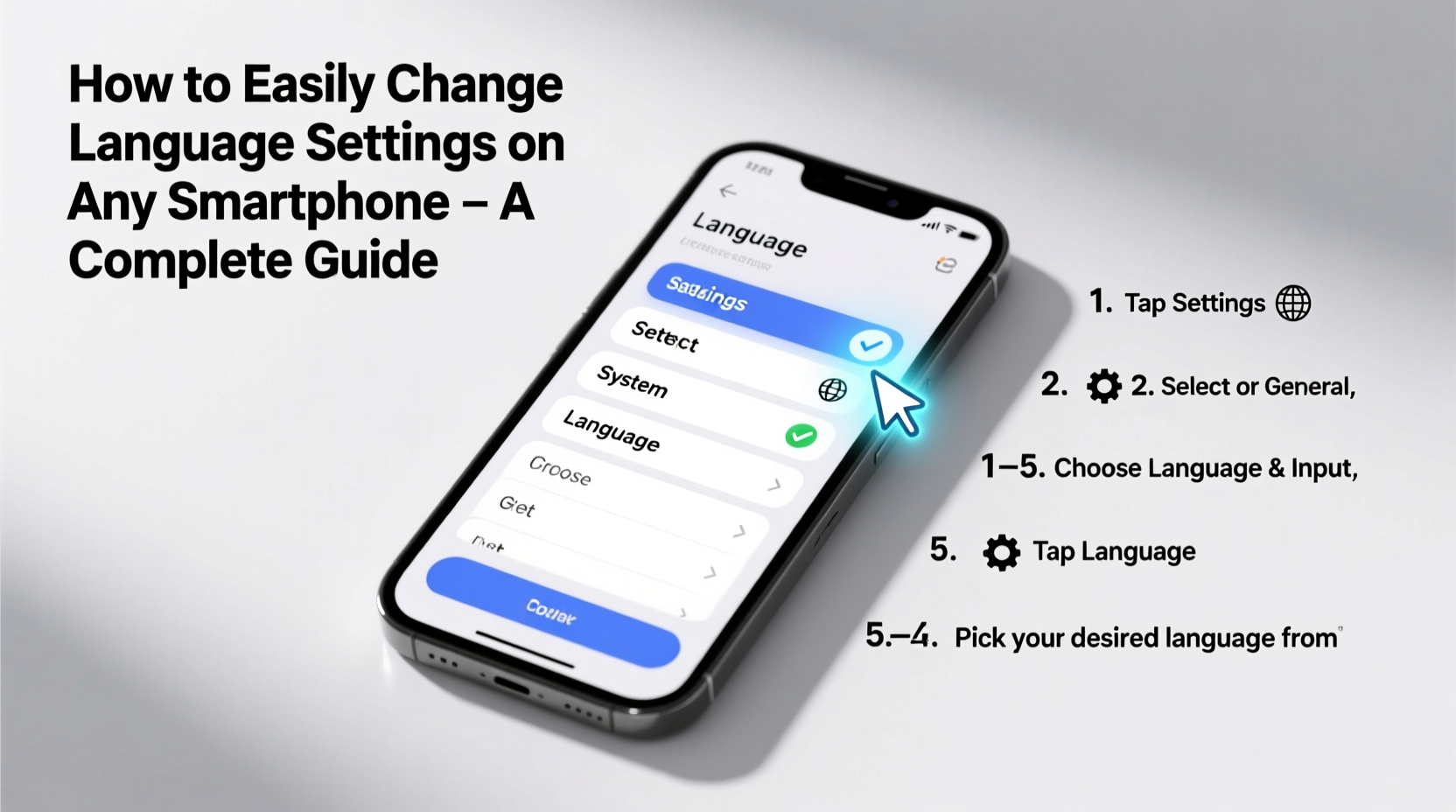
Changing your phone’s language isn’t just about convenience—it can enhance accessibility, support language learning, or make shared devices more inclusive. Parents might switch languages for bilingual children; expats often align their phones with local dialects; travelers benefit from real-time navigation and app prompts in regional tongues.
Modern operating systems like iOS and Android support over 100 languages, including regional variants (e.g., Spanish from Spain vs. Mexico). This flexibility ensures accurate spelling, date formats, and voice recognition tailored to your region.
How to Change Language on iPhone (iOS)
Apple makes language switching intuitive, preserving your data while updating interface text across all apps. Here’s how to do it:
- Open the Settings app.
- Tap General, then select Language & Region.
- Choose iPhone Language.
- Select your preferred language from the list.
- Confirm by tapping Change to [Language].
The system will reload immediately. All menus, messages, and default apps will now appear in the selected language. Note that third-party apps may take longer to update if they don’t fully support the new language.
If you ever want to revert, simply repeat these steps and choose your original language. Apple retains previous preferences, making rollbacks seamless.
Managing Preferred Languages on iOS
iOS allows multiple preferred languages. If your primary choice isn’t supported everywhere, the system falls back to the next in line. To manage this list:
- Go to Settings > General > Language & Region.
- Tap Preferred Language Order.
- Add or reorder languages using the drag handles.
This feature is especially useful for multilingual households or users who work across different linguistic environments.
Changing Language on Android Devices
Android offers similar functionality, though exact steps may vary slightly depending on manufacturer (Samsung, Google Pixel, OnePlus, etc.) and OS version. Below is the universal path applicable to most modern Android phones running Android 10 and above:
- Open Settings.
- Navigate to System or General Management (varies by brand).
- Select Languages & input or Language.
- Tap Language under “Languages” section.
- Add a new language by tapping Add a language, then move it to the top of the list to set as default.
Once the new language is prioritized, the interface updates instantly. Some Samsung devices label this option under “General Management > Language and Input > Language,” but the logic remains consistent.
Using Google Translate for Instant Help
If you accidentally switch to an unfamiliar language and can’t find your way back, use Google Assistant or Google Translate’s camera mode. Point your camera at the screen—the app will overlay translations in real time, helping you navigate back to settings.
“Multilingual support in mobile OS design reflects a global shift toward digital inclusivity.” — Dr. Lena Patel, Human-Computer Interaction Researcher, MIT Media Lab
Step-by-Step Checklist: Changing Language Safely
To ensure a smooth transition without losing access or data, follow this verified checklist:
- ✅ Confirm Wi-Fi connection before changing (ensures app updates post-switch)
- ✅ Write down current language setting (for easy rollback) <
- ✅ Check app compatibility (especially banking or productivity tools)
- ✅ Enable ‘Show notifications during setup’ (helpful if confirmation prompts appear in new language)
- ✅ Back up your device (optional but recommended for peace of mind)
What Happens After You Change the Language?
Switching languages affects more than just text labels. Here’s what changes—and what doesn’t:
| Feature | Changes After Language Switch | Remains Unchanged |
|---|---|---|
| User Interface Text | Yes – Menus, buttons, alerts | |
| Date/Time Format | Yes – Adjusts to regional standards (e.g., DD/MM/YYYY) | |
| Keyboard Layout | May change based on language (e.g., AZERTY for French) | Custom shortcuts remain intact |
| Contact Names & Messages | No – Personal content stays as entered | ✓ |
| App Store Content | Search results and descriptions adapt | In-app purchases and download history |
| Voice Assistant Output | Responds in new language if voice pack installed | Wake word detection (e.g., “Hey Siri”) |
Note: Some apps require manual restarts or reinstallation to reflect language changes. Clearing cache via Settings > Apps > [App Name] > Storage > Clear Cache can force refreshes.
Real-World Example: Maria’s Move to France
Maria, a software engineer from Canada, relocated to Lyon for a year-long assignment. She wanted to immerse herself in French culture but worried about losing productivity on her phone.
She followed the Android language-switching steps, setting French as her primary language. At first, navigating settings was challenging—but within days, she began recognizing common terms like “Paramètres” (Settings) and “Batterie” (Battery). Her calendar automatically switched to day-month-year format, and weather apps displayed Celsius.
After two weeks, Maria noticed her comprehension improved significantly. Even better, her banking app adapted seamlessly because it supported French. For apps that lagged, she used split-screen mode with Google Translate open—a workaround that turned frustration into progress.
By month three, Maria could operate her entire phone in French without assistance. What started as a technical adjustment became a catalyst for language growth.
Frequently Asked Questions
Will changing the language delete my apps or photos?
No. Changing the system language only alters text and formatting. All personal data—including apps, photos, messages, and accounts—remains untouched.
Can I set different languages for different apps?
Not natively on iOS or standard Android. However, some apps (like Facebook or YouTube) allow internal language selection regardless of system settings. Look for language options within individual app settings.
My phone won’t switch back to English—what should I do?
If you’re locked out due to language confusion, reboot into safe mode (Android) or use voice commands (“Hey Siri, open Settings”). Alternatively, use Google Translate’s camera feature to identify menu items. On iPhones, swiping up from the bottom during startup sometimes reveals recovery options in your original language.
Final Tips for a Smooth Experience
While changing language is straightforward, a few best practices prevent hiccups:
- Test first: Switch to a familiar second language briefly before committing to an entirely new one.
- Update apps beforehand: Ensure all critical apps are updated so they’re more likely to support the target language.
- Use regional variants wisely: Choose between UK and US English, or Latin American vs. Castilian Spanish, for correct spellings and idioms.
- Teach family members: If sharing a device, walk others through the new layout to reduce confusion.
Conclusion: Take Control of Your Digital Environment
Your smartphone should serve you—not limit you—regardless of the language you speak. With just a few taps, you can transform your device into a multilingual companion that adapts to your life, travels, and goals. Whether you're reconnecting with heritage, supporting a child’s bilingual education, or embracing a new country, changing your phone’s language is a small step with lasting impact.




 浙公网安备
33010002000092号
浙公网安备
33010002000092号 浙B2-20120091-4
Comments
No comments yet. Why don't you start the discussion?