
Your YouTube profile picture is more than just an image—it's part of your digital identity. Whether you're a casual creator or managing a brand channel, having a clear, recognizable profile photo helps viewers connect with you instantly. The good news? Updating your YouTube profile picture is simple and can be done in minutes from nearly any device. This comprehensive guide walks you through the entire process across desktop computers, smartphones, and tablets—ensuring you can make the change wherever you are.
Why Your YouTube Profile Picture Matters
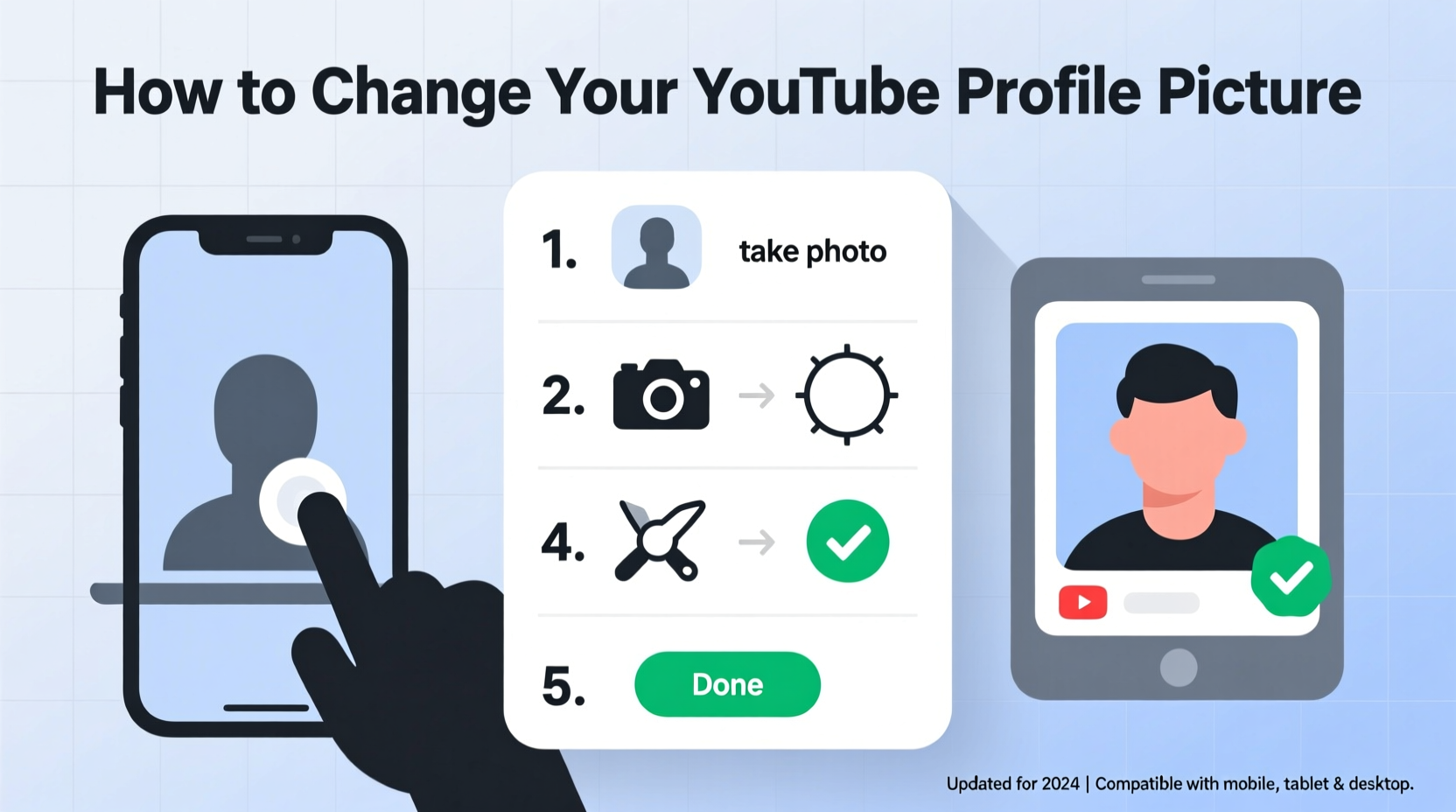
A strong visual presence begins with consistency. Your profile picture appears next to every comment you leave, below each video you upload, and in search results. Over time, it becomes synonymous with your content. A well-chosen image—such as a high-resolution headshot, logo, or stylized avatar—builds trust and recognition.
YouTube automatically pulls your Google Account profile photo, meaning changes made there will reflect across all Google services. However, many users aren’t aware they can customize this independently for YouTube alone, especially when managing multiple channels under one account.
Step-by-Step Guide to Changing Your Profile Picture on Desktop
If you're using a laptop or desktop computer, updating your YouTube profile picture is straightforward through a web browser. Follow these steps:
- Open your preferred browser and go to youtube.com.
- Sign in with your Google account if you haven’t already.
- In the top-right corner, click your current profile icon.
- From the dropdown menu, select Your channel.
- On your channel page, hover over your current profile picture in the upper-left section.
- A camera icon will appear—click it.
- You’ll see two options: “Choose photo” or “Take photo” (if your webcam is enabled).
- Select “Choose photo,” then browse your files for the desired image.
- Adjust the crop if needed and click “Done.”
- Wait a moment for the upload to complete. The change may take up to a few minutes to appear site-wide.
This method allows full control over image selection and editing before upload. It’s ideal if you want to preview how your new photo looks at different sizes.
Changing Your Profile Picture on Mobile Devices (iOS and Android)
Most people access YouTube via their phones, so knowing how to update your profile picture on mobile is essential. The YouTube app streamlines the process without sacrificing functionality.
Steps for iPhone and Android:
- Launch the YouTube app on your smartphone.
- Tap your profile picture in the top-right corner.
- Select Your channel from the menu.
- Tap your current profile picture (or the default avatar).
- Choose “Edit” or “Change photo,” depending on your device.
- Select an image from your gallery or take a new photo.
- Crop the image to fit the circular frame, ensuring key elements remain centered.
- Tap “Save” or the checkmark to confirm.
The updated image typically appears immediately on your device but might take a few minutes to sync across other platforms and devices due to caching.
What to Do If You Manage Multiple Channels
If you operate more than one YouTube channel under the same Google account, you’ll need to switch between them carefully. Each channel can have its own unique profile picture, banner, and settings.
To change the profile picture for a specific channel:
- Click your profile icon in the top-right corner.
- Select “Switch account” or tap the down arrow next to your current channel name.
- Choose the channel you’d like to edit.
- Proceed with the standard steps outlined above.
Keep in mind that switching channels frequently can lead to confusion. Always double-check which channel you’re editing before uploading a new photo.
“Your profile picture is often the first impression viewers get. Make it count—clear, consistent, and professional.” — Lena Patel, Digital Brand Strategist
Best Practices for Choosing a Strong Profile Image
Not all profile pictures perform equally. Some stand out; others blend into the background. Follow these guidelines to ensure yours makes an impact:
| Do’s | Don’ts |
|---|---|
| Use a high-contrast, well-lit image | Use blurry or pixelated photos |
| Center your face or logo clearly | Crowd the frame with too many people or objects |
| Stick to a simple background | Include text that’s too small to read |
| Match your branding across social platforms | Frequent changes without reason |
| Update seasonally or during rebrands | Use memes or overly casual snapshots for professional channels |
Consistency builds familiarity. When viewers see your icon in comments or recommendations, they should recognize it instantly—even at thumbnail size.
Troubleshooting Common Issues
Sometimes, despite following the correct steps, your profile picture doesn’t update as expected. Here are frequent issues and how to resolve them:
- Image not updating: Clear your browser cache or restart the YouTube app. Changes can take up to 24 hours to propagate globally.
- Photo won’t upload: Ensure the file is under 4MB and in JPEG, PNG, GIF (non-animated), or BMP format.
- Blurry appearance: Upload a higher-resolution image. YouTube scales down large images gracefully but struggles with upsizing small ones.
- Wrong photo appearing: Confirm you're logged into the correct Google account and editing the right YouTube channel.
Mini Case Study: Revamping a Creator’s Online Presence
Jamal, a tech reviewer with a growing YouTube channel, noticed declining engagement despite improving video quality. After analyzing viewer feedback, he realized his profile picture—a dark, cropped group photo—was unrecognizable and unprofessional.
He followed the desktop update process, replacing it with a clean, close-up headshot against a neutral background. Within two weeks, comment interactions rose by 35%, and new subscribers mentioned recognizing him more easily in suggested videos.
The change required less than ten minutes but significantly strengthened his personal brand.
FAQ
Will changing my YouTube profile picture affect my Google Account?
Yes, unless you use a separate YouTube channel. By default, YouTube pulls your Google Account photo. To avoid affecting other services like Gmail or Meet, consider creating a dedicated YouTube channel where you can set a unique image.
Can I revert to my old profile picture?
Yes. As long as you haven’t deleted the original image from your device, you can re-upload it anytime using the same process. YouTube does not store previous versions automatically.
Why does my new photo look blurry on some devices?
This usually happens when the uploaded image is too small. YouTube displays profile pictures at various sizes—from tiny comment icons to larger channel headers. A minimum of 800 x 800 pixels ensures sharpness across all views.
Final Checklist Before You Publish
Before finalizing your profile picture update, run through this quick checklist:
- ✅ Image is high-resolution (800 x 800 px recommended)
- ✅ Face or logo is centered and clearly visible
- ✅ Background isn’t distracting
- ✅ File size is under 4MB and in a supported format
- ✅ You’re logged into the correct Google account and YouTube channel
- ✅ You’ve tested how it looks in incognito mode or on another device
Conclusion
Updating your YouTube profile picture is a small action with significant impact. Whether you're refreshing your look, launching a new channel, or simply fixing a blurry image, the process is quick and accessible from any device. With the right photo, you enhance credibility, boost recognition, and create a cohesive brand experience for your audience.




 浙公网安备
33010002000092号
浙公网安备
33010002000092号 浙B2-20120091-4
Comments
No comments yet. Why don't you start the discussion?