
Ports are essential gateways that allow your devices to communicate over networks. Whether you're setting up a game server, configuring remote access, or troubleshooting connectivity issues, knowing whether a port is open can save hours of frustration. The good news? Checking port status doesn’t require advanced technical skills. With the right tools and methods, you can quickly verify port accessibility on any device—Windows, macOS, Linux, or even mobile platforms.
Understanding Network Ports and Why They Matter
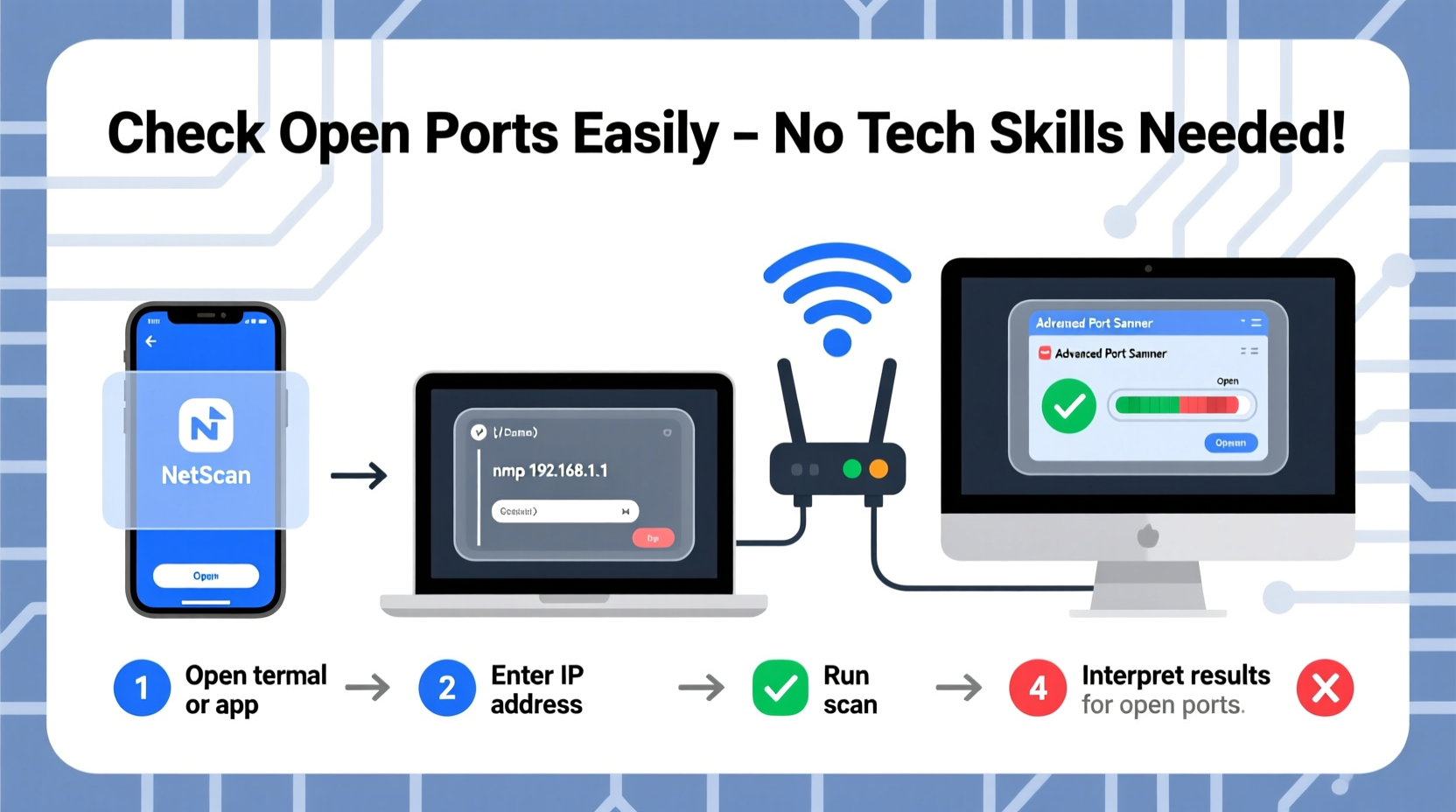
A network port is a virtual endpoint for communication in an operating system. Each port is associated with a specific service or application—for example, port 80 for HTTP web traffic, port 443 for HTTPS, and port 22 for SSH. When a port is \"open,\" it means the service is actively listening and accepting incoming connections. A closed or blocked port may indicate firewall interference, misconfiguration, or a non-running service.
Common scenarios where checking port status becomes critical include:
- Troubleshooting a website that won't load remotely
- Setting up a home media server (like Plex or Jellyfin)
- Configuring VoIP systems or security cameras
- Verifying firewall rules after network changes
Before diving into tools, understand that there are two perspectives when testing ports: local (on your own machine) and remote (from an outside network). Both are important, but remote checks reveal real-world accessibility.
Step-by-Step Guide to Check Open Ports
Follow this structured approach to test port status accurately across different environments.
- Determine the port number and protocol – Know which port (e.g., 3389 for RDP) and whether it uses TCP or UDP. Most services use TCP.
- Check locally using built-in OS tools – Use command-line utilities to see if a service is listening.
- Test from another device on the same network – Confirm internal accessibility.
- Verify externally using online tools – Ensure the port is reachable from the internet.
- Review firewall and router settings – If the port is closed, adjust configurations accordingly.
1. Using Command Line Tools by Operating System
Each major OS includes native tools for inspecting active ports.
Windows: netstat and PowerShell
Open Command Prompt as Administrator and run:
netstat -an | find \"LISTENING\"
This shows all listening ports. To check a specific one, like port 3389:
netstat -an | find \"3389\"
In PowerShell, use:
Get-NetTCPConnection -LocalPort 80
macOS and Linux: netstat and ss
Open Terminal and type:
netstat -tuln | grep LISTEN
Or, on modern Linux systems using ss:
ss -tuln | grep LISTEN
To check a specific port:
lsof -i :22
This lists all processes using port 22 (SSH).
2. Testing Remote Port Accessibility
Even if a port is open locally, firewalls or NAT settings may block external access. Here’s how to test from outside.
Using Telnet (Legacy but Effective)
If you have access to another device on the same network:
telnet [IP_ADDRESS] [PORT]
Example:
telnet 192.168.1.100 80
If the screen goes blank or shows a connection message, the port is open. If it hangs or says “connection refused,” the port is likely closed.
Using nmap (Advanced Scanning Tool)
nmap is a powerful network scanner available for Windows, macOS, and Linux.
Install via package manager or download from nmap.org, then run:
nmap -p 80,443,22 192.168.1.100
This scans specific ports on the target device. For a full range:
nmap -p 1-1000 192.168.1.100
“Network visibility starts with understanding what’s exposed. Regular port scanning helps identify unintended exposures before attackers do.” — Sarah Lin, Network Security Analyst at CyberShield Inc.
3. Online Port Checkers for External Verification
To confirm if a port is accessible from the public internet, use free online tools. These simulate an external connection attempt to your public IP address.
Popular options include:
Steps:
- Note your public IP (search “what is my IP” on Google).
- Ensure the service is running and port forwarded (if behind a router).
- Enter the port number on the website and click “Check.”
These tools only work with public IPs. If you're behind CGNAT (common with some ISPs), external checks may fail even with correct setup.
Common Pitfalls and How to Avoid Them
Mistakes during port testing often lead to false conclusions. Be aware of these frequent issues:
| Pitfall | Why It Happens | Solution |
|---|---|---|
| Testing the wrong IP | Using localhost (127.0.0.1) instead of LAN or public IP | Use ipconfig (Windows) or ifconfig (Linux/macOS) to get correct local IP |
| Firewall blocking outbound scans | Corporate or personal firewalls filter outgoing requests | Temporarily disable firewall or allow the tool through exceptions |
| Router not forwarding ports | NAT prevents external traffic from reaching the device | Set up port forwarding in router settings |
| ISP blocking common ports | Some providers block ports like 80, 25, or 443 on residential plans | Contact ISP or use alternative ports (e.g., 8080 instead of 80) |
Real-World Example: Setting Up a Home Web Server
John wanted to host a personal blog from his home computer using Apache on port 80. He confirmed Apache was running and saw port 80 listening locally using netstat. However, friends couldn’t access the site.
He tested internally using a phone on the same Wi-Fi: http://192.168.1.100 worked. Next, he checked his public IP and used CanYouSeeMe.org to test port 80. The tool reported it as closed.
The issue? His router wasn’t forwarding port 80 to his computer. After logging into the router and setting up port forwarding (external port 80 → internal IP 192.168.1.100, port 80), the online checker showed the port as open. His blog became publicly accessible.
Later, he discovered his ISP blocked port 80. He reconfigured Apache to use port 8080 and updated the port forward rule. Now, visitors accessed his site via http://[public-ip]:8080.
Frequently Asked Questions
Can I check UDP ports the same way as TCP?
Not exactly. Most tools like telnet and online checkers focus on TCP. UDP is connectionless and harder to probe. Use specialized tools like nmap -sU or packet analyzers such as Wireshark for UDP testing.
Is it safe to leave ports open?
Only if necessary. Every open port increases attack surface. Always secure services with strong passwords, keep software updated, and close unused ports. Never expose administrative interfaces (like routers) directly to the internet without protection.
Why does my port show open locally but closed externally?
This usually indicates a network-level block. Common causes include router NAT settings, missing port forwarding, firewall rules, or ISP restrictions. Verify each layer from the device outward.
Essential Checklist for Port Testing Success
- ✅ Identify the correct port number and protocol (TCP/UDP)
- ✅ Confirm the service is running on the target device
- ✅ Use
netstat,ss, orlsofto verify local listening state - ✅ Test internally using another device on the same network
- ✅ Set up port forwarding if behind a router
- ✅ Use an online port checker to validate external accessibility
- ✅ Review firewall settings on both device and network
- ✅ Document findings and secure any exposed services
Take Control of Your Network Today
Checking open ports is a fundamental skill for anyone managing devices on a network. Whether you’re a hobbyist running a game server or a professional ensuring secure access, the ability to verify port status empowers you to troubleshoot effectively and maintain reliable connectivity.
You don’t need expensive tools or certifications—just a few commands and a systematic approach. Start small: test a known service like HTTP or SSH. As you gain confidence, expand to more complex setups. Over time, you’ll develop intuition for diagnosing network issues quickly and accurately.




 浙公网安备
33010002000092号
浙公网安备
33010002000092号 浙B2-20120091-4
Comments
No comments yet. Why don't you start the discussion?