
Every time you save a file in Google Chrome, it automatically goes to a default downloads folder—usually the “Downloads” directory on your system drive. While this works for basic use, relying on the default setting can lead to clutter, misplaced files, or inefficient workflows, especially if you frequently download large files, work across multiple devices, or prefer structured file management. Fortunately, Chrome makes it simple to customize and manage where your downloads go. With just a few adjustments, you can redirect downloads to a more convenient location, streamline access, and maintain better control over your digital workspace.
Why Change Your Default Download Location?
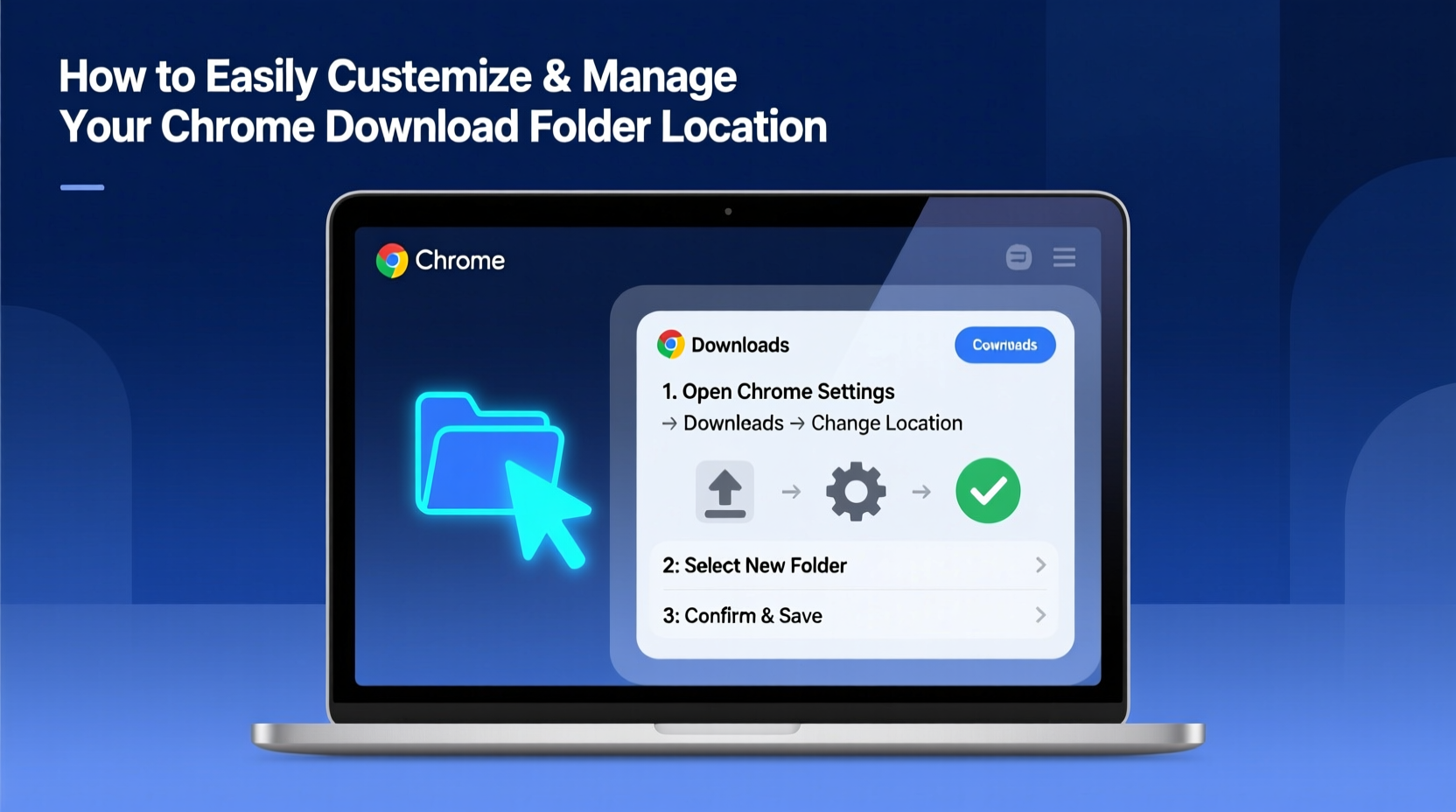
The default download path is rarely optimal for long-term productivity. Most users accept the pre-set folder without considering alternatives, but doing so can result in fragmented file storage. For example, important documents might end up buried among temporary media files or software installers. By changing your download folder, you gain several advantages:
- Better organization: Direct downloads to folders based on type (e.g., “Work Documents,” “Media,” “Software”).
- Disk space management: Offload downloads to a secondary drive to preserve space on your primary SSD.
- Easier backups: Consolidate downloaded content into a single, predictable location for automated backup tools.
- Improved security: Avoid accidental exposure of sensitive files saved to shared or default directories.
Step-by-Step: Changing Your Chrome Download Folder
Modifying where Chrome saves files is straightforward and takes less than a minute. Follow these steps to update your download location:
- Open Google Chrome on your computer.
- Click the three vertical dots in the top-right corner to open the main menu.
- Select Settings from the dropdown list.
- Scroll down and click on Downloads in the sidebar (under “Privacy and security”).
- Next to “Location,” click Change.
- Navigate to your preferred folder using the file browser (e.g., E:\\Saved Files or /Users/Name/Projects/Downloads).
- Select the folder and click Select (or “Open” on macOS/Linux).
- Chrome will now use this folder as the default destination for all future downloads.
Once set, every new download will go directly to your chosen directory. You’ll notice the updated path reflected in the download bar at the bottom of the browser window.
Advanced Management: Organizing Downloads by Type
While Chrome doesn’t natively support routing different file types to separate folders, you can implement smart workarounds to achieve similar results. This level of customization enhances file hygiene and reduces manual sorting.
One effective method is to use Chrome’s per-download prompt feature. When enabled, Chrome asks where to save each file instead of using the default folder. To activate this:
- Go to Settings > Downloads.
- Toggle on Ask where to save each file before downloading.
This gives you full control over individual downloads, allowing you to route PDFs to a “Documents” folder, images to a “Photos” subdirectory, and executables to a secure “Installers” location.
“Automating file placement starts with intentional defaults. Even small changes in download behavior can prevent hours of cleanup later.” — Jordan Lee, Digital Workflow Consultant
Best Practices for Efficient Download Management
Changing the download folder is just the beginning. To truly optimize your workflow, combine this setting with consistent habits and system-level strategies.
| Action | Benefit | How to Implement |
|---|---|---|
| Create subfolders by category | Reduces clutter and speeds up retrieval | Set up folders like “Invoices,” “Ebooks,” “Archives” within your main download directory |
| Use an external or secondary drive | Preserves SSD lifespan and frees up system space | Set download location to a high-capacity HDD or cloud-synced drive |
| Schedule regular cleanup | Prevents accumulation of outdated or unnecessary files | Review and archive/delete weekly; use tools like CCleaner or built-in Disk Utility |
| Enable download confirmation | Avoids accidental overwrites or misplacements | Turn on “Ask where to save each file” for critical downloads |
Mini Case Study: Streamlining a Freelancer’s Workflow
Maya, a freelance graphic designer, used to lose client assets amid hundreds of downloaded fonts, stock images, and project briefs. Her Chrome downloads spilled into her main user folder, making version control difficult. After reorganizing, she created a structured directory: /Projects/Client_Downloads, and set Chrome to ask for a save location. Now, she routes design assets directly into client-specific folders. She also uses a nightly script to move completed downloads to an archive drive. As a result, Maya reduced file search time by 70% and eliminated duplicate downloads during revisions.
Common Issues and Troubleshooting
While changing the download location is generally smooth, some users encounter obstacles. Here are frequent issues and their solutions:
- Permission errors: Chrome may fail to write to a folder if it lacks access rights. Ensure the selected directory allows write permissions for your user account.
- Network drives not appearing: If you're trying to set a network or cloud folder (e.g., OneDrive, Google Drive), make sure it's mapped as a local drive or fully synced.
- Path resets after updates: Rarely, Chrome updates may revert settings. Double-check your download location after major updates.
- Sync conflicts across devices: Chrome Sync does not sync download folder preferences. You must manually configure each device.
Frequently Asked Questions
Can I set different download folders for different file types in Chrome?
No, Chrome does not support automatic file-type-based routing. However, enabling the “Ask where to save each file” option lets you manually choose destinations based on type, giving you similar control.
Will changing my download folder affect existing files?
No. Only future downloads will go to the new location. Files already in the old Downloads folder remain untouched and must be moved manually if desired.
Does Chrome Sync remember my download folder setting?
No. Download folder preferences are stored locally and are not synced across devices, even if you’re signed into Chrome with the same Google account. You’ll need to configure the folder on each machine separately.
Checklist: Optimizing Your Chrome Download Setup
- ✅ Decide on a new download folder location (e.g., secondary drive or organized directory)
- ✅ Create subfolders for common download types (Documents, Media, Software)
- ✅ Open Chrome Settings > Downloads and change the default location
- ✅ Enable “Ask where to save each file” for greater control (optional)
- ✅ Test the new path with a sample download
- ✅ Set up a weekly cleanup routine to avoid buildup
- ✅ Repeat configuration on other devices if needed
Take Control of Your Digital Workflow
Customizing your Chrome download folder is a small change with outsized benefits. It transforms a passive, automatic process into an intentional part of your digital organization strategy. Whether you're managing client files, research materials, or personal media, taking control of where your downloads land reduces friction and supports a cleaner, more efficient computing experience. Don’t let default settings dictate your workflow—adjust them to fit your real-world needs.




 浙公网安备
33010002000092号
浙公网安备
33010002000092号 浙B2-20120091-4
Comments
No comments yet. Why don't you start the discussion?