
PDFs are widely used for sharing documents because they preserve formatting across devices. But what happens when you need to remove certain pages? Whether it’s a multi-page report, a scanned document, or an eBook, unwanted pages can clutter your file and make it harder to navigate. Fortunately, deleting pages from a PDF doesn’t require advanced technical skills. With the right tools and approach, you can clean up your document in minutes—no matter which device you're using.
Why You Might Need to Delete Pages from a PDF
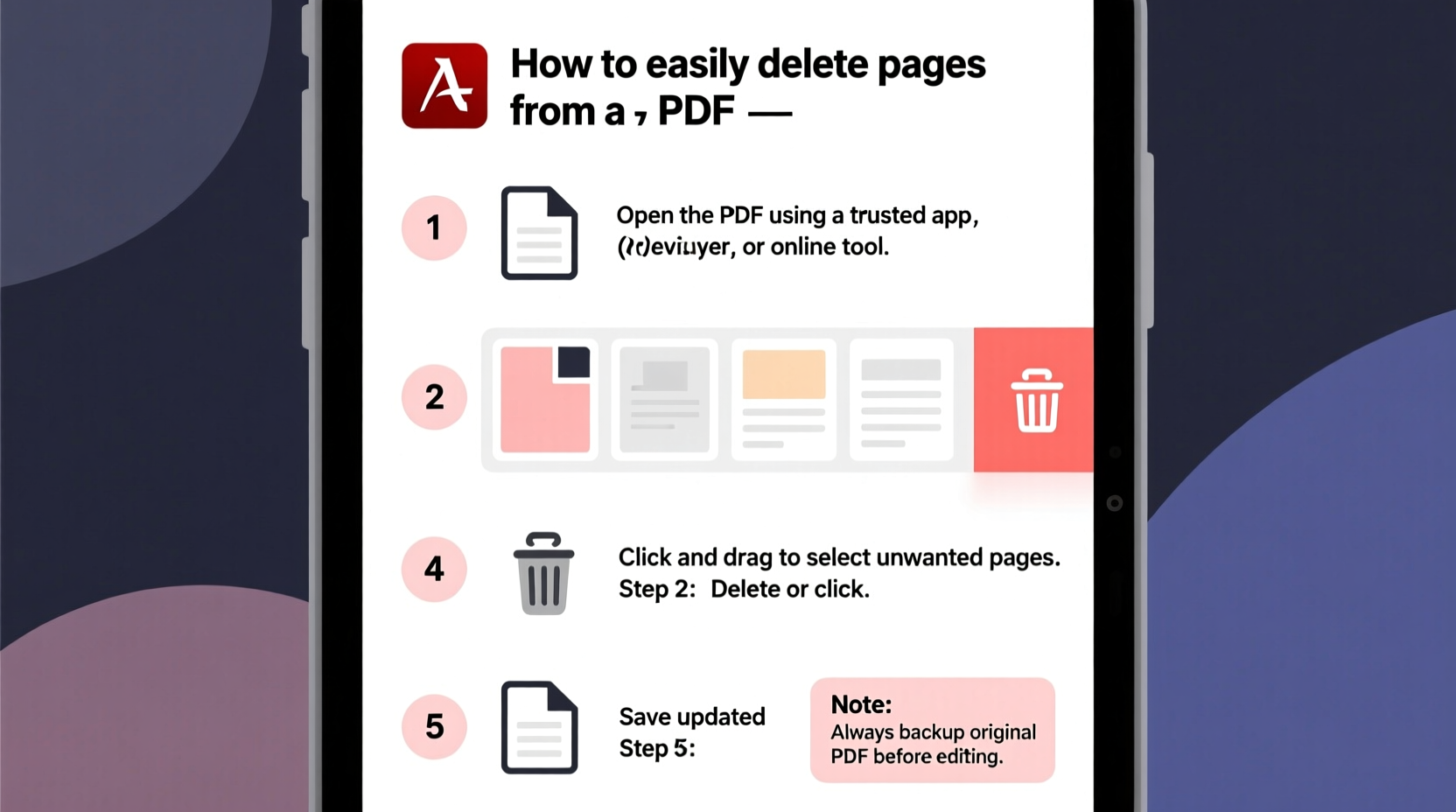
There are countless reasons to edit a PDF by removing pages. Perhaps you’ve merged several files and now want to eliminate duplicates. Maybe you’re submitting a job application and only need specific sections of a longer resume or portfolio. Or you've received a contract with irrelevant appendices and want to streamline it for easier reading.
Whatever the reason, manually cropping or printing selective pages isn't efficient. Direct deletion ensures clarity, reduces file size, and improves professionalism. The good news is that modern tools make this process accessible—even if you're not tech-savvy.
Step-by-Step Methods to Delete PDF Pages by Device
Different platforms offer different capabilities. Below are reliable, tested methods broken down by operating system and usage scenario.
On Windows: Using Adobe Acrobat Pro (Desktop)
Adobe Acrobat Pro remains one of the most powerful tools for editing PDFs. If you have access to it, follow these steps:
- Open the PDF in Adobe Acrobat Pro.
- Click on the \"Organize Pages\" tool in the right-hand toolbar.
- Select the page thumbnails you want to remove.
- Click the trash icon or right-click and choose \"Delete.\"
- Confirm the deletion and save the file.
On Mac: Using Preview (Built-in App)
macOS includes a surprisingly capable PDF editor through its default Preview app. It's free and requires no downloads.
- Right-click the PDF file and select \"Open With > Preview.\"
- Click \"Thumbnails\" in the sidebar to view all pages.
- Select the page(s) you want to delete by clicking them (use Shift to select multiple).
- Press the Delete key or drag the selected pages out of the sidebar.
- Save the document via File > Save.
This method works best for simple edits. However, note that Preview does not support password-protected or encrypted files unless you enter credentials first.
On iPhone or iPad: Using Apple Books
iOS users can leverage the built-in Books app to trim PDFs without installing third-party software.
- Open the Files app and locate your PDF.
- Tap and hold the file, then select \"Share\" and choose \"Add to Books.\"
- Open the Books app and find the imported PDF under \"Collections.\"
- Tap the three-dot menu, then select \"Copy to PDF Tools\" (if prompted).
- Use the thumbnail view to swipe left on any page and tap \"Delete.\"
- After finishing, export the edited file via Share > Save to Files.
This method is ideal for quick fixes while on the go but may lack advanced features like batch selection.
On Android: Using Xodo PDF Reader & Editor
Xodo is a lightweight, ad-free app available on the Google Play Store and highly rated for reliability.
- Install Xodo PDF Reader & Editor from the Play Store.
- Open the app and load your PDF from local storage or cloud services.
- Tap the \"Pages\" icon (looks like stacked sheets) at the bottom.
- Select the pages you wish to delete by tapping their thumbnails.
- Tap the trash icon and confirm deletion.
- Save the updated file using the checkmark button.
Xodo supports annotations and form filling too, making it a versatile choice beyond just page removal.
Online Tools: Fast, Free, and Cross-Platform
If you don’t want to install software or are switching between devices, web-based editors provide instant access.
Recommended Online Editors
- Smallpdf: Intuitive interface, drag-and-drop functionality, and secure processing.
- ILovePDF: Supports batch operations and offers clear visual feedback.
- PDFescape: Lightweight and privacy-focused; allows up to 10MB files for free.
General Steps for Any Online Tool
- Go to the website (e.g., ilovepdf.com).
- Select the \"Delete Pages from PDF\" feature.
- Upload your file (drag and drop or browse).
- Check boxes next to pages you want to remove—or enter page numbers manually.
- Click \"Delete\" and wait for processing.
- Download the revised PDF to your device.
“Online tools have democratized document editing. You no longer need expensive software to perform basic yet essential tasks like removing pages.” — David Lin, Digital Workflow Consultant
Comparison Table: Best Methods Across Devices
| Method | Best For | Pros | Cons |
|---|---|---|---|
| Adobe Acrobat Pro (Windows/Mac) | Professional use, frequent editing | Full control, high compatibility | Paid subscription required |
| Preview (Mac) | Quick edits on Apple devices | Free, pre-installed | Mac-only, limited features |
| Apple Books (iOS) | Mobile convenience | No download needed | Limited undo options |
| Xodo (Android) | Lightweight mobile editing | Fast, offline mode available | Interface takes time to learn |
| Smallpdf / ILovePDF (Online) | Cross-device flexibility | Works anywhere, no installation | Requires internet; file size limits |
Mini Case Study: Streamlining a Client Proposal
Samantha, a freelance marketing consultant, regularly sends tailored proposals to clients. She once created a master proposal containing case studies for five industries. When pitching to a healthcare startup, she needed only two relevant examples—but the full document was 28 pages long.
Rather than risk overwhelming her client, Samantha used Smallpdf to delete the unnecessary sections. In under four minutes, she reduced the file to 10 pages, improved readability, and increased her response rate. Her client later commented on how concise and focused the presentation felt.
This real-world example shows how a small edit can significantly impact perception and effectiveness.
Checklist: How to Safely Remove PDF Pages
- ✅ Back up the original file before editing.
- ✅ Verify the correct page numbers (some PDFs count cover pages or inserts differently).
- ✅ Use trusted tools—avoid obscure websites with unclear data policies.
- ✅ Test the final PDF by opening it on another device.
- ✅ Compress the file afterward if sharing via email.
Frequently Asked Questions
Can I recover deleted pages after saving the PDF?
No, once you save the edited file, the deleted pages cannot be restored unless you have a backup. Always keep the original version until you’re certain the changes are final.
Will deleting pages affect hyperlinks or bookmarks?
Yes. Removing pages can break internal links, table of contents entries, or navigation buttons. Review interactive elements after editing, especially in complex documents.
Is it safe to use online PDF tools?
Reputable sites like Smallpdf and ILovePDF encrypt uploads and automatically delete files within hours. However, never use them for confidential data such as IDs, financial records, or private contracts.
Final Thoughts: Take Control of Your Documents
Deleting unwanted pages from a PDF should be simple—and now it is. Whether you're on a desktop, tablet, or smartphone, there’s a fast, reliable way to refine your documents. The key is choosing the right tool for your situation: built-in apps for speed, desktop software for precision, or online platforms for accessibility.
Don’t let bloated files slow you down. Clean, focused documents reflect professionalism and respect for your audience’s time. Apply these methods today and turn cluttered PDFs into polished, purposeful ones.




 浙公网安备
33010002000092号
浙公网安备
33010002000092号 浙B2-20120091-4
Comments
No comments yet. Why don't you start the discussion?