
It might seem surprising, but many people don’t know their own phone number off the top of their head. Whether you’ve recently switched carriers, received a new device, or simply never memorized it, there are plenty of quick and secure ways to find your number without relying on contacts or calling someone else. In an age where our phones handle everything from banking to social media, knowing your own digits is more than just convenient—it’s practical. This guide walks you through proven, no-fuss techniques that work across Android and iOS devices, require no downloads, and protect your privacy.
Check Your Phone Settings (Fastest Method)
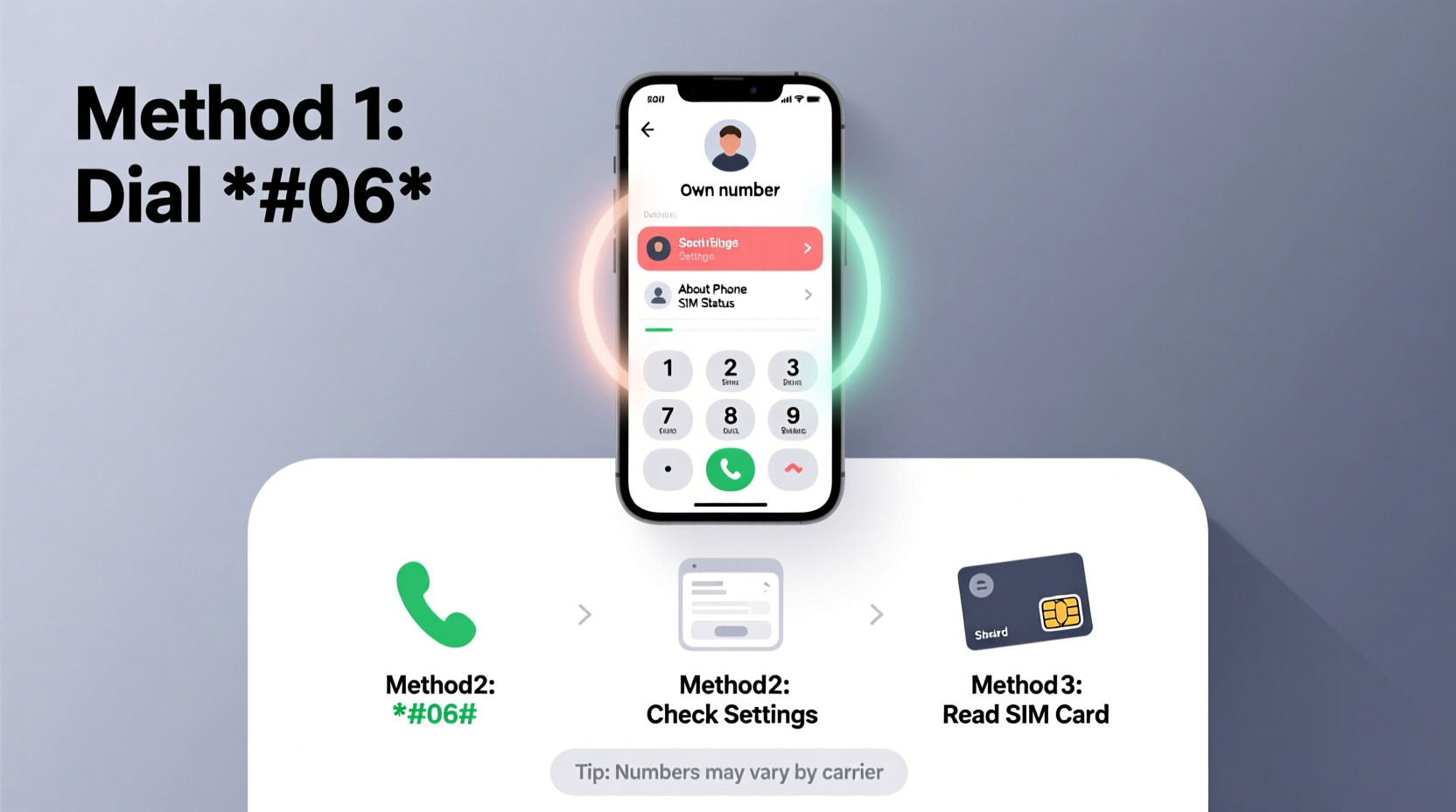
The most direct way to find your number is built into your smartphone’s settings. Both Android and iOS store this information in an accessible location, though the path varies slightly between operating systems.
For iPhone Users
- Open the Settings app.
- Tap your name at the top (Apple ID section).
- Select Phone.
- Your number will appear under “My Number.”
If the field is blank, it may mean your carrier hasn’t sent the number to Apple’s system. This doesn’t mean you don’t have one—it just isn’t displayed here. Try another method below.
For Android Users
- Go to Settings.
- Scroll down and select About Phone.
- Look for “Status” or “SIM Status.”
- Your phone number should be listed under “My Phone Number.”
Note: Not all Android manufacturers or carriers populate this field automatically. Samsung, Google Pixel, and newer Motorola devices typically display the number reliably. If it’s missing, don’t worry—there are other options.
Dial a Universal Code (Works on Most Devices)
A lesser-known trick involves using a universal USSD code—a type of command language used by GSM networks. While not guaranteed on every carrier, this method often works when settings fail.
Try dialing:
*#100#
or
*#06#
The first code (*#100#) returns your mobile number on many networks, especially in North America and Europe. The second (*#06#) displays your IMEI number (a unique device identifier), which isn’t your phone number but can help customer service locate your line if needed.
This technique requires no data, Wi-Fi, or apps—just cellular signal. It’s particularly useful when traveling or using a borrowed phone temporarily.
Carrier-Specific Shortcuts
- Verizon: Dial *777# to access account info (may show number).
- AT&T: Dial *646# to see your number.
- T-Mobile: Send “#NUM#” via text to 64663.
These codes vary by region and plan, so results aren’t universal—but they’re worth testing if standard methods fall short.
Use Your Carrier’s App or Website
Most major carriers offer online portals or mobile apps that securely display your account details—including your phone number. Since you’ll need to log in, this method ensures privacy and accuracy.
Steps to Retrieve Number Online:
- Visit your carrier’s official website (e.g., verizon.com, att.com, tmobile.com).
- Log in using your account credentials.
- Navigate to “Account Overview” or “Plan & Services.”
- Your primary phone number will be clearly listed.
Alternatively, download your carrier’s app (such as My Verizon or My AT&T). Once logged in, your number usually appears on the home screen or under “Profile.”
“Carriers maintain accurate records of assigned numbers, and their digital platforms are designed to give customers self-service access—no call center needed.” — Jamal Reeves, Telecommunications Support Manager
Ask Siri, Google Assistant, or Alexa
Voice assistants can retrieve your number instantly—if you’ve set it up correctly.
On iPhone:
Say: “Hey Siri, what’s my phone number?”
Siri pulls the number from your card in the Contacts app. Make sure your number is saved under your personal contact profile for this to work.
On Android:
Say: “Hey Google, what’s my number?”
Google Assistant checks your Google Profile or device settings. If it doesn’t respond, go to Google Settings > Account > Personal Info and ensure your number is listed.
With Amazon Alexa:
Say: “Alexa, what’s my mobile number?”
This only works if you’ve linked your number in the Alexa app under “Communication” settings.
This method is fast and hands-free, ideal when you're multitasking or preparing to share your number verbally.
Real-Life Example: Maria’s Quick Fix
Maria was filling out a job application that required her phone number. She’d recently upgraded her phone and couldn’t recall the digits. Instead of calling a friend, she opened her iPhone Settings, tapped her name, and found her number under “Phone” in less than ten seconds. She completed the form and even saved the number to her notes for future reference.
“I didn’t realize how easy it was,” she said later. “I used to ask coworkers to call me just to see the number come up. Now I know better.”
Her story highlights how a small gap in knowledge can lead to unnecessary steps—when the answer is already in your pocket.
Comparison Table: Methods at a Glance
| Method | Speed | Reliability | Privacy | Best For |
|---|---|---|---|---|
| Phone Settings | Very Fast | High (if populated) | Excellent | Immediate access on familiar devices |
| Dialing Codes | Fast | Medium (carrier-dependent) | Excellent | Phones without internet or login access |
| Carrier App/Website | Moderate | Very High | High (with secure login) | Verification or backup confirmation |
| Voice Assistants | Very Fast | Medium-High (setup required) | Good | Hands-free situations |
| Contact a Friend | Slow | High | Low (shares number) | Last resort or verification |
Common Mistakes to Avoid
- Assuming the number is always visible: Some phones, especially older models or MVNOs (like Mint Mobile or Cricket), may not display the number in settings.
- Using third-party apps: Many “phone number finder” apps are unnecessary and may collect data. Stick to built-in tools or official carrier services.
- Ignoring SIM issues: A damaged or improperly seated SIM card can prevent number detection. Reboot or reinsert the SIM if methods fail.
FAQ
Why doesn’t my phone show my number in settings?
Some carriers do not push the number to the device automatically. This is common with prepaid lines or international SIMs. Use your carrier’s app or website instead.
Can I find my number without a SIM card?
No. Your phone number is tied to the SIM. Without it, the device cannot identify your line. However, you can still view past messages or call logs if they were synced to the cloud.
Is it safe to check my number using USSD codes?
Yes. USSD codes like *#100# are secure, network-level commands. They don’t transmit personal data and are widely used for diagnostics.
Final Tips Checklist
- ✅ Check your phone’s Settings > About Phone or Apple ID section first.
- ✅ Try dialing *#100# or your carrier’s specific code.
- ✅ Log in to your carrier’s website or app for verified info.
- ✅ Ask Siri, Google Assistant, or Alexa if voice access suits your needs.
- ✅ Store your number in a secure note or contact card for future use.
Take Control of Your Contact Info Today
Knowing your phone number shouldn’t require guesswork or awkward calls to friends. With built-in settings, smart assistants, and carrier tools, you can retrieve it in seconds—anytime, anywhere. These methods empower you to stay connected, verify accounts, and share your details confidently. Don’t wait until you’re in a rush or under pressure. Take two minutes now to confirm your number using one of these techniques, and save the result where you can find it later.




 浙公网安备
33010002000092号
浙公网安备
33010002000092号 浙B2-20120091-4
Comments
No comments yet. Why don't you start the discussion?