
Every computer on a network—whether at home or in the office—has a unique identifier known as the \"PC name\" or \"computer name.\" This name helps distinguish your machine from others when sharing files, connecting remotely, or troubleshooting network issues. While modern Windows operating systems make it easy to find this information, the process varies slightly depending on the version you're using. Whether you're on Windows 7, 8, 10, or 11, knowing how to locate your PC name is essential for seamless connectivity and system management.
Finding your computer name doesn’t require technical expertise. With just a few clicks—or even a single command—you can retrieve this crucial detail. This guide walks through multiple reliable methods applicable across all major Windows versions, ensuring you can always identify your device regardless of its OS.
Why Your PC Name Matters
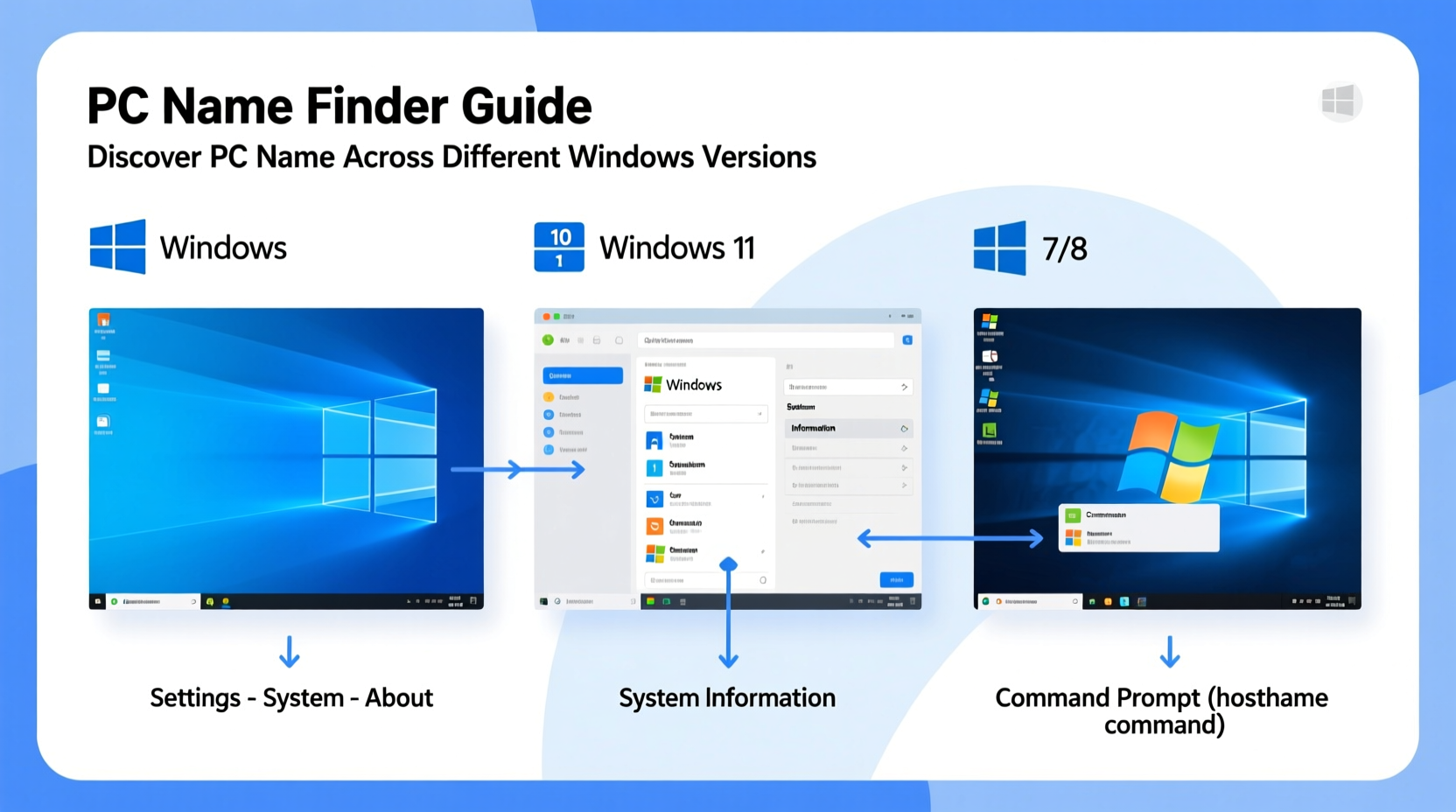
The computer name isn't just a label—it plays a functional role in networking. When setting up file sharing, accessing another PC remotely via Remote Desktop, or joining a domain, Windows uses the PC name to route connections correctly. If two computers share the same name on the same network, conflicts may arise, leading to connection errors or data access problems.
Additionally, IT administrators often use PC names to manage devices in an organization. A well-named machine (e.g., “Marketing-Laptop-03”) makes inventory tracking easier than generic defaults like “User-PC.” Understanding how to view—and if needed, change—your computer name empowers better control over your digital environment.
“Knowing your PC name is the first step in diagnosing network issues and enabling secure remote access.” — David Lin, Network Systems Engineer
Step-by-Step: How to Find Your PC Name in Windows 10 and 11
Windows 10 and 11 offer nearly identical interfaces, so the steps to find your PC name are consistent between them. Here’s how:
- Click the Start button or press the Windows key.
- Select Settings (the gear icon).
- Navigate to System, then scroll down and click About.
- Under the \"Device specifications\" section, look for Device name. This is your PC's current name.
This method works reliably whether you’re using a desktop, laptop, or tablet running Windows 10 or 11. The Settings app provides additional details such as processor type, installed RAM, and Windows edition, which can be useful during troubleshooting.
Alternative Methods That Work Across All Windows Versions
While the Settings app is user-friendly, some older Windows versions lack it. Fortunately, there are universal methods that work across Windows 7, 8, 10, and 11.
Using System Properties
This classic approach works on every version of Windows since XP:
- Press Windows + Pause/Break keys together. Alternatively, right-click This PC or Computer on the desktop or in File Explorer and select Properties.
- In the window that appears, look under Computer name, domain, and workgroup settings.
- Your current computer name is listed next to Full computer name or simply Computer name.
Using Command Prompt
If you prefer keyboard shortcuts or need to retrieve the name programmatically:
- Press Windows + R to open the Run dialog.
- Type
cmdand press Enter. - In the black window, type
hostnameand press Enter. - The name displayed is your PC’s current hostname.
This method is especially helpful for scripting or batch operations, where automation is required.
Using PowerShell (Windows 7 SP1 and Later)
PowerShell offers advanced functionality but can also return basic system info:
- Press Windows + X and select Windows PowerShell or Terminal.
- Type
Get-ComputerNameor(Get-WmiObject Win32_ComputerSystem).Nameand press Enter. - The output will display your computer name.
hostname command is faster and requires no special modules—ideal for quick checks.
Comparison of Methods by Windows Version
| Method | Windows 7 | Windows 8/8.1 | Windows 10 | Windows 11 |
|---|---|---|---|---|
| Settings App → About | No | Limited (via PC Settings) | Yes | Yes |
| System Properties (Win + Pause) | Yes | Yes | Yes | Yes |
| Command Prompt (hostname) | Yes | Yes | Yes | Yes |
| PowerShell | Yes (with SP1) | Yes | Yes | Yes |
| File Explorer (This PC) | Yes (context menu only) | Yes | Yes | Yes |
This table highlights that while newer methods like the Settings app are streamlined, legacy approaches remain universally compatible. For users managing multiple machines across different OS versions, relying on System Properties or Command Prompt ensures consistency.
Real-World Example: Troubleshooting Home Network Access
Sarah recently set up a new printer shared from her Windows 10 desktop. Her husband’s Windows 11 laptop couldn’t connect, receiving an error: “Network path not found.” After verifying Wi-Fi connectivity and firewall settings, they realized the issue stemmed from incorrect entry of the host PC name.
Instead of guessing (“SarahsPC” vs. “SarasDesktop”), Sarah used the hostname command in Command Prompt and confirmed the actual name was “HOME-OFFICE-DESK.” Entering this exact name allowed immediate access to the shared printer. This simple verification saved time and avoided unnecessary reconfiguration.
This scenario illustrates how small discrepancies in naming can disrupt workflows—and why confirming the precise PC name is critical during setup or troubleshooting.
Checklist: Quickly Find Your PC Name
- ✅ Press Windows + Pause/Break to open System Properties instantly.
- ✅ Open Command Prompt and type hostname for a fast result.
- ✅ Use Settings > System > About on Windows 10/11.
- ✅ Right-click This PC > Properties if visible on desktop or in Explorer.
- ✅ Verify spelling and capitalization—names are case-insensitive but must match exactly.
- ✅ Note the name before attempting remote connections or file sharing.
Frequently Asked Questions
Can two computers have the same name on the same network?
No. Duplicate computer names on the same local network can cause conflicts, especially with file sharing or remote desktop access. Windows may block connections or display inconsistent behavior. Always ensure each device has a unique name.
Does changing my PC name affect my files or programs?
Generally, no. Renaming your computer does not alter personal files, installed applications, or user accounts. However, network shares or remote scripts referencing the old name may break until updated. It’s best to update linked services after renaming.
Is the PC name the same as the username?
No. The PC name identifies the machine (e.g., “OFFICE-LAPTOP-05”), while the username identifies the person logging in (e.g., “jane.doe”). They serve different purposes and can be completely independent of one another.
Take Control of Your Device Identity
Knowing how to find your PC name is more than a minor tech trick—it’s a foundational skill for anyone using Windows in a connected environment. Whether you're configuring a home network, granting remote access, or simply auditing your devices, identifying your computer accurately streamlines the process.
With multiple reliable methods available—from graphical menus to command-line tools—you’re equipped to retrieve this information efficiently, regardless of your Windows version. Bookmark this guide or save the hostname command for future reference. Taking a moment to verify your PC name today can prevent hours of confusion tomorrow.




 浙公网安备
33010002000092号
浙公网安备
33010002000092号 浙B2-20120091-4
Comments
No comments yet. Why don't you start the discussion?