
Finding the perfect image online is only half the battle. Saving it properly and organizing it in your mobile gallery ensures you can find it again when needed—whether for inspiration, reference, or personal use. Many users tap and hold an image only to lose track of it later among hundreds of photos. A smarter approach combines efficient downloading techniques with a clean organizational system. This guide walks through reliable methods, tools, and best practices to help you download Google Images seamlessly and keep your phone’s gallery clutter-free.
Why Proper Image Management Matters
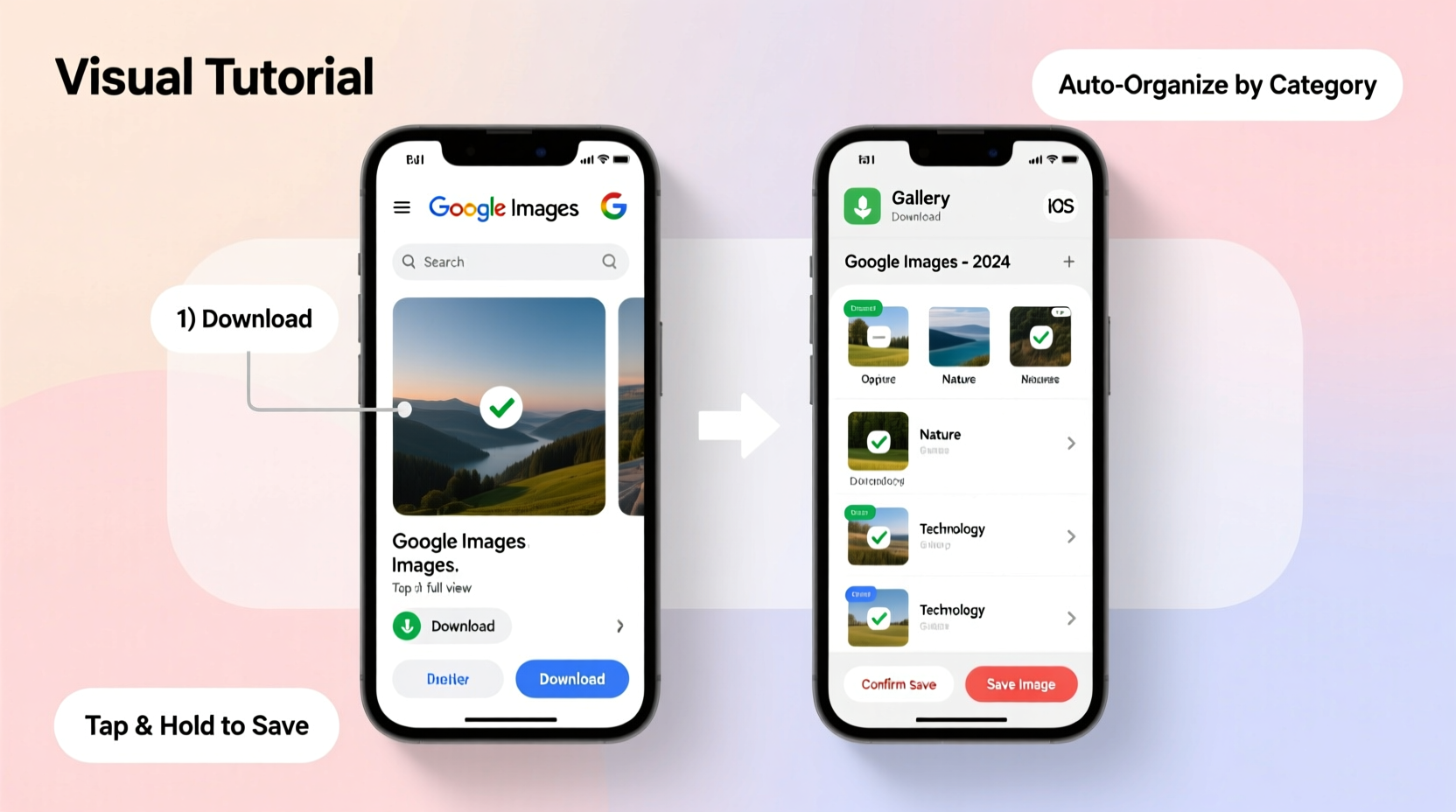
Your smartphone’s gallery isn’t just for memories—it's also a digital workspace. From fashion ideas and recipe visuals to DIY projects and travel plans, downloaded images serve functional purposes. Without a clear system, these files quickly become unmanageable. Duplicate downloads, vague filenames, and disorganized folders make retrieval frustrating. Worse, some devices automatically group all downloads into one folder, making navigation inefficient. Taking control of how and where you save images improves productivity and reduces digital stress.
“Digital clutter has real psychological effects—organized storage promotes clarity and focus.” — Dr. Lena Torres, Digital Wellness Researcher
Step-by-Step: How to Download Google Images on Mobile
Downloading images from Google Search is straightforward, but small variations exist between Android and iOS. Follow this universal process to ensure success across devices.
- Open Google Images: Launch your preferred browser (Chrome, Safari, etc.) and go to images.google.com. Search for your desired image using descriptive keywords.
- Select the Right Image: Tap the image thumbnail to open its full preview. Always verify the source by checking the website link below the image.
- View Full-Sized Version: Tap “Visit” to go to the original webpage. This step avoids saving low-resolution previews. Locate the image on the site and tap it directly.
- Save the Image:
- Android: Long-press the image and select “Download image” or “Save image.”
- iOS: Press and hold the image until options appear, then tap “Save Image.”
- Confirm Save Location: On Android, check your Downloads or Gallery app. On iPhone, the image goes directly to the Photos app under “Recents.”
Organizing Your Downloaded Images Efficiently
Saving an image is just the beginning. To maintain order, implement a consistent naming and folder strategy. Here’s how to build a sustainable system.
Create Thematic Folders
Instead of letting all downloads pile up in one place, create dedicated albums based on purpose:
- Inspiration (e.g., fashion, home decor)
- Recipes & Food Ideas
- Travel Planning
- Projects & Tutorials
- Reference Images (logos, diagrams, maps)
On iPhone, use the Albums tab in Photos to create new folders. On Android, use Google Photos or your device’s built-in gallery app to make custom albums.
Use Descriptive Names (When Possible)
Most downloaded images retain generic names like “IMG_1234.jpg” or “download.jpeg.” While renaming isn’t always feasible on mobile, you can add context by using captions or notes within photo apps that support them (e.g., Google Keep integration or metadata editors).
Leverage Cloud Tools for Smart Sorting
Google Photos uses AI to categorize images by content (e.g., “food,” “mountains,” “cars”). Enable this feature so even unsorted downloads become searchable. For example, typing “Italian pasta” in the search bar may surface relevant saved images without manual tagging.
| Platform | Organization Feature | Best For |
|---|---|---|
| Google Photos | AI-powered search, facial recognition, location sorting | Automatic categorization |
| iOS Photos | Albums, Memories, People, Places | User-controlled grouping |
| Third-party Apps (e.g., Adobe Bridge Mobile) | Metadata editing, batch actions | Advanced users |
Avoid These Common Download Mistakes
Even experienced users fall into traps that compromise image quality or device performance. Steer clear of these pitfalls:
- Saving from image previews: The version shown in Google Images is often compressed. Always visit the source site for the highest resolution.
- Ignoring copyright: Not all images are free to use. Look for labels like “Labeled for reuse” using Google’s usage rights filter.
- Overloading the Downloads folder: Letting everything stay in “Downloads” leads to chaos. Move files to themed albums within 24 hours of saving.
- Duplicating saves: Accidentally saving the same image multiple times wastes space. Use duplicate-finding apps if needed.
Real Example: Maria’s Travel Planning Workflow
Maria planned a two-week trip to Japan and used Google Images extensively for research. Instead of haphazardly saving every temple, dish, and train route she liked, she created a system:
- She made a folder called “Japan Trip 2024” in Google Photos.
- Each time she found a useful image (e.g., a subway map or ramen recipe), she downloaded it and immediately moved it into the correct sub-album: “Transport,” “Food,” “Temples,” etc.
- She added brief notes using Google Keep linked to certain images (e.g., “Try this matcha dessert in Kyoto”).
By departure day, her phone was a well-structured visual guide. She accessed what she needed instantly, impressing her travel companions with her preparedness.
Essential Checklist for Better Image Management
Follow this checklist every time you download and store an image:
- ✅ Verify the image source and resolution before saving
- ✅ Use the full-site view, not the Google preview
- ✅ Confirm the download completed successfully
- ✅ Move the image to a named album within 24 hours
- ✅ Delete low-quality duplicates or irrelevant versions
- ✅ Back up important collections to cloud storage
FAQ: Common Questions About Downloading Google Images
Can I download multiple images at once from Google?
No, Google doesn’t support bulk downloads. Each image must be saved individually. However, third-party tools like browser extensions exist—but use them cautiously due to privacy and policy risks.
Where do downloaded images go on my phone?
On Android, they typically go to the “Downloads” folder or “Gallery > Screenshots/Downloads.” On iPhone, they appear in the Photos app under “Recents.” You can move them manually to custom albums.
Is it legal to save images from Google Images?
You can save images for personal use, but redistribution, commercial use, or claiming ownership may violate copyright. Always check the license via Google’s “Usage Rights” filter or the original site’s terms.
Final Thoughts: Turn Chaos Into Clarity
Downloading Google Images is simple, but organizing them thoughtfully transforms your mobile device into a powerful visual assistant. By combining intentional saving habits with structured folders and smart tools, you eliminate frustration and enhance productivity. Whether you're collecting ideas, planning events, or learning new skills, a clean gallery reflects a focused mind. Start today—download with purpose, sort with care, and reclaim control over your digital space.




 浙公网安备
33010002000092号
浙公网安备
33010002000092号 浙B2-20120091-4
Comments
No comments yet. Why don't you start the discussion?