
Google’s “OK Google” voice command is one of the most powerful tools built into Android devices, offering instant access to search, navigation, messaging, smart home controls, and more — all without touching your screen. Despite its utility, many users either don’t know how to activate it or fail to customize it for optimal performance. Setting up voice activation properly ensures you can use your phone safely while driving, multitasking in the kitchen, or simply when your hands are full.
The process varies slightly depending on your device model and Android version, but the core functionality remains consistent across most smartphones. This guide walks through everything from initial setup to advanced customization, ensuring you get the most out of “OK Google” with minimal effort.
Step-by-Step: Enabling OK Google on Your Device
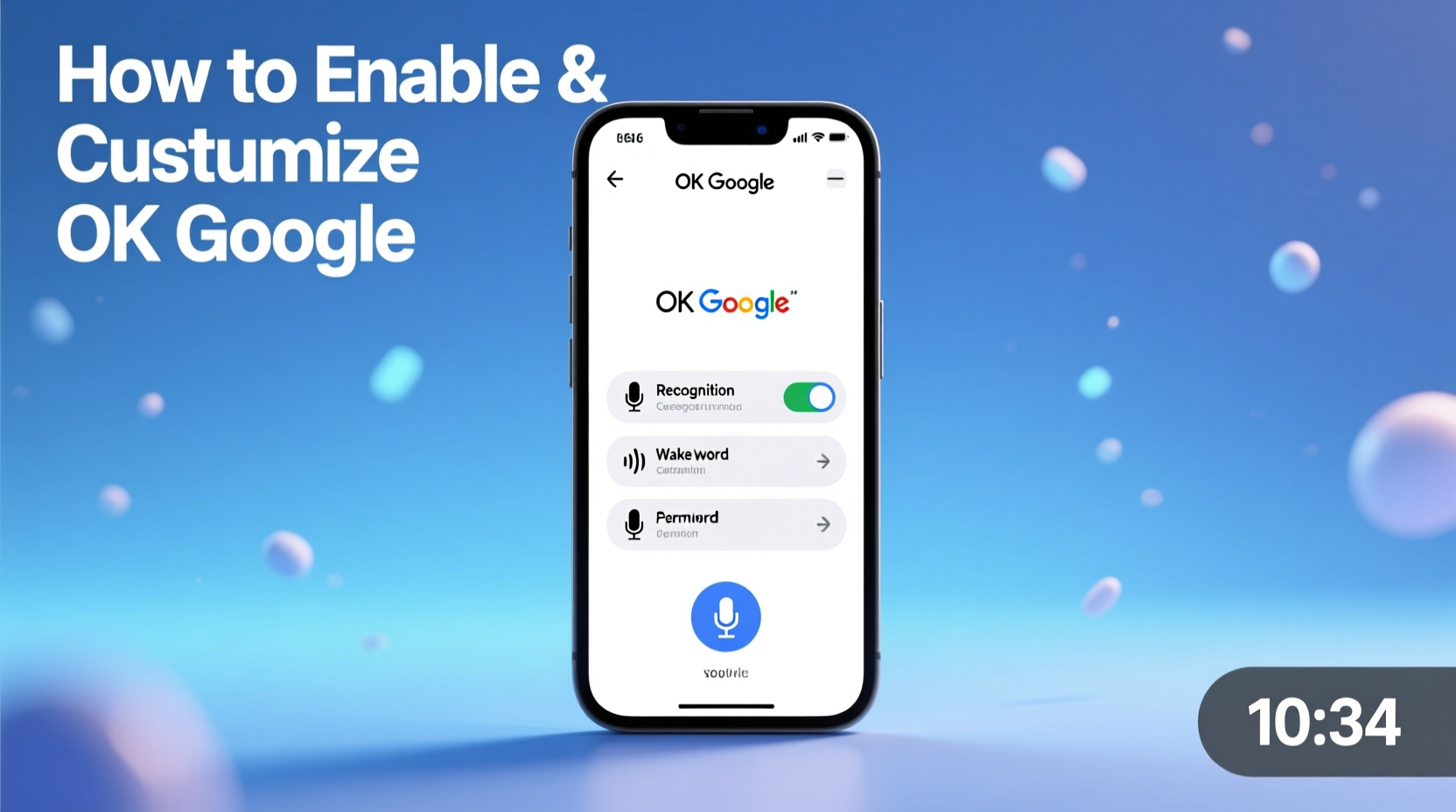
Activating “OK Google” detection requires navigating through a few settings menus and completing a brief voice training session. Follow these steps carefully to ensure reliable recognition:
- Open the Google app – Locate and tap the multicolored G icon on your home screen or app drawer.
- Go to Settings – Tap your profile picture or initials in the top-right corner, then select “Settings.”
- Select “Voice” – Under the “General” section, choose “Voice” (sometimes labeled “Google Assistant” > “Settings” > “Voice”).
- Tap “Voice Match” – This enables “Hey Google” and “OK Google” detection even when your phone is locked.
- Turn on “Unlock with Voice” – Toggle this setting to allow voice commands while the screen is off.
- Train Your Voice – You’ll be prompted to say “OK Google” three times in a quiet environment. Speak naturally and clearly.
- Confirm Permissions – Allow microphone access if prompted, and ensure Google has permission to listen for hotwords.
Once complete, try saying “OK Google” near your device. If configured correctly, the assistant should respond immediately with a visual cue and listening animation.
Customizing Your Voice Activation Experience
After enabling basic functionality, take advantage of customization options to tailor “OK Google” to your lifestyle. These adjustments enhance usability and privacy.
Voice Model Updates and Personalization
Google continuously improves voice recognition by updating its on-device models. To ensure peak performance:
- Enable automatic updates under “Google App Settings > Security & Privacy > Improve Voice Recognition.”
- Re-train your voice every few months, especially if others frequently trigger your assistant.
- Use the same accent and tone during training as you do in daily life.
Adjust Detection Sensitivity
If your phone responds too often—or not enough—you can fine-tune sensitivity via third-party launchers or manufacturer-specific features. For example, Samsung Galaxy users can adjust Bixby interference in “Advanced Features,” while Pixel phones offer clean integration with minimal false triggers.
Set Up Routines Based on Voice Commands
Create personalized routines that execute multiple actions with a single phrase. For instance:
- Say “OK Google, Good Morning” to turn off Do Not Disturb, read headlines, start your coffee maker, and check traffic.
- Say “OK Google, I’m leaving” to activate GPS, send a text, and play your favorite podcast.
To set these up, go to the Google Home app > Assistant > Routines, and define custom triggers and responses.
Device Compatibility and Limitations
Not all Android phones support always-on “OK Google” detection. The feature depends on hardware-level audio processing to conserve battery. Below is a comparison of supported devices and their capabilities:
| Device Type | Always-On Detection | Voice Training Required | Works Off-Grid? |
|---|---|---|---|
| Google Pixel Series | Yes (all models) | Yes | Limited (basic commands only) |
| Samsung Galaxy (Recent Models) | Yes (with Google app active) | Yes | No |
| OnePlus / Xiaomi / Oppo | Varies by model | Yes | Rarely |
| Older Android Phones (Pre-2018) | No (requires open Google app) | No | No |
Even on compatible devices, certain conditions affect performance. Extreme temperatures, low battery saver modes, or disabled background processes may disable hotword detection temporarily.
“Reliable voice activation isn’t just about software—it’s a combination of microphone quality, AI training, and user behavior.” — Dr. Lena Patel, Senior UX Researcher at Google
Real-World Use Case: Commuting with Confidence
Consider Maria, a nurse who commutes 45 minutes each way through heavy traffic. She used to struggle checking messages or rerouting around congestion. After setting up “OK Google,” her routine changed completely:
- She says “OK Google, call Mom” before leaving work—hands-free and safe.
- Detecting rain, she asks, “OK Google, what’s the fastest route home?” and gets real-time updates.
- Upon arriving, she uses “OK Google, turn on the living room lights” via her smart speaker linked to her phone.
Maria no longer risks distraction while driving, and her post-shift wind-down is smoother. Her only adjustment was re-training her voice after recovering from a cold, which briefly affected recognition.
Troubleshooting Common Issues
Despite its reliability, some users encounter problems. Here’s a checklist to resolve frequent issues:
- ✅ Ensure “OK Google” detection is enabled in Google settings.
- ✅ Verify microphone permissions are granted to the Google app.
- ✅ Restart your phone after major system updates.
- ✅ Disable battery optimization for the Google app (Settings > Apps > Google > Battery).
- ✅ Clean microphone ports—dust buildup blocks sound input.
- ✅ Test with headphones; sometimes external mics interfere with detection.
If the issue persists, clearing the cache of the Google app (via Settings > Apps > Google > Storage > Clear Cache) often resolves glitches without losing data.
Frequently Asked Questions
Can “OK Google” work without internet?
Limited functions like timers, alarms, and basic phone controls work offline. However, most queries—searches, weather, navigation—require an active connection. Google processes complex requests in the cloud.
Is my voice being recorded all the time?
No. Only the phrase “OK Google” is processed locally on your device. Once detected, subsequent speech is sent securely to Google’s servers. You can review and delete voice history anytime in your Google Account under “Web & App Activity.”
Why does someone else’s voice trigger my assistant?
Voice Match uses pattern recognition, not biometric verification. Similar voices or poor training environments increase false positives. Re-train your model and avoid using generic phrases like “Hey Google” in group settings.
Maximize Convenience Without Compromising Control
“OK Google” transforms your phone into an intelligent companion, but its value depends on proper configuration. By investing 10 minutes to set it up correctly and another few to personalize routines, you gain long-term efficiency. Whether you're managing a busy household, staying productive at work, or simply want easier access to information, voice activation removes friction from everyday tasks.
Don’t let outdated assumptions or minor setup hurdles keep you from using one of Android’s most intuitive features. Enable “OK Google” today, customize it to fit your habits, and experience firsthand how voice-powered assistance can simplify your digital life.




 浙公网安备
33010002000092号
浙公网安备
33010002000092号 浙B2-20120091-4
Comments
No comments yet. Why don't you start the discussion?