
Finding and copying the web address (URL) of an image is a common task whether you're citing sources, saving visuals for projects, or uploading them elsewhere. While it may seem straightforward, many users struggle with outdated methods or unclear steps. The good news is that every modern web browser provides built-in tools to quickly retrieve an image’s direct URL with just a few clicks. This guide walks you through reliable, step-by-step techniques across devices and browsers, along with tips to avoid common pitfalls.
Understanding Image URLs and Why They Matter
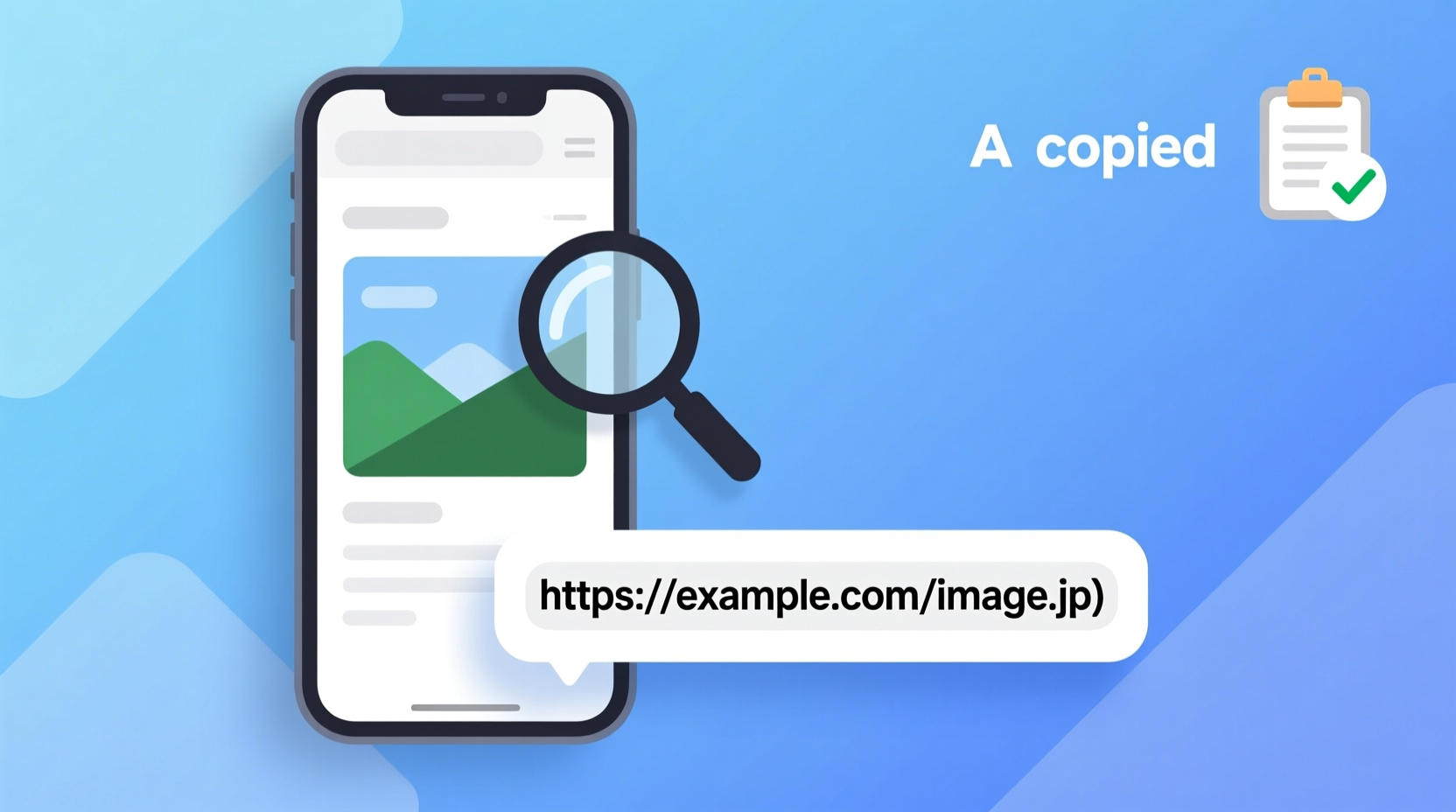
An image URL is the direct web address where a specific image file is hosted. Unlike copying an image itself, which may involve copyright issues or quality loss, copying the URL allows you to reference, share, or download the image from its original source. This is essential for bloggers, researchers, designers, and social media managers who need accurate sourcing or want to reuse visuals appropriately.
It's important to distinguish between:
- Page URL: The address of the entire webpage where the image appears.
- Image URL: The exact link to the image file (e.g., ending in .jpg, .png, .webp).
Copying the correct one ensures you’re referencing the actual image, not just the page it's on.
Step-by-Step Guide: How to Copy an Image URL on Desktop
Whether you use Chrome, Firefox, Safari, or Edge, the process is nearly identical. Here’s how to extract an image’s web address on a computer:
- Navigate to the webpage containing the image you want.
- Right-click on the image (avoid clicking links around it).
- Select “Copy image address” (Chrome, Edge), “Copy Image Location” (Firefox), or “Copy Image URL” (some extensions).
- Paste the URL anywhere using Ctrl+V (or Cmd+V on Mac).
If the option isn’t visible, ensure you’re clicking directly on the image—not on a surrounding hyperlink. Some websites wrap images in links that lead to product pages or galleries, so precision matters.
“Direct image URLs are crucial for digital asset management. A clean link ensures consistent access and proper attribution.” — Daniel Park, Web Development Consultant
Alternative Method: Using Developer Tools
For advanced users or when right-clicking is disabled, browser developer tools offer a reliable workaround:
- Right-click the image and choose Inspect or Inspect Element.
- In the HTML panel, look for a line containing
<img src=\"...\">. - Hover over the URL inside the
srcattribute and click it to highlight. - Copy the full path and paste it where needed.
This method works even on sites that disable right-click functionality, making it ideal for research or content verification.
How to Copy Image URLs on Mobile Devices
Smartphones don’t support right-clicks, but retrieving image URLs is still possible with slight variations depending on your device and browser.
iOS (iPhone/iPad) – Safari
- Tap and hold the image until a menu appears.
- Select Copy Image Address if available.
- If only “Copy Image” appears, open the image in a new tab by tapping “Open Image in New Tab,” then repeat the long-press to copy the address.
Android – Chrome
- Long-press the image.
- Choose Copy link or Copy image URL from the menu.
- If unavailable, tap “Open Image in New Tab,” then long-press again to copy the address.
Note: Not all mobile browsers display the “Copy Image Address” option by default. In such cases, switching to desktop mode may restore full functionality.
Common Issues and How to Solve Them
Even with the correct steps, users sometimes encounter obstacles. Below are frequent problems and practical solutions:
| Issue | Why It Happens | Solution |
|---|---|---|
| No “Copy Image Address” option | Site disables context menus or image is embedded in a link | Use Developer Tools or open image in new tab |
| Copied URL redirects or breaks | Link is session-based or protected | Download the image instead or check referer headers |
| URL shows placeholder or low-res version | Site serves different sizes dynamically | Check image properties in DevTools for full-size source |
| Mobile browser doesn’t show URL option | Limited mobile interface | Switch to desktop mode or use alternative browser |
Mini Case Study: Sourcing Images for a Blog Post
Sophia, a freelance lifestyle blogger, was writing an article about urban rooftop gardens. She found a stunning photo on a travel website but couldn’t see a download button or attribution info. Using her browser’s right-click “Copy image address” function, she retrieved the direct URL and pasted it into her content management system. When the image failed to load later, she opened Developer Tools, discovered the original high-resolution version had a slightly different path, and updated the link. Her post went live with properly sourced visuals—all without contacting the site owner.
Best Practices and Ethical Considerations
While copying an image URL is technically simple, ethical use matters. Just because you can access an image doesn’t mean you have permission to reuse it.
- Always check the website’s terms of use or licensing information.
- Attribute the creator when required, even if using the URL.
- Avoid hotlinking (embedding an image using its direct URL on high-traffic sites), as this consumes the host’s bandwidth.
- When in doubt, download and re-upload the image to your own server (if permitted).
“Respectful image sourcing builds trust and supports creators. A copied URL should be the start of due diligence, not the end.” — Lila Torres, Digital Ethics Advocate
Checklist: Copying Image URLs the Right Way
- ✅ Confirm you’re clicking the image, not a surrounding link
- ✅ Use “Copy image address” via right-click (desktop) or long-press (mobile)
- ✅ Verify the URL ends with .jpg, .png, .webp, or similar
- ✅ Test the URL by pasting it into a new browser tab
- ✅ Check usage rights before republishing
- ✅ Prefer downloading and hosting over hotlinking for public sites
FAQ
Can I copy the image URL if right-click is disabled?
Yes. Use your browser’s Developer Tools (Inspect Element) to locate the image’s src attribute in the HTML code. This bypasses JavaScript restrictions and reveals the true URL.
Why does the image not load when I paste the URL?
The URL might be temporary, require authentication, or block access from external sites (hotlink protection). Try opening the image in a new tab first, or download it for local use.
Is copying an image URL the same as downloading the image?
No. Copying the URL gives you the address, not the file. To save the image, right-click and choose “Save image as…” or paste the URL into a new tab and download from there.
Final Thoughts and Action Steps
Knowing how to find and copy an image URL is a small but powerful digital skill. It enhances your ability to work efficiently across platforms, cite sources accurately, and manage visual content responsibly. Whether you're on a laptop or smartphone, the tools are already at your fingertips—no downloads or technical expertise required.
Start applying these methods today. The next time you see a compelling image online, don’t just admire it—capture its source, verify its legitimacy, and use it wisely. And if you’ve discovered a clever trick not mentioned here, share it with others. The web thrives when knowledge flows freely.




 浙公网安备
33010002000092号
浙公网安备
33010002000092号 浙B2-20120091-4
Comments
No comments yet. Why don't you start the discussion?