
Your phone slows down, apps crash, and you’re greeted with “Storage Full” warnings at the worst moments. If your mobile device is struggling under the weight of cluttered files, outdated apps, and forgotten media, you're not alone. Millions face insufficient storage despite having high-capacity devices. The good news? You can reclaim gigabytes—often in under an hour—by following a clear, systematic approach. This guide walks you through actionable steps to identify what’s eating your space and eliminate it efficiently.
1. Understand What’s Taking Up Space
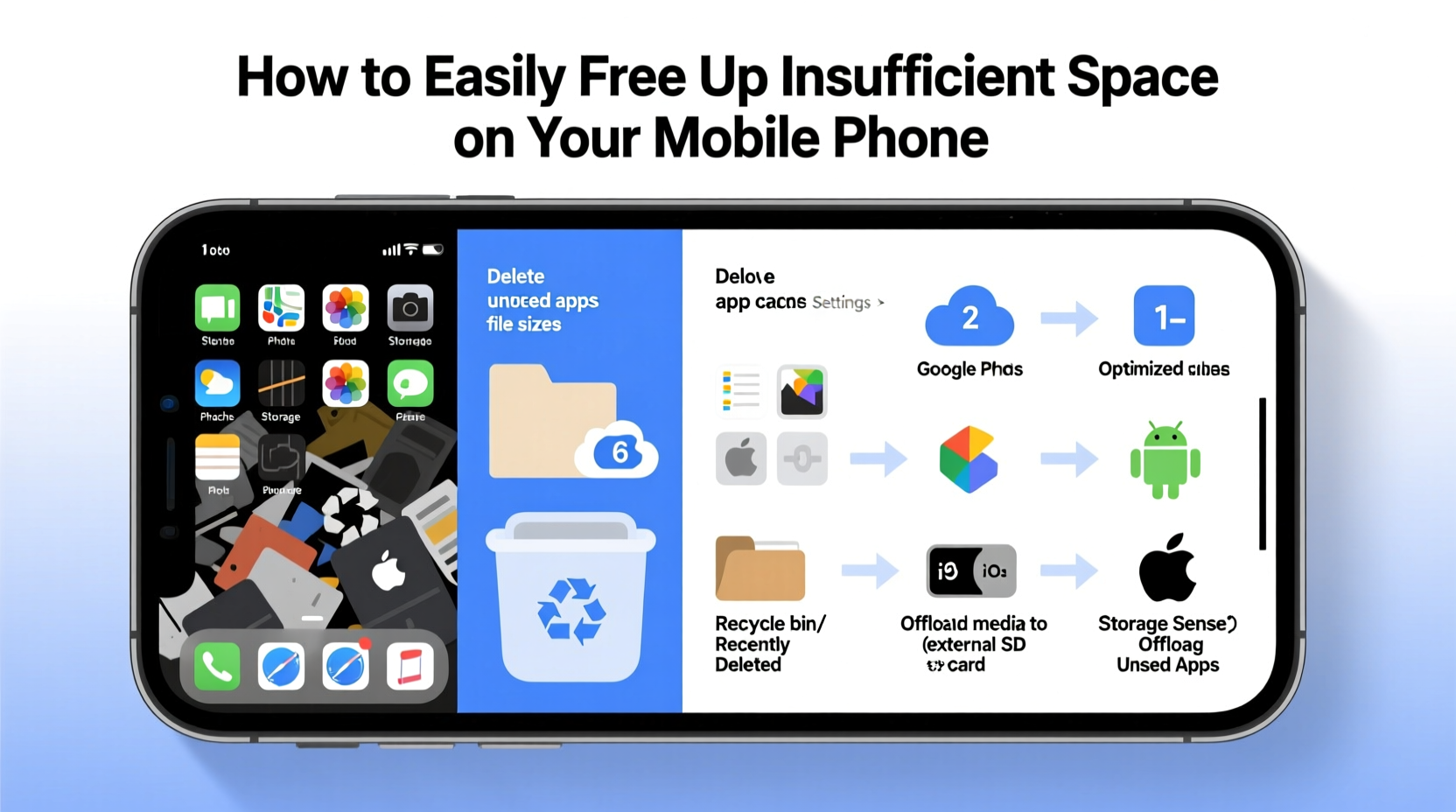
Before deleting anything, know what you’re dealing with. Most phones now include built-in storage analysis tools that categorize usage by apps, photos, videos, system data, and cached files.
On Android: Go to Settings > Storage. You’ll see a breakdown of usage with color-coded bars. Tap each category to explore further. iOS users can navigate to Settings > General > iPhone Storage, where Apple provides app-specific usage and recommendations.
Pay attention to outliers—apps using several gigabytes when they shouldn’t (like messaging apps or social media). These are often the biggest culprits behind low storage.
2. Step-by-Step Guide to Free Up Space
- Clear cached data: Apps store temporary files to speed up performance, but over time, cache builds up. On Android, go to Settings > Storage > Clear Cache. On iOS, offload unused apps (Settings > General > iPhone Storage > Offload App) to remove the app but keep its data.
- Delete duplicate and old photos: Use built-in tools like Google Photos’ “Free up space” feature or iOS’s Recently Deleted album. Sort photos by size or date to find large, forgotten videos.
- Uninstall bloatware and unused apps: Remove apps you haven’t opened in 30+ days. Some pre-installed apps can be disabled instead of uninstalled to save space without full removal.
- Manage downloads folder: Files saved from browsers or messaging apps often linger here. Sort by file type and delete APKs, ZIPs, PDFs, or documents you no longer need.
- Move media to the cloud: Upload photos and videos to Google Drive, iCloud, Dropbox, or OneDrive, then delete local copies. Enable auto-sync so future files don’t accumulate.
Timeline: How Long Each Step Takes
| Step | Estimated Time | Space Saved (Average) |
|---|---|---|
| Clear cache | 2 minutes | 200–500 MB |
| Delete old photos/videos | 15–30 minutes | 1–5 GB |
| Uninstall unused apps | 10 minutes | 500 MB–2 GB |
| Clean downloads folder | 5–10 minutes | 300 MB–1 GB |
| Upload to cloud | Varies (depends on upload speed) | Unlimited potential |
3. Target Hidden Storage Hogs
Some of the largest space consumers aren’t obvious. Messaging apps like WhatsApp, Telegram, or iMessage can store years of media, often set to auto-download. A single group chat might contain hundreds of megabytes of images, voice notes, and videos.
To manage this:
- In WhatsApp: Go to Settings > Storage and Data > Manage Storage. See which chats use the most space and selectively delete large files.
- In iMessage: Disable automatic download of large attachments under Settings > Messages > Limit Message History.
Another hidden offender? System updates. Old update files sometimes remain after installation. On Android, use a file manager to check the Android/secure or cache folders. On iOS, updating via iTunes or Finder removes old update packages from the device.
“Users often overlook message attachments because they appear as part of conversations. But collectively, they can consume more space than your photo library.” — Lena Torres, Mobile Optimization Specialist
4. Real Example: Maria’s 64GB Phone Turnaround
Maria, a freelance photographer, relied on her 64GB iPhone for work but constantly faced storage issues. Despite rarely installing apps, she got “Storage Almost Full” alerts weekly. After analyzing her usage, she discovered:
- 18 GB used by WhatsApp across three family groups
- 12 GB in the Camera Roll, including duplicates and blurry shots
- 5 GB in Downloads from email attachments
She spent one evening clearing caches, uploading full-resolution photos to Google Photos, and deleting unnecessary WhatsApp media. She also enabled “Optimize iPhone Storage,” which keeps smaller versions locally. Result? She freed up 27 GB and hasn’t seen a warning since.
5. Do’s and Don’ts When Cleaning Phone Storage
| Action | Do | Don’t |
|---|---|---|
| Deleting photos | Back them up to cloud first | Delete directly without backup |
| Clearing app data | Clear cache only unless resetting | Tap “Clear Data” on critical apps like banking or email |
| Using third-party cleaners | Use trusted apps like Files by Google | Install unknown “boost” or “cleaner” apps from unverified sources |
| Managing music | Stream via Spotify or Apple Music | Store thousands of offline songs unless necessary |
Essential Checklist: Free Up Space in Under an Hour
- ✅ Run built-in storage analyzer
- ✅ Clear app cache (especially social and messaging apps)
- ✅ Review and delete large attachments in messages
- ✅ Empty Recently Deleted photo albums
- ✅ Uninstall or disable unused apps
- ✅ Clean Downloads folder
- ✅ Back up media to cloud and delete local copies
- ✅ Enable storage optimization settings (e.g., Optimize Photos, Offload Unused Apps)
Frequently Asked Questions
Why does my phone say “Storage Full” even after deleting files?
Deleted files often go to a “Recently Deleted” folder (in Photos or Files) and remain there for 30 days. You must manually empty these folders to reclaim space. Also, some system processes take time to reflect changes—restart your phone if space doesn’t update immediately.
Can I permanently increase my phone’s storage?
Most modern phones don’t support expandable storage via microSD. Your best options are using cloud services, external OTG drives (for Android), or switching to streaming instead of offline downloads.
Are third-party cleaner apps safe?
Only use apps from reputable developers—like Google’s Files app or CCleaner (with caution). Many “cleaner” apps in app stores are ad-heavy or collect user data. Stick to built-in tools whenever possible.
Conclusion: Take Control of Your Device Today
A full phone doesn’t mean you need a new one. With a few focused actions, you can restore performance, prevent crashes, and gain back valuable space. The key is consistency—make storage management a monthly habit, just like charging your phone. By identifying hidden hogs, using cloud backups wisely, and avoiding digital clutter, your current device can serve you well for years. Start today: plug in your charger, open your settings, and begin reclaiming control—one gigabyte at a time.




 浙公网安备
33010002000092号
浙公网安备
33010002000092号 浙B2-20120091-4
Comments
No comments yet. Why don't you start the discussion?