
In today’s hyper-connected world, managing communication boundaries is essential. Whether it's a persistent spam caller, an unwanted acquaintance, or a former colleague who won’t take the hint, blocking contacts has become a necessary digital hygiene practice. But what happens when you need to review who’s blocked? Or worse—when someone important ends up on the list by mistake? Knowing how to locate, verify, and manage your blocked contacts across devices isn't just useful; it's critical for maintaining both privacy and peace of mind.
Most modern operating systems allow users to block calls, messages, and even emails with just a few taps. However, finding where those blocked entries are stored—and how to modify them—can be surprisingly opaque. This guide breaks down exactly how to access and manage blocked contacts across major platforms, including iOS, Android, macOS, and Windows, while offering best practices for staying in control of your digital interactions.
Understanding Blocked Contacts: What Happens When You Block Someone?
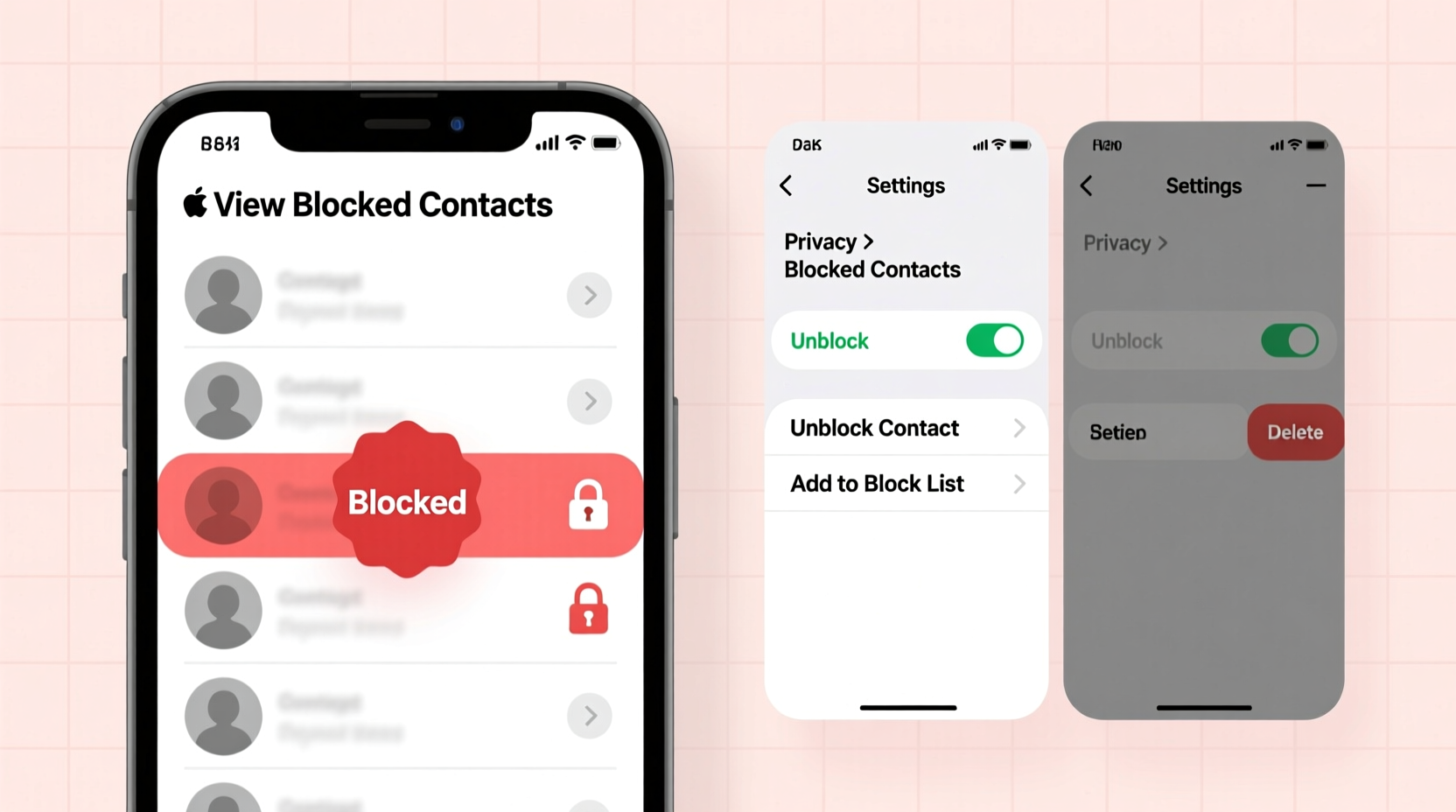
When you block a contact, the effects vary slightly depending on the device and platform, but the general outcome remains consistent: the blocked party loses the ability to reach you through specific channels. Typically, this includes:
- Incoming calls being sent directly to voicemail without ringing your phone.
- SMS and iMessages (or WhatsApp/other messaging apps) failing to deliver or showing no delivery confirmation.
- Contact profile information being hidden or inaccessible.
- No notifications generated from their attempts to contact you.
It’s important to note that blocking does not delete the original contact entry unless manually removed. It simply restricts communication pathways. Some platforms also prevent blocked numbers from appearing in call logs or message threads, making them harder to detect later.
“Blocking is a legitimate tool for personal safety and mental well-being. But mismanagement can lead to missed emergencies or broken relationships.” — Dr. Lena Torres, Digital Wellness Researcher at Stanford University
How to Find Blocked Contacts by Device
Different operating systems store blocked contacts in different locations. Below is a detailed breakdown for each major platform.
iOS (iPhone)
Apple integrates call and message blocking into its native Phone and Messages apps, with centralized management under Settings.
- Open the Settings app.
- Scroll down and tap Phone.
- Select Blocked Contacts to view all numbers blocked via the Phone app.
- To check message blocks, go back to Settings > Messages > Blocked Contacts.
Note: If you use third-party apps like WhatsApp or FaceTime, blocking must be managed separately within those apps.
Android (Google Pixel & Most OEM Devices)
Android’s approach depends on the default dialer and messaging app. On stock Android (e.g., Google Pixel), use the following steps:
- Open the Phone app.
- Tap the three-dot menu (⋮) and select Settings.
- Choose Blocked numbers.
- A list will appear showing all blocked callers and SMS senders (depending on settings).
If using Samsung, Motorola, or other branded interfaces, look for “Caller ID & Spam” or “Block numbers” under Call Settings. Samsung users can find this under Contacts app > Settings > Blocked numbers.
macOS (for iPhone Synced Devices)
If you use Continuity features like Handoff or iCloud syncing, blocked contacts on your iPhone automatically sync to your Mac—provided both devices use the same Apple ID and have iCloud enabled.
To verify:
- Go to System Settings > Phone > Calls From.
- Ensure “Allow calls on Mac” is enabled.
- Blocked numbers won’t ring or notify—you’ll only see missed call indicators if voicemail is left.
The actual list of blocked contacts must still be managed from the iPhone.
Windows 10/11 (Skype & Microsoft Teams)
Traditional phone blocking doesn’t apply here, but many users rely on VoIP services. In Skype:
- Click your profile picture.
- Navigate to Privacy.
- Review the Blocked contacts list.
In Microsoft Teams:
- Click your profile > Settings > Privacy.
- Check “Who can contact me” and review any manually blocked users.
Managing Third-Party App Blocks
Many communication tools maintain independent blocking systems. For example:
| App | Where to Find Blocked List | Notes |
|---|---|---|
| Settings > Account > Privacy > Blocked Contacts | Blocking here stops messages, calls, and status updates. | |
| Signal | Settings > Privacy > Blocked Contacts | Also blocks read receipts and typing indicators. |
| Telegram | Contacts > Blocked Users | Unblocking requires re-accepting contact requests. |
| Gmail | Settings > See all settings > Filters and Blocked Addresses | Email blocking is domain or address-based. |
Cross-platform consistency is rare. A number blocked on your phone may still message you via WhatsApp unless explicitly blocked there too. Always double-check app-specific privacy settings.
Real-World Scenario: The Forgotten Block
Sarah, a freelance designer, hadn’t heard from her longtime collaborator Mark in months. She assumed he’d moved on to other projects—until she mentioned him in a group chat, and he responded with surprise: “I’ve been trying to reach you for weeks! My calls keep going to voicemail.”
After troubleshooting together, they discovered Sarah had accidentally blocked Mark’s new number during a spam purge six months earlier. Because the block occurred silently and wasn’t visible in her recent call log, she had no idea. Once she unblocked the number under iPhone Settings > Phone > Blocked Contacts, communication resumed instantly.
This case highlights a common issue: blocked contacts often operate invisibly. Without proactive checks, you risk damaging professional and personal relationships unknowingly.
Action Plan: Step-by-Step Guide to Managing Your Blocked List
Follow this timeline to ensure your blocked contacts are intentional and up to date.
- Week 1: Audit All Devices
Check every phone, tablet, and computer you regularly use. Note where blocked lists exist and export or screenshot them if needed. - Week 2: Review Each Entry
Ask: Why was this person blocked? Is the reason still valid? Has enough time passed to reconsider? - Week 3: Unblock Thoughtfully
Remove outdated blocks. Consider sending a brief message explaining the oversight if appropriate. - Ongoing: Set Calendar Reminders
Schedule a biannual review (e.g., January and July) to reassess your list.
- ✅ Locate blocked contacts section on each primary device.
- ✅ Export or document current blocked entries.
- ✅ Verify whether blocks were accidental or intentional.
- ✅ Remove outdated or unnecessary blocks.
- ✅ Confirm syncing across devices (especially Apple ecosystem).
- ✅ Repeat process every 6 months.
Frequently Asked Questions
Can someone tell if I’ve blocked them?
Not directly. There’s no notification sent to the blocked party. However, subtle clues—like calls going straight to voicemail, messages remaining undelivered, or inability to see profile updates—may suggest a block. Exact behavior varies by platform.
If I unblock someone, will I receive their missed messages or calls?
No. Messages and calls sent while the contact was blocked are permanently lost and do not get delivered retroactively upon unblocking.
Do blocked contacts appear in my call log?
Generally, no. Most systems suppress call logs from blocked numbers. However, some Android devices may show a missed call indicator without revealing the number unless you dive into call history settings.
Take Control of Your Digital Boundaries
Blocking contacts is a powerful feature designed to protect your time, focus, and emotional energy. But like any tool, it requires maintenance. An outdated block list can isolate you from meaningful connections or create misunderstandings. By understanding where your devices store blocked entries and establishing a routine to review them, you gain greater control over your digital environment.
Technology should serve you—not create invisible barriers based on decisions made in frustration or haste. Take a few minutes today to explore your settings. You might just rediscover a voice worth hearing again.




 浙公网安备
33010002000092号
浙公网安备
33010002000092号 浙B2-20120091-4
Comments
No comments yet. Why don't you start the discussion?