
In today’s fast-moving world of home entertainment, the line between traditional and smart TVs can be blurry—especially if you’ve inherited a TV from a family member, bought one secondhand, or simply never paid attention to its capabilities. A smart TV offers built-in internet connectivity, access to streaming platforms like Netflix and YouTube, and often voice control or app integration. But how do you know whether your current television has these features? This guide walks you through clear, practical steps to determine if your TV is smart—no technical expertise required.
What Defines a Smart TV?
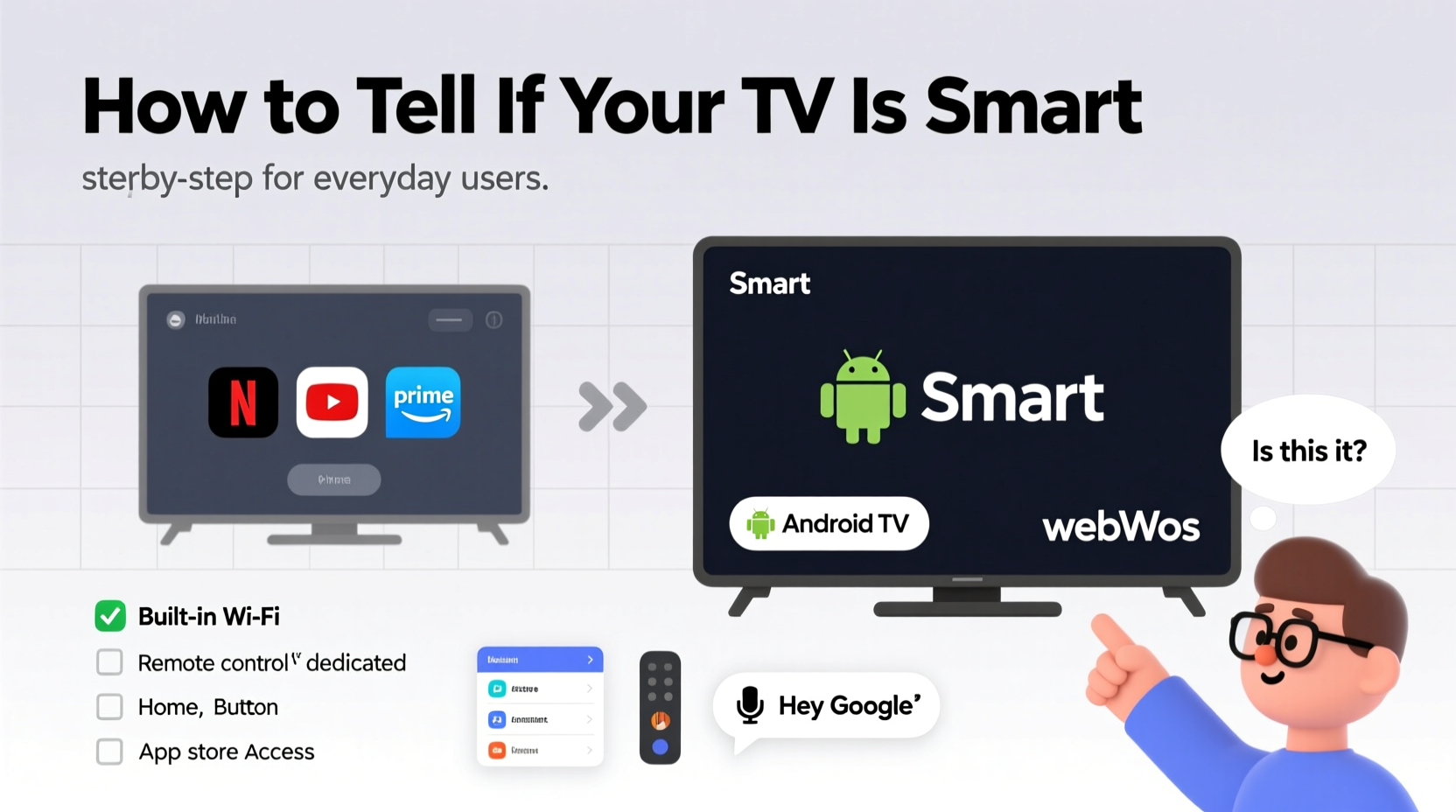
A smart TV is essentially a television with an integrated operating system and internet connection that allows users to stream content, browse apps, connect to other devices, and sometimes even surf the web. Unlike older models that require external devices like streaming sticks or game consoles, smart TVs come equipped with Wi-Fi, Ethernet ports, and pre-installed applications.
The most common smart TV platforms include:
- Android TV (Google) – Offers Google Play Store and voice assistant support.
- Tizen (Samsung) – Sleek interface with strong app support.
- webOS (LG) – Known for intuitive navigation and Magic Remote.
- Roku TV – Simple, user-friendly interface with vast channel selection.
- Fire TV (Amazon) – Deep integration with Alexa and Amazon Prime Video.
If your TV runs one of these systems, it's definitely smart. But what if you're not sure? Let’s explore how to find out.
Step-by-Step Guide to Identify Your TV Type
You don’t need to open the manual or dig through settings blindly. Follow this logical sequence to confirm whether your TV is smart.
- Check the remote control. Look for dedicated buttons labeled “Apps,” “Home,” “Smart Hub,” “Netflix,” “YouTube,” or “Internet.” These are strong indicators of a smart TV. Traditional remotes usually only have input, volume, and channel controls.
- Power on the TV and observe the startup screen. Many smart TVs display a brand-specific interface during boot-up—such as “Welcome to Android TV” or “Loading Smart Hub.” If you see menus loading before the regular broadcast signal, it’s likely smart.
- Navigate to the main menu. Press the “Menu” or “Settings” button on your remote. Look for sections like “Network,” “Wi-Fi Settings,” “Applications,” or “Store.” The presence of these options strongly suggests smart functionality.
- Try connecting to Wi-Fi. Go to Settings > Network. If the TV prompts you to select a wireless network, enter a password, or shows available networks, it supports internet connectivity—a hallmark of smart TVs.
- Look for pre-installed apps. Scroll through your inputs or press the “Home” or “Smart” button. If you see icons for Netflix, Hulu, Disney+, or Amazon Prime, your TV is smart.
Physical and Label Clues
Sometimes, the answer lies outside the screen. Manufacturers often label their products clearly.
Check the following:
- Front or back panel labels: Look for terms like “Smart TV,” “Wi-Fi Ready,” “Built-in Wi-Fi,” “Android TV,” or “Roku Powered.”
- Original packaging or receipt: If you still have them, they usually specify the model type and features.
- Model number search: Locate the model number (usually on the back or in settings under “About”) and search it online. Adding “specifications” or “review” to the query will quickly reveal whether it’s a smart model.
For example, searching “Samsung UN55NU7100 specs” brings up results confirming it’s a 4K UHD Smart TV with built-in Wi-Fi and apps.
Comparison Table: Smart vs. Non-Smart TV Features
| Feature | Smart TV | Non-Smart TV |
|---|---|---|
| Internet Connectivity | Yes (Wi-Fi/Ethernet) | No or requires external device |
| Built-in Streaming Apps | Yes (Netflix, YouTube, etc.) | No |
| Operating System | Yes (e.g., webOS, Android TV) | No |
| App Store or Downloadable Apps | Yes | No |
| Screen Mirroring / Casting | Commonly supported | Rare or needs dongle |
| Remote Has App/Home Button | Yes | No |
Real Example: Maria’s Secondhand TV Discovery
Maria bought a used 55-inch TV from a neighbor for $150. It looked modern, but she wasn’t sure if it could stream shows. She pressed the “Input” button—nothing unusual. Then she noticed a small “Smart” button on the remote. Curious, she pressed it. The screen lit up with a colorful grid of apps: Netflix, Hulu, HBO Max. She went to Settings and connected to her home Wi-Fi. Within minutes, she was watching *The Crown* without any extra gadgets. What she thought was just a basic LED TV turned out to be a fully functional smart TV—all because she checked the remote and explored the menu.
This kind of discovery happens more often than you’d think. Don’t assume your TV isn’t smart until you’ve tested it.
Expert Insight: Why Knowing Matters
“Understanding whether your TV is smart helps you make better decisions about upgrades, security, and content access. Many people pay for streaming devices when their TV already supports those services.” — David Lin, Home Theater Technology Consultant
Lin emphasizes that smart TVs also require firmware updates and security awareness. “Just like smartphones, smart TVs can be vulnerable to malware if left unpatched. Knowing you own one means you can maintain it properly.”
Quick Checklist: Is Your TV Smart?
Use this simple checklist to verify in under five minutes:
- ✅ Does the remote have a “Home,” “Smart,” or “Apps” button?
- ✅ Can the TV connect to Wi-Fi or Ethernet?
- ✅ Are there pre-installed streaming apps?
- ✅ Does the startup screen show a brand OS (like LG webOS or Samsung Tizen)?
- ✅ Is the term “Smart” printed anywhere on the TV or box?
If you answered yes to two or more, your TV is almost certainly smart.
Frequently Asked Questions
Can a non-smart TV become a smart TV?
Yes. You can add smart functionality using devices like Roku, Amazon Fire Stick, Chromecast, or Apple TV. Simply plug the device into an HDMI port, connect to Wi-Fi, and you’ll gain access to all major streaming platforms.
Does having HDMI ports mean my TV is smart?
No. HDMI ports are standard on both smart and non-smart TVs. They allow external devices (like Blu-ray players or gaming consoles) to send video and audio signals. The presence of HDMI does not indicate smart capabilities.
My TV connects to the internet but has no apps. Is it smart?
Possibly, but limited. Some older models offer basic web browsing or media playback over a network but lack app ecosystems. True smart TVs provide downloadable or built-in apps for popular services. If you can’t stream Netflix directly, it may not qualify as a full smart TV by today’s standards.
Final Thoughts and Action Steps
Identifying whether your TV is smart doesn’t require technical knowledge—just observation and a few minutes of exploration. Most modern TVs manufactured after 2013 are smart models, but branding varies widely across manufacturers. By checking the remote, navigating the menu, and testing network settings, you can unlock features you didn’t know existed.
If you discover your TV is smart, take advantage of its capabilities: update the software, install useful apps, and streamline your entertainment setup. If it’s not, consider adding an affordable streaming stick instead of buying a new TV.




 浙公网安备
33010002000092号
浙公网安备
33010002000092号 浙B2-20120091-4
Comments
No comments yet. Why don't you start the discussion?