
Navigating the digital world begins with a simple yet crucial tool: your internet browser. Whether you're shopping online, working remotely, or streaming content, your browser is the gateway to everything on the web. Yet many users operate without knowing which browser they're using—or what it’s truly capable of. Understanding your browser not only enhances usability but also improves privacy, speed, and compatibility with modern websites.
With multiple browsers available—each offering distinct features, performance levels, and security models—it's essential to know how to identify yours and leverage its strengths. This guide walks through practical methods to detect your current browser, explores the defining characteristics of major options, and helps you make informed decisions about your browsing experience.
How to Identify Your Browser in Seconds
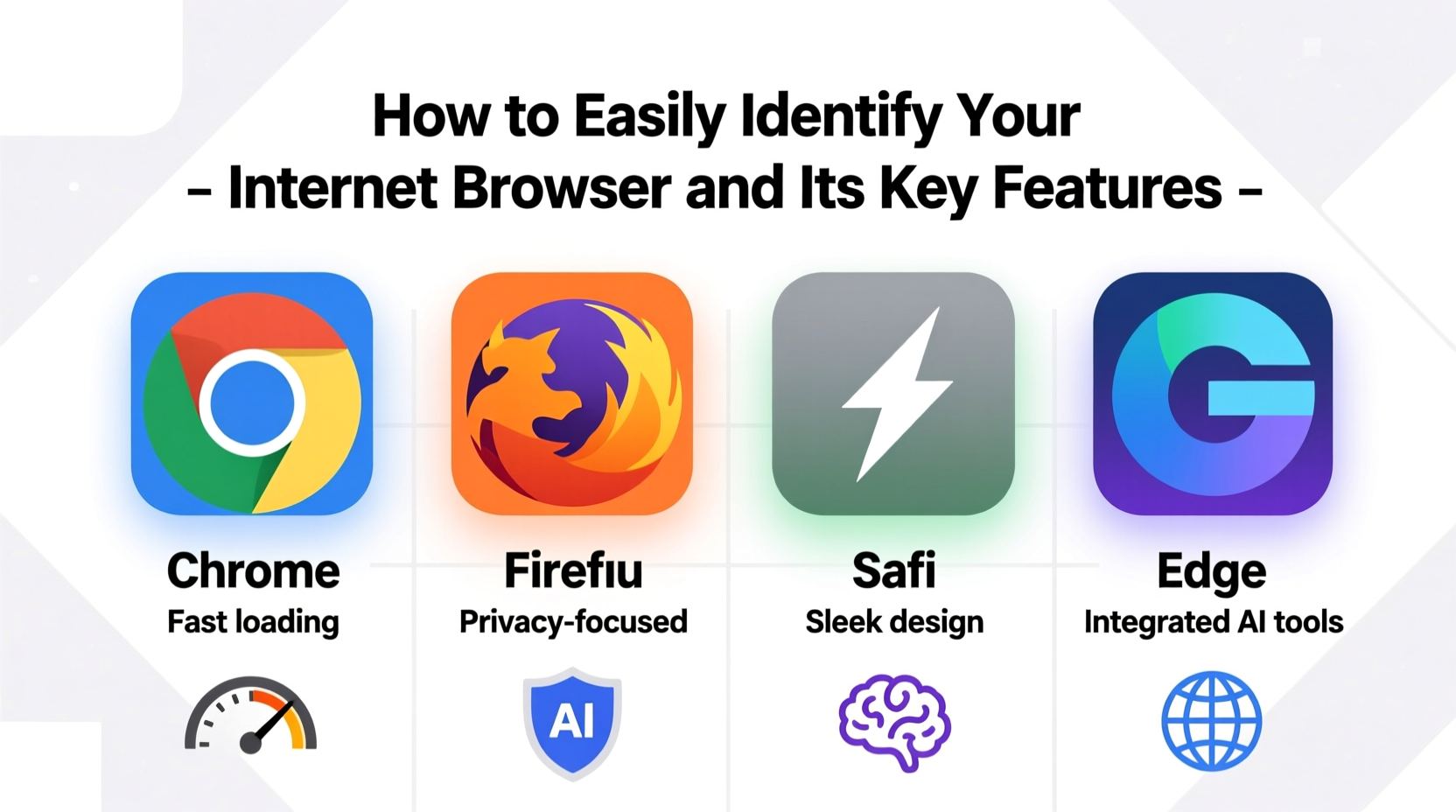
Identifying your browser doesn’t require technical expertise. Most modern browsers display their identity clearly through built-in menus or settings. Here’s how to find out which one you’re using:
- Check the browser menu: Click the three dots (Chrome, Edge), three lines (Firefox), or the application name (Safari) in the top-right or top-left corner. The menu often displays the browser name at the top or within “About” sections.
- Use a shortcut: Press Alt + H, then press A in Microsoft Edge or Google Chrome to open the “About” page directly.
- Visit a detection website: Navigate to sites like
whatismybrowser.com. These tools instantly report your browser name, version, operating system, and even screen resolution. - Look for visual cues: Each browser has a unique interface. Safari uses a clean design with a unified search/address bar on macOS; Firefox features an orange \"fox\" logo; Chrome displays colored tabs and a minimalist toolbar.
Key Features of Major Browsers Compared
Once you’ve identified your browser, understanding its capabilities becomes the next step. Below is a comparison of the four most widely used browsers—Google Chrome, Mozilla Firefox, Apple Safari, and Microsoft Edge—highlighting core features that affect daily use.
| Browser | Speed & Performance | Privacy Tools | Sync Across Devices | Unique Feature |
|---|---|---|---|---|
| Google Chrome | Fast rendering engine; handles multiple tabs well | Incognito mode, basic tracker blocking | Excellent sync with Google accounts (bookmarks, passwords) | Vast extension library via Chrome Web Store |
| Mozilla Firefox | Strong memory efficiency; performs well under load | Enhanced Tracking Protection, DNS over HTTPS | Fully encrypted sync with Firefox account | Open-source model with high transparency |
| Apple Safari | Optimized for macOS/iOS; best battery efficiency | Intelligent Tracking Prevention, Privacy Report | Seamless integration across Apple devices | Low power consumption and native iCloud Keychain |
| Microsoft Edge | Built on Chromium; fast and stable | Tracking prevention (Basic/Balanced/Strict modes) | Syncs with Microsoft account including vertical tabs | AI-powered Bing Chat integration |
This table highlights trade-offs between openness, ecosystem integration, and resource usage. For instance, Chrome leads in extension availability but consumes more RAM. Safari excels in energy efficiency but is limited to Apple devices. Choosing the right browser depends on your priorities: privacy, cross-device access, or lightweight performance.
Why Knowing Your Browser Matters
Identifying your browser isn’t just about curiosity—it has real-world implications. Developers often optimize websites for specific rendering engines, meaning some pages may appear broken or slow in certain browsers. Additionally, support for modern web standards like HTML5, WebGL, or WebAssembly varies across platforms.
Security is another critical factor. Browsers receive regular updates to patch vulnerabilities. If you're unaware of your browser type or version, you might miss important upgrade notifications. A 2023 report from the Cybersecurity and Infrastructure Security Agency (CISA) emphasized that outdated browsers were involved in over 30% of phishing-related breaches due to unpatched flaws.
“Website compatibility and user security begin with knowing your tools. An informed user is a safer user.” — Dr. Lena Torres, Senior Web Security Analyst at NetDefend Labs
Step-by-Step Guide to Evaluating Your Browser Choice
If you're unsure whether your current browser suits your needs, follow this evaluation process:
- Determine your primary use case: Are you researching, coding, streaming, or managing finances? Heavy multitaskers benefit from Chrome or Edge, while privacy-focused users may prefer Firefox.
- Assess device compatibility: Use Safari if you’re fully invested in Apple products. Windows users get deeper integration with Edge, especially with Office 365 and OneDrive.
- Test performance: Open 10–15 tabs simultaneously and observe responsiveness. Check Task Manager (Ctrl+Shift+Esc) to see memory and CPU usage per browser.
- Evaluate privacy settings: Visit your browser’s settings and explore tracking protection, cookie controls, and ad-blocking options. Enable strict tracking prevention if available.
- Try alternatives temporarily: Install a second browser for a week. Import bookmarks and passwords to compare ease of transition and daily usability.
Real Example: Sarah Upgrades Her Browsing Experience
Sarah, a freelance graphic designer, relied on an old version of Internet Explorer for years because it came pre-installed on her laptop. She frequently experienced crashes when loading design portfolios and struggled with slow form submissions on client platforms.
After learning how to identify her browser, she discovered she was using a discontinued product with no security updates. She switched to Microsoft Edge, which offered better performance, automatic syncing with her work calendar, and improved PDF annotation tools. Within days, her workflow became smoother, and site loading times dropped by nearly 60%.
Her story underscores a common issue: sticking with default or outdated software limits productivity and increases risk. A quick change made a measurable difference.
Common Mistakes to Avoid
- Ignoring update prompts: Delaying updates leaves known security holes open.
- Using unsupported browsers: Internet Explorer is no longer maintained; avoid it entirely.
- Assuming all browsers are equal: Differences in JavaScript execution, font rendering, and media codecs affect how sites look and behave.
- Overloading with extensions: Too many add-ons slow down performance and increase attack surface.
FAQ
Can two browsers be installed on the same computer?
Yes, absolutely. You can install Chrome, Firefox, Safari (on Mac), and Edge simultaneously. Each maintains separate settings, history, and cookies.
Does my browser affect website appearance?
Yes. Websites use code interpreted differently by each browser engine. For example, Chrome and Edge use Blink, Firefox uses Gecko, and Safari uses WebKit. These engines can render fonts, animations, and layouts slightly differently.
How do I keep my browser secure?
Enable automatic updates, use strong passwords with a manager, disable unnecessary extensions, and clear cache regularly. Also, consider enabling DNS over HTTPS for added privacy.
Conclusion
Knowing your internet browser is more than a technical detail—it's a foundational part of your digital hygiene. From identifying your current browser with a few clicks to understanding how its features impact speed, privacy, and compatibility, awareness empowers smarter choices. Whether you stick with your current browser or decide to switch, the goal is to use a tool that aligns with your habits, protects your data, and enhances your online experience.




 浙公网安备
33010002000092号
浙公网安备
33010002000092号 浙B2-20120091-4
Comments
No comments yet. Why don't you start the discussion?