
Whether you're troubleshooting, selling your device, upgrading accessories, or simply curious, knowing your exact iPhone model can make a significant difference. Apple has released dozens of iPhone variants over the years, each with subtle design differences and varying capabilities. Fortunately, identifying your iPhone doesn’t require technical expertise—just a few quick steps and a bit of know-how.
From checking settings to decoding model numbers and recognizing physical traits, this guide walks you through multiple reliable methods to determine your iPhone’s identity and understand its core features in minutes.
Check Your iPhone Model via Settings
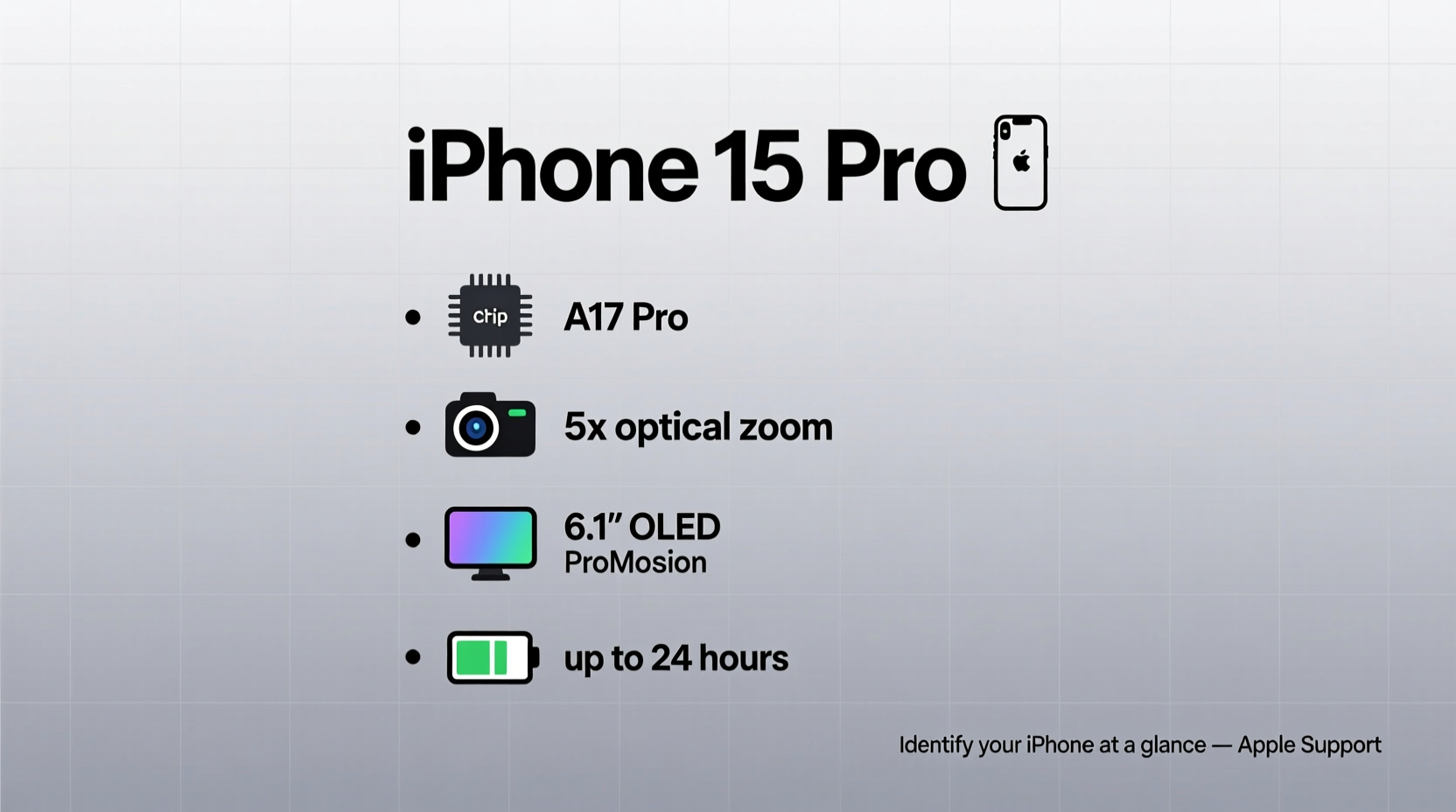
The easiest and most accurate way to identify your iPhone is directly within the device’s settings. This method gives you access to both the marketing name (e.g., iPhone 14 Pro) and the internal model identifier used by Apple for support and repairs.
- Open the Settings app.
- Tap General, then select About.
- Look for “Model Name” — this displays the consumer-friendly name like iPhone 15 or iPhone SE (3rd generation).
- Tap on the entry next to Model Number (it will switch from something like “iPhone16,2” to “A2893”). The alphanumeric code starting with “A” is your unique model number.
This model number (e.g., A2893) corresponds precisely to a specific configuration, including region, storage size, and supported networks. You can later cross-reference it on Apple’s official site or third-party databases.
Decode the Model Number: What Does A2893 Mean?
Apple assigns every iPhone variant a unique \"A-number\" (like A2893 or A2634). While not intuitive at first glance, these codes unlock detailed specs when looked up correctly.
For example:
| Model Number | iPhone Model | Key Features |
|---|---|---|
| A2893 | iPhone 15 Pro Max (Global) | Titanium frame, A17 Pro chip, USB-C port, 5x telephoto zoom |
| A2634 | iPhone 14 (USA, mmWave) | 5G (mmWave), A15 Bionic, no Always-On Display |
| A2784 | iPhone 15 Plus (China Mainland) | Dual SIM (nano + eSIM), USB-C, 6GB RAM |
| A2698 | iPhone SE (3rd gen, Global) | Touch ID, A15 chip, single-lens camera, Lightning port |
To decode your model number:
- Visit Apple's iPhone Identifiers page.
- Search for your A-number to find the exact model, release year, and regional variations.
- Note differences such as dual SIM capability, carrier support, or charging port type (Lightning vs. USB-C).
“Knowing your precise model number helps avoid compatibility issues when buying cases, chargers, or replacement parts.” — Lisa Tran, Senior Support Analyst at iFixit
Identify by Physical Design and Visual Cues
If you don’t have access to the Settings menu—perhaps the screen is damaged or the device won’t power on—you can still identify most iPhones by sight and feel. Apple maintains consistent design language across generations, making visual identification surprisingly effective.
Use this checklist to narrow down your model:
- Notch vs. Dynamic Island: iPhone X through iPhone 14 have a notch. iPhone 15 Pro and Pro Max replace it with the pill-shaped Dynamic Island.
- Back Material: Plastic back = iPhone SE (3rd gen or earlier). Glass back = most models since iPhone 8. Titanium = iPhone 15 Pro series.
- Button Layout: No home button? Likely iPhone X or newer. Volume and mute switch on left side? Standard since iPhone 7.
- Camera Bump: Single lens = older models or SE. Two lenses = iPhone 8 Plus, 11, 12 mini, etc. Three lenses + LiDAR = iPhone 12 Pro Max and later Pro models.
- Port Type: Lightning connector? All models before iPhone 15. USB-C? iPhone 15 and newer.
Mini Case Study: Reselling an Unlabeled iPhone
Sarah bought a used iPhone at a garage sale with no box or paperwork. The screen worked, but she didn’t know if it was worth reselling. Using only visual inspection, she noticed:
- A small notch at the top
- Two rear cameras in a diagonal layout
- A glass back with “iPhone” text centered below the lens
- A Lightning port
She deduced it was likely an iPhone 11 or 12. After powering it on and checking Settings > General > About, she found model number A2404—confirmed as an iPhone 12 (Global version). With that information, she verified 5G support and listed it accurately online, fetching 20% more than generic listings without model details.
Use the Serial Number for Full Device History
Beyond model identification, your iPhone’s serial number reveals manufacturing date, warranty status, and even if it’s been reported lost or stolen.
To locate it:
- Go to Settings > General > About and scroll to “Serial Number.”
- Alternatively, check the original packaging or the tiny text on the back of older models.
Once obtained, visit Apple’s Check Coverage page. Enter the serial number to see:
- Purchase date (if registered)
- Warranty expiration
- Technical specifications tied to your unit
- Activation lock status (important for secondhand buyers)
This data is invaluable when verifying authenticity or assessing resale value.
Frequently Asked Questions
How do I tell if my iPhone is a Pro model?
Pro models typically feature triple-camera systems, higher-resolution displays (ProMotion at 120Hz), premium materials (stainless steel or titanium), and advanced chips. In Settings > General > About, the Model Name will explicitly say “Pro” or “Pro Max.”
Can two iPhones look identical but be different models?
Yes. For instance, the iPhone 14 sold in the U.S. comes in two versions: one with mmWave 5G (A2649) and one without (A2648). They look identical but differ in network performance. Always verify the model number for precision.
Why does my iPhone show “iPhone16,2” instead of a real name?
This is the internal iOS identifier. It refers to the software build associated with your hardware. While useful for developers, average users should focus on the “A” number (e.g., A2893), which maps directly to consumer-facing models.
Conclusion: Know Your iPhone, Maximize Its Value
Identifying your iPhone model isn’t just about curiosity—it empowers smarter decisions. Whether you’re troubleshooting connectivity issues, shopping for compatible accessories, or preparing to trade in your device, knowing exactly what you own makes every step easier and more confident.
With just a few taps in Settings, a glance at the design, or a quick serial lookup, you can uncover everything from processor speed to camera capabilities. Don’t guess when you can know for sure.




 浙公网安备
33010002000092号
浙公网安备
33010002000092号 浙B2-20120091-4
Comments
No comments yet. Why don't you start the discussion?