
Knowing exactly which iPhone you own is more useful than it might first appear. Whether you're troubleshooting, selling your device, checking compatibility with accessories or apps, or simply curious about its capabilities, identifying your iPhone model unlocks valuable insights. With dozens of models released over the years — from the original iPhone to the latest iPhone 15 series — distinguishing between them isn’t always obvious. Fortunately, Apple provides several straightforward ways to determine your model number, generation, and core specifications.
Why Identifying Your iPhone Model Matters
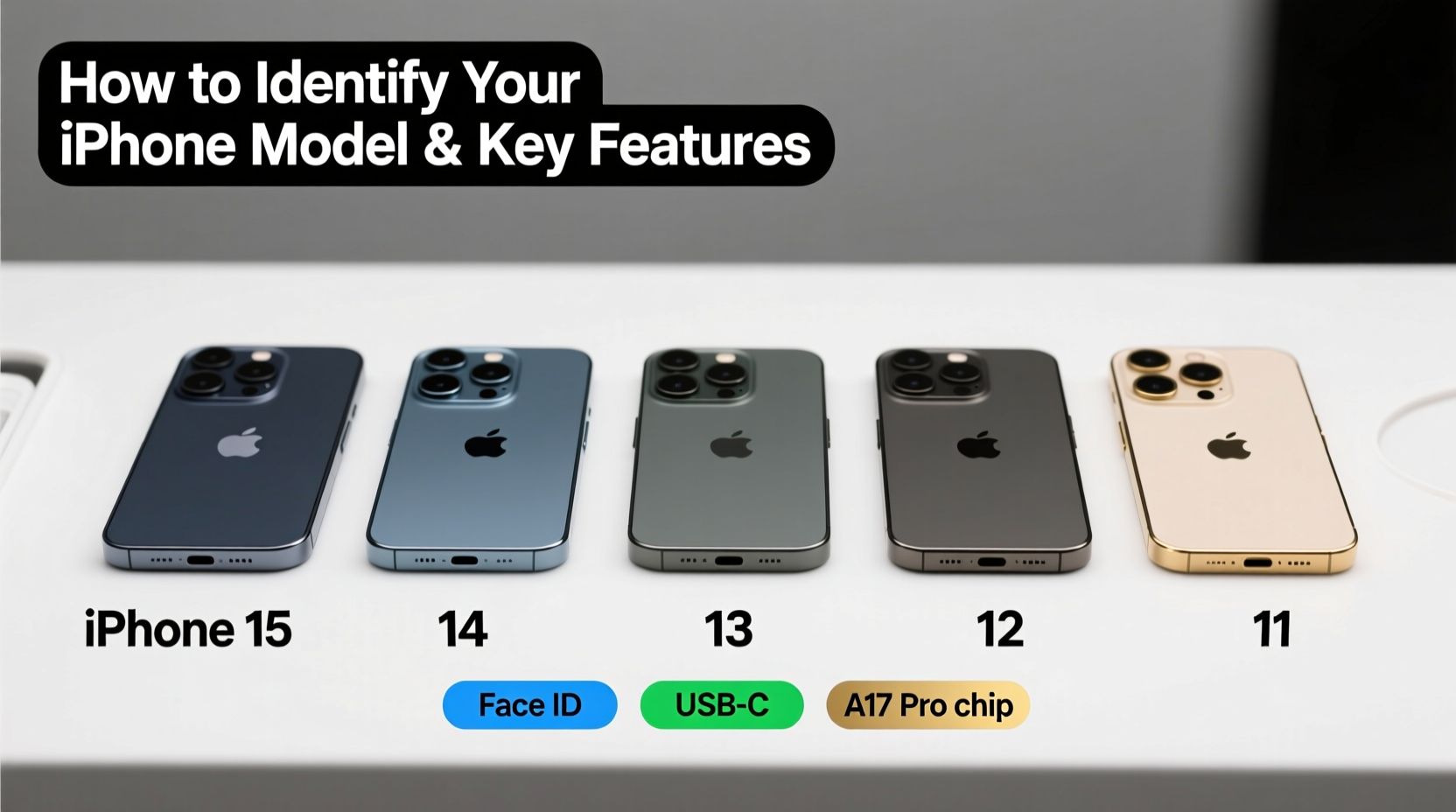
Your iPhone’s model determines its performance, camera quality, battery life, supported software updates, and even repair options. For example, an iPhone 12 mini cannot run iOS 18 if future updates drop support for older chips, while an iPhone 14 Pro Max will likely receive updates for years to come. Additionally, third-party services like trade-ins, insurance claims, and warranty checks require precise model identification.
Understanding your iPhone’s capabilities also helps when choosing cases, screen protectors, or wireless chargers. Some models support MagSafe; others don’t. Certain iPhones have dual SIM functionality, while earlier ones only support one physical SIM card.
Step-by-Step Guide to Find Your iPhone Model Number
The most accurate way to identify your iPhone is through its model number, which Apple uses internally to distinguish variants (e.g., different storage sizes or regional versions). Here’s how to find it:
- Open the Settings app on your iPhone.
- Tap General, then select About.
- Scroll down to find the Model Number field.
- Tap the model number once — it will switch from a shortened format (e.g., “iPhone14,2”) to the full regulatory model number (e.g., “A2634”).
This full alphanumeric code (like A1920 or A2848) appears on the back of the device as well, usually near the bottom beneath the Apple logo. You can cross-reference this number with Apple’s official database or trusted third-party sites like Everyi.com or the iPhone Wiki to confirm your exact model.
Alternative Methods to Identify Your iPhone
- Check the Back of the Device: Look closely at the small text on the rear glass or metal casing. It lists the model number (e.g., A2634).
- Use the Serial Number: In Settings > General > About, tap the serial number. Visit Apple’s Check Coverage page and enter the serial number — it will display your device type.
- iTunes/Finder (on Mac): Connect your iPhone to a computer. When recognized, the device summary shows the model name (e.g., “iPhone 13 Pro”).
- Physical Design Clues: Compare bezel size, camera layout, and port type (Lightning vs. USB-C) to known designs.
Key Features by iPhone Generation (2017–2023)
Below is a comparison table summarizing major iPhone models from recent generations, highlighting defining hardware and software traits that help in visual or functional identification.
| iPhone Model | Years Released | Port Type | Face ID? | Rear Cameras | MagSafe? |
|---|---|---|---|---|---|
| iPhone 8 / 8 Plus | 2017 | Lightning | No (Home Button + Touch ID) | Single / Dual | No |
| iPhone X / XS / XR | 2017–2018 | Lighting | Yes | Dual (X/XS), Single (XR) | Limited magnetic alignment |
| iPhone 11 / 11 Pro | 2019 | Lightning | Yes | Dual / Triple | Yes (Pro models) |
| iPhone 12 Series | 2020 | Lightning | Yes | Dual / Triple | Yes (all models) |
| iPhone 13 Series | 2021 | Lightning | Yes | Dual / Triple | Yes |
| iPhone 14 Series | 2022 | Lightning | Yes | Dual / Triple | Yes |
| iPhone 15 Series | 2023 | USB-C (All Models) | Yes | Dual / Triple | Yes |
Note: The shift from Lightning to USB-C began with the iPhone 15 lineup, making port inspection a reliable identifier. Also, Pro models typically feature stainless steel frames, higher refresh rate displays (ProMotion), and advanced camera systems.
“Accurate model identification ensures users get the right support, compatible parts, and maximize their device’s potential.” — David Lin, Senior Mobile Technician at iFixHub
Real Example: Maria Sells Her iPhone Successfully
Maria wanted to sell her old iPhone but wasn’t sure whether it was an iPhone 12 or 13. She remembered buying it during the pandemic but lost the box. Instead of guessing, she opened Settings > General > About and saw the model number listed as \"iPhone14,5\". After tapping it, it changed to A2482. A quick search revealed this was an iPhone 13 (not the mini or Pro version). Armed with this knowledge, she checked specs: 5G support, improved low-light photography, and Ceramic Shield front cover. She included these details in her listing, priced it fairly based on storage capacity, and sold it within two days — $50 more than similar listings that lacked specific information.
Quick Checklist: How to Confirm Your iPhone Model
- Go to Settings > General > About > Model Number (tap to reveal full number)
- Look at the back of the phone for the engraved model (e.g., A2634)
- Compare physical design: notch size, camera bump shape, frame material
- Check the charging port: Lightning = pre-iPhone 15; USB-C = iPhone 15 and later
- Verify via Apple’s official coverage checker using the serial number
Frequently Asked Questions
Can two iPhones look identical but be different models?
Yes. For instance, the iPhone 13 and iPhone 13 Pro share nearly identical dimensions and overall design. However, the Pro has a textured matte glass back, a triple-camera array arranged diagonally, and a higher-resolution display with ProMotion (120Hz). Checking the model number remains the most reliable method.
Does the model number tell me the storage size?
Not directly. The model number (like A2634) identifies the base configuration (e.g., iPhone 14 Pro Max), but not the internal storage (128GB, 256GB, etc.). To see storage, go to Settings > General > iPhone Storage. There, you’ll find total capacity and available space.
What does “MM/XX” mean next to my model number?
This suffix indicates the country or region where the iPhone was originally intended for sale (e.g., LL/A = North America, ZP/A = Southeast Asia). While the hardware is often the same, regional variants may differ slightly in supported LTE bands or come with different accessories. It doesn't affect day-to-day use for most people.
Maximize Your iPhone Experience Through Accurate Identification
Being able to confidently identify your iPhone model empowers better decisions — from optimizing settings to ensuring secure repairs. Whether you’re upgrading, troubleshooting, or simply organizing your tech inventory, taking a few minutes to verify your device pays long-term dividends. Use the built-in tools Apple provides, trust physical cues, and consult authoritative sources when in doubt.




 浙公网安备
33010002000092号
浙公网安备
33010002000092号 浙B2-20120091-4
Comments
No comments yet. Why don't you start the discussion?