
Knowing which carrier and network provider your mobile phone uses is essential for troubleshooting connectivity issues, switching plans, unlocking devices, or traveling internationally. While it may seem obvious if you're actively paying a bill, many people—especially those using secondhand phones, family plans, or prepaid services—are unsure of their exact carrier or network type. The good news is that identifying this information doesn’t require technical expertise. With a few simple steps, you can determine your carrier, whether your phone runs on GSM or CDMA, and even verify if it’s locked or unlocked.
Check Your Phone Settings
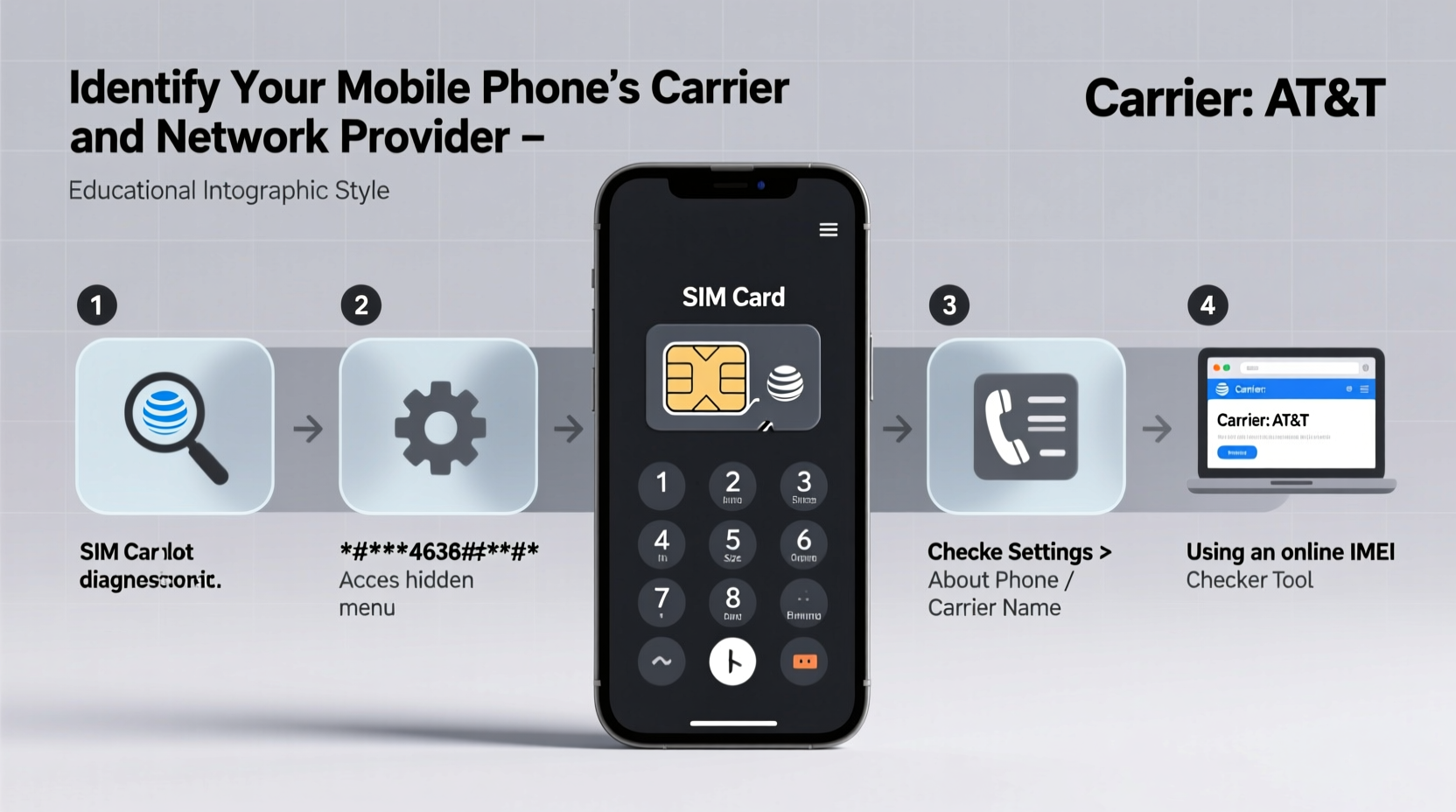
The fastest and most reliable way to identify your carrier is through your device’s built-in settings. Both iOS and Android organize network information clearly within the system menu.
On iPhone:
Go to Settings > General > About. Look for the “Carrier” field. It will display the name of your service provider—such as AT&T, Verizon, or T-Mobile. In some cases, especially with MVNOs (Mobile Virtual Network Operators), it might show the parent network (e.g., “Spectrum Mobile – Verizon”) or a third-party brand.
On Android:
Navigate to Settings > Network & Internet > Mobile Network (path may vary slightly by manufacturer). The carrier name is usually visible at the top. You can also find additional details like the SIM status, network mode (LTE, 5G), and APN settings.
Use Built-In Dialer Codes
Hidden diagnostic menus accessible via dialer codes can reveal detailed network information. These codes work on most smartphones and are particularly useful when settings don’t provide enough detail.
Try these universal codes by entering them in your phone’s dialer app:
*#06#– Displays your IMEI number, which you can later use to check carrier lock status online.*#*#4636#*#*– Opens the Testing or Phone Information menu on Android, showing Wi-Fi, Bluetooth, and mobile data details including current network type and operator.*#0011#– On older Samsung models, this displays real-time signal information and network registration status.
Note: These codes are safe and won’t affect your phone’s functionality. However, avoid changing settings in testing menus unless you understand their purpose.
Identify Network Technology: GSM vs. CDMA
Your phone’s compatibility with carriers depends heavily on whether it uses GSM or CDMA technology. Most modern phones support both, but knowing the distinction helps when switching providers or traveling abroad.
| Feature | GSM | CDMA |
|---|---|---|
| Primary Regions | Global (Europe, Asia, Africa, Americas) | Limited (mainly U.S., parts of Asia) |
| Carrier Examples | AT&T, T-Mobile, international networks | Verizon, Sprint (legacy) |
| SIM Card Required? | Yes | No (device-based activation) |
| Interchangeable Devices? | Easy (swap SIM) | Difficult (carrier approval needed) |
To determine your phone’s supported technologies:
- Check the model number in Settings > About Phone.
- Search the model on the manufacturer’s website or GSMArena.com.
- Look for frequency bands and network standards listed under specifications.
For example, an iPhone 14 sold in the U.S. supports both GSM and CDMA, making it compatible with all major carriers. However, international versions may lack CDMA support, limiting use on networks like Verizon.
“Understanding your phone’s network band support is just as important as knowing the carrier. A mismatch can lead to poor coverage or no service at all.” — David Lin, Wireless Network Engineer
Verify Carrier Lock Status
A phone may be tied to a specific carrier due to a financing agreement or promotional contract. This is known as being “locked.” An unlocked phone can accept SIM cards from any compatible carrier.
To check if your phone is locked:
- Insert a SIM card from a different carrier.
- Power on the device.
- If you see a message like “SIM Not Valid,” “Network Locked,” or “Enter Unlock Code,” the phone is locked to a carrier.
Alternatively, use your IMEI number:
- Dial
*#06#to retrieve your IMEI. - Visit a free IMEI checker such as IMEICheck.org or the carrier’s official unlock verification page.
- Enter the number and review the report, which often includes the original carrier and lock status.
Real-World Example: Switching Carriers Without Knowing Your Current Provider
Sarah bought a used iPhone from a friend who had migrated overseas. The phone worked fine, but she didn’t know which carrier it was originally on or if it was unlocked. She followed these steps:
- She went to Settings > General > About and saw the carrier listed as “T-Mobile.”
- She dialed
*#06#to get the IMEI and entered it into T-Mobile’s IMEI checker. - The tool confirmed the device was eligible for unlocking.
- After requesting an unlock through T-Mobile’s portal (using temporary account creation), her phone accepted an AT&T SIM within 24 hours.
This process saved her from buying a new phone and allowed her to switch to a cheaper plan seamlessly.
Frequently Asked Questions
Can I identify my carrier without a SIM card?
Yes, but with limitations. Your phone may still display the last known carrier in settings. However, full network identification requires an active SIM. Without one, you can only rely on the IMEI and model number for clues.
What’s the difference between a carrier and an MVNO?
A carrier (like Verizon or AT&T) owns its cellular infrastructure. An MVNO (Mobile Virtual Network Operator), such as Mint Mobile or Consumer Cellular, leases network access from a major carrier. Your phone connects to the same towers, but billing and support come from the MVNO.
Does checking my carrier affect my warranty or service?
No. Using dialer codes, checking settings, or verifying IMEI numbers does not alter your device or void warranties. These are standard diagnostic actions supported by manufacturers and carriers.
Action Checklist: How to Identify Your Carrier in 5 Minutes
- Open phone settings and navigate to “About” or “Mobile Network” to view carrier name.
- Dial
*#06#to copy your IMEI number. - Use the IMEI to check lock status via a free online tool or carrier website.
- Insert a SIM from another provider to test compatibility.
- Confirm network type (GSM/CDMA) by reviewing device specs online using the model number.
Final Thoughts
Identifying your mobile phone’s carrier and network provider is simpler than most people assume. Whether you’re upgrading service, switching plans, or preparing for international travel, having accurate carrier information empowers smarter decisions. By leveraging built-in settings, dialer codes, and online verification tools, you can confidently determine your phone’s network status in minutes. Don’t rely on assumptions—take control of your connectivity today.




 浙公网安备
33010002000092号
浙公网安备
33010002000092号 浙B2-20120091-4
Comments
No comments yet. Why don't you start the discussion?