
Knowing your operating system (OS) and its version is essential for troubleshooting, software compatibility, driver updates, and security checks. Whether you're setting up a new app, contacting technical support, or upgrading your device, having this information at hand saves time and prevents errors. The process varies across platforms, but each method is straightforward once you know where to look. This guide walks through reliable ways to identify your OS and version on Windows, macOS, Linux, Android, and iOS devices—no technical expertise required.
Why Knowing Your OS Version Matters
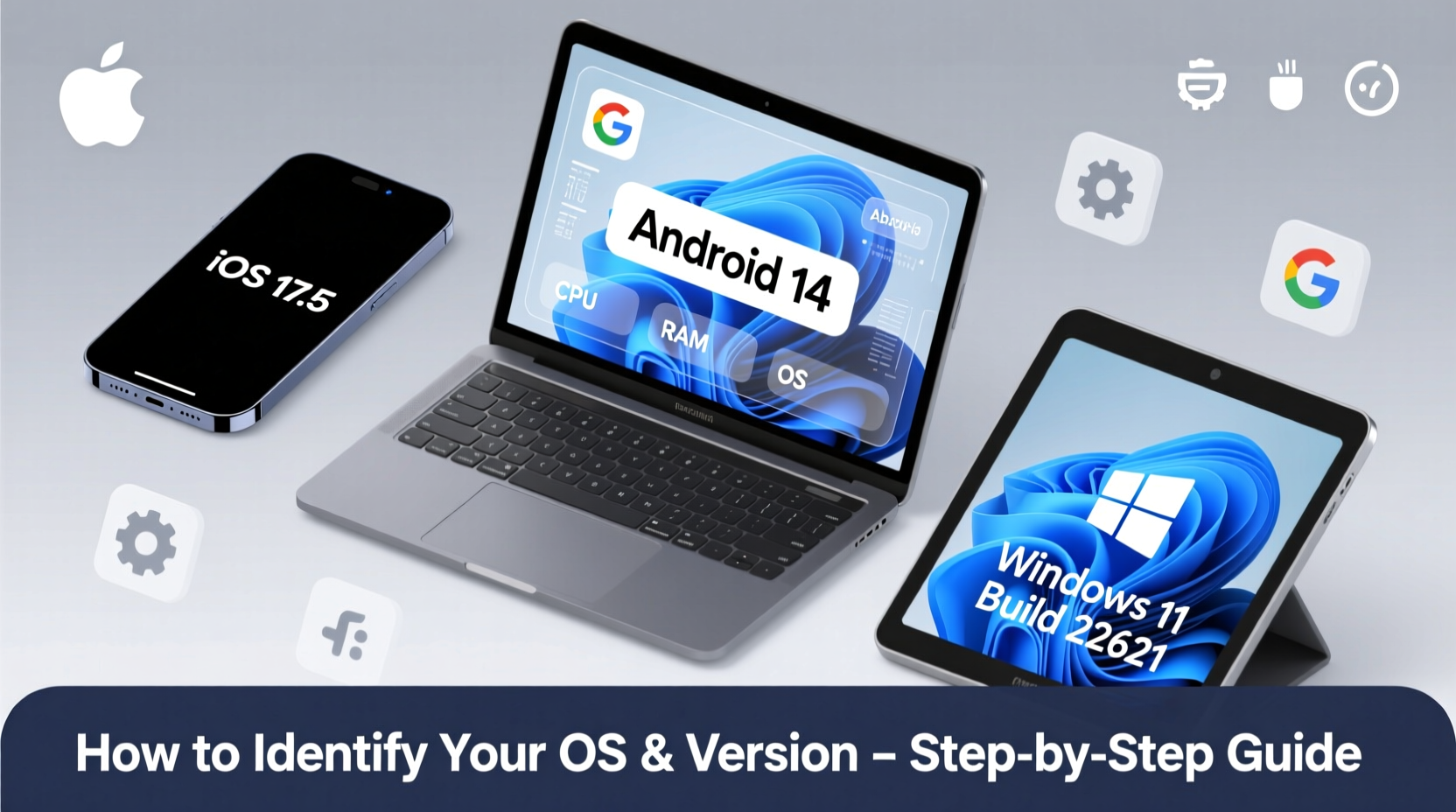
Your operating system acts as the foundation for all software and hardware interactions on your device. Different versions support different features, security protocols, and application requirements. For example, some programs only run on Windows 10 or later, while certain developer tools may require macOS Monterey or newer. Using an outdated OS can expose your device to vulnerabilities or prevent access to critical updates.
Support teams often ask for your OS version before diagnosing issues. Providing accurate details helps them offer precise solutions instead of generic advice. Additionally, when buying or selling used devices, confirming the OS version ensures transparency about the device’s capabilities and update eligibility.
“Accurate OS identification is the first diagnostic step in resolving 70% of common tech support cases.” — David Lin, Senior IT Support Analyst at TechFlow Solutions
How to Check Your Operating System on Windows
Windows remains one of the most widely used operating systems globally. Identifying your version is simple and can be done in multiple ways:
Method 1: Using Settings (Recommended)
- Click the Start menu and select Settings (gear icon).
- Navigate to System > About.
- Under \"Device specifications,\" check the System type (32-bit or 64-bit).
- Under \"Windows specifications,\" view the Edition, Version, and OS build.
Method 2: Using Win + R Run Command
- Press Win + R to open the Run dialog.
- Type
winverand press Enter. - A pop-up window will display your Windows edition and version number (e.g., Windows 11 Pro, Version 23H2).
winver for a clean, official version readout without extra details.
Finding Your OS on macOS Devices
Apple keeps OS identification intuitive across MacBooks and iMacs. Here’s how to locate your macOS version quickly:
Step-by-Step Guide
- Click the Apple logo in the top-left corner of your screen.
- Select About This Mac.
- A window appears showing:
- macOS Name and Version (e.g., macOS Sonoma 14.5)
- Chip or Processor (Apple M1, Intel Core i7, etc.)
- Serial Number and memory details
- For deeper system info, click System Report… to view kernel extensions, storage health, and network configuration.
The displayed name—like Ventura, Monterey, or Sonoma—corresponds to the major release, while the number (e.g., 14.5) indicates the specific update version. Apple typically releases incremental updates within a named version annually.
Determining Linux Distribution and Version
Linux users operate under various distributions (distros), such as Ubuntu, Fedora, or Debian, each with unique versioning systems. Unlike Windows or macOS, there’s no universal GUI method, so command-line tools are often used.
Terminal Commands to Identify Your Linux OS
| Command | Description | Example Output |
|---|---|---|
cat /etc/os-release |
Displays standardized OS info including name, version, and ID | PRETTY_NAME=\"Ubuntu 22.04.4 LTS\" |
lsb_release -a |
Shows LSB (Linux Standard Base) compliant version data | Distributor ID: Ubuntu Release: 22.04 |
uname -r |
Returns the kernel version (not the distro) | 5.15.0-76-generic |
hostnamectl |
Provides hostname and OS details (systemd-based systems) | Operating System: CentOS Stream 9 |
If you’re using a desktop environment like GNOME or KDE, you can also navigate to Settings > About to see basic OS information without opening a terminal.
“On Linux, always verify both the distribution and kernel version—some apps depend on kernel features, not just the distro.” — Priya Mehta, DevOps Engineer at OpenStack Labs
Checking OS Version on Mobile Devices
Smartphones and tablets run on either Android or iOS, both of which make OS identification accessible through settings.
For Android Devices
- Open the Settings app.
- Scroll down and tap About Phone (sometimes under “System” or “Software Information”).
- Look for entries labeled:
- Android Version (e.g., 14)
- Security Patch Level (critical for vulnerability checks)
- Build Number (specific firmware identifier)
- To find your device model and manufacturer, return to the main Settings screen and check Device Name or Model Number.
For iPhones and iPads (iOS/iPadOS)
- Open Settings.
- Tap General > About.
- Scroll to find:
- Software Version (e.g., iOS 17.5)
- Model Name and Model Number
- Serial Number and IMEI
iPadOS versions mirror iOS but appear separately if your device runs iPadOS. You’ll see “iPadOS” listed explicitly starting from version 13.1 onward.
Mini Case Study: Resolving App Compatibility Issues
Sarah, a freelance graphic designer, downloaded a beta version of a video editing tool advertised for “modern operating systems.” Upon installation, the app crashed repeatedly. She contacted support and was asked for her OS version. Initially unsure, she followed the winver method described above and discovered she was running Windows 10, version 21H1—an older release missing critical APIs.
After updating to Windows 10 22H2 via Windows Update, the app launched successfully. The support team credited her quick response with the OS details for narrowing down the root cause in under five minutes. Without that information, they might have spent hours testing unrelated fixes.
Quick Checklist: How to Identify Your OS Across Devices
- Windows: Press Win + R → type
winver→ press Enter. - macOS: Click Apple logo → About This Mac.
- Linux: Open terminal → run
cat /etc/os-release. - Android: Settings → About Phone → Android Version.
- iOS/iPadOS: Settings → General → About → Software Version.
- All Devices: Note both version number and architecture (32-bit vs 64-bit, ARM vs x86).
FAQ
What’s the difference between OS version and build number?
The OS version refers to the public release (e.g., Windows 11 23H2), while the build number identifies the exact compilation of the system, often including patches and internal updates. Build numbers help developers track changes and are useful when reporting bugs.
Can I upgrade my OS version if it’s outdated?
In most cases, yes. Windows and macOS offer built-in updaters. On mobile, go to Settings > Software Update. For Linux, use your package manager (e.g., sudo apt upgrade on Ubuntu). Always back up your data before upgrading.
Why does my Android say “security patch level” instead of a version?
Android manufacturers sometimes delay full OS upgrades. The security patch level shows the latest vulnerability fixes applied, even if the core OS hasn’t been updated. A recent patch (within 90 days) is crucial for safety.
Conclusion
Identifying your operating system and version doesn’t require technical skills—just knowing where to look. From desktops to smartphones, every major platform provides clear pathways to access this vital information. Taking 30 seconds to verify your OS can prevent compatibility headaches, speed up troubleshooting, and keep your devices secure. Make it a habit to check your version after major updates or before installing new software.




 浙公网安备
33010002000092号
浙公网安备
33010002000092号 浙B2-20120091-4
Comments
No comments yet. Why don't you start the discussion?