
Determining the operating system (OS) running on a device is essential for troubleshooting, software compatibility, security updates, and technical support. Whether you're using a laptop, desktop, tablet, or smartphone, knowing your OS version helps ensure you’re downloading the correct drivers, apps, and patches. While some systems make this information obvious, others hide it behind menus or settings. This guide provides clear, step-by-step instructions to identify your operating system across all major platforms—quickly and accurately.
Why Knowing Your Operating System Matters
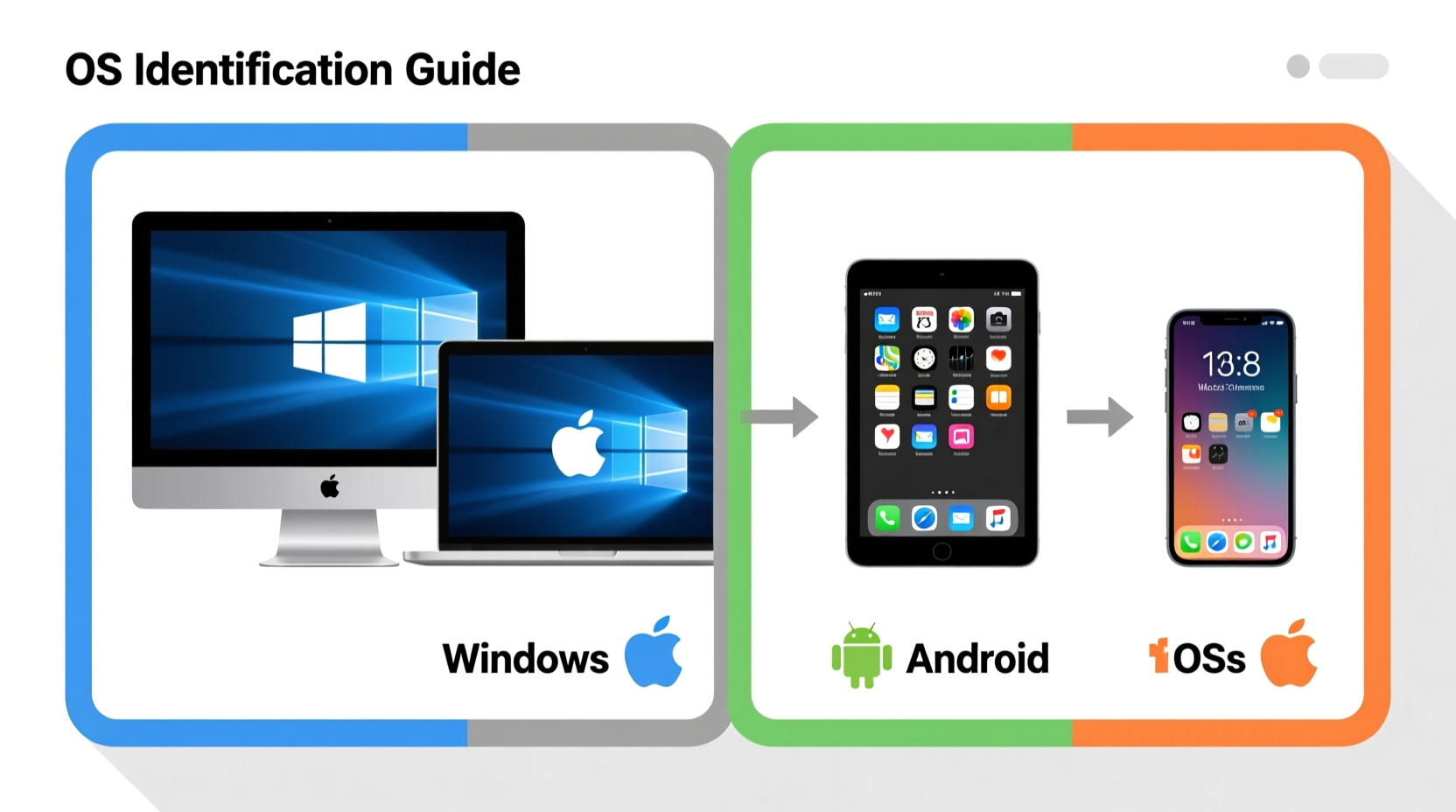
Your operating system acts as the foundation of your device’s functionality. It manages hardware, runs applications, and controls user interfaces. Without knowing which OS you're using—and its specific version—you risk installing incompatible software, missing critical updates, or misdiagnosing performance issues.
For example, trying to install a Windows-only application on a Mac will fail unless you're using virtualization software. Similarly, developers need precise OS details when testing applications across environments. Even casual users benefit from understanding their OS when seeking online help or contacting customer support.
“Accurate OS identification is the first diagnostic step in resolving 80% of common tech issues.” — Dr. Alan Reeves, Senior Systems Analyst at TechInsight Labs
How to Identify Your Operating System: By Device Type
The method for checking your OS varies depending on the type of device and brand. Below are reliable techniques for each major platform.
On Windows PCs
Microsoft Windows remains one of the most widely used operating systems globally. Identifying your version is straightforward:
- Press the Windows key + R to open the Run dialog box.
- Type
winverand press Enter. - A pop-up window will display your Windows edition (e.g., Windows 11 Home) and version number (e.g., 23H2).
Alternatively, go to Settings > System > About. Under \"Device specifications,\" you’ll see the full OS name and build number.
winver instead of relying solely on Settings—it often shows more detailed version information, including service pack levels.
On macOS Devices
Apple keeps OS identification simple and elegant. To find your macOS version:
- Click the Apple logo in the top-left corner of your screen.
- Select About This Mac.
- A window appears showing your macOS name (e.g., macOS Sonoma), version number (e.g., 14.5), processor type, and memory.
For deeper details, click System Report to view kernel versions, installed extensions, and network configurations.
On Linux Distributions
Linux offers numerous distributions (distros), each with unique branding but similar underlying tools. The fastest way to identify your Linux OS is via the terminal:
- Open a terminal window (Ctrl+Alt+T is standard on most distros).
- Type
cat /etc/os-releaseand press Enter. - This command displays the exact distribution name, version, and codename (e.g., Ubuntu 22.04 LTS “Jammy Jellyfish”).
Alternative commands include:
lsb_release -a– Works on Debian-based systems.hostnamectl– Provides OS and kernel info on systemd-enabled systems.uname -r– Shows only the kernel version.
On Android Phones and Tablets
Android devices vary by manufacturer, but OS identification follows a consistent path:
- Open Settings.
- Scroll down and tap About Phone (sometimes under “System” or “Software Information”).
- Look for entries labeled Android Version, Security Patch Level, and Build Number.
For example, you might see “Android 14,” patch level “May 1, 2024,” and build “UP1A.231005.007.” Some manufacturers like Samsung overlay their own skin (One UI), so also check for “Software Information” to distinguish between stock Android and custom interfaces.
On iPhones and iPads (iOS/iPadOS)
iOS and iPadOS are closely related but identified separately based on device type. To check:
- Open the Settings app.
- Tap General, then select About.
- Scroll to find Software Version (e.g., iOS 17.5 or iPadOS 17.5).
You’ll also see additional identifiers such as model number, serial number, and capacity. If you're unsure whether an app supports your device, always reference this version number.
Cross-Platform Tools and Online Methods
If you’re unable to access system settings directly—such as when helping someone remotely—you can use alternative approaches.
One effective method is visiting a browser-based detection site like whatismybrowser.com or whatsmyos.com. These sites automatically detect your OS, browser, and device type based on HTTP headers and JavaScript APIs.
However, be cautious: these tools may not distinguish between 32-bit and 64-bit systems or detect virtualized environments accurately. They also won’t show internal build numbers unless explicitly supported.
| Method | Accuracy | Best For | Limits |
|---|---|---|---|
| Built-in OS tools (About, winver, etc.) | ★★★★★ | Precise version & build details | Requires device access |
| Terminal/Command Line | ★★★★☆ | Advanced users, scripting | Technical knowledge needed |
| Browser Detection Sites | ★★★☆☆ | Remote diagnostics | May miss minor versions |
| Third-party System Info Apps | ★★★★☆ | Detailed hardware/software overview | Potential privacy risks |
Common Mistakes When Identifying Operating Systems
Even experienced users sometimes misidentify their OS due to confusion over branding, naming conventions, or outdated terminology.
- Mistaking the interface for the OS: Using “Start Menu” or “Dock” doesn’t confirm Windows or macOS if running in a virtual machine.
- Confusing Chromebooks with Windows: Many assume Chrome OS is a version of Windows; it’s actually Linux-based and runs web apps primarily.
- Ignoring bit architecture: Failing to check whether your OS is 32-bit or 64-bit can lead to installation errors.
- Overlooking update status: An outdated OS version may still report the same name (e.g., “Windows 10”) but lack critical features or security patches.
Mini Case Study: Resolving App Installation Failure
Sarah downloaded a video editing tool advertised as compatible with “Mac and Windows.” After attempting installation on her MacBook Air, she received an error: “Unsupported architecture.” Confused, she checked her OS via > About This Mac and discovered she was running macOS 12 Monterey on an M1 chip. The app only supported Intel-based Macs up to macOS 11 Big Sur.
By correctly identifying her OS version, hardware architecture, and release date, Sarah avoided wasting time troubleshooting. She found an updated alternative that supported Apple Silicon and macOS 12+, saving hours of frustration.
Checklist: How to Confirm Your OS in 5 Minutes
Follow this quick checklist to reliably identify your operating system:
- ✅ Open system settings or preferences.
- ✅ Navigate to “About” or equivalent section.
- ✅ Record the OS name, version number, and build identifier.
- ✅ Note any additional labels (e.g., “Enterprise,” “ARM64,” “LTS”).
- ✅ Verify against official documentation or software requirements.
Frequently Asked Questions
Can two devices have the same OS but different capabilities?
Yes. Two Windows 11 machines may differ in feature availability based on hardware support, update status, or edition (Home vs. Pro). Similarly, iOS updates roll out gradually, so users on the same version number might not have identical functionalities.
Is Chrome OS considered a full operating system?
Absolutely. Chrome OS is a Linux-based operating system designed primarily for web applications and cloud storage. It supports Android apps, Linux environments, and progressive web apps, making it fully functional for many users.
What should I do if my OS isn’t listed anywhere?
If no clear OS information appears, consider booting from a live USB drive with a known OS (like Ubuntu Live) to inspect the hard drive. Alternatively, outdated or corrupted systems may require professional diagnostics.
Conclusion
Identifying your operating system doesn’t require technical expertise—just the right steps. Whether you're upgrading software, diagnosing bugs, or buying new accessories, knowing your OS ensures compatibility and smooth operation. From Windows’ winver command to macOS’s About window and Linux’s terminal tools, every platform offers accessible ways to retrieve this vital information.




 浙公网安备
33010002000092号
浙公网安备
33010002000092号 浙B2-20120091-4
Comments
No comments yet. Why don't you start the discussion?