
Roblox groups offer a way for players to connect, collaborate, and participate in shared experiences. However, there are times when you may want to leave a group—whether due to inactivity, privacy concerns, or simply shifting interests. While the process should be straightforward, many users encounter unexpected obstacles such as missing buttons, error messages, or confusion about their role within the group.
This guide walks through the exact steps to leave any Roblox group, explains why certain issues occur, and provides practical solutions so you can regain control of your account without frustration.
Step-by-Step: How to Leave a Roblox Group
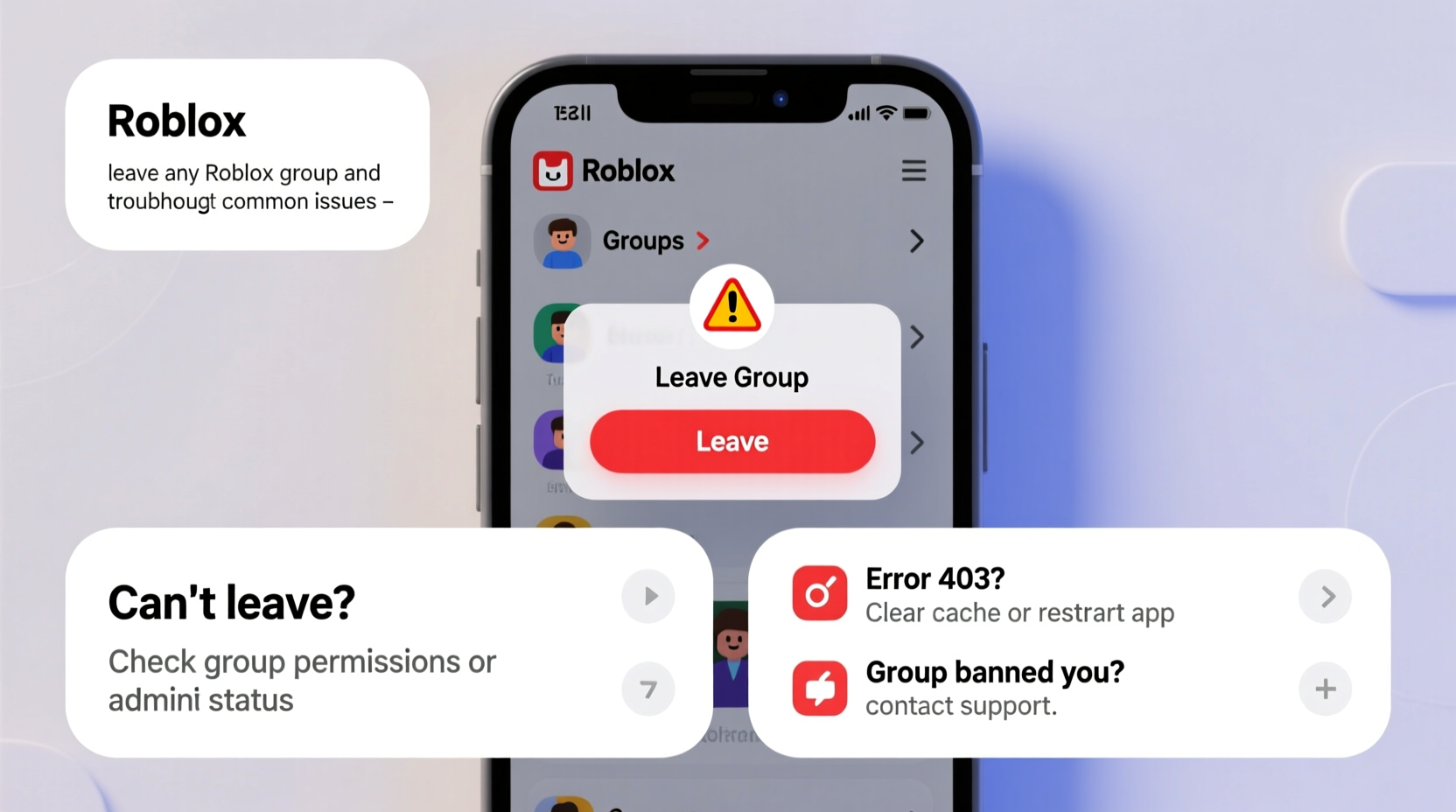
Leaving a group on Roblox is typically a quick process. Follow these steps whether you're using a desktop browser or mobile device:
- Log into your Roblox account via roblox.com.
- Navigate to the Groups tab located at the top menu bar.
- Find the group you wish to leave from your list of memberships.
- Click on the group name to open its page.
- Look for the \"Leave Group\" button near the bottom-right of the group info panel (below your role title).
- Confirm the action when prompted.
Once confirmed, you will no longer appear as a member of that group. Your rank, perks, and access to group-exclusive items or games will also be revoked immediately.
Common Issues When Trying to Leave a Group
Despite the simplicity of the process, several users report being unable to leave a group. Below are the most frequent problems and what causes them:
- The \"Leave Group\" button is missing – This often happens if you hold a leadership role.
- Error message: \"You cannot leave this group\" – Usually tied to ownership or administrative status.
- Page won't load or freezes after clicking \"Leave\" – Could indicate connection issues or temporary server glitches.
- Still appears in the group after leaving – A caching issue where the client hasn’t refreshed your status.
Why Can't I See the 'Leave Group' Button?
If you’re an admin or group owner, Roblox disables the standard \"Leave Group\" option to prevent accidental disbanding. You must first transfer ownership or demote yourself before exiting.
Troubleshooting: What to Do When You Can’t Leave
When standard steps fail, use the following strategies based on your specific situation.
Scenario 1: You Are the Group Owner
You cannot leave a group unless you transfer ownership to another member. Here’s how:
- Go to your group’s page and click Manage.
- Select a trusted member with at least the rank just below yours.
- Click the three dots next to their name and choose Set as Owner.
- Once transferred, return to the group page—you’ll now see the \"Leave Group\" button.
If there are no other members, you must either add one temporarily or delete the group entirely.
Scenario 2: You’re an Admin or High-Rank Member
Sometimes, even non-owners face restrictions. To resolve this:
- Demote yourself to a lower rank via the group’s Roles tab.
- Wait a few seconds, then refresh the page.
- The \"Leave Group\" button should now appear.
Scenario 3: Technical Glitches or Browser Issues
If the interface isn’t responding:
- Clear your browser cache or try a different browser (e.g., Chrome, Firefox).
- Disable ad blockers or extensions that might interfere with Roblox scripts.
- Try accessing Roblox from incognito mode.
- Use the mobile app as an alternative method.
In rare cases, wait 24 hours and retry—Roblox occasionally delays updates due to internal syncing.
Checklist: Successfully Leave Any Roblox Group
Follow this checklist to ensure a smooth exit:
- ✅ Confirm you are logged into the correct account.
- ✅ Visit the official Roblox website or app (avoid third-party sites).
- ✅ Check your role in the group (Owner? Admin?) and act accordingly.
- ✅ Transfer ownership if necessary.
- ✅ Demote yourself if stuck in a high-rank position.
- ✅ Click “Leave Group” and confirm.
- ✅ Log out and back in to verify membership status.
Real Example: Maya’s Struggle to Exit a Dormant Group
Maya joined a gaming community group two years ago during a school project. After graduation, she lost interest but recently noticed spam messages coming from the group chat. She tried to leave but couldn’t find the \"Leave Group\" button.
After researching, she realized she had been promoted to Moderator without her knowledge. By visiting the Roles section, she demoted herself to \"Member,\" refreshed the page, and successfully left the group. Her experience highlights how unnoticed rank changes can create barriers—even for simple actions like leaving.
“We’ve seen a rise in support tickets related to group management confusion. Users often don’t realize promotions affect their ability to exit. Always review your role before taking action.” — Roblox Community Support Team, 2023 Transparency Report
Do’s and Don’ts When Leaving a Roblox Group
| Do’s | Don’ts |
|---|---|
| Transfer ownership responsibly if you're the founder | Don’t abandon a group without notifying members if you're leading it |
| Double-check your rank before attempting to leave | Don’t use third-party tools claiming to remove you from groups |
| Clear cache if buttons aren’t appearing | Don’t repeatedly click “Leave” during lag—it may cause duplicate requests |
| Verify your exit by checking your profile afterward | Don’t assume mobile and desktop behave identically—test both if needed |
Frequently Asked Questions
Can I rejoin a Roblox group after leaving?
Yes, but only if the group allows open enrollment or approves your new application. Private groups may require an invite or admin approval.
What happens to my group items if I leave?
You keep any limited items you already own, but you’ll lose access to group-specific gear, badges, or currency-generating features. You also won’t earn future group rewards.
Why does Roblox let owners block themselves from leaving?
This prevents accidental loss of group control. Since every group needs at least one owner, Roblox forces intentional transfer decisions to avoid orphaned communities.
Final Thoughts and Action Steps
Leaving a Roblox group should be a seamless experience—but technical roles, outdated interfaces, or overlooked permissions can complicate it. Understanding your rank, using proper transfer protocols, and troubleshooting basic tech issues empower you to manage your digital presence effectively.
Whether you're streamlining your memberships or distancing yourself from inactive communities, taking control of your group affiliations enhances both security and user experience.




 浙公网安备
33010002000092号
浙公网安备
33010002000092号 浙B2-20120091-4
Comments
No comments yet. Why don't you start the discussion?