
Pulling data from PDFs is a common challenge in finance, research, and administration. While PDFs are great for preserving formatting, they aren’t always easy to work with when you need structured information—especially numbers like prices, quantities, dates, or IDs. Unlike spreadsheets, PDFs don’t store data in accessible cells, making manual copying time-consuming and error-prone. Fortunately, there are efficient ways to automatically locate and extract numerical data. This guide walks through proven methods, tools, and strategies that simplify the process—whether you're handling one file or hundreds.
Why Extracting Numbers from PDFs Is Tricky
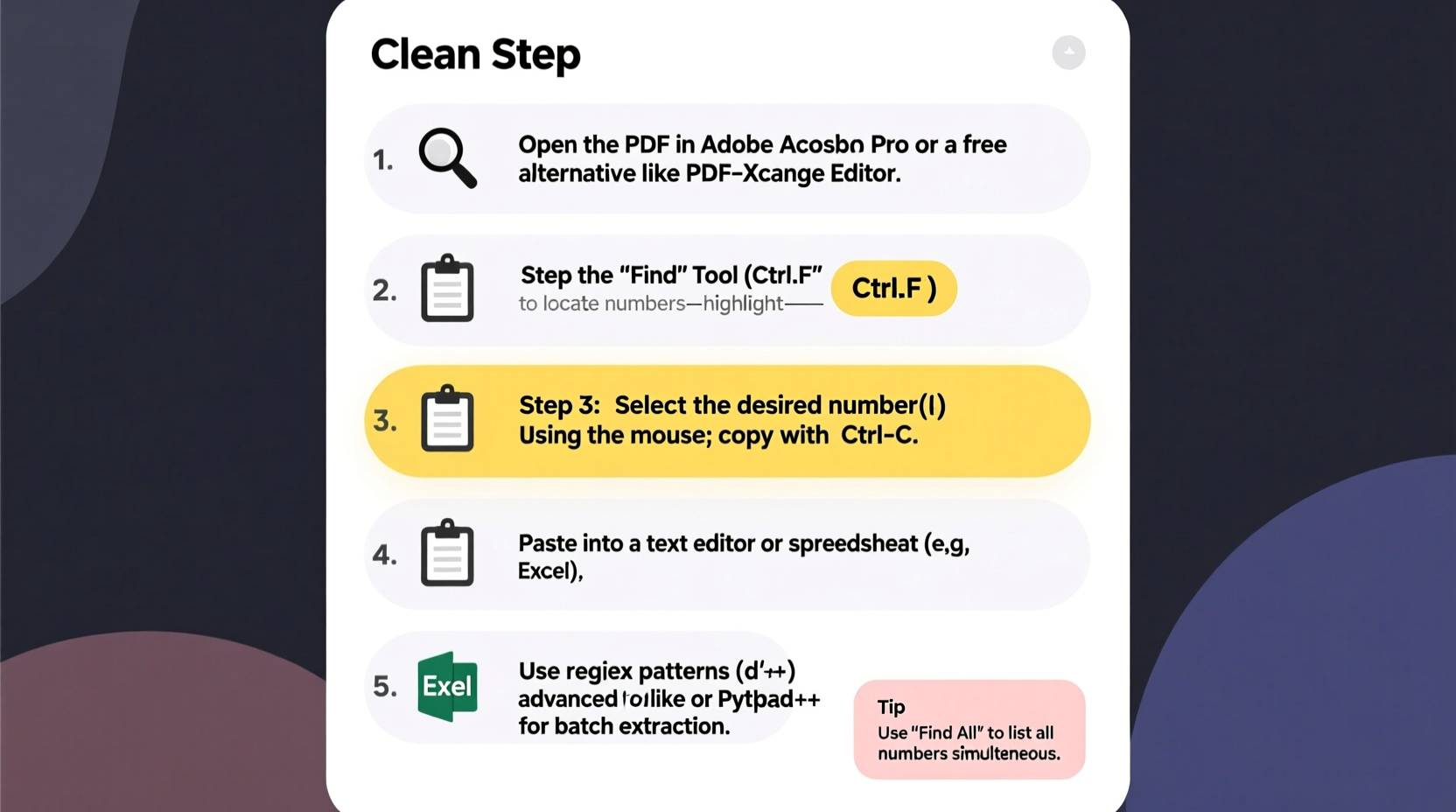
PRDFs come in two main types: text-based and image-based (scanned). Text-based PDFs contain selectable characters and can be parsed programmatically. Scanned PDFs are essentially images of text, requiring optical character recognition (OCR) before any extraction can occur. Even in text-based files, numbers may appear inconsistently—formatted with commas, decimals, currency symbols, or embedded within paragraphs—making them hard to isolate.
Without automation, extracting numbers means manually scanning pages, copying values, and pasting into spreadsheets. This approach is not only slow but also prone to human error. Automating the process ensures accuracy, saves time, and allows scalability across large datasets.
Step-by-Step Guide to Locating and Extracting Numbers
The following sequence outlines a reliable workflow for extracting numeric data from any PDF, regardless of origin or complexity.
- Identify the PDF Type: Open the PDF and try selecting text with your cursor. If you can highlight numbers, it’s text-based. If not, it’s scanned and requires OCR.
- Choose Your Extraction Method: Based on volume, format, and technical comfort, decide whether to use desktop software, online tools, or code-based solutions.
- Preprocess the Document (if needed): For scanned files, apply OCR using tools like Adobe Acrobat or free alternatives such as Google Keep or OnlineOCR.net.
- Locate Number Patterns: Use search functions or regex (regular expressions) to find sequences matching numeric formats—integers, decimals, phone numbers, etc.
- Extract and Export Data: Capture matches and export them to CSV, Excel, or a database for further analysis.
Top Tools for Extracting Numbers from PDFs
Different scenarios call for different tools. Here's a comparison of popular options based on ease of use, cost, and capability.
| Tool | Type | Best For | Handles Scanned PDFs? | Cost |
|---|---|---|---|---|
| Adobe Acrobat Pro | Desktop Software | One-off extractions, high accuracy | Yes (built-in OCR) | Paid |
| Tabula | Open-source Desktop App | Tables in text-based PDFs | No | Free |
| PDFtoText + Python | Code-based (CLI/Scripting) | Bulk processing, custom logic | Only after OCR preprocessing | Free |
| Google Sheets + ImportHTML | Web-based | Semi-structured web-exported PDFs | Limited | Free |
| UiPath / Automation Anywhere | Robotic Process Automation (RPA) | Enterprise workflows, recurring tasks | Yes (with OCR plugins) | Paid |
Using Regular Expressions to Pinpoint Numbers
Regular expressions (regex) are powerful patterns used to match text. When extracting numbers, regex helps identify all instances—even when formatted differently. Common number patterns include:
\\d+– Matches whole numbers (e.g., 42, 1000)\\d+\\.\\d+– Matches decimals (e.g., 3.14, 99.99)\\$\\d{1,3}(,\\d{3})*(\\.\\d{2})?– Matches currency like $1,299.99(\\+?\\d{1,3}[-.\\s]?)?\\(?\\d{3}\\)?[-.\\s]?\\d{3}[-.\\s]?\\d{4}– Matches phone numbers
In Python, you can use the re module to scan extracted text:
import re

text = \"Invoice total: $1,299.99. Paid on 05/12/2024.\"
numbers = re.findall(r'\\d+', text)
decimals = re.findall(r'\\d+\\.\\d+', text)
currency = re.findall(r'\\$\\d{1,3}(?:,\\d{3})*(?:\\.\\d{2})?', text)

print(\"Integers:\", numbers)        # ['1', '299', '99', '05', '12', '2024']
print(\"Decimals:\", decimals)      # ['1,299.99']
print(\"Currency:\", currency)      # ['$1,299.99']
“Regex is the Swiss Army knife of text extraction—it turns chaotic documents into structured data with precision.” — Dr. Lena Torres, Data Engineer at Quantex Analytics
Mini Case Study: Extracting Sales Figures from Monthly Reports
A regional sales manager receives 47 monthly performance PDFs from branch offices. Each report contains a summary table with total revenue, units sold, and average transaction value—but no digital exports. Manually compiling these figures takes over three hours per month.
To streamline the process, the team uses Tabula to extract tables from each PDF into CSV format. They then write a short Python script that reads all CSVs, searches for rows containing “Total Revenue,” and extracts the adjacent numeric value using regex. The final output is a single Excel file with aggregated results—completed in under 15 minutes.
This shift not only reduced workload but also minimized transcription errors, allowing faster reporting and decision-making.
Checklist: How to Successfully Extract Numbers from PDFs
Action Plan:
- ✅ Determine if the PDF is text-based or scanned
- ✅ Apply OCR if necessary (using Adobe, Google Drive, or online tools)
- ✅ Choose an extraction method (manual, tool-assisted, or automated)
- ✅ Use regex patterns to target specific number formats
- ✅ Validate extracted data against originals for accuracy
- ✅ Export results to CSV, Excel, or database
- ✅ Automate recurring tasks with scripts or RPA tools
Common Pitfalls and How to Avoid Them
Even experienced users run into issues when extracting numbers. Awareness of these challenges improves success rates.
- Misreading decimal points: In some regions, commas are used as decimal separators (e.g., 4,9 instead of 4.9). Ensure your tool respects locale settings.
- Missing hidden characters: PDFs sometimes include non-breaking spaces or invisible Unicode characters that disrupt parsing.
- Overlooking context: Extracting every number isn’t useful. Focus on relevant fields—totals, IDs, dates—by anchoring to nearby labels like “Amount:” or “ID#”.
- Ignoring layout complexity: Multi-column layouts or rotated text can confuse extraction tools. Preprocessing with layout-aware OCR (like Tesseract with layout analysis) helps.
Frequently Asked Questions
Can I extract numbers from scanned PDFs for free?
Yes. Upload the scanned PDF to Google Drive, right-click and select “Open with Google Docs.” Google applies OCR and converts the image into editable text, from which you can copy numbers. Accuracy varies based on scan quality.
What’s the fastest way to extract hundreds of invoice totals?
Use a combination of OCR (via Adobe or Tesseract) and a scripting language like Python. Write a script that processes each file, locates lines containing “Total” or “Amount Due,” and captures the following number using regex. Batch processing can reduce hours of work to minutes.
Are online PDF extraction tools safe for sensitive data?
Exercise caution. Uploading confidential financial or personal data to third-party websites poses privacy risks. For sensitive documents, use offline tools like Adobe Acrobat, QPDF, or local Python scripts to maintain control over your data.
Conclusion: Turn Static PDFs into Actionable Data
Locating and extracting numbers from PDFs doesn’t have to be a tedious chore. With the right tools and techniques—whether leveraging user-friendly apps like Tabula or writing simple automation scripts—you can transform static documents into dynamic, usable data. The key is understanding your document type, choosing the appropriate method, and validating results for accuracy.




 浙公网安备
33010002000092号
浙公网安备
33010002000092号 浙B2-20120091-4
Comments
No comments yet. Why don't you start the discussion?