
Every network-capable device has a unique identifier known as a Media Access Control (MAC) address. On your Mac, this 12-digit hexadecimal number is essential for connecting to networks, especially in environments that require device registration or network filtering. Whether you're setting up a new Wi-Fi connection, troubleshooting network issues, or configuring parental controls, knowing how to find your Mac’s MAC address is a fundamental skill. Unlike IP addresses, which can change, the MAC address is permanently assigned to your network interface and remains consistent across networks.
Finding this information on macOS is straightforward once you know where to look. Apple integrates the necessary tools directly into System Settings, making it accessible without third-party software. This guide walks through multiple reliable methods, explains what to do with the MAC address once you have it, and highlights common pitfalls to avoid.
Understanding the MAC Address
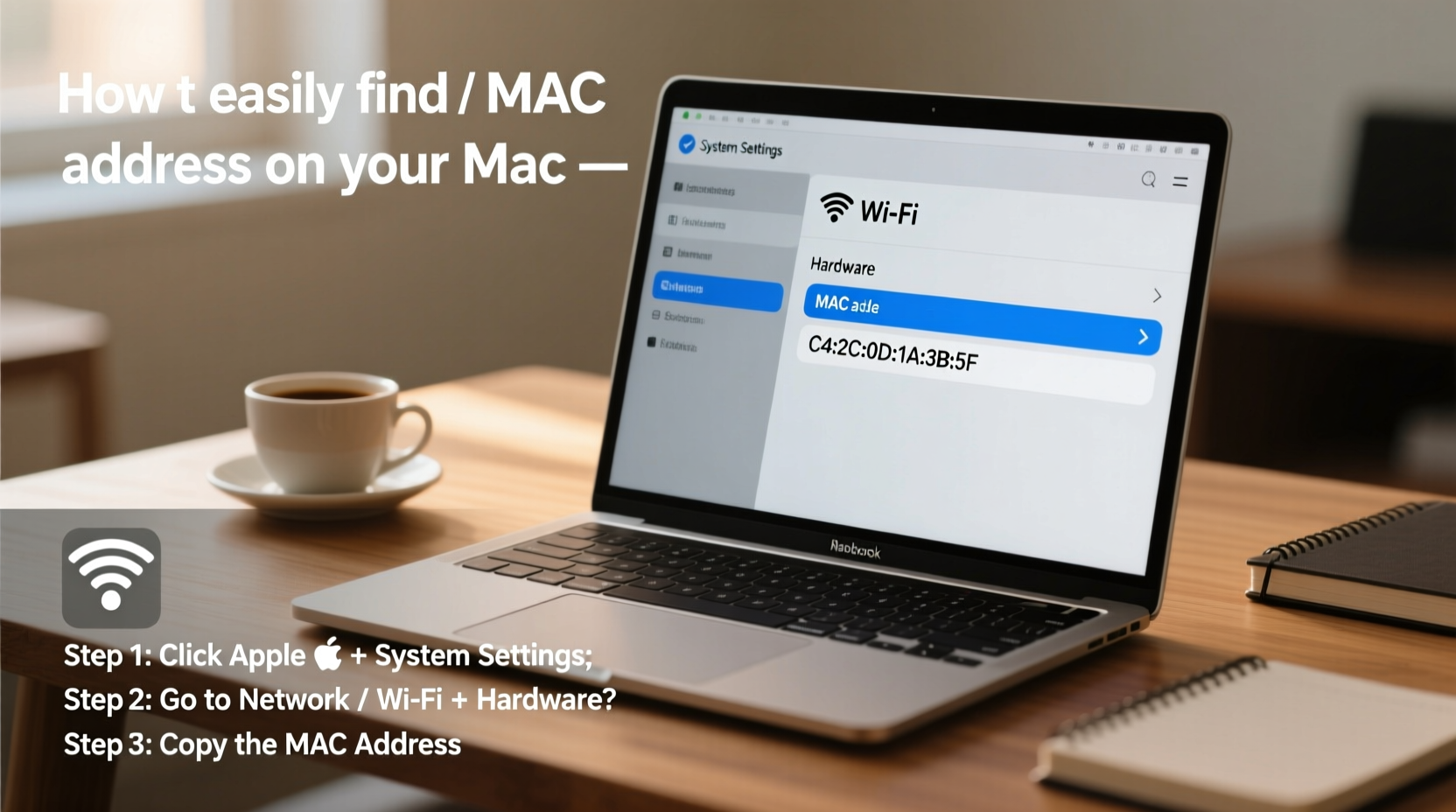
A MAC address is a hardware-level identifier assigned to your Mac’s network interfaces—such as Wi-Fi (AirPort) and Ethernet. It follows the format XX:XX:XX:XX:XX:XX or XXXX.XXXX.XXXX, where each character is a hexadecimal digit (0–9, A–F). For example: 3c:22:fb:4a:1d:8e.
Your Mac may have more than one MAC address—one for Wi-Fi and another for Ethernet if your model includes a port. Some newer Macs also display a \"randomized MAC\" when joining guest or public networks for privacy, but the physical (burned-in) address remains unchanged.
“Network administrators rely on MAC addresses to control access, track devices, and diagnose connectivity problems. Knowing your device’s MAC is like having its digital fingerprint.” — Jordan Lee, Network Infrastructure Specialist
Step-by-Step: Find Your MAC Address via System Settings
The most user-friendly way to locate your MAC address is through macOS System Settings. This method works across all recent versions of macOS, including Sonoma and Ventura.
- Click the Apple logo in the top-left corner of your screen.
- Select System Settings (or System Preferences on older versions).
- Navigate to Network in the sidebar.
- Select your active network connection—usually Wi-Fi or Ethernet.
- Click the Details button (represented by an “i” icon or ⓘ next to the connection name).
- In the window that appears, go to the Hardware tab.
- Look for the field labeled MAC Address. This is your device’s physical address.
Alternative Method: Using Terminal (Advanced Users)
For users comfortable with command-line tools, Terminal offers a fast way to retrieve MAC addresses for all network interfaces at once.
- Open Terminal from Applications > Utilities, or use Spotlight (Cmd + Space, then type “Terminal”).
- Type the following command and press Enter:
ifconfig | grep ether - Review the output. Each active interface will display a line like:
ether 3c:22:fb:4a:1d:8e - Match the MAC address to the correct interface:
en0typically refers to Wi-Fi.en1oren2might refer to Bluetooth PAN or Thunderbolt Ethernet adapters.en5or similar could be a USB Ethernet dongle.
This method is especially useful when diagnosing complex network configurations or managing multiple peripherals.
What to Do With Your MAC Address
Once you’ve located your MAC address, you might need it for several real-world applications:
- Router Registration: Some organizations and ISPs require MAC address registration to allow internet access.
- Parental Controls: Use MAC filtering to restrict device access during certain hours.
- Guest Network Setup: Whitelist trusted devices while blocking unknown ones.
- Troubleshooting: Network admins often ask for the MAC address when diagnosing connection issues.
| Use Case | Why MAC Address Is Needed |
|---|---|
| University Dorm Network | Required to register personal devices on campus Wi-Fi |
| Corporate IT Policy | Used to approve or block employee devices on internal networks |
| Home Router Security | Enables MAC filtering to prevent unauthorized access |
| Public Hotspot Login | Sometimes tied to session tracking for bandwidth management |
Common Mistakes and How to Avoid Them
Even a simple task like copying a MAC address can go wrong if not done carefully. Here are frequent errors and how to prevent them:
- Mixing up Wi-Fi and Ethernet addresses: Always confirm which interface you’re using. Most modern Macs only use Wi-Fi, so double-check that you’re reading the right value.
- Typing errors: When entering the MAC address elsewhere, verify each character. A single incorrect digit will invalidate the entry.
- Using randomized MAC instead of physical: macOS may show a temporary, random MAC when joining open networks. Ensure you’re retrieving the actual hardware address from the Hardware tab.
- Ignoring case sensitivity: While MAC addresses aren’t case-sensitive, maintaining consistency (e.g., lowercase) avoids confusion.
Mini Case Study: Connecting to a Restricted Campus Network
Sophia, a first-year student at Pacific Ridge University, arrived on campus excited to set up her new MacBook Air. However, she couldn’t connect to the dorm Wi-Fi despite entering the correct password. After contacting IT support, she was told that all devices must be registered using their MAC address.
Unfamiliar with networking terms, Sophia searched online and found this guide. She followed the steps under System Settings, located the Wi-Fi MAC address under the Hardware tab, and submitted it through the university portal. Within minutes, her device was approved, and she gained full internet access.
This scenario is common in academic and corporate environments where network security is tightly managed. Having the MAC address ready saves time and frustration during onboarding.
Quick Checklist: How to Locate Your MAC Address
- ✅ Confirm your network interface:
- Decide whether you need Wi-Fi or Ethernet.
- ✅ Open System Settings:
- Navigate to Network > Wi-Fi/Ethernet > Details.
- ✅ Check the Hardware tab:
- Find the labeled MAC Address field.
- ✅ Verify the format:
- Ensure it's 12 hex digits in six pairs separated by colons, dashes, or dots.
- ✅ Copy accurately:
- Paste it directly into registration forms to prevent input errors.
Frequently Asked Questions
Is the MAC address the same as the serial number?
No. The serial number identifies the entire Mac unit and is used for warranty and support. The MAC address is specific to the network adapter and is used for communication on local networks.
Can I change my Mac’s MAC address?
Technically, yes—using Terminal commands—but it's not recommended for average users. Changing the MAC address can disrupt network connectivity and may violate policies on managed networks. Additionally, the change is temporary and resets after reboot unless scripted.
Why does my MAC address look different in some apps?
Some services display a randomized MAC address for privacy when connecting to public Wi-Fi. This is normal behavior in macOS Monterey and later. To find the true hardware address, always check the Hardware tab in Network settings.
Final Thoughts and Next Steps
Locating your Mac’s MAC address is a quick process that empowers you to manage network access, comply with institutional requirements, and troubleshoot connectivity issues efficiently. Whether you prefer graphical tools or command-line precision, macOS provides reliable ways to retrieve this critical identifier.
Now that you know how to find it, consider saving your MAC address in a secure note or device log. That way, you won’t need to search for it again when setting up a new router or registering on a restricted network.




 浙公网安备
33010002000092号
浙公网安备
33010002000092号 浙B2-20120091-4
Comments
No comments yet. Why don't you start the discussion?