
Losing your Apple Watch can be frustrating—especially when you're in a rush or need it for health tracking. Fortunately, Apple has built seamless tools into its ecosystem that make finding your wearable effortless. Using your iPhone, you can quickly locate, ring, and even map the last known position of your Apple Watch. This guide walks you through every method available, including practical tips, real-life scenarios, and expert-backed advice to ensure you never spend more than a few seconds searching again.
Why Locating Your Apple Watch Matters
The Apple Watch is more than just a timepiece—it tracks workouts, monitors heart rate, reminds you of appointments, and keeps you connected. Misplacing it doesn’t just mean losing a gadget; it disrupts your routine and could delay critical notifications. Whether it's buried under couch cushions or left behind at the gym, knowing how to find it swiftly restores peace of mind.
Apple’s Find My network leverages end-to-end encryption and Bluetooth triangulation to help users locate devices—even when they’re offline. Since your Apple Watch syncs directly with your iPhone, the process is intuitive and secure.
Step-by-Step: How to Use the Find My App to Locate Your Apple Watch
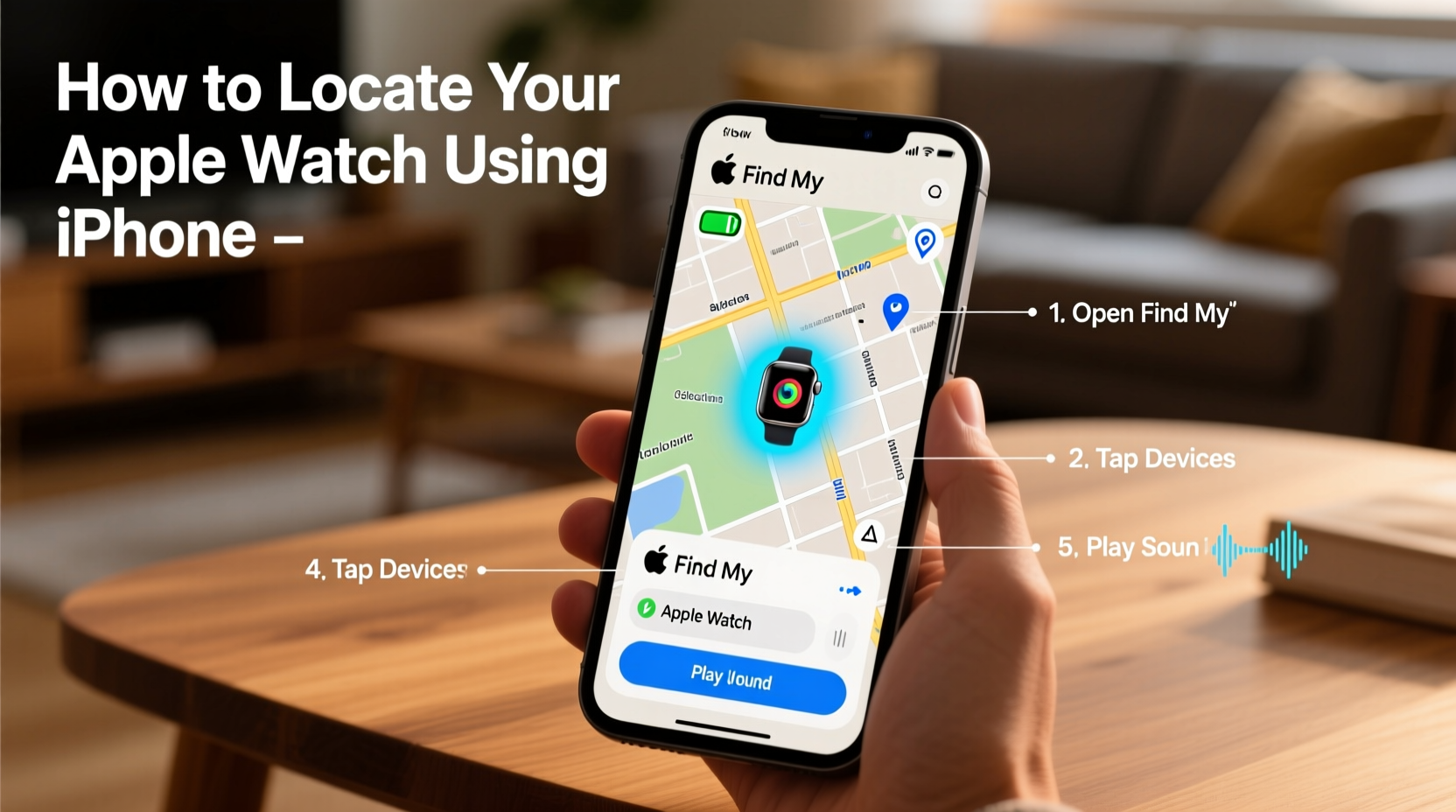
The primary tool for locating your Apple Watch is the **Find My** app on your iPhone. Follow these steps to pinpoint its location:
- Open the Find My app on your iPhone. It comes preinstalled on all modern iOS devices.
- Tap the Devices tab at the bottom of the screen.
- Select your Apple Watch from the list of connected devices. If you own multiple watches, ensure you pick the correct one by checking its name (e.g., “John’s Apple Watch”).
- View its location on the map. If it’s nearby and online, the map will show an accurate blue dot.
- Tap \"Play Sound\" to make your Apple Watch emit a loud, escalating chime—even if it's set to silent mode.
- If the watch is offline, tap “Notify When Found” to receive an alert once it reconnects to Wi-Fi or Bluetooth.
This entire process takes less than 30 seconds and works whether your watch is across the room or miles away.
Alternative Methods When the Find My App Isn't Enough
Sometimes, your watch may not appear in the Find My app due to connectivity issues. Here are alternative strategies:
- Use Siri: Say, “Hey Siri, find my Apple Watch.” Siri will open the Find My app and initiate the search automatically.
- Check via iCloud.com: Open Safari or any browser on your iPhone, go to iCloud.com, sign in with your Apple ID, and click “Find iPhone.” From there, select “All Devices” and choose your Apple Watch.
- Trigger from Apple’s website remotely: Even without your iPhone nearby, logging into iCloud from another device allows you to play a sound or mark the watch as lost.
Note: These options require that Find My [device] was enabled before the watch went missing. Always confirm this setting while your devices are together.
Real-Life Scenario: Finding a Watch Left at the Gym
Consider Sarah, a fitness enthusiast who regularly wears her Apple Watch during spin classes. After a high-energy session, she realizes her watch is gone. Her phone is still in her locker, so she retrieves it and opens the Find My app. The map shows her watch stationary near the cycling studio—likely forgotten on a handlebar.
She taps “Play Sound,” but since no one is around, it won’t help. Instead, she uses the “Directions” feature in the app to navigate back to the gym entrance and contacts staff. Within minutes, a trainer finds the watch tucked under a towel. Because the watch remained powered on and within network range, the system worked flawlessly.
This scenario underscores the importance of acting quickly—and why relying on digital tools beats retracing physical steps.
“The integration between iPhone and Apple Watch through Find My is one of Apple’s most underrated features. It turns what could be a stressful loss into a five-second recovery.” — David Lin, Senior Tech Support Specialist at Apple Authorized Service Provider
What to Do If Your Apple Watch Is Offline or Out of Range
If your Apple Watch appears grayed out in the Find My app, it means it’s offline—either powered off, out of range, or not connected to a network. While you can’t play a sound immediately, you still have options:
- Enable Lost Mode: This locks your watch with a passcode and displays a custom message (e.g., “Please return to 555-1234”) if someone finds it.
- Get notified when found: The system logs the last known location and sends you an update once the watch reconnects.
- Use Precision Finding (if supported): On iPhone 11 and later models, enabling Precision Finding uses Ultra-Wideband technology to guide you to nearby devices with directional arrows and distance readouts.
Even if your watch is offline, the Find My network continues scanning for its Bluetooth signal using nearby Apple devices—without compromising privacy.
Do’s and Don’ts When Searching for Your Apple Watch
| Action | Do | Don’t |
|---|---|---|
| Initial Search | Use Find My app immediately | Panic or retrace every step manually |
| Battery Status | Check battery level in Find My | Assume it’s dead after one hour |
| Lost Mode | Activate it if theft is suspected | Forget to add contact info |
| Sound Feature | Use in quiet environments like bedrooms or offices | Expect it to work beyond 30 feet without obstructions |
Preventive Tips to Avoid Losing Your Apple Watch
While recovery tools are powerful, prevention is always better. Incorporate these habits into your daily routine:
- Set up automatic alerts: Use Shortcuts in the iPhone’s Automation app to notify you if your watch disconnects unexpectedly (e.g., leaving a location without it).
- Label your case: Add a discreet engraving or tag with your phone number.
- Update software regularly: Newer versions of watchOS improve Bluetooth stability and location accuracy in Find My.
- Charge nightly: A consistent charging habit keeps your watch in one place and ensures it’s never fully drained.
Frequently Asked Questions
Can I locate my Apple Watch if it’s turned off?
No, you cannot actively track a powered-off Apple Watch in real time. However, the Find My app will display its last known location before shutdown. If Lost Mode was enabled prior to powering off, the watch remains reportable when powered back on.
Does Find My work without Wi-Fi or cellular?
Yes. Even without direct internet access, your Apple Watch uses Bluetooth to communicate with nearby Apple devices, which anonymously relay its location to the Find My network. This peer-to-peer system works globally and preserves privacy.
Is there a way to make my Apple Watch beep from my Mac?
Not natively. The “Play Sound” feature is only accessible via the Find My app on iPhone or through iCloud.com on a computer. However, if Handoff is enabled, you can start the action on your Mac and finish it on your iPhone seamlessly.
Final Thoughts: Stay Connected, Stay Confident
Losing your Apple Watch doesn’t have to mean replacing it or enduring days of downtime. With the right setup and knowledge, recovery is fast, secure, and often automatic. The synergy between your iPhone and Apple Watch makes the Find My ecosystem one of the most reliable device-tracking systems available today.
Take a moment now to verify that Find My is enabled on your watch: Go to Settings > Apple ID > Find My > Find My Apple Watch and ensure all toggles are on. Then, test the “Play Sound” function to confirm everything works.




 浙公网安备
33010002000092号
浙公网安备
33010002000092号 浙B2-20120091-4
Comments
No comments yet. Why don't you start the discussion?