
Losing your Apple Watch—even for a few minutes—can be more than just inconvenient. Whether it’s buried under couch cushions, left in another room, or accidentally dropped in a bag, the peace of mind that comes from being able to track it instantly is invaluable. The good news: Apple has built seamless tools into its ecosystem that allow you to locate your Apple Watch using your iPhone in seconds. No third-party apps, no complicated setups—just intuitive integration between devices.
This guide walks you through every method available to find your Apple Watch, including real-time location, sound triggers, troubleshooting tips, and what to do if your watch is out of range. Whether you're new to Apple devices or a seasoned user, these techniques will save time and reduce stress when your wearable goes missing.
How the Find My Network Works Across Apple Devices
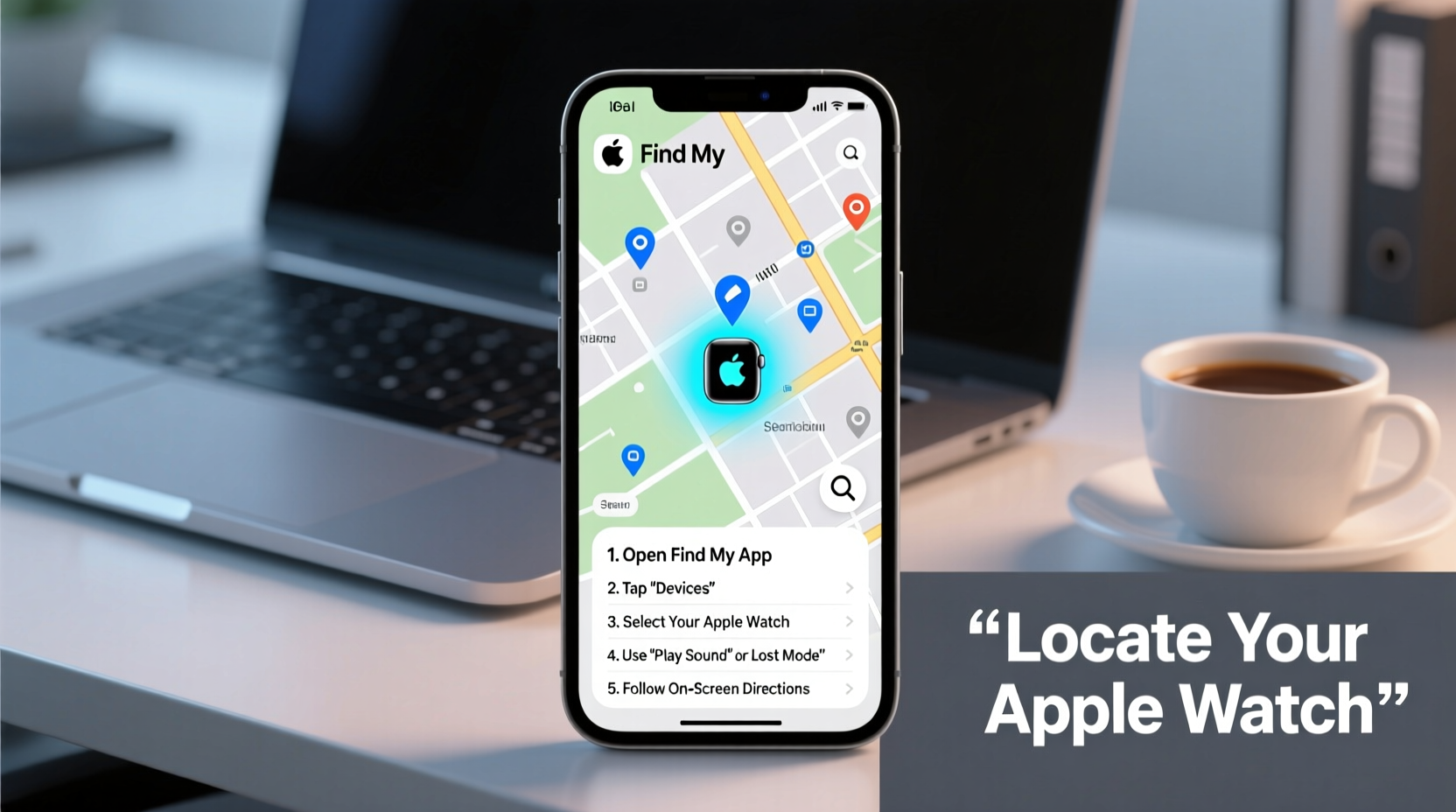
The ability to locate your Apple Watch stems from Apple’s “Find My” network—a secure, privacy-focused system that connects all your Apple devices. When your Apple Watch is within Bluetooth range of any Apple device signed into your iCloud account (like your iPhone, iPad, or Mac), it can be pinpointed using the Find My app.
If the watch is offline or out of direct range, the Find My network leverages a global crowd-sourced Bluetooth detection system. Other nearby Apple devices anonymously detect your watch’s signal and report its last known location back to you—without compromising your data or privacy.
“Apple’s Find My network is one of the most effective lost-device recovery systems because it turns millions of devices into a decentralized tracking grid.” — David Lin, Senior Mobile Security Analyst at TechShield Insights
This infrastructure ensures that even if your Apple Watch isn’t connected to Wi-Fi or cellular, there’s still a strong chance of locating it—provided it hasn't been powered off or reset.
Step-by-Step: Using the Find My App to Locate Your Apple Watch
The primary tool for finding your Apple Watch is the Find My app on your iPhone. Follow this clear sequence to locate your device quickly:
- Unlock your iPhone and open the Find My app (it looks like a blue radar icon).
- Tap the Devices tab at the bottom of the screen.
- Scroll through the list and select your Apple Watch from the registered devices.
- You’ll see its current or last known location on a map.
- If the watch is nearby and within Bluetooth range, tap Play Sound.
- Your Apple Watch will ring loudly—even if it was previously on silent or Do Not Disturb mode—for two minutes or until you stop it.
This process typically takes less than 30 seconds and works whether your watch is lying face-down on a bed or tucked inside a jacket pocket.
What to Do If Your Apple Watch Is Offline
Sometimes, your Apple Watch may not appear online in the Find My app. This usually means it’s either powered off, out of battery, or beyond Bluetooth/Wi-Fi range. Don’t panic—there are still options.
- Check the last known location: The Find My app displays where your watch was last connected. Use this as a starting point to retrace your steps.
- Enable Notify When Found: Tap “Notify When Found” in the app. Once your watch reconnects to any network, you’ll receive an instant alert on your iPhone.
- Use Precision Finding (if supported): On iPhone 11 and later models, if your watch is nearby but hidden, Precision Finding uses Ultra-Wideband technology to guide you with directional arrows and distance estimates.
Note: Precision Finding only works when both your iPhone and Apple Watch are within close proximity and support U1 chip technology (Apple Watch Series 6 or later paired with iPhone 11 or newer).
Troubleshooting Common Issues When Locating Your Watch
Even with Apple’s robust system, users occasionally encounter hiccups. Below is a checklist and table summarizing frequent problems and their solutions.
Quick Troubleshooting Checklist
- ✅ Ensure both devices are signed into the same iCloud account.
- ✅ Confirm that Find My [Device] is enabled on the Apple Watch.
- ✅ Restart your iPhone if the Find My app isn’t loading properly.
- ✅ Make sure Bluetooth and Location Services are turned on.
- ✅ Check that your Apple ID has two-factor authentication enabled.
| Issue | Possible Cause | Solution |
|---|---|---|
| Apple Watch doesn’t appear in Find My | Not linked to your iCloud account | Pair the watch again via the Watch app |
| Can’t play sound | Watch is dead or disconnected | Wait for it to charge or come online |
| Location says “Offline” | No recent network connection | Enable “Notify When Found” and wait |
| Sound plays but watch isn’t found | Battery died mid-ring | Search physically near last known spot |
Real-Life Example: Recovering a Misplaced Watch After a Workout
Jessica, a fitness instructor in Portland, regularly wears her Apple Watch during classes. One evening, after teaching a high-intensity session, she realized her watch was gone. She remembered wearing it during cooldown stretches but couldn’t recall removing it.
She opened the Find My app on her iPhone and saw the watch was last active near the gym’s yoga studio. Tapping “Play Sound,” she walked toward the area. Initially, no sound came through—but then she noticed the watch had slipped between two folded mats. As she approached within ten feet, the loud chime activated, helping her recover it immediately.
Without the Find My feature, Jessica estimated she would have spent hours retracing her day or assumed it was stolen. Instead, she found it in under four minutes.
Frequently Asked Questions
Can I locate my Apple Watch if it’s turned off?
You cannot trigger a sound or real-time tracking if the watch is powered off. However, the Find My app will show its last known location before shutdown. If it powers back on later, you’ll receive a notification if you’ve enabled “Notify When Found.”
Does the Apple Watch need Wi-Fi or cellular to be located?
No. As long as the watch has Bluetooth connectivity and is near any Apple device (including yours), it can be detected. For remote tracking beyond range, Wi-Fi or cellular helps update its location, but the Find My network can still relay anonymous signals via nearby devices even without internet access.
Will playing sound work if my Apple Watch is on Silent mode?
Yes. The “Play Sound” function overrides silent and Do Not Disturb settings. The watch will emit a progressively louder ring for up to two minutes, making it easier to hear even in noisy environments.
Maximizing Success: Pro Tips for Future Prevention
While knowing how to find your watch is essential, preventing loss in the first place adds another layer of security. Consider these habits to minimize future incidents:
- Name your devices clearly: Instead of “Lisa’s Watch,” use “Lisa – Silver SE” to distinguish between models.
- Keep software updated: New iOS and watchOS versions improve Find My reliability and add features like offline finding enhancements.
- Use a protective case with a pop of color: A bright band or case makes your watch easier to spot visually.
- Review Find My settings monthly: Go to Settings > [Your Name] > Find My > Find My [Device] and verify everything is active.
Final Thoughts: Stay Connected, Stay Confident
Losing your Apple Watch doesn’t have to mean losing your day. With the Find My app, precise sound alerts, and Apple’s vast anonymous detection network, recovery is often quick and effortless. The key is preparation: ensuring features are enabled, understanding how the system works, and acting promptly when something goes missing.
Take a moment today to verify that Find My is turned on for all your devices. It takes less than a minute and could save you significant stress tomorrow. Technology should simplify life—not complicate it. By mastering these simple steps, you reclaim control and confidence every time you wear your watch.




 浙公网安备
33010002000092号
浙公网安备
33010002000092号 浙B2-20120091-4
Comments
No comments yet. Why don't you start the discussion?