
Switching between Facebook accounts is a common need for individuals managing personal and professional profiles, family members sharing devices, or users testing content across multiple identities. While Facebook allows quick switching on some platforms, logging out completely and accessing another account requires precise steps depending on your device. Whether you're using an iPhone, Android phone, Windows PC, or iPad, the process varies slightly—but with the right guidance, it becomes effortless.
Understanding how to securely log out and re-enter a different account ensures privacy, prevents accidental posts, and maintains control over your digital presence. This guide walks through every method, highlights best practices, and offers troubleshooting tips for smooth transitions across all major platforms.
Why Logging Out Matters
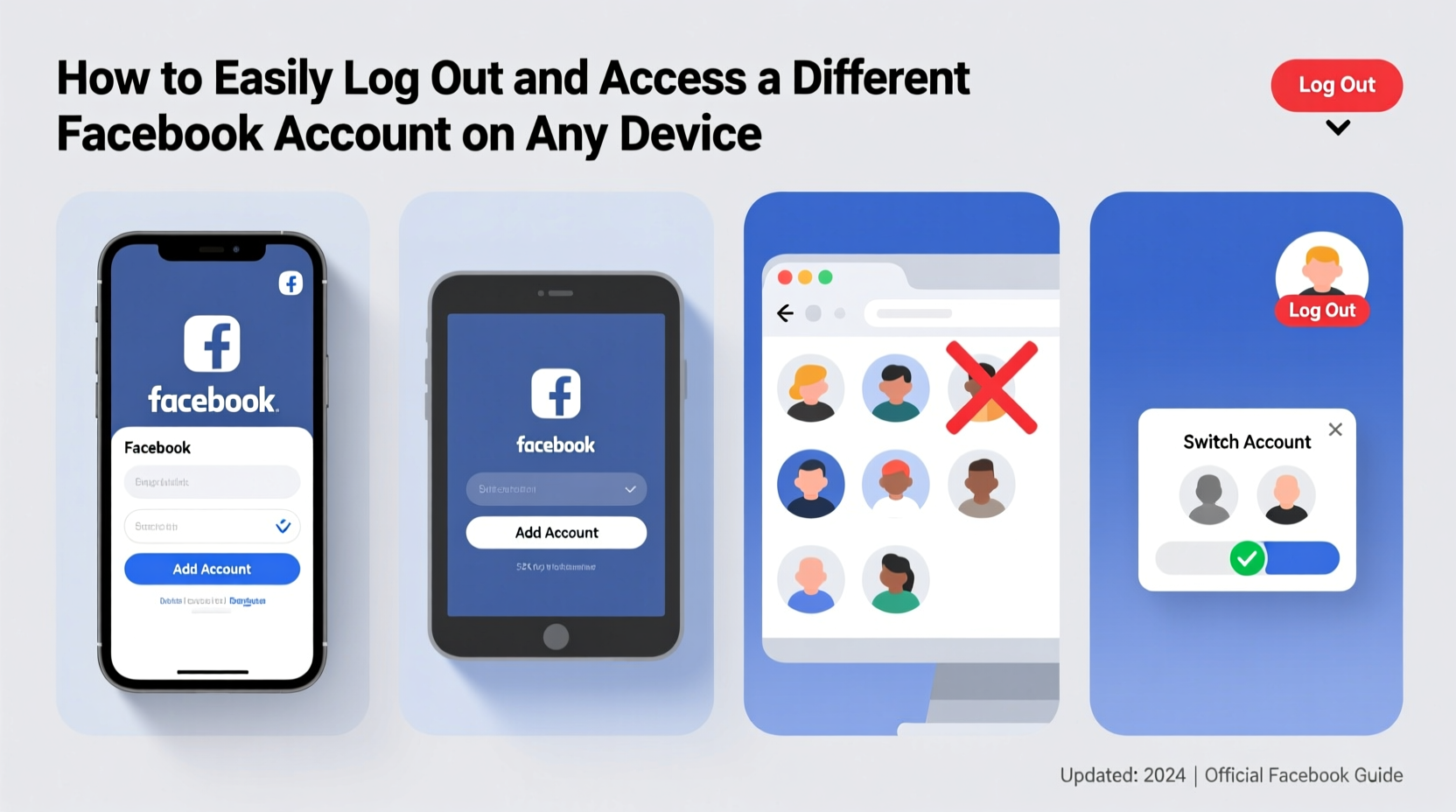
Many users assume that closing the Facebook app or browser tab ends their session. However, this often leaves the account active in the background, especially on mobile devices. Remaining logged in poses risks such as unauthorized access, data exposure, or unintended activity under your identity.
Logging out fully removes authentication tokens from the device, ensuring no one else can resume your session. This is particularly important when using shared computers, public Wi-Fi networks, or borrowing a friend’s phone. A complete logout followed by logging into another account guarantees clean separation between profiles.
Step-by-Step: Logging Out & Switching Accounts
On Mobile Devices (iOS and Android)
The Facebook app supports multiple account switching without full logout, but if you want to completely exit and log in as someone else, follow these steps:
- Open the Facebook app.
- Tap your profile picture or the menu icon (three horizontal lines) in the bottom-right (iOS) or top-right (Android).
- Scroll down and tap Log Out.
- Confirm when prompted. The app will return to the login screen.
- Enter the email/phone and password for the new account.
- Tap Log In.
If two-factor authentication (2FA) is enabled on the new account, enter the code sent via SMS or generated by an authenticator app.
Note: Some Android devices allow adding multiple user profiles, which can host separate Facebook logins independently. This adds an extra layer of isolation beyond app-level logout.
On Desktop (Windows, macOS, Linux)
When using Facebook through a web browser like Chrome, Firefox, or Safari, logging out is straightforward but often overlooked due to saved passwords and auto-login features.
- Navigate to facebook.com.
- Click your profile picture in the top-right corner.
- Select Log Out from the dropdown menu.
- Wait for redirection to the login page.
- Clear cookies if necessary (see next section).
- Enter credentials for the desired account.
After logging out, always verify that the URL returns to the standard login interface and not a cached version of your timeline.
Using Facebook’s Built-in Account Switcher
For convenience, Facebook offers a feature called “Switch Account” within the app and website. This does not fully log you out but temporarily accesses another linked profile.
- In the app: Tap your profile picture → scroll to \"Switch Account\" → select another profile or add a new one.
- On desktop: Click your profile picture → hover over your name → choose \"Add Account\" or switch.
This method keeps both accounts active simultaneously. It's useful for regular toggling but not suitable when security or full disconnection is required.
“While account switching saves time, it increases risk if the device falls into the wrong hands.” — Lena Patel, Cybersecurity Consultant at Digital Shield Labs
Clearing Cache and Cookies: When and Why
Even after logging out, residual data like cookies may retain traces of your session. On shared or public computers, failing to clear this data could allow others to restore your login automatically.
To ensure complete removal:
- After logging out, go to your browser settings.
- Navigate to Privacy & Security → Clear Browsing Data.
- Select “Cookies and other site data” and “Cached images and files.”
- Set time range to “All time” and confirm deletion.
Alternatively, use keyboard shortcuts: Ctrl+Shift+Delete (Windows) or Cmd+Shift+Delete (Mac) to open the clear-data panel directly.
| Device Type | Logout Method | Recommended for Shared Use? |
|---|---|---|
| iPhone/iPad App | Settings → Log Out | No, unless combined with device passcode |
| Android App | Menu → Log Out | Only if paired with app lock |
| Desktop Browser | Log Out + Clear Cookies | Yes, with proper cleanup |
| Public Computer | Log Out + Private Mode + Cookie Wipe | Yes, safest approach |
Troubleshooting Common Issues
Sometimes, logging out doesn't work as expected. Here are frequent problems and solutions:
- Stuck on loading screen after logout: Force-close the app and reopen. Check internet connection.
- Login fails despite correct password: Ensure Caps Lock is off; try resetting password if needed.
- Old account still appears after logging in: Clear app cache (Android) or reinstall the app (iOS).
- Browser auto-fills old credentials: Remove saved password from browser settings.
Mini Case Study: Sarah’s Office Mix-Up
Sarah, a social media manager, used her personal phone to check her client’s Facebook Page during lunch. She tapped “Switch Account,” posted an update, and assumed she was done. Later that evening, she opened Facebook to share a photo with friends—only to discover she had accidentally posted it from the client’s profile. Her audience saw a personal vacation snap under a corporate brand.
The issue? She never fully logged out. The app remained logged into both accounts. After consulting IT support, she learned to always tap “Log Out” instead of relying on switching. Now, she uses separate browsers for work and personal accounts—one in standard mode, the other in Incognito—to prevent future errors.
Checklist: Secure Account Transition
Follow this checklist every time you plan to switch Facebook accounts on any device:
- ✅ Close all Facebook tabs or background apps
- ✅ Log out explicitly via settings (not just close app)
- ✅ Clear cookies/cache on browsers (especially public machines)
- ✅ Disable auto-fill for Facebook credentials
- ✅ Enable two-factor authentication on both accounts
- ✅ Verify login location and device in Security Settings afterward
Frequently Asked Questions
Can I be logged into two Facebook accounts at once?
No, Facebook does not allow simultaneous logins from the same app or browser session. However, you can switch between up to five added accounts in the app or use different browsers (e.g., Chrome for personal, Firefox for business).
Does logging out delete my messages or photos?
No. Logging out only ends your current session. All messages, photos, and posts remain intact and accessible upon re-login with valid credentials.
How do I know I’ve successfully logged out?
You’re logged out when the Facebook homepage shows the login form—not your News Feed. On mobile, the app should display the welcome screen with options to log in or create an account.
Final Thoughts and Best Practices
Managing multiple Facebook identities doesn’t have to be complicated, but it demands attention to detail. Whether you're a parent helping a teenager access their profile, a freelancer handling client pages, or simply switching from work to personal life, taking a moment to log out properly protects your reputation and data.
Adopt habits like using private browsing, disabling password saves on shared devices, and double-checking your active account before posting. These small actions prevent big mistakes. Technology should serve you—not expose you.




 浙公网安备
33010002000092号
浙公网安备
33010002000092号 浙B2-20120091-4
Comments
No comments yet. Why don't you start the discussion?