
In today’s digital world, subscriptions have become a core part of how we use apps. From fitness trackers to streaming services and productivity tools, many apps offer recurring billing models that are convenient—until they’re not. It's easy to sign up for a free trial and forget about it, only to find charges months later. The good news? Managing and canceling App Store subscriptions doesn’t have to be confusing or time-consuming. With the right approach, you can take full control of your digital expenses in minutes.
Understanding App Store Subscriptions
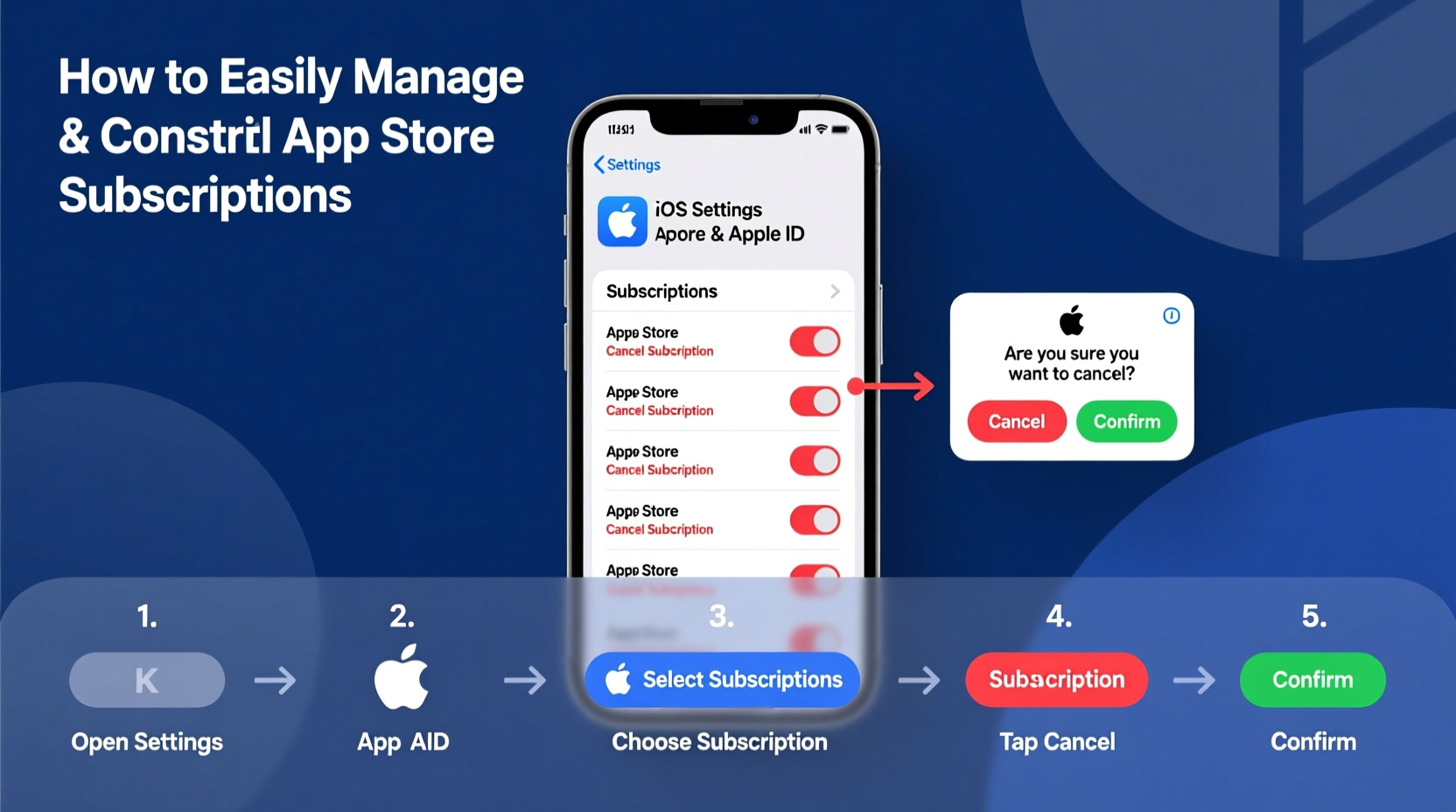
Apple’s App Store uses a centralized subscription system tied directly to your Apple ID. This means all subscriptions—whether from a meditation app, cloud storage service, or premium news outlet—are managed through one secure location on your device or via iCloud. Unlike third-party platforms where you might need to visit individual websites, Apple provides built-in tools to view, modify, or cancel any active subscription with just a few taps.
Subscriptions typically fall into categories like:
- Free trials (often auto-renewing unless canceled)
- Monthly or annual plans
- Family sharing-enabled subscriptions
- Introductory pricing offers
Because these renew automatically, oversight is common. A 2023 consumer report found that nearly 40% of iPhone users were paying for at least one unused subscription. The key to avoiding wasted spending lies in proactive management.
Step-by-Step Guide to Managing Subscriptions on iPhone or iPad
Managing your App Store subscriptions is straightforward when you know where to look. Follow this timeline to gain full visibility and control:
- Open Settings – Tap the Settings app on your home screen.
- Tap Your Name – At the top of the menu, select your Apple ID profile.
- Select “Subscriptions” – This will display a list of all active subscriptions linked to your account.
- Review Each Subscription – Tap any listing to see details: renewal date, price, billing cycle, and usage.
- Edit or Cancel – Choose “Cancel Subscription” if you no longer want it, or “Change Plan” to downgrade or upgrade.
- Confirm Action – If canceling, confirm your decision. Note: You’ll retain access until the current billing period ends.
This process takes less than five minutes and requires no external login or customer support interaction. Once canceled, Apple sends a confirmation email, and the subscription disappears from your list after expiration.
What Happens After Cancellation?
After canceling a subscription, you don’t lose access immediately. Apple honors the paid period, so if you paid $9.99 for a month on June 5th and cancel on June 20th, you’ll still have full access until July 5th. No refunds are issued for partial months, but you won’t be charged again.
“Apple’s unified subscription dashboard gives users more transparency and control than most digital platforms.” — Lisa Tran, Digital Privacy Analyst at TechWatch Global
Managing Subscriptions via Mac or iCloud.com
If you're not near your iOS device, you can still manage subscriptions from a Mac or any web browser:
- On Mac: Open the App Store app → Click your profile icon in the bottom left → Select \"Account Settings\" → Scroll to \"Subscriptions\" → Manage as needed.
- Via iCloud.com: Visit appleid.apple.com or iCloud.com, sign in with your Apple ID, go to Account Settings, and navigate to Subscriptions.
The interface mirrors the mobile version, allowing you to pause, switch, or terminate services remotely. This flexibility ensures you’re never locked into a plan simply because you forgot to cancel while traveling or switching devices.
Common Pitfalls and How to Avoid Them
Even with Apple’s streamlined system, users often make mistakes that lead to unnecessary charges or confusion. Below is a summary of what to watch out for:
| Do’s | Don’ts |
|---|---|
| Check subscription details before free trials end | Assume a free trial won’t convert to paid automatically |
| Use family sharing to consolidate shared costs | Share your Apple ID with others for separate accounts |
| Download your purchase history for budget tracking | Rely solely on email reminders (they can get filtered) |
| Set calendar alerts for upcoming renewals | Wait until after being charged to cancel |
Mini Case Study: Recovering Control After Unnoticed Charges
Sarah, a freelance designer from Portland, noticed a $12.99 monthly charge from a design toolkit she used briefly during a project. She didn’t recall signing up permanently and assumed it was a one-time fee. After reviewing her bank statement, she realized the charge had been ongoing for six months—totaling $77.94.
She opened her iPhone Settings, tapped her name, selected Subscriptions, found the inactive tool, and canceled it immediately. Though she couldn’t reclaim past payments, she stopped future charges and set a reminder to audit subscriptions quarterly. Since then, she’s saved over $200 annually by proactively managing digital memberships.
Essential Checklist for Subscription Management
To maintain long-term control over your App Store spending, follow this actionable checklist:
- ✅ Log in to your Apple ID subscriptions page at least once per quarter
- ✅ Identify all active, paused, and expired subscriptions
- ✅ Cancel any service you haven’t used in the last 30 days
- ✅ Downgrade premium plans if basic features meet your needs
- ✅ Use Family Sharing for eligible subscriptions to reduce individual costs
- ✅ Set calendar reminders for renewal dates of essential subscriptions
- ✅ Download and archive your purchase history annually for tax or budget review
Frequently Asked Questions
Can I get a refund after canceling a subscription?
Apple does not issue automatic refunds upon cancellation, as you retain access for the duration of the paid period. However, if you were charged unexpectedly, enrolled without consent, or experienced a technical error, you may request a refund via reportaproblem.apple.com. Success depends on timing and justification, but many users receive approvals within 48 hours.
Why can’t I see a subscription I know I signed up for?
If a subscription isn’t appearing in your list, verify that you used the correct Apple ID. Some apps allow sign-up through third-party providers (like Google or Facebook), which bypass Apple’s billing system. In such cases, you must manage the subscription directly through the provider’s website or app. Always check whether billing was processed via Apple or externally.
Is it possible to pause a subscription instead of canceling?
Apple doesn’t offer a universal “pause” feature, but some developers provide options to skip a billing cycle or extend free access. Look for “Skip Renewal” or “Extend Trial” within the subscription settings. Alternatively, cancel now and resubscribe later when needed—many services honor previous discounts or trial eligibility within a grace period.
Take Charge of Your Digital Spending Today
Managing App Store subscriptions isn’t just about saving money—it’s about intentionality. Every recurring charge should serve a purpose in your daily life, whether enhancing productivity, health, or entertainment. By taking just ten minutes each quarter to review your commitments, you reclaim both financial clarity and digital peace of mind.
Start today: open your Settings, tap your name, and dive into your subscription list. Cancel what you don’t use, optimize what you keep, and build a leaner, smarter app ecosystem tailored to your real needs—not forgotten trials or impulse upgrades.




 浙公网安备
33010002000092号
浙公网安备
33010002000092号 浙B2-20120091-4
Comments
No comments yet. Why don't you start the discussion?